Caching and Output
Use the in-memory cache for interactive iteration. Use Output Cache or Alembic when the result must persist independently of the live solver.
Where to find it
- Interactive cache: 3D Viewport > Sidebar > Pro Particles > Global Settings.
- Initial State: 3D Viewport > Sidebar > Pro Particles > Global Settings > Initial State.
- Persistent output in Lists: Pro Particles > Output.
- Persistent output in Nodes: Pro Physics > Shift+A > Output, then route the result to Simulation Output / Outputs.
Choosing a cache or export
| System | Use it for |
|---|---|
| In-Memory Cache | fast iteration, replay and timeline scrubbing during an editing session |
| Initial State | save a completed simulation frame as the starting state for subsequent runs |
| Output Cache | persistent Pro Particles Studio geometry/cache output from supported final geometry sources |
| Alembic | portable final particle or geometry export |
| Simulation Output | declare the final Particle, Geometry, Pyro and persistent Output branches in Nodes |
For exact Output-node socket rules, see Post Effect and Output Nodes.
Pro Particles Studio separates fast interactive caching from persistent final output. The global in-memory cache stores simulation frames for iteration; the Output tab stores selected post-effect results or writes Alembic.
Lists and Nodes
Lists
Use the Output tab to add Output Cache or Alembic entries. Output Cache can contain multiple Geometry Sources in one bake definition. Alembic selects one source from its source selector.
Nodes
Output is part of the graph and the source is supplied by a link:
- Finish the simulation stream and connect all required branches and effects before output.
- For Output Cache, connect one post effect's Result output (Point Cloud, Trails, Instance, Mesher or Dendrite), or one Geometry output from Cloth, Soft Body, Strands or Dynamic Collider, to the Geometry input of an Output Cache node.
- For Alembic, connect exactly one supported final Particle or Geometry source to an Alembic node.
- Connect each output node's Output socket to Simulation Output / Outputs.
- Select the output node and use its inspector to set paths, range, versioning, coordinates, and attributes.
- Run Bake Output Cache, Clear Output Cache, or Export Alembic from the selected node's inspector.
Each Nodes output accepts exactly one source. Use multiple Output Cache nodes when several graph Geometry streams need separate cache definitions. A raw particle stream cannot feed Output Cache; add a geometry-producing post effect first. Alembic can accept the final merged particle stream directly. Output nodes reject intermediate state, so connect them after all simulation effects that belong to the final result.
For a Dynamic Collider, connect its Geometry output to Output Cache or Alembic. Keep its Particles output connected to the complete simulation stream. The export contains the collider's final pose for each frame, including motion caused by particle or Pyro interaction.
Interactive In-Memory Cache
Use In-Memory Cache: stores requested Blender Geometry in RAM for responsive timeline scrubbing, including Point Cloud, Trails, Instance, Mesher, Dendrite, Cloth, Soft Body, and Strands outputs. Geometry remains cacheable in mixed setups where other outputs use GPU Preview.Memory Cache (MB): limits RAM used by the cache. Old frames are released as required by the budget.- Reset clears the in-memory cache. Use Output Cache to keep finished frames for playback after reopening the project.
Initial State
Expand Initial State in Global Settings. The collection contains independent, named captures. Folder is shared by every entry in this scene; each capture uses its own subfolder. Other files and caches in the folder are unaffected. An empty Folder uses the saved .blend file's folder. A // relative path requires a saved .blend file.
Captures use .ppstate files. Keep the capture subfolder intact, including its Pyro file when present. The files store simulation state and are separate from JSON setup presets.
Capture and combine states
- Add an entry with +, name it and choose its Scope and target.
- Simulate to the desired frame and choose Capture Current Frame. Review the captured population and any included dependencies, then confirm Save State.
- To tune another part independently, disable this entry or Use Initial State, adjust the setup and simulate again. Add and capture another entry at its own chosen frame. Existing captures remain unchanged.
- Enable the entries you want to combine and enable Use Initial State. Reset the simulation. Their saved states are placed together at the scene start frame; subsequent frames continue from that combined state.
For example, capture Group Sand at frame 60, disable that entry while tuning Cloth, then capture the Cloth Emitter at frame 100. Enabling both starts the next run with the sand from frame 60 and the cloth from frame 100. The displayed Captured Frame belongs to each entry independently.
| Scope | Captured state |
|---|---|
| Entire Simulation | Complete Particle simulation, deformable bodies and Dynamic Colliders, including coupled Pyro where present. Enable this entry on its own. |
| Group | Particles currently in the selected Group, complete Cloth, Soft Body and Strands sources in that Group, and Dynamic Colliders assigned to it. Unselected populations retain their normal start state. |
| Emitter | One Emitter, including all its Sources, particles and deformable bodies. The Emitter continues its remaining emission duration and fractional emission progress. |
| Dynamic Collider | One body's simulated position, rotation and motion. Other bodies keep their normal start state. |
Linked particles, bonded structures, connected deformable bodies and Dendrite families are captured together where needed. The confirmation shows when this extends the selection beyond the requested Group. Overlapping enabled captures are rejected; disable or replace one of them. This also prevents the same population from loading twice after a particle has changed Group.
If new links connect the starting population to additional uncaptured particles, loading is rejected. Capture the complete connected structure again.
Replace Capture updates only the selected entry after the new capture is saved successfully. Delete Initial State asks for confirmation and removes that entry and its capture. Disabling an entry keeps its files. The shared Folder and other entries remain unchanged.
Pyro, Lists and Nodes
For a partial entry in a coupled scene, Include Pyro State also captures all coupled Pyro fields and collider effect maps. Only one enabled entry may supply Pyro fields. Complete both simulations at the same frame before capturing that entry. Without this option, the partial Particle state loads alongside Pyro's normal initial configuration. Entire Simulation includes coupled Pyro automatically.
The collection and Folder are shared scene controls in Lists and Nodes. Add Initial State shortcuts are available in Group settings and in Emitter settings; the Nodes inspector offers the Emitter shortcut when it identifies one active Emitter instance. Captures belong to the authoring mode used when saving. Capture a new initial state after switching between Lists and Nodes; captures do not transfer between modes.
Continuing and changing the setup
Captures preserve particle age, material state, complete deformable state, delayed Events, Dendrite geometry and saved Trail history. Partial captures preserve the current setup's material controls and Dynamic Collider mass and damping. Changes to effects influence subsequent frames. Keep captured Emitters, owning FLIP/MPM effects and materials available. Adding or removing Sources from a captured Emitter, changing a captured body's mesh topology, or changing a Dynamic Collider's mesh or scale requires a new capture. Changed Physics Event rules also require a new capture. Rate limits, cooldowns and accumulated strength for an Event rule shared across selected and unselected populations start from the new run; rules scoped entirely to the captured Group or Emitter retain their saved progress.
Live Trail history displayed through GPU Preview starts again at the scene start frame. This also applies to Blender Geometry generated from that same live history. Use Output Cache to preserve displayed geometry for playback.
Capturing and loading large simulations can take time and need temporary memory and disk space. Capturing only part of a simulation can still produce large files. Initial State files belong to the scene and are not embedded in setup presets; capture new states after applying a preset.
Initial State continues a live simulation. It does not change Blender source objects or their animation. Use Output Cache or Alembic to play the result without recalculating the simulation.
Output Tab
Add outputs with Add Output.... Every output has a Type and Enabled switch. Output entries are independent, so a scene can keep multiple cache/export definitions.
Output Cache
Output Cache bakes one or more selected geometry sources for stable, solver-free playback of final presentation streams. Each selected Point Cloud (particle geometry), Trails, Instance, Mesher, Dendrite, Cloth, Soft Body, or Strands source is evaluated as Blender Geometry while baking, even when its live display is set to GPU Preview. Upres detail is included through the downstream post effects that consume it.
Dynamic Collider sources store the visible mesh and its simulated motion. In Lists, choose the collider in Add Source to include it alongside other geometry sources. Playback restores the baked geometry, UVs, face smoothing and material assignments. Keep the source mesh and its materials in the .blend file. Material shaders remain scene assets. Re-bake after changing the collider mesh or its appearance. Make Loop does not support Dynamic Colliders.
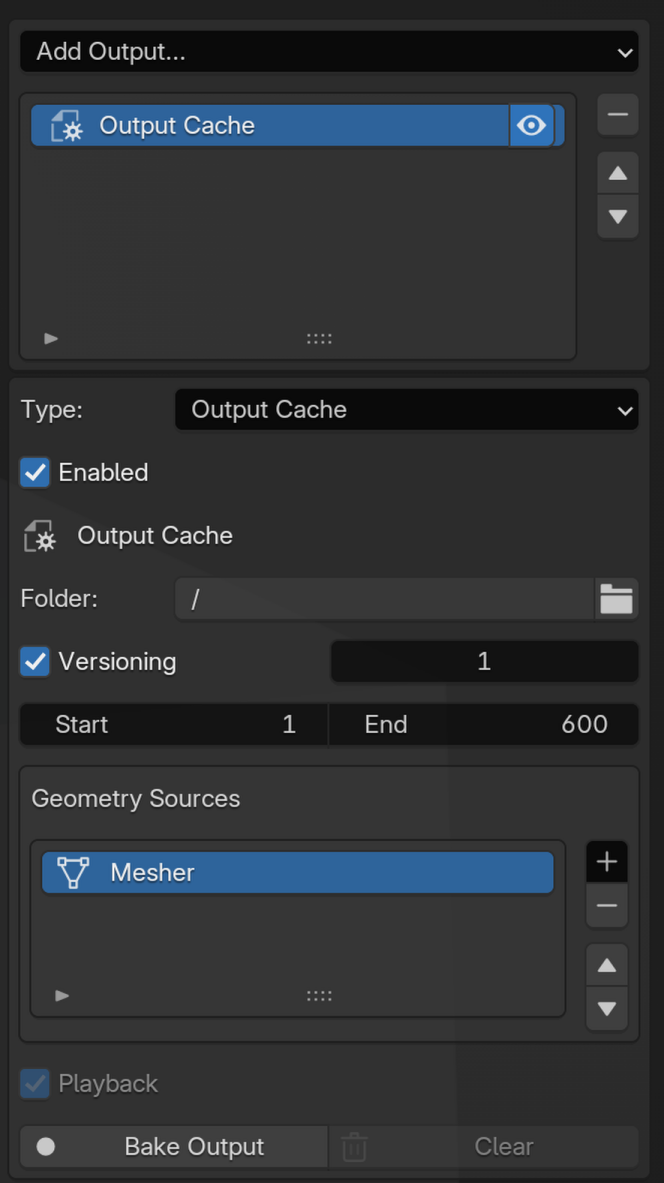
Folder: destination folder for the output cache. Blender-relative paths beginning with//are supported when the .blend file has been saved; relative cache operations stay disabled while the project is unsaved.Versioning: stores each bake in a numbered subfolder such asv0001,v0002, and so on inside this Output Cache's own folder. Without Versioning, the bake uses itscurrentsubfolder.Version: selects the active numbered cache version when Versioning is enabled.Start/End: bake frame range.Make Loop: for Point Cloud sources, bake additional simulation frames and blend their continued particles into the beginning of the selected range. Playback repeats the baked range outsideStart/End.Blend Frames: length of the transition at the beginning of the loop. It must be at least 2 frames and shorter than the loop range.Geometry Sources: multi-selection list of post effects and deformable emitters whose output streams are written by this cache. Sources can be added, removed, and reordered.Playback: reads the baked output when cache frames exist. While Output Cache playback is enabled, Pro Particles Studio enables Blender'sLock Interfacerender safety setting so frame-change handlers can update cached geometry safely during animation rendering; the previous setting is tracked and restored when playback is disabled.Bake Output: evaluates the selected source outputs over the frame range and writes them to disk. Playback starts only after every frame has been written successfully. If a write fails or takes too long, Blender shows an error and leaves Playback off; check the Folder and available disk space before baking again.Clear: asks for confirmation, then removes only the selected bake. The selected Folder and other files remain untouched. Baking or clearing stops if the cache's own subfolder contains data from another source or extra files.
Point Cloud loops
Enable Make Loop on an Output Cache that contains only Point Cloud sources, choose Start, End, and Blend Frames, then use Bake Output. The bake simulates through End + Blend Frames - 1 and builds a repeating presentation cache. Re-bake after changing the range or blend length. In Nodes, set these controls on the Output Cache node and connect a final Point Cloud output. Mixed source types are rejected while Make Loop is enabled.
The first cached frame continues the particle motion from the last frame. During the blend, the continued particles shrink away while particles from the beginning of the simulation grow in. Unrelated particle positions are never interpolated. This is a visual transition, not a cyclic solver state: the two groups do not interact during the blend. Keep particle lifetimes shorter than the loop range to avoid showing the same long-lived particle twice. Sparse, large particles can reveal both groups or a change in apparent size. Fluid surfaces, trails, instances, and deformables are not supported by Make Loop.
A convincing loop requires the visible particle distribution and motion near Start and End to be similar. Make Loop blends the transition but cannot make a strongly changing simulation seamless.
Set Start after enough simulation warmup for the particle population to stabilize. Use a steady or repeating emission pattern and keep animated emitters, colliders, and other visible scene elements periodic over the same frame range. Those Blender objects are not altered by the cache. The overlap adds simulation time and temporary disk use during baking; Point Cloud output is evaluated as Blender Geometry even when its live display uses GPU Preview. Test the rendered transition before using it in a final shot.
After baking, Loop Check appears with the Output Cache settings in Lists and on the Output Cache node in Nodes only when it finds warnings. It warns if the beginning has much less total point area than the continued simulation, if point area changes by at least two times during the blend, if the blend contains no visible points, or if a selected particle emitter's configured lifetime reaches the loop length. Point area is estimated from the sum of squared point radii. The lifetime check respects Point Cloud emitter filters; group filters are not considered. The check does not account for camera angle, occlusion, particle positions, child particle lifetimes, or animated scene objects. A bake without warnings still needs a visual check at the transition. These warnings do not block playback.
Alembic
Source: chooseParticles,Mesher,Trails,Dendrite,Point Cloud,Instance,Cloth,Soft Body,Strands, orDynamic Collider.- The source selector below it chooses the specific post effect or deformable emitter. Export evaluates that source independently of its live GPU Preview or Blender Geometry display setting.
- For Cloth, Soft Body, and Strands with reduced simulation resolution, Alembic writes the visible high-resolution shape. Strand and Trail curves include their visible thickness.
- For Dynamic Collider, select the Collider to export its visible mesh with translation, rotation, scale and surface velocity for each frame. This also works without particle emitters, including colliders moved by Pro Pyro. The file contains animated mesh geometry; material shaders remain separate scene assets.
- Point Cloud writes its filtered final points, resolved radius/color, and selected public attributes. Instance writes its final point carriers with resolved color, orientation, scale, source index, forward axis, and selected public attributes; source meshes remain external instancing assets rather than being duplicated into the Alembic point stream.
- Particles includes the final enabled Upres detail stream. Upres modifies the particle stream and is not listed as a separate presentation source.
File: Alembic destination file.Start/End: export frame range.Coordinates: choose Blender Z-Up or Alembic Y-Up coordinates.Export Alembic: writes the selected source over the configured range.
Particle Alembic Attribute Profiles
Profile:Basic,All, orCustom. Position is always exported.- Custom core attributes: Color, Velocity, Radius, ID, Rotation, Life, Group ID, and Mass.
- Custom Pyro attributes: Smoke, Temperature, Fuel, and Flame.
- Custom user data: User Float 1, User Float 2, User Integer, and User Vector.
- When the Alembic source is Mesher,
ColorandVelocityindependently control exported mesh attributes.
Production bake workflow
- Save the
.blendfile before using a//relative path. - Confirm the final frame range and test representative frames with the live solver.
- Choose Output Cache for playback in Pro Particles Studio without recalculating, or Alembic to use the animation in other applications.
- Select only final post-effect streams. Avoid caching an intermediate presentation result that does not include the required Upres or final filter state.
- Enable Versioning when iterations must coexist. Verify the active Version before baking or clearing.
- Bake a short range and enable Playback to test path access, geometry, materials, and render updates.
- Disable or bypass the live simulation as appropriate and scrub the baked range.
- Bake the production range only after the short validation succeeds.
- For Alembic, import a test export into a clean scene or downstream application and verify coordinate orientation and required attributes.
Troubleshooting
- A relative Folder control is disabled: Save the
.blendfile so//can resolve. - A Nodes Output Cache rejects the connection: It requires one supported Geometry output, not an unprocessed particle stream. Add Point Cloud, Instance, Trails, Mesher, Dendrite, or use deformable Geometry.
- A Nodes particle export reports an incomplete stream: Merge Selected and Remaining and place the output after all effects.
- Playback did not enable after baking: The complete range must write successfully. Check the destination, permissions, disk space, and reported frame.
- The bake is missing Upres detail: Cache or export the downstream geometry source that consumes the Upres-modified stream.
- Clear does not remove unrelated files: Each Output Cache uses its own subfolder under the selected Folder. If that subfolder contains unknown files, move them elsewhere before baking or clearing.
- A render does not update cached geometry: Confirm Output Cache Playback. Pro Particles Studio manages Blender's Lock Interface setting while playback is enabled.