13. Drape and Pin Cloth
Drape a mesh over a sphere, then hold two corners with a Pin Strength Map.
Create the Cloth scene
Start with a new Blender file and Start with Lists. This lesson does not continue the fountain. Set 24 fps, frames 1–72, and Substeps 4. Delete the default cube and keep one Emitter.
Cloth is an Emitter Type that deforms a mesh surface. It uses the mesh's connected vertices instead of emitting independent particles. Rate, Duration and Lifetime from the fountain are not the controls for this setup.
Prepare the meshes
- Add a plane named
Cloth Source,4 × 4 m, at Location(0, 0, 2.8). Apply Scale. - In Edit Mode, select all and Subdivide with Number of Cuts
40. This gives42 × 42vertices. Return to Object Mode and use Shade Smooth. Keep the source flat. - Add a UV Sphere named
Sphere Collider, Radius1 m, Location(0, 0, 1), with64segments and32rings. Apply Scale and use Shade Smooth. - Add a cube named
Ground, Dimensions(12, 12, 0.3), Location(0, 0, -0.15). Apply Scale. Its top is atZ = 0.
The subdivided plane supplies the points that form folds. A plane with only four vertices cannot produce this drape. Keep the dimensions and subdivision fixed while comparing material settings.
Configure Cloth and contact
- Set the Emitter Type to Cloth. In Mesh Sources, use a Surface source and assign
Cloth Source. Replace the starter source if necessary. Keep Simulation Resolution: Full. - Set Start Frame
1, Initial Velocity(0, 0, 0)and Display: Geometry. - Use these material settings:
| Control | Value | Purpose |
|---|---|---|
| Cloth Solver | Local XPBD | General Cloth solver for this exercise |
| Solver Quality | 8 |
Material accuracy for this mesh |
| Density | 1 |
Material mass |
| Stretch Stiffness | 0.9 |
Resists length changes |
| Shear Stiffness | 0.7 |
Resists diagonal distortion |
| Bending Stiffness | 0.12 |
Allows the surface to fold |
| Damping | 0.08 |
Reduces continued oscillation |
| Collision Thickness | 0.02 m |
Contact spacing |
| Collision Friction | 0.25 |
Material contact friction |
Add forces and contact
- Enable Self Collision. Disable Particle Interaction, Deformable Interaction, Pyro Interaction, Balloon, Plasticity and Tearing. Leave Pin Strength Map empty for the first run.
- Add Gravity, Force
(0, 0, -9.81). Enable its Cloth domain. - Add two Collision effects, one for
Groundand one forSphere Collider. Enable Cloth on both; set Bounciness0and Friction0.35. Keep their other controls at defaults. - Replay from frame
1through72.
Cloth creates its own visible surface. A Point Cloud post effect is unnecessary here. The Collision effects handle scene objects; Self Collision handles folds touching other parts of the same cloth.
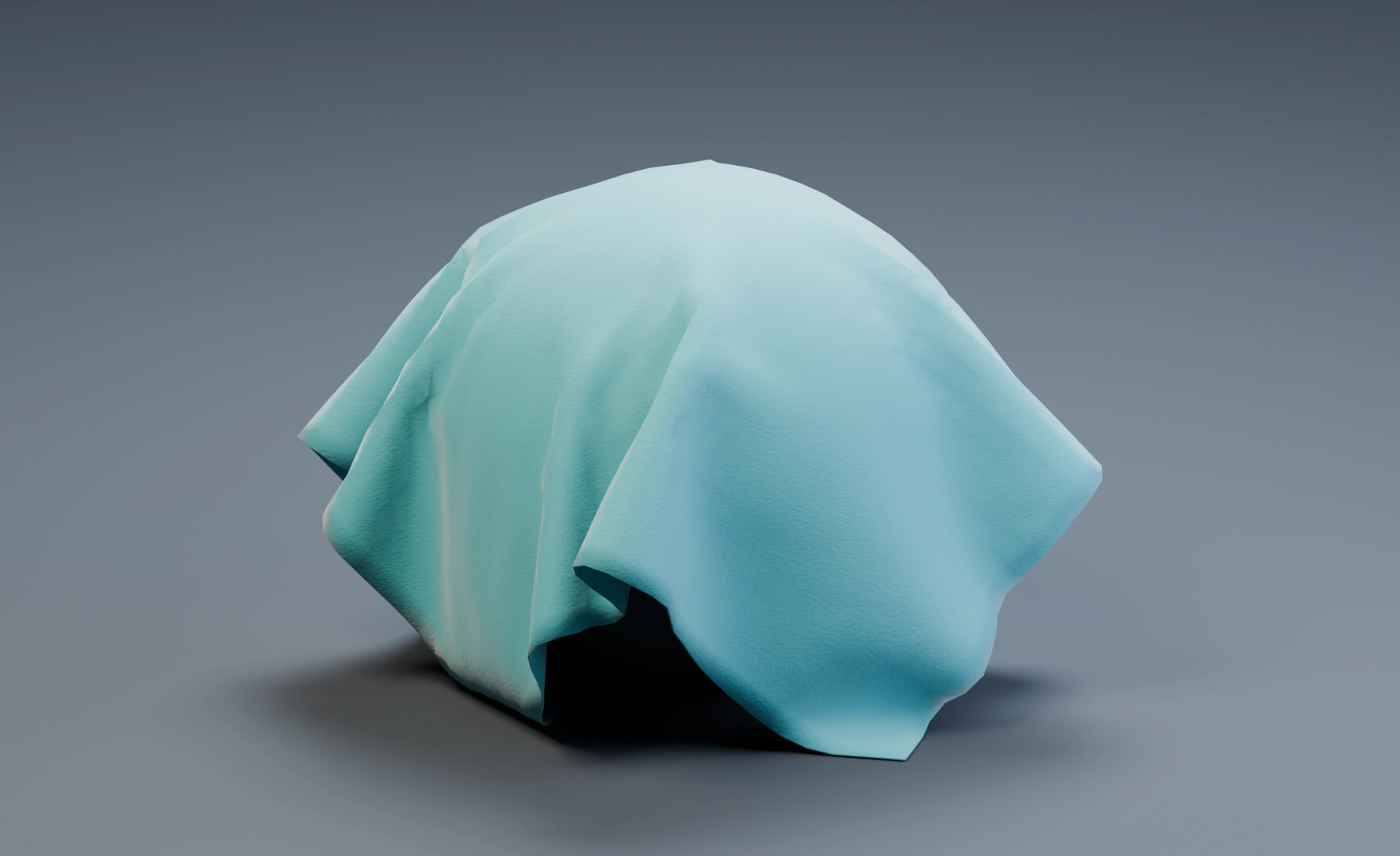
Folds and contact spacing
The sheet falls, meets the sphere, and folds around its sides. Its center stays over the sphere while its corners descend. A small contact gap is expected from Collision Thickness. Save as 13-cloth.blend.
The illustration adds a fabric material, lights and a larger display floor. A thin Solidify modifier on the generated output supplies a visible fabric edge; it does not change the source mesh or the simulation.
Pin two corners
- Stop playback and return to frame
1. SelectCloth Sourcethrough the Outliner; show it temporarily if the generated output has hidden it. - Open the mesh's Object Data Properties > Vertex Groups, click +, and name the group
Pins. Enter Edit Mode, switch to vertex selection, deselect all, and select only the two corners at local(-2, 2, 0)and(2, 2, 0). In Vertex Groups, set Weight1and click Assign. All other vertices must remain unassigned or have weight0. Return to Object Mode. - On the Cloth Emitter, choose Pin Strength Map: Pins, Black Strength
0, White Strength1. - Replay from frame
1to72. The two selected corners remain at their original world-space height of2.8 m; the unpinned surface still falls onto the sphere.
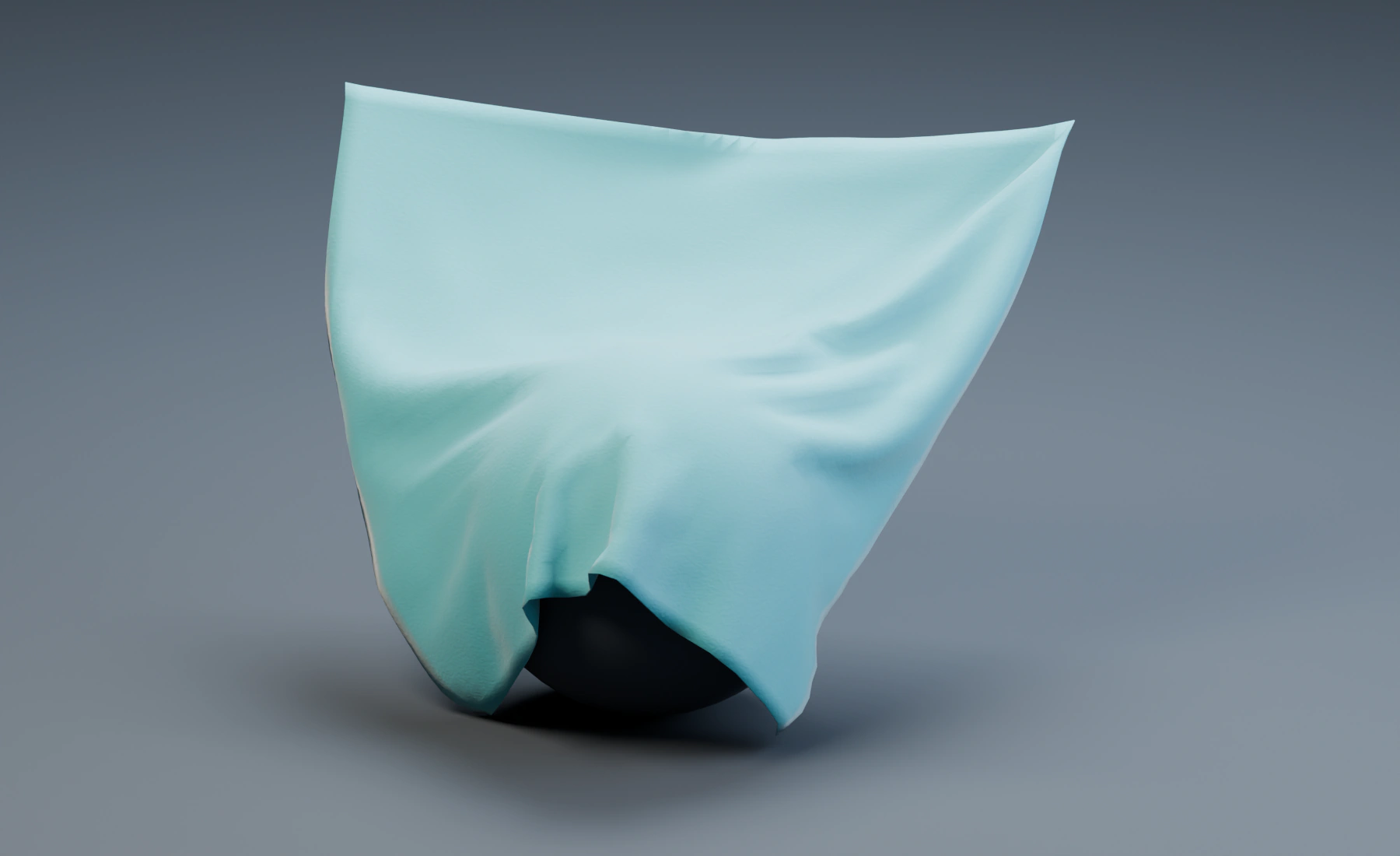
A pin follows the source vertex, including source animation. An Attach constraint is the next step when selected cloth vertices must follow a separate target object. Ordinary particle Masks and Data Mapping do not control Cloth material values; use the deformable material maps. Save the pinned version as a separate file if you want to retain the free drape as well.
Build the same setup in Nodes
Create an independent Nodes setup if you want to repeat the lesson there. Lists settings do not transfer automatically.
- Connect Surface Source / Source to Emitter / Sources, select the cloth mesh and set the Emitter Type to Cloth.
- Connect the Emitter Particles output through Gravity and both Collision nodes to Simulation Output / Particles. Enable Cloth on these effects.
- Connect Emitter / Geometry directly to Simulation Output / Geometry. Keep both paths: Geometry supplies the visible mesh; the final Particles connection keeps the effect branch connected to the simulation.
- For the pinned exercise, add Deformable Map, choose Pins, set Black
0and White1, and connect Value to the Emitter's Pin Strength input.
Troubleshooting
- The cloth stays flat in the air: check Gravity, its Cloth domain, playback from frame 1, and whether all vertices were accidentally pinned.
- It passes through the sphere: assign the correct object to Collision and enable Cloth on that effect.
- It forms only a few large panels: inspect the source mesh subdivision. Smooth shading does not add simulation vertices.
- Corners do not stay fixed: check the selected map and its weights, then reset and replay.
- A thick gap or inflated folds appear: inspect Collision Thickness relative to the mesh size before increasing quality.
Reference: Cloth controls and constraints.