Particle Groups
Particle Groups are named particle populations used to address emitters, effects, post effects and outputs without relying on numeric IDs.
Where groups are used
- Emitters assign new particles to a
Default Group. Individual sources can override that group. - Effects can target all particles, one named Group, or one Emitter where the effect supports
Apply to. - Flocking, fluid mixers and several simulation systems use named groups to identify interacting populations.
- Post effects and outputs can filter the particle populations they need.
- Change Group moves particles between named populations during a simulation.
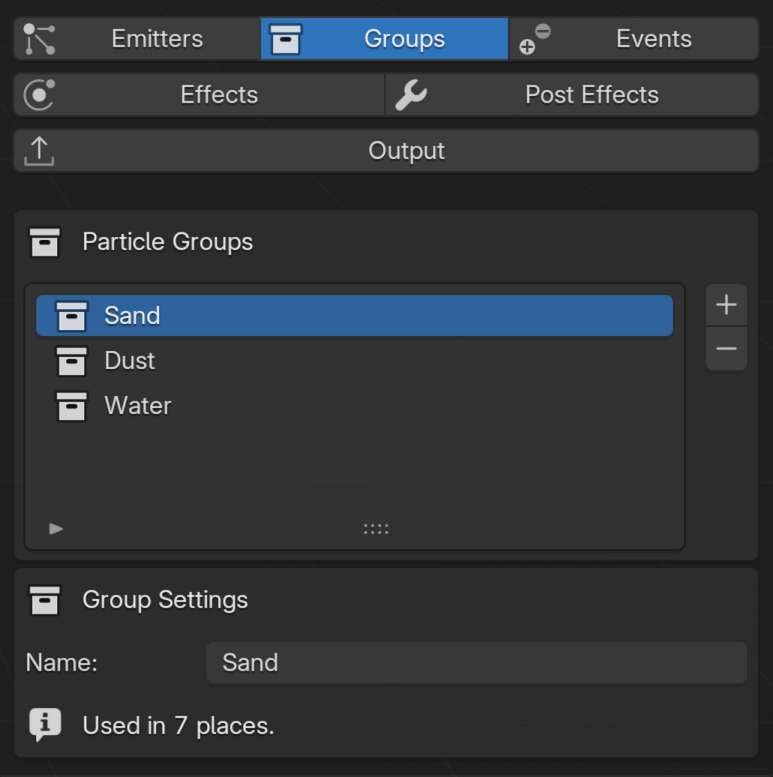
The Groups tab manages names in Lists. In Nodes, the Particle Groups panel in the Project sidebar manages the same scene-level group definitions.
When to add a group
Create a separate group when particles need to be addressed differently later in the setup. Common reasons include separate effect targeting, different material or fluid behavior, different post output, or interaction between populations such as water and sand.
A separate emitter does not require a separate group if both emitters will always be treated identically.
Group selectors offer existing named groups. Filters such as Apply to, Flocking's Predator Group and Prey Group, Infection's Seed Group, and Fluid Mixer targets only select a population. Create groups in Groups (Lists) or Particle Groups (Nodes) before using them in these filters. Creating a group does not create particles or assign existing particles to it.
Controls that assign a group have a + button with the tooltip New Group... beside the selector. Click it, enter a name and confirm to create and select a group in one step. This is available for Emitter and Source assignments, Group Regions, Change Group, Emit Children, Follow Curve release, FLIP sheet markers, Dynamic Collider's Body Group, Logic and event assignments, and Upres's destination group. Cancel leaves the selection unchanged; Undo reverses creation and assignment together. Duplicate names receive a numeric suffix.
New controls start with the default group. Adding effects, enabling their options or opening a panel does not create additional groups. For Infection, Create State Groups creates four separate named groups together; see Assign State Groups.
Lists workflow
- Open Groups and add a named group, or use New Group... beside an assignment selector.
- Select an emitter and set
Default Group. Enable a source'sOverride Grouponly when that source needs a different assignment. - Set an effect's
Apply toto the named Group, or use a Group Mask when group membership should be combined with another mask. - Use Change Group or Conditional Logic when membership must change during simulation.
- Apply group filters in post effects and outputs only where the final presentation needs them.
Renaming a group preserves its existing assignments and selections.
Nodes workflow
Open the Physics Editor sidebar and manage names in Particle Groups. These definitions are shared with Lists. Emitter, Source, Effect, Fluid Mixer, Logic, event and output controls select these groups by name.
Nodes provide several distinct ways to use a group:
- An Emitter assigns its default group, while a connected Source can enable Override Group.
- An Effect node can select a group with
Apply to. - A Group Mask produces a reusable 0-to-1 field that can be combined with spatial or procedural masks before it reaches an Emitter, Effect or mapping.
- Change Group and event actions can update the stored membership during simulation, so later nodes see the new group.
- Material Override component nodes for PBF and SPH can target a group. FLIP and MPM edit their group-based assignments in the effect node Inspector.
Emitter Branch partitions a stream by emitter identity, not by particle group. Use Group targeting or a Group Mask when membership, rather than source emitter, is the intended condition. Rejoin Emitter Branches before domain solvers, post effects and Simulation Output.
Named selection in Lists and Nodes
Group controls use the names from the Groups tab, including Cloth, Soft Body and Strands, collision filters, Dynamic Collider, Follow Curve release, Group Regions, MPM Pin Groups and Pyro particle sources. Pyro also offers All Groups to read every group from its selected particle source.
In Nodes, Expose as Socket creates a Group input for a group selection. Connect a Group Value node to share a named selection across compatible inputs, or expose a Group input on a Physics Group for separate choices on each instance. Group inputs accept only Group connections; numbers and numeric fields cannot be used as group selections. Controls that assign particles to a group require a specific group, rather than All Groups.
An unlinked Group input exposed from an assignment control also offers New Group.... Linked inputs take their selection from the connected node; edit that selection through the Group Value or group interface.
Renaming a group updates its displayed name without changing membership. A group cannot be removed while it is referenced by settings, Group Values or Group socket defaults, including Physics Groups and Pyro sources. The default group cannot be removed.
Group values in particle data
The Group source in Data Mapping, Group ID in Particle Info, output attributes, and debug views use the numeric group value. These are data values rather than group selection controls, and do not follow the visible order of the Groups list. See Data Mapping and Particle Info.
Example
A FLIP and granular setup can keep water and sand in separate groups. A Flow Field can read the FLIP velocity and target only the sand group, while the granular solver remains responsible for sand contact and settling.
Open the Sand Pickup case study
Troubleshooting
- An effect changes the wrong particles: inspect its Apply to selector and any linked Group Mask. A post-effect filter does not change simulation behavior.
- A selector shows Missing Group: choose an existing named group, or create one with New Group... where the control assigns a group. Opening the Groups panel does not create a replacement.
- Changing Default Group has no effect on existing particles: the emitter assignment happens at birth. Reset and replay, or use Change Group to change groups during simulation.
- A Source does not use the emitter group: disable its Override Group or select the intended group there.
- An Emitter Branch does not offer groups: it selects particles by emitter. Use group targeting or a Group Mask.
- A numeric ID does not match the visible list order: IDs are stable identities and are not defined by row position.