8. Limit an Effect with a Mask
Apply curls only inside a spatial region while keeping the group selection.
Use the two-group fountain
Open lesson 7 and save as 08-masks.blend. Curl Noise still targets only Main.
Add a Sphere mask
- Add a Sphere Empty named
Curl Region, Location(-0.8, 0, 1.5), Scale(1.2, 1.2, 1.2). - Select Curl Noise and open Masks.
- Use Add Mask... > Sphere, assign Curl Region as Sphere Empty, and set Falloff
0.35. - Keep Influence
1, Invert Output off, and no additional masks. - Replay frames
1–72.
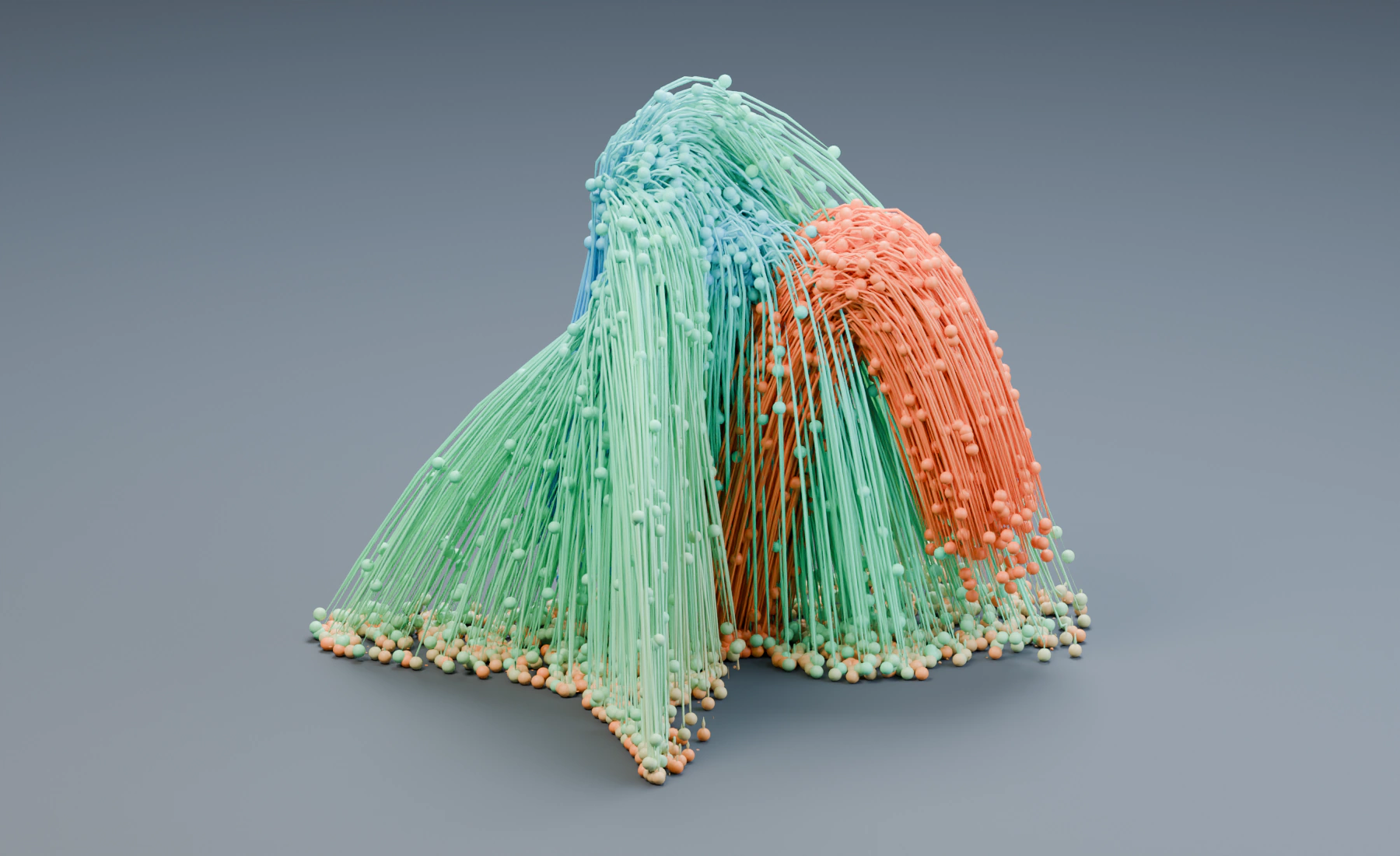
Curl influence inside the sphere
Main receives Curl Noise while passing through the region. Outside it, that effect contributes no influence. Gravity, Drag, ground contact and age color remain active because their effects have no such mask.
A Mask produces influence from 0 to 1. Group filtering selects Main; this spatial Mask further limits where its Curl effect acts. Falloff softens influence inside the boundary; the Empty keeps its size.
Move the Empty into another part of the trajectory and replay from frame 1. Its transform is part of the simulation setup, so a changed region needs a fresh simulation.
Optional: invert the masked region
Enable Invert Output and replay. Curl Noise should act outside the region. Restore it off. Keep this single mask for lesson 9. To intersect it with another region later, combine the masks with Multiply.
Troubleshooting
- The effect vanishes: particles may never enter the region; inspect its assignment and transform.
- Everything curls: verify the mask belongs to Curl Noise and is enabled.
- Another effect changes: a shared definition can have multiple uses. Choose Make Unique before editing only one use.
Reference: Masks.
Previous: 7. Separate Particle Groups · Next: 9. Map Particle Age to Strength