Predator and Prey Flocking
Build two named populations, give prey an organized flee response, and make predators pursue stable targets without mixing the two behavior profiles.
Reference setup
Use 24 fps, Substeps 4, and play frames 1–120. Emit both populations once at frame 1, with Lifetime 240 frames and Initial Velocity (1, 0, 0). Create named groups Prey and Predators, and assign each emitter to its corresponding group.
Use Volume Fill: Density for both Volume sources so each emitter's Rate determines its particle count.
| Part | Settings |
|---|---|
| Prey source | Volume sphere, Radius 0.8 m, origin, 2000 blue particles, particle Radius 0.025 m |
| Predator source | Volume sphere, Radius 0.3 m, center (-1.5, 0, 0), 12 orange particles, particle Radius 0.09 m |
| Both Flocking effects | Perception Radius 2 m, Separation Distance 0.1 m, Alignment 1 |
| Prey local behavior | Max Speed 2, Max Force 3, Separation 2, Cohesion 0.5 |
| Predator local behavior | Max Speed 3, Max Force 5, Separation 0.8, Cohesion 0.2 |
| Prey Target | Empty at (2, 0, 0) on frame 1, (2, 2, 1) on frame 120; Target Strength 2 |
| Prey Predators | Predator Group Predators, Avoid Distance 0.7 m, Avoid Strength 3 |
| Predator Prey Seeking | Prey Group Prey, Prey Strength 4, Retarget Threshold 0.7, Variation 0.2, Seed 17 |
| Point Cloud | Blender Geometry, particle Radius and Color |
| Trails | Blender Geometry, Particle Trails, Length By Time, Length 24 frames, Frame Sampling 2, Style Tube, Tube Sides 6, Constant Thickness 0.008 m, Particle Color |
Evaluate Prey Flocking → Predator Flocking, with each effect's Apply to set to its own Group. In Lists, the first effect is lower in the visible list. In Nodes, merge the two emitter streams, then connect the group-filtered effects in that order.
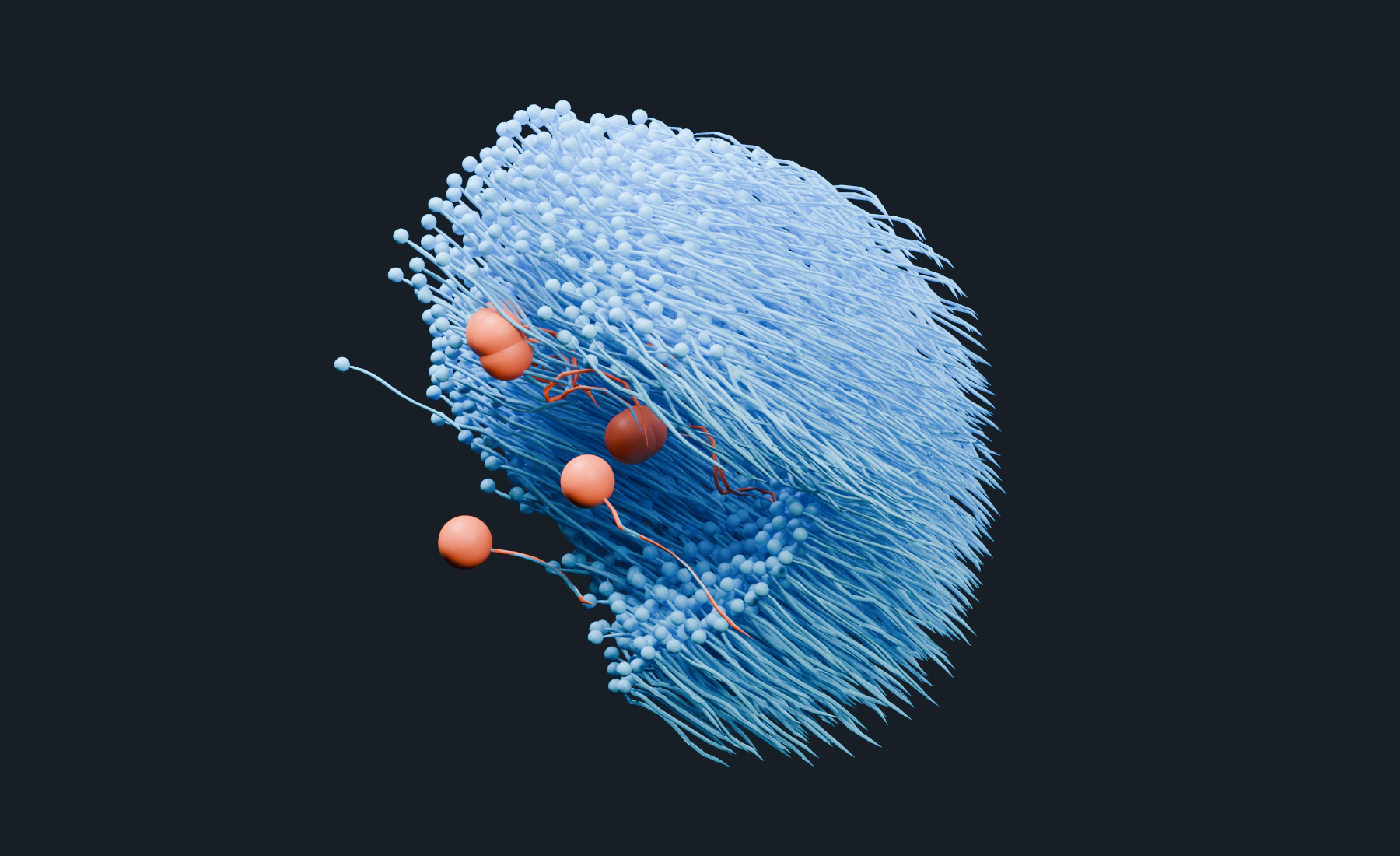
During playback, prey follow the moving target while predators approach the swarm. Flocking does not kill prey on contact. Add Collision or Avoid if the scene also needs obstacles.
1. Prepare the populations
- Start a new Lists system. In Groups, create
PreyandPredators. - Create the two spheres in the reference table and apply Scale. Name them
Prey SourceandPredator Source. - Use one Emitter per sphere, each with a Volume source and Density fill. Set Rate
2000 /ffor Prey and12 /ffor Predators; on both, use Start Frame1, Duration1, Lifetime240, and lifetime Variation0. - Set Initial Velocity
(1, 0, 0), Surface Push0, Random Velocity(0, 0, 0), and Radius Random0. Use particle Radius0.025 mfor Prey and0.09 mfor Predators. - Assign each Emitter's Default Group to its matching named group. Give Prey a blue birth color and Predators orange.
Use modest particle counts during setup. Perception, predator detection, and prey seeking all perform neighborhood searches.
2. Establish ordinary prey flocking
- Add a Flocking effect.
- Set Apply to to Group and select
Prey. - Set Perception Radius
2 m, Max Speed2, and Max Force3. - Set Separation
2, Separation Distance0.1 m, Alignment1, and Cohesion0.5.
Perception Radius defines the neighborhood each particle reacts to. Separation keeps neighbors apart, Alignment encourages a common direction, and Cohesion draws isolated members back toward the group. Max Speed limits travel speed; Max Force limits how quickly steering can change it.
3. Guide the prey through the scene
- Create an Empty named
Prey Route. At frame1, set Location(2, 0, 0)and insert a Location keyframe from the transform fields' context menu. At frame120, set Location(2, 2, 1)and insert another Location keyframe. - In the prey Flocking effect, enable Static Target Seeking.
- Assign the Empty as Target Object.
- Set Target Strength
2.
If all prey point directly at the target and stop behaving as a flock, reduce Target Strength or increase the relative Alignment and Cohesion contributions.
4. Make prey flee predators
- In the same prey Flocking effect, enable Predator Behavior (Flee).
- Select the
Predatorsgroup as Predator Group. - Set Avoid Distance
0.7 m. - Set Avoid Strength
3.
Avoid Distance is the reaction range. Avoid Strength is the urgency of the turn. A very large distance makes the whole flock react to remote predators; a very high strength can cause abrupt direction changes at the boundary.
5. Configure predator behavior
- Add a second Flocking effect after the prey effect.
- Set Apply to to Group and select
Predators. - Set Perception Radius
2 m, Max Speed3, Max Force5, Separation0.8, Separation Distance0.1 m, Alignment1, and Cohesion0.2. - Enable Prey Seeking (Hunt).
- Select
Preyas Prey Group. - Set Prey Strength
4and Retarget Threshold0.7. A predator keeps its current target until another candidate is sufficiently better. - Set Retarget Variation
0.2and Retarget Seed17to vary that threshold across predators.
The two Flocking effects do different jobs. The prey effect sees predators as a threat. The predator effect sees prey as a pursuit target. Keeping them group-filtered avoids applying both roles to every particle.
6. Nodes version
- Connect both Emitter particle outputs to Merge Disjoint Streams.
- Connect the complete merged stream through Prey Flocking → Predator Flocking.
- Set each Flocking node's Apply to to its own Group, keeping all particles in the incoming stream.
- Connect the final stream to Point Cloud, Trails and Simulation Output / Particles. Connect both post-effect Result outputs to Simulation Output / Geometry. Use the output values from the reference table.
Flocking requires the complete particle stream, including the other population it detects. Do not put either Flocking node on a partial Emitter Branch. If separate branches add supported forces before flocking, merge them first. See the effect node reference for which effects accept partial streams.
7. Play and tune the chase
Add Point Cloud and Trails with the settings above. Leave Point Cloud's Material empty for its automatic color material, and give Trails a material that reads the col Geometry attribute, following lesson 6. If Trails become heavy, increase Frame Sampling or reduce Length while tuning.
Play from frame 1 through 120. Prey should move toward Prey Route while maintaining local spacing. Nearby predators disturb their path; predators steer toward prey and can travel faster than the prey's speed ceiling. Trails make those changes of direction easier to see.
For a calmer chase, reduce Avoid Strength or predator Max Force. To give prey more warning, increase Avoid Distance. If the moving target dominates the flock, lower Target Strength before changing Alignment and Cohesion. Replay from frame 1 after each change and save the version you want to keep.
Troubleshooting
- Predators flee themselves or prey hunt prey: Check the group assigned to each Emitter and the group selected by each option.
- The flock fragments: Increase Perception Radius or Cohesion, or reduce Max Speed relative to Max Force.
- Particles jitter: Reduce competing steering strengths or Max Force. Sparse neighborhoods near the edge of Perception Radius can also change too quickly.
- Predators switch targets continuously: Raise Retarget Threshold. Variation changes individual thresholds but does not replace a stable base value.
- The entire prey population reacts at once: Reduce Avoid Distance, or use a smaller predator population.
- Performance drops at scale: Reduce unnecessary search radii before reducing visual particle count.
See Behavior for details on each control.