MPM Brittle Impact
Fire a compact projectile into a brittle particle block and compare the same impact with Fracture enabled and disabled.
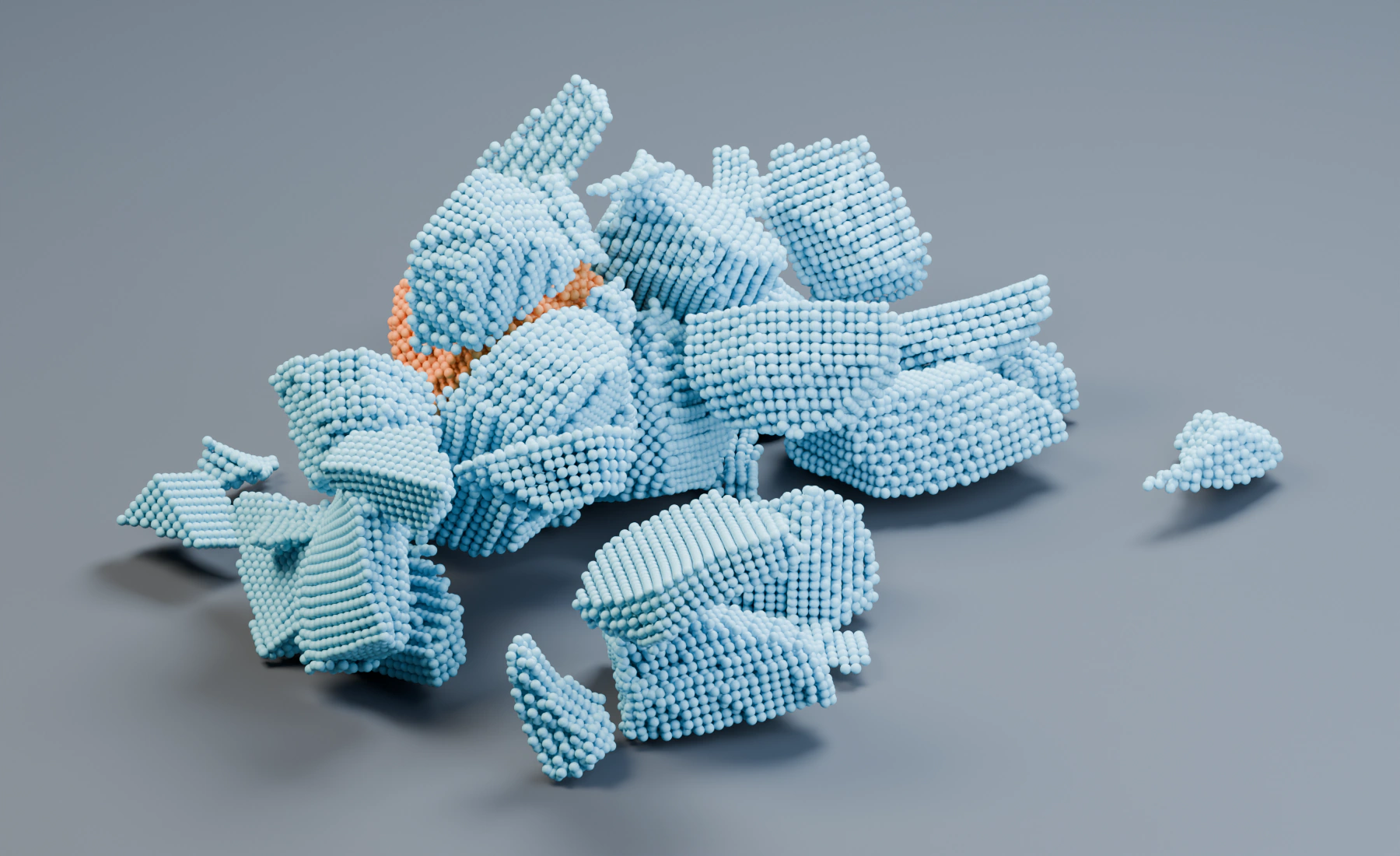
The target and projectile are separate particle populations with materials assigned by group. Build the fractured result first. The optional comparison keeps the same geometry and launch settings while turning off only the target's Fracture switch.
Reference setup
Use 30 fps, scene Substeps 4, and frames 1–24. Apply object scale.
| Part | Settings |
|---|---|
| Target source | Closed box 1 × 3 × 3 m, center (0.8, 0, 2.2); named group Brittle Target |
| Projectile source | Sphere Radius 0.65 m, center (-3.4, 0, 2.2); named group Projectile |
| Both emitters | Volume Grid, Spacing 0.065 m, Jitter 0, Auto Particle Radius on; Start 1, Duration 1, Lifetime 600, Surface Push 0 |
| Launch | Target Initial Velocity (0, 0, 0); projectile (20, 0, 0) m/s |
| MPM domain | Box 10 × 6 × 5 m, center (0, 0, 2.5); all faces Closed |
| MPM quality | Voxel Size 0.1 m, Adaptive Substeps on, Maximum Substeps 32, CFL 0.6, Retiming 100% |
| Material assignment | Default Brittle Solid; Material Mixer assigns Brittle Target to Brittle Solid and Projectile to Metal |
| Output | Gravity → MPM → Point Cloud; Particle Radius and Particle Color |
The illustrated run contains 39,393 particles. Closed domain faces contain the result; no separate mesh collider is required for the projectile/target interaction. The bottom domain face supports fragments after they fall.
1. Prepare the impact
- Start a new Lists system and create named groups Brittle Target and Projectile.
- Create the target box and projectile sphere from the table, then apply Scale. Add one Particles Emitter per object, using a Volume source with Grid fill. Enter the shared sampling and timing settings, keeping lifetime Variation, Radius Random and Random Velocity at
0. - Assign each Emitter's Default Group to its matching group. Give the target a blue birth color and the projectile orange. Set Initial Velocity
(20, 0, 0)only on the projectile. - Create the domain cube and apply Scale. Add Gravity, Force
(0, 0, -9.81), followed by MPM. Assign the cube to MPM's Domain Box and enter the reference quality settings. - Keep all domain faces Closed. Add Point Cloud using Particle Radius and Particle Color, with Blender Geometry for rendering.
2. Configure the target material
Add Brittle Solid, then enter these overrides. The resulting slot becomes Custom while retaining the Elastic model.
| Control | Value |
|---|---|
| Density | 2400 |
| Stiffness | 1000000 |
| Volume Preservation | 0.2 |
| Fracture | On |
| Tensile Strength / Shear Strength | 50000 / 100000 |
| Fracture Toughness | 0.15 |
| Fragment Scale | 10 |
| Strength Variation | 0.15 |
| Fracture Friction / Fragment Damping | 0.4 / 0.8 |
Keep APIC Transfer on and material Damping at 0. These settings illustrate brittle behavior; they are not calibrated to a measured material. Fragment Scale is measured in MPM voxels, so changing Voxel Size also changes the world-space fragment scale.
3. Configure the projectile and assignments
Add Metal and retain its preset values: Density 1000, Stiffness 100000000, Volume Preservation 0.3, Yield Strength approximately 192307.7, APIC Transfer on, Fracture off. Assign it through the projectile's named group.
Name the two slots Brittle Solid and Metal. Remove unused starter materials, choose Default Material Brittle Solid, and add two Material Mixer Group entries: Brittle Target → Brittle Solid, Projectile → Metal.
The projectile is an MPM material population, not a Collision object. The same MPM effect handles both materials and their contact. Check the first frames to confirm it moves toward the target and that both populations remain inside the domain.
4. Play the impact
Play from frame 1 through 24. Around frame 8, the projectile hits the target. By frame 24, cracks have separated the target into fragments. Save this setup before changing the damage controls.
Optional: compare ordinary deformation
Disable Fracture on the target, return to frame 1, and replay the same range. The blue target should deform and move while remaining connected. Re-enable Fracture to return to the illustrated fragmented result.
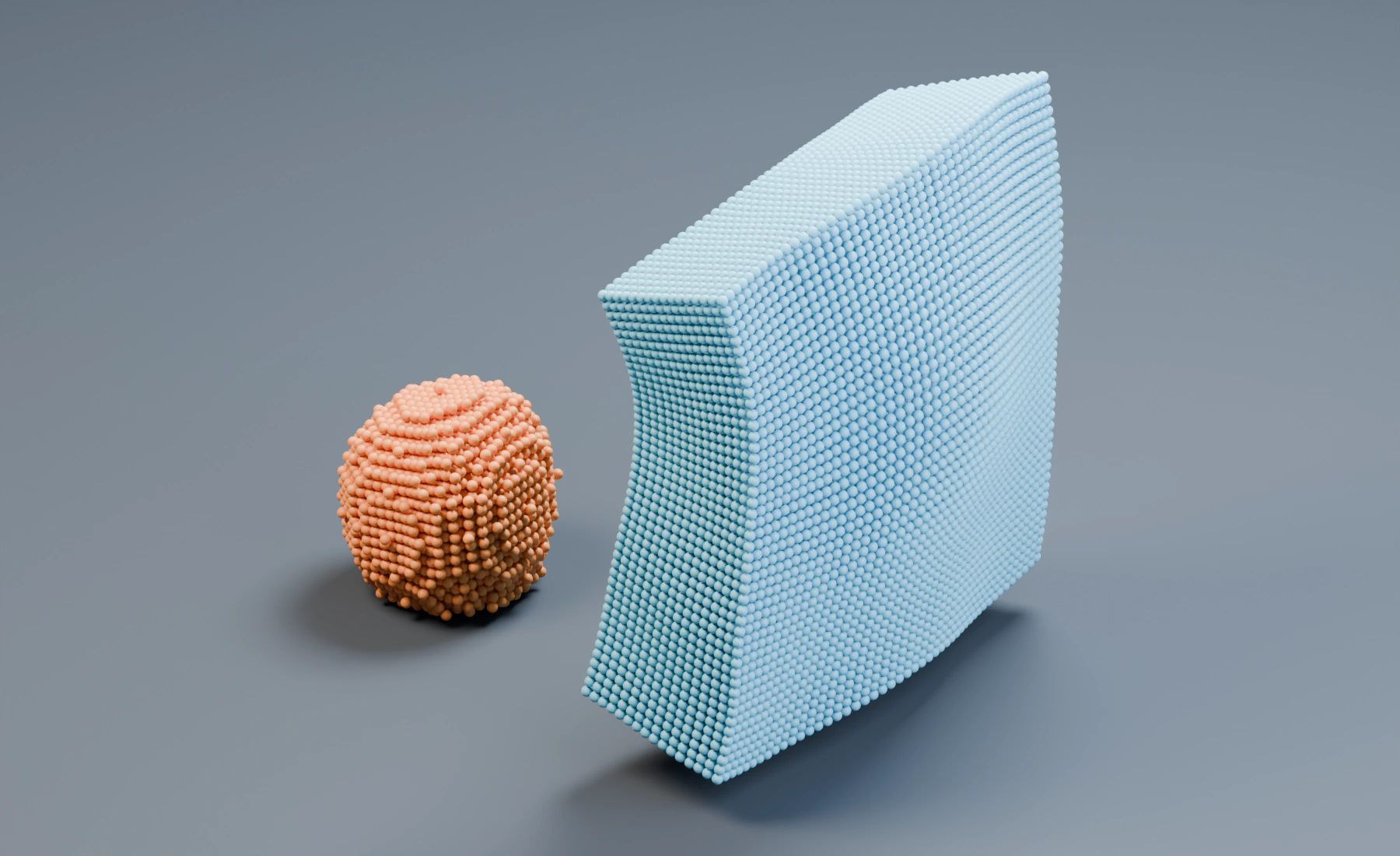
Lower strength starts damage more readily; Toughness controls subsequent damage growth. Fragment Damping reduces internal fragment wobble while retaining translation and rotation. If the impact is unstable, improve substeps before adding damping.
Nodes workflow
Connect a Volume Source to each Emitter, merge their particle outputs with Merge Disjoint Streams, then connect Gravity → MPM. Feed MPM's particle output to Point Cloud and Simulation Output / Particles; connect Point Cloud Result to Simulation Output / Geometry. Configure both materials and Material Mixer in the MPM Inspector, selecting the named group for each assignment.
Troubleshooting and cost
- The target bends but does not break: verify Fracture is enabled on the assigned material, not an unused slot. Check impact energy and strength before reducing Toughness.
- The target disintegrates immediately: increase strength, inspect initial overlap, and compare the Fracture-off run.
- Fast particles cross the target: increase scene Substeps and the allowed adaptive MPM steps before raising launch speed further.
- Fragments are too small: increase Fragment Scale after establishing damage initiation; reducing Voxel Size without adjusting this control reduces its world-space scale.
- Simulation becomes expensive: stiff materials and small voxels require smaller internal time steps. Reduce resolution for tuning, then recheck the final settings.
See MPM Fracture and Compare MPM Materials.