4. Add Ground Contact
Add ground collision and compare bounce, friction and particle contact size.
Use the fountain scene
Open lesson 3 and save as 04-collision.blend. Keep its Emitter and three effects.
Add the ground
- Add a cube named
Ground, Dimensions(12, 12, 0.3), Location(0, 0, -0.15). Its top surface is Z0. - Apply object scale.
- In Effects, use Add Effect... > Collision and assign Ground as its collider object.
- Set Bounciness
0.2, Friction0.5, and Apply to: All. - Place Collision after Drag in evaluation order, at the top of the visible Lists stack.
- Replay frames
1–72.
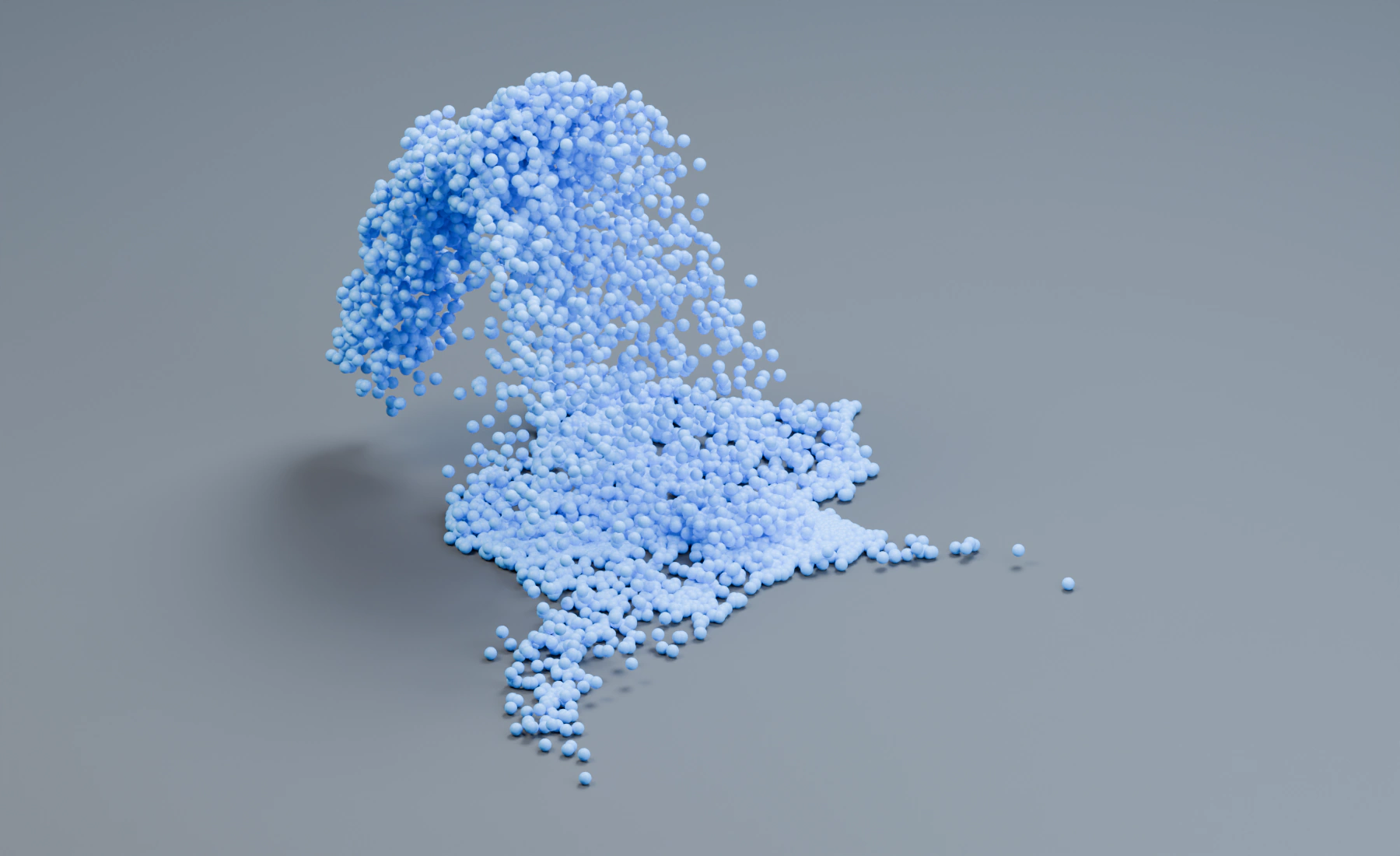
Ground contact and particle radius
Particles land on Ground. Their centers sit approximately one Radius above the surface. Bounciness controls rebound; Friction reduces sliding at contact.
Particles can overlap each other here. Collision handles the assigned ground; Granular or Self Collision would add particle-to-particle contact.
Keep physical Radius 0.025 m and Substeps 4 while checking contact. Increasing Point Cloud display size does not enlarge the physical contact radius.
Optional: compare bounce and friction
Compare Bounciness 0 and 0.6, with a replay from frame 1. Restore 0.2. Compare Friction 0 and 0.8 separately, then restore 0.5.
Troubleshooting
- Particles pass through: check the collider and effect, apply scale, then increase Substeps only if fast motion still misses contact.
- A visible gap remains: inspect Radius and collider padding or offset before moving Ground.
- The mound does not support itself: this setup has no particle contact solver. Use the Sand Pile workflow.
Reference: Collision.
Previous: 3. Build an Effect Stack · Next: 5. Birth Color and Lifetime Color