Emitters
Create particles from one or more surfaces, volumes, curves or analytic shapes, then define their birth time, group, physical properties and initial motion.
Where to find it
- Lists: 3D Viewport > Sidebar > Pro Particles > Emitters.
- Nodes: Pro Physics editor > Shift+A > Emitter. Add Surface Source, Volume Source, Curve Source or Shape Source nodes and connect them to
Sources.
Emitter controls
| Area | What it controls |
|---|---|
| Sources | where particles are sampled: surfaces, volumes, curves or analytic shapes |
| Timing | start frame, duration, rate/pulse behavior and lifetime |
| Initial properties | group, radius, mass, color and velocity assigned at birth |
| Deformables | Cloth, Soft Body and Strands settings, maps and structural components |
| Node inputs | Sources plus optional Mask, Color, Field, Settings and Pyro connections |
| Branch identity | emitter ownership used by groups, event sources and Nodes-only stream branching |
An emitter owns the properties shared by all of its sources. A source answers where particles are created; the emitter answers when they are created and which values they receive at birth. Put several sources in one emitter when they should share timing, lifetime and appearance. Use separate emitters when those properties or later emitter-specific branches must differ.
Basic workflow
New Lists and Nodes setups start with a Rectangle Shape source at the world origin. Play the timeline to emit immediately, without assigning a mesh. Change the Shape settings or replace the source to use other geometry.
Lists
- Open Emitters, add an emitter and give it a descriptive name.
- Add a Surface, Volume, Curve or Shape entry under
Sources. - Assign its object or collection, or configure the Shape dimensions and transform. Choose the sampling mode for that source type.
- Set
Start Frame,Duration (Frames)and the Rate or Pulse controls. - Set the emitter's
Default Group, lifetime, mass, color, radius and default velocity. - Add further sources. Use source overrides only for the values that should differ from the emitter defaults.
Emitter lists support folders, move, indent and outdent controls. Folders organize the list without changing simulation order or which particles belong to an emitter. Duplicating an emitter copies its complete source list and settings. Blender Undo/Redo covers emitter and source creation, removal, duplication, ordering and organization.
Nodes
- Add an Emitter node and a Surface Source, Volume Source, Curve Source or Shape Source node.
- Connect the Source output to the Emitter's multi-input
Sourcessocket. More than one source can feed the same Emitter. - Connect
Particlesthrough the effects to Simulation Output. ConnectGeometrywhen the emitter represents Cloth, Soft Body or Strands rather than ordinary particles. - Edit the complete emitter or source settings in the node Inspector. Compact node controls show only the most frequently used values.
Nodes add two capabilities that do not exist as the same connections in Lists:
- Connect an Advanced Color expression to the Emitter's
Colorsocket. The expression is evaluated as the particle's birth color. See Advanced Color. - Connect a Mask to the Emitter's
Masksocket to control particle birth with a reusable graph expression. A source'sSelectionremains source-mesh data, so it can be combined with the linked emitter Mask.
Source nodes may be reused only where their simulation family is compatible. The editor reports an error when one source is shared by incompatible particle, deformable or strand emitters.
Choose a source type
| Source | Use it for | Placement controls |
|---|---|---|
| Surface | emission from a mesh skin, its edges or its vertices | Surface Points = Faces, Edges or Vertices |
| Volume | random emission or an initial packed volume inside a closed mesh | Volume Fill = Density, Grid or Hexagonal |
| Curve | emission along one curve or a curve collection | Sampling = Control Points or Evaluated |
| Shape | emission from an analytic primitive without a source object | Shape dimensions, Location, Rotation and Scale |
Mesh and Curve sources automatically track static geometry, object transforms and deformation. There is no motion-mode switch to maintain. Volume sources automatically repair small openings and minor surface defects for simulation. The original mesh stays unchanged. Flat meshes and surfaces that cannot be repaired into a usable volume still stop the simulation and identify the source object. See Volume Meshes.
Surface sources
Faces distribute births across the surface, while Edges and Vertices restrict births to those mesh elements. Use Selection when the source mesh already contains the desired emission pattern:
Vertex Groupinterprets the named vertex weights as emission probability.Float Attributereads a named float attribute on the point domain.Noneallows the entire selected surface element set.
For an object collection, the same vertex-group or attribute name is looked up on each source object. Missing or different source data changes the distribution on each object.
Prevent Clumps applies an initial separation step to new Surface particles. Raise Separation Steps only when visible birth clumps remain, because each step adds work at emission time. It does not replace Self Collision or a material solver after birth.
Volume sources
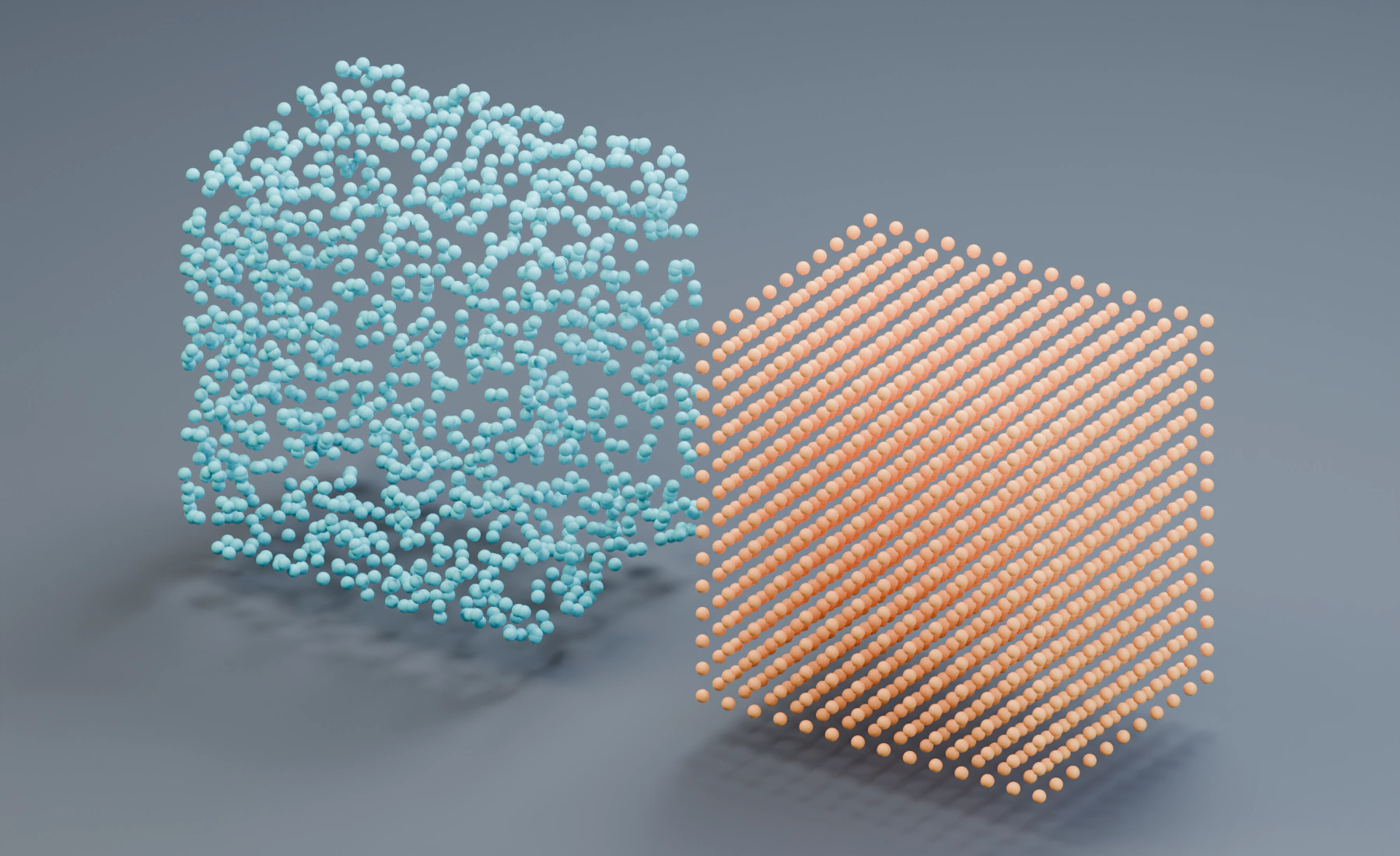
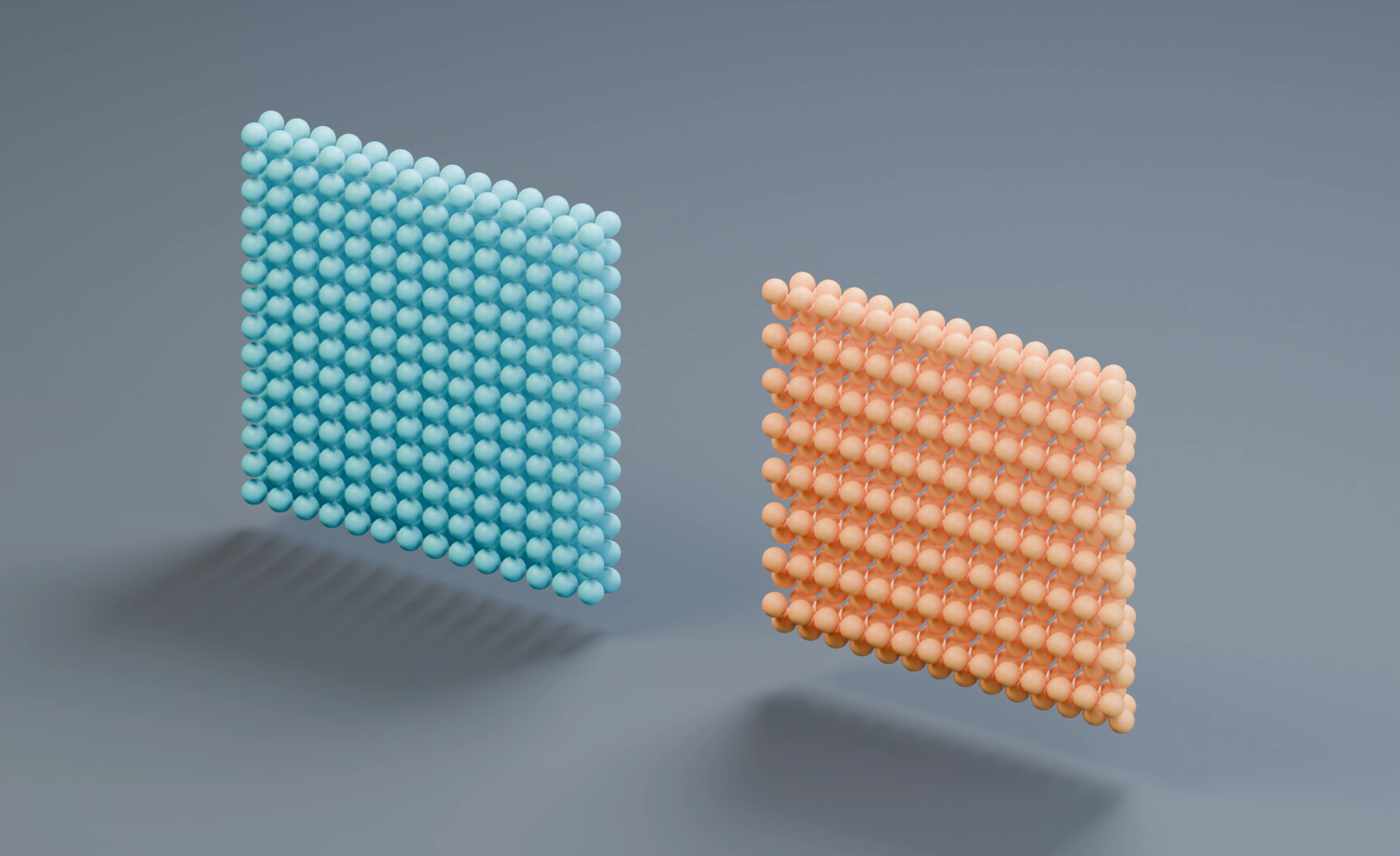
Density emits continuously at sampled positions inside the volume and follows the emitter's Rate or Pulse timing. Grid and Hexagonal create a packed volume once on Start Frame; they do not use the normal emission rate. Hexagonal is the more uniform packed layout for fluids, while Grid is a regular cubic arrangement.
Packed fills include sample centers on the closed source's boundary. With Jitter at 0, points that land on a face, edge, or vertex remain part of the regular layout. Particle spheres can extend beyond the source by their radius; the source contains their centers, not their full surface.
Particle Spacing controls the initial packed layout and its population density. Lower spacing can increase the count sharply in a three-dimensional volume. Jitter randomly offsets individual particles by up to 30% of Particle Spacing per axis at its maximum setting. During emission, overlapping particles are moved apart; candidates that remain too close or leave the source volume are omitted. A slight overlap of up to 1% of the combined radii can remain to preserve fill density. Higher Jitter or a manual radius above half of Particle Spacing can reduce the particle count. Jitter adds work to the one-time fill. With Auto Particle Radius enabled, Grid and Hexagonal derive radius from half of Particle Spacing. Disable it to set particle radius separately from the initial spacing.
Shape sources
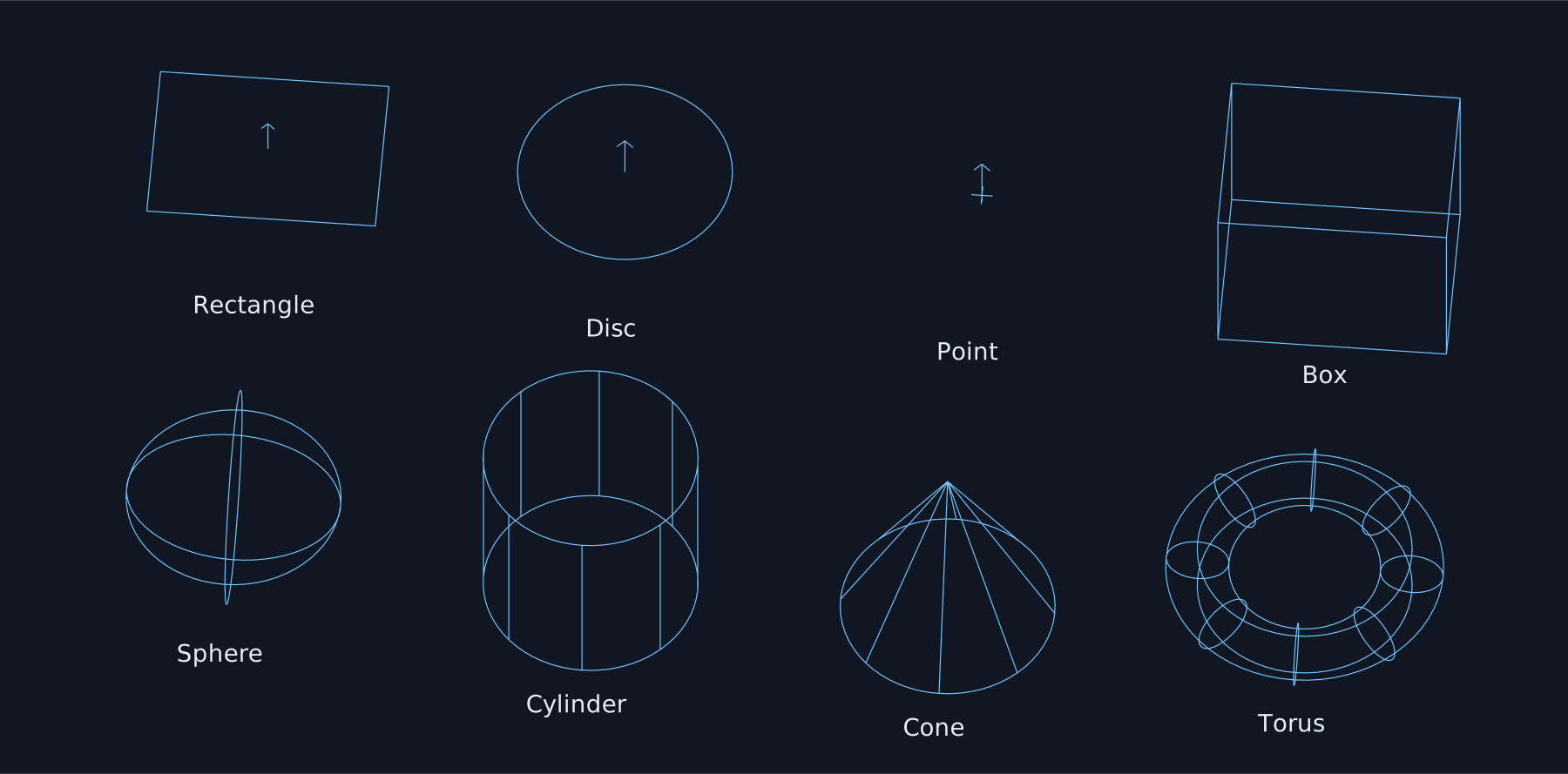
Choose Shape on a Lists source, or connect a Shape Source node to an Emitter. Shapes do not require mesh objects or Empties. Their GPU outlines are visible in the 3D Viewport with either particle display mode. Enable viewport Gizmos to see the outlines and handles. Location, Rotation, Scale and dimensions can be animated directly.
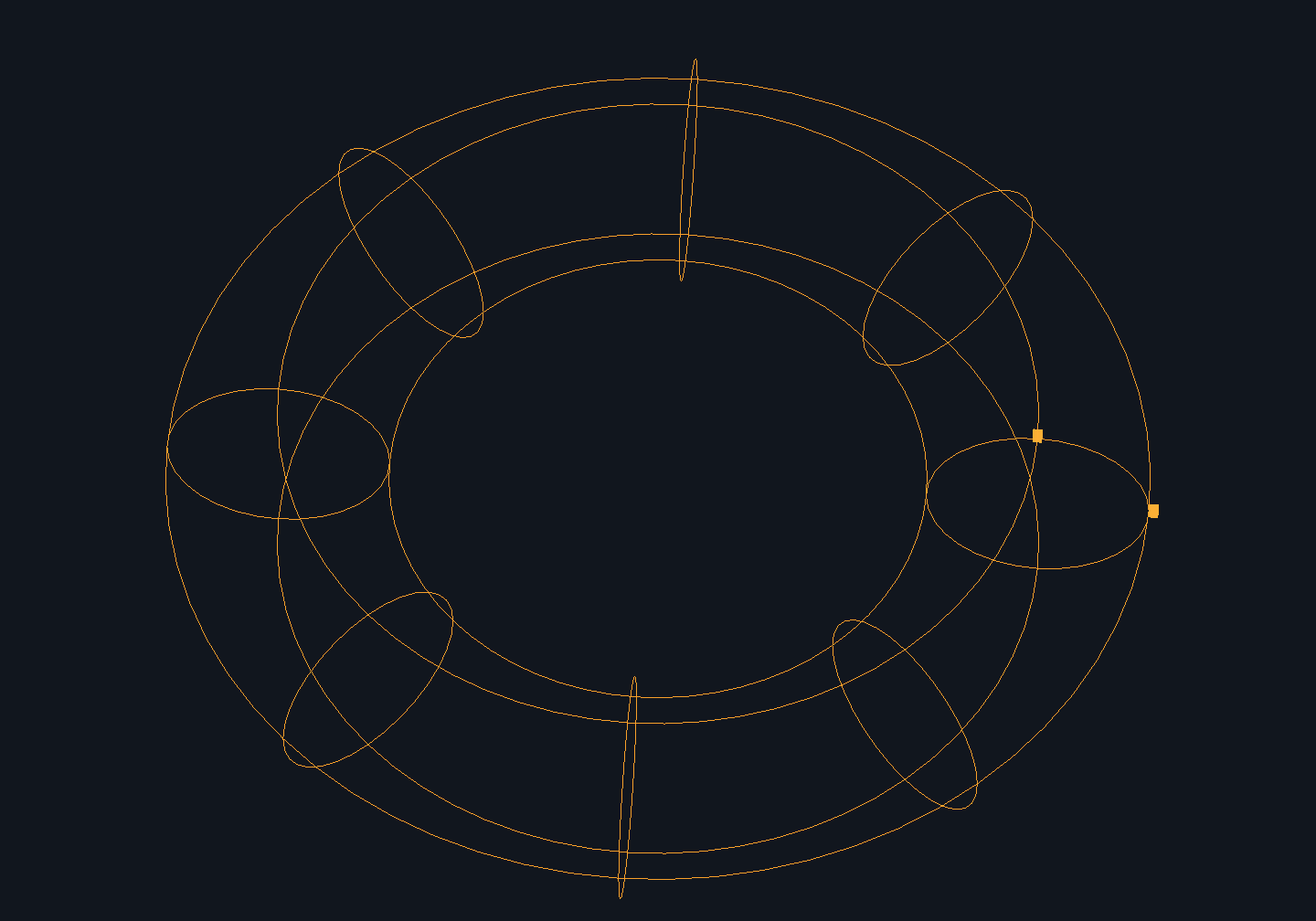
Scene geometry hides unselected Shape outlines. The selected Shape's orange outline and handles stay visible in front of geometry for editing. X-Ray and Wireframe show all Shape outlines through geometry; hidden outlines cannot be picked in a solid view unless the Shape is already selected.
Click a Shape outline to select its Lists source or Shape Source node. Use Blender's left toolbar:
- Select: adjust the orange grips on the Shape to change its dimensions, such as width, height or radius.
- Move: use the axis arrows, plane squares or center ring. Plane squares move within their two axes and follow the Shape during the drag; a gray square marks the starting position.
- Rotate: use the axis rings or outer ring for rotation in the view plane.
- Scale: use the axis boxes or outer ring for uniform scaling.
- Transform: use Move, Rotate and Scale handles together.
Orange dimension grips remain available with all five tools and change dimensions without changing Scale. A Torus has separate Radius and Tube Radius grips. A Cone or Cylinder has Radius at its base and Height at its top. Hover a grip to identify its parameter, then drag it or enter a value during the drag.
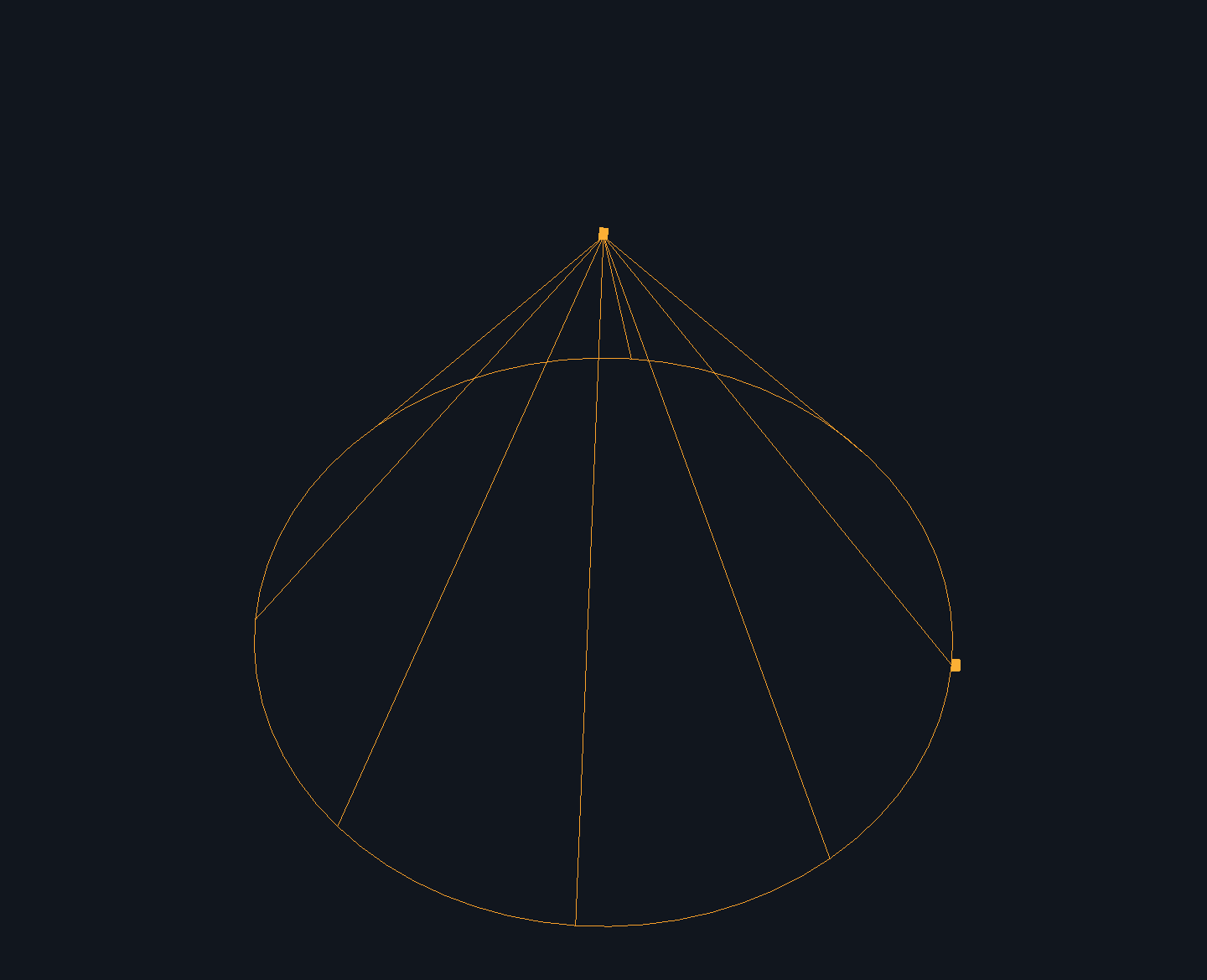
The selected Shape also accepts G, R and S. Press X/Y/Z for an axis, repeat the axis for local coordinates, or use Shift+X/Y/Z to restrict Move or Scale to a plane. Enter a number for distance in scene units, angle in degrees or scale factor. Ctrl temporarily toggles snapping; Shift gives finer mouse control. Confirm with a click or Enter; cancel with Escape or right-click. Undo restores the previous transform. Auto Keying records changed Shape properties in both Lists and Nodes. Selecting a Blender object returns these shortcuts to ordinary object editing. Escape outside a transform deselects the Shape.
Viewport transforms act on one selected Shape at a time.
Snapping
Use Blender's magnet button and snapping popover in the 3D Viewport header. Shift+Tab toggles the magnet during a Shape transform. Ctrl temporarily reverses the current snapping state. The popover's Affect controls determine which transforms use the magnet automatically. Typed numeric values take precedence over snapping.
Shape translation supports Vertex, Edge, Face, Edge Center and Edge Perpendicular targets on visible meshes, including evaluated modifiers and object instances. A yellow ring marks the acquired target. The transform header identifies the target type or reports when no target is available. Hidden objects are excluded. Blender's Exclude Non-Selectable and Backface Culling settings are respected. Occluded vertices and edges are excluded in Solid view; X-Ray or Wireframe allows picking through geometry.
Shapes snap from their origin (the center of the emitter). Blender's Snap Base setting is interpreted as follows:
- Closest, Active or Median: the Shape's origin, regardless of its dimensions, rotation or scale.
- Center: the Shape's origin, or the 3D Cursor when the transform pivot is set to 3D Cursor.
Transforming a Shape does not change Blender's Snap Base setting for ordinary objects.
Enable Align Rotation to Target to align the Shape's positive local Z direction with the target normal while moving. This also aligns the emission direction of Rectangle, Disc and Point sources. Axis and plane constraints remain active and can prevent exact contact with a target outside the allowed movement. Use an unconstrained move for exact placement on a face. Cancelling restores both Location and Rotation; Auto Keying records both when changed.
Increment uses steps relative to the starting position. Grid uses absolute grid coordinates. Shape translation and dimension grips use the viewport overlay's Scale as their grid step, adjusted for scene units; Shift divides that step by ten. Rotation uses Blender's configured rotation increments. Scale uses factor increments of 0.1, or 0.01 with Shift. Mesh targets apply to translation, not rotation, scaling or dimension grips.
Volume and individual face projection/nearest snapping are not supported for Shapes. If only an unsupported target type is selected, the Shape moves freely and the transform header reports the limitation. Snapping is available in both Lists and Nodes and does not create helper objects.
With live updates enabled, transforming a Shape on the simulation start frame rebuilds the initial particles at its new transform. Moving a source between simulation frames creates motion along its path; Inherit Velocity controls how much of that motion transfers to the particles.
| Shape | Dimensions and emission |
|---|---|
| Rectangle | Width and Height in the local XY plane |
| Disc | Radius in the local XY plane; Edge Only restricts births to the circumference |
| Box | XYZ Size; Surface or Volume |
| Cone | Radius and Height along local Z; closed base; Surface or Volume |
| Torus | Radius to the tube center and Tube Radius; Surface or Volume |
| Point | One position; local Z supplies the launch direction |
| Sphere | Radius; Surface or Volume |
| Cylinder | Radius and Height along local Z; both caps included; Surface or Volume |
All shapes are centered on their transform. The cone tip points along positive local Z. Torus Tube Radius must be smaller than Radius. Scale may differ between axes. Zero and extremely small scales are rejected; use the shape dimensions for very small sources. Surface sampling follows the transformed surface area; Disc Edge Only follows the transformed circumference. Ordinary births use Rate or Pulse, source velocity overrides and emitter masks. Rectangle and Disc normals point along positive local Z. Volume births have no surface-normal push.
Shape volumes offer continuous Density, or a one-time Grid or Hexagonal fill on Start Frame. Particle Spacing is measured in world units, including when the shape is scaled. Auto Particle Radius uses half that spacing. These analytic fills have no Jitter or initial Prevent Clumps step. Masks can remove births, and Group Regions can assign groups inside Shape volumes. Shape sources support ordinary particles; Cloth, Soft Body and Strands still need their respective mesh or curve sources. Shapes have no mesh attributes or UV maps. UV image coloring and mesh-based Selection require a mesh source; use the other color factors and emitter masks for shapes.
Fluid Mode
Enable Fluid Mode on a Rectangle or a filled Disc to create a regular stream along positive local Z. This mode spaces particles within staggered layers and schedules successive layers from Flow Speed. It works with PBF, SPH, MPM and FLIP/APIC. Choose and configure the simulation method on the physics effect; the emitter has no solver selector.
- Set the Emitter's particle
Radiusand enableFluid Mode. Use an outlet spanning several particle diameters; very small outlets may contain no points in the regular pattern. - Add the desired physics effect and set its particle targets. PBF/SPH spacing follows that effect's
Smoothing Radiusand particle-radius override automatically. MPM and FLIP/APIC use their respective particle-volume spacing. Without a matching fluid effect, particles form a close-packed stream based on the Emitter's radius. - Set
Flow Speed,Start FrameandDuration (Frames). Pulse timing can interrupt the stream. Zero Flow Speed stops births.
Fluid Mode controls its own rate and launch velocity. It ignores Emission Weight, Radius Variation, default/source velocity controls and random launch motion. It always distributes births within simulation steps and inherits animated source motion. The emitter's group, lifetime, mass, color and masks still apply. Other sources on the same emitter retain their usual rate and velocity behavior.
Spacing follows the first matching fluid effect in the authored order, using the source's Emitter and birth Group. In Nodes, the connected effect chain supplies these targets. Spatial masks and later changes to Group, radius or velocity do not change this uniform outlet pattern. Use distinct targets when several fluid effects coexist.
The spacing reduces initial compression in a uniform stream. It cannot guarantee zero pressure at free surfaces, with collisions, overlapping emitters, changing transforms or speeds, or masks that remove particles. Very small PBF/SPH Smoothing Radius values that cannot produce the intended density are rejected; adjust the physics effect. For predictable inflow, keep the outlet transform and speed steady and give particles room to leave the source.
Group Regions
Enable Group Regions on a particle Emitter to assign different named groups within its Volume sources. Box and Sphere create visible Empties around the selected Volume source. Move, rotate, and scale each Empty to cover the desired part of the emitted volume, then select its Group. A Sphere Empty can be scaled differently on each axis. In Lists, Group Regions are in the Emitter settings; in Nodes, they are in the Emitter node inspector.
Adding a region selects an existing group. If every existing group is already used by this Emitter or its regions, the new region starts with the Emitter's group. Use New Group... beside the region's Group selector to create a separate assignment.
Particles join a region's selected group at birth, after any initial particle separation. The first matching region in the list wins, so move entries up or down to set overlap priority. Particles outside every region keep the source's group, including an Override Group when enabled. Surface and Curve sources ignore Group Regions. Moving a region after a one-time Grid or Hexagonal fill does not change existing particles; reset the simulation to assign them again. An emitter supports up to 64 Group Regions. Removing a region leaves its Empty in the scene.
Curve sources
Control Points emits only at authored curve points. Evaluated resamples the evaluated curve with Sample Count, giving a more even path independent of control-point placement. Preview Resolution changes the evaluated resolution of a directly selected Blender curve before the curve is sampled.
Curve birth motion has two independent directions: Tangent Velocity moves along the curve and Curve Push moves perpendicular to its tangent. Use the former for streams following the curve direction and the latter for particles leaving the curve.
Multiple sources and overrides
Emission Weight divides one emitter's Rate or Pulse Rate among all enabled rate-based sources. The values are relative: weights 1 and 3 assign one quarter and three quarters of the births. One-time Grid and Hexagonal fills and Shape Fluid Mode ignore this weight.
All sources normally inherit the emitter's Default Group and velocity. Enable Override Group to put one source into another named Group without creating a second emitter. Enable Override Velocity when only that source needs different launch motion. Its available controls are:
Initial Velocity: world-space velocity added at birth.Surface Push: motion along a mesh or Shape surface normal.Tangent VelocityandCurve Push: motion along and perpendicular to a curve tangent.Randomize: variation in the source-direction push.Push from Center: radial motion away from the source center.Inherit Velocity: contribution from Surface-source motion or animated Shape transforms.Random Velocity: independent random XYZ contribution.
The emitter's Velocity Seed supplies the stable random pattern. Additional sources receive a deterministic source-specific variation, so adding source overrides does not require a separate seed control.
Timing and count
Emission Timing chooses between a continuous Rate and repeating Pulse windows. Rate can be measured per second or per frame. Per-second emission is frame-rate independent and is the default for new emitters; per-frame emission creates the specified amount on every frame.
Pulse repeats Emit for (Frames) followed by Pause for (Frames). Offset (Frames) shifts that cycle, including across negative frames. Start Frame still defines when the emitter begins, and Duration (Frames) limits rate-based sources. New emitters default to 1000 particles per second.
Start Frame can be negative. With Catch Up Timeline Jumps enabled, Pro Particles simulates the intervening frames before showing the scene timeline's first frame, so the particles are already present there. Press Esc during this pre-roll to discard its partial result and start a fresh simulation at the timeline's first frame instead.
Enable Smooth Fast Motion when a moving source or high birth velocity leaves visible gaps. It distributes births across the simulation steps using source motion and initial velocity. If gaps remain, first confirm that scene Substeps and the source's motion are adequate before increasing particle count.
Emission Seed changes the deterministic birth positions and variations. Keep it fixed while comparing physical settings so the comparison uses the same initial distribution.
Birth properties
Group
Default Group is assigned to every source that does not use Override Group. Groups do not create particles or isolate physics by themselves; they provide a stable selection used by effects, mixers, logic, post effects and outputs. Manage them in the Groups tab in Lists or Particle Groups sidebar panel in Nodes. See Particle Groups.
Lifetime, mass, color and radius
Lifetime (Frames) determines when a particle dies. Variation shortens or varies individual lifetimes with the stable Life Seed; it does not create a second emission interval.
Mass Mode controls the mass assigned when each particle is created:
- Per Particle (default):
Massis assigned directly, regardless of particle Radius. - Radius Scaled:
Massis the mass atReference Radius(default0.05). Each particle receivesMass × (birth Radius / Reference Radius)³. For example, doubling Radius gives eight times the mass. This uses the particle's actual birth Radius, includingRandomRadius andAuto Particle Radiusfor Grid or Hexagonal volume sources. The final mass has a minimum of0.00000001.
Mass Random and its Seed vary the authored Mass independently for directly emitted particles before Radius scaling. Radius Scaled changes mass only at birth. Effects that change Radius later do not recalculate Mass; use Change Mass when both properties must change together. FLIP Prefill, whitewater and sheeting particles also use Radius Scaled when they take their birth settings from an Emitter profile. Mass is read by mass-dependent forces, mappings and solvers. It does not automatically make every acceleration weaker; the receiving effect's physical model determines how mass is used. Both Lists and Nodes expose Mass Mode; in Nodes, Reference Radius is in the Emitter inspector.
Color sets a constant birth color. Advanced Color builds a layered birth-color expression from age-independent source and particle data. Effects such as Change Color can alter it later. See Advanced Color.
Radius is both the ordinary particle's visible size and contact radius. Random uses Radius Seed. A one-time Volume source with Auto Particle Radius enabled supplies radius from its spacing instead, so the emitter Radius control is not used for that source.
Default velocity
The default velocity controls are used by every source without Override Velocity. Initial Velocity is world-space motion. Surface Push, Tangent Velocity and Curve Push use source-relative directions. Push from Center adds radial motion, while Random Velocity adds an XYZ random range. Randomize varies the source-direction component, and Velocity Seed keeps those variations reproducible.
Inherit Velocity transfers movement from animated or deforming Surface sources. It is not shown for source types that cannot provide that motion contribution.
Rotation
Initial Rotation is the Euler orientation stored at birth. Rotation Speed is the initial angular velocity, and Random adds per-axis variation using Rotation Seed. These values become visible when a post effect, instance or output uses particle rotation.
Birth masks
In Lists, the emitter's Emission Masks stack applies an additional birth probability after source selection. Add local masks or reuse shared scene masks. In Nodes, connect the corresponding mask expression to the Emitter's Mask socket. A mask value of zero blocks birth and one leaves the birth probability unchanged; combined masks can produce intermediate probability. See Masks.
The available birth masks are Box, Sphere, Plane, Noise, Random, Linear, Axis Position, Invert (Lists), Curve, Object, Time, and Source Speed. Source Speed maps the source's motion at each sampled birth position from Min Speed to Max Speed on particle Emitters. Particle property masks, including Velocity, Age, Mass, Group, and Particle Proximity, are unavailable on Emitters. Invalid Nodes connections report an error.
Troubleshooting
- No particles: confirm that the source is enabled and assigned, the current frame lies inside the emitter timing, Rate is above zero, and an Emission Mask or source Selection is not evaluating to zero.
- Grid or Hexagonal fill emits only once: this is expected. It is an initial packed fill on Start Frame, not a rate-based source.
- One source dominates a multi-source emitter: compare Emission Weight on rate-based sources. Grid and Hexagonal fills have independent one-time counts.
- Fast source leaves dotted trails: enable Smooth Fast Motion, then increase scene Substeps if the source still travels too far per step.
- Radius control appears ineffective: check whether every connected packed Volume source has Auto Particle Radius enabled.
- Changing a seed changes the look: each Seed selects a different random pattern. Keeping the same Seed repeats the pattern; it does not animate randomness over time.