Particle Constraints
Particle Constraints connect selected particles persistently or evaluate a changing neighborhood every frame. Use them for bonded structures, elastic materials, spacing, friction, viscosity, and cohesion.
Particle Constraints is an Effect. Its normal Apply to, domain, Mask, and Data Mapping controls still apply. A Mask limits both persistent-link creation and the response of existing or dynamic constraints. If only one group should participate, set Apply to to that named group before tuning the material.
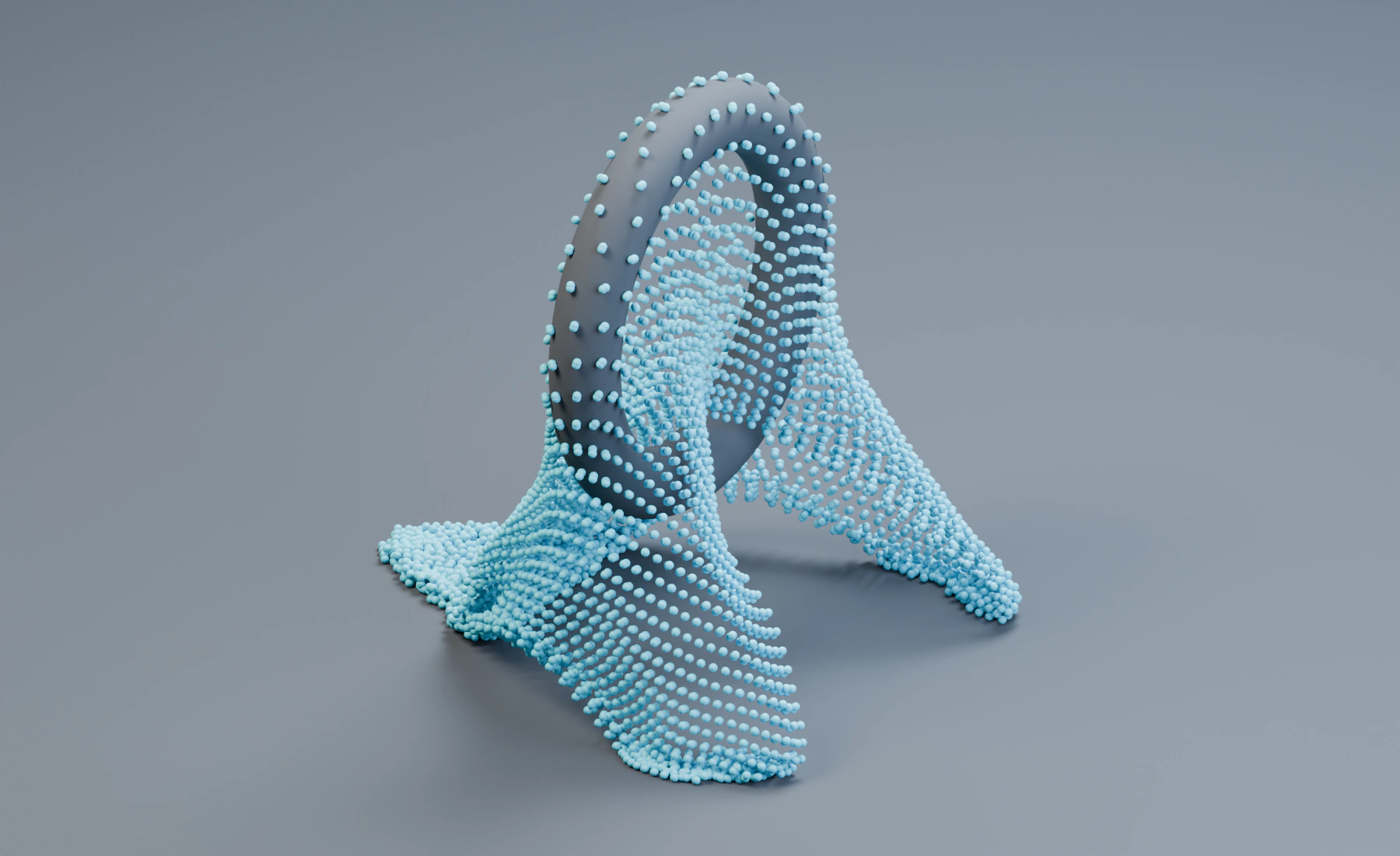
Choose the constraint model
The six Constraint Type values belong to two different workflows:
| Type | Relationship | Use it for |
|---|---|---|
Structural Links |
Persistent pairs with a stored rest length | Rigid or semi-rigid particle frameworks, bonded clusters, breakable connections |
Elastic Links |
Persistent pairs with separate compression and stretch response | Rubber-like bonds, plastically deforming particle structures |
Distance |
A newly evaluated neighborhood driven toward one target separation | Soft local spacing without permanent topology |
Friction |
A newly evaluated neighborhood that resists tangential sliding | Dense particle beds and contact-like drag |
Viscosity |
A newly evaluated neighborhood that smooths relative velocity | Thick, coherent motion without permanent links |
Cohesion |
A newly evaluated neighborhood that attracts particles | Clumping and surface-like attraction |
Structural and Elastic links keep the same partners after creation. Distance, Friction, Viscosity, and Cohesion search the current neighborhood continuously and do not create lasting bonds.
Lists workflow
- Add Particle Constraints from Effects > Collision & Interaction.
- Set
Apply tobefore creating the look. Persistent links are only built for particles selected by the effect. - Choose
Constraint Type. - Set the neighborhood or connection range. Keep
Search Radiusonly as large as the physical relationship requires because a larger neighborhood increases both the number of candidates and GPU work. - Tune the type-specific response.
- Raise
Iterationsonly after the rest distance, stiffness, and correction limit are sensible. - Add Masks or Data Mapping last. This makes it easier to distinguish material behavior from selection behavior.
Multiple Particle Constraints effects can be combined. For example, Friction can run alongside Structural Links. Each effect keeps its own settings and selection, while the active effects share the constraint solve. Granular Bonded Clumps also use the shared persistent link pool and bond solver.
Nodes workflow
Add a Particle Constraints node between the particle stream that should be affected and its next consumer. The complete type-specific controls are in the Inspector. The node body shows only the main controls for the current type.
- Connect a Mask node to the Mask input instead of building the effect's list-based Influence Masks stack.
- Choose Add Mapping... in the Inspector to create a connected Float Field for a supported response control. Chaining fields through
Previouslayers several mappings in connection order. - Use Emitter Branch when only one emitter should receive the constraint, or use the node's
Apply toselector for a named Group or Emitter. - Use Order Shared Stream when two effect branches act on the same particles and their order must be explicit. Use Merge Disjoint Streams only to reunite non-overlapping populations.
Particle Constraints behaves the same way in Lists and Nodes. In Nodes, use stream selection, shared Fields and Masks, Physics Groups and Graph Diagnostics to organize the setup.
Persistent connections
These controls are shown for Structural and Elastic Links:
Search Radius: maximum distance at which a pair can become connected.Minimum Distance: excludes candidates that are too close. Use this when very short links would collapse or over-constrain the structure.Max Links: maximum links owned by this effect for one particle. Structural and Elastic effects share a total persistent pool of 16 link slots per particle, so several persistent-link effects compete for that capacity.Creation:On Birthsearches when a particle first enters the persistent topology.Continuouskeeps looking for open connection slots while the simulation runs.Relink Broken: lets an effect fill slots that become free after a link breaks. It does not repair the original pair specifically.
On Birth is appropriate when the emitted neighborhood should define a stable material. Use Continuous for aggregation or welding during the simulation. If Continuous makes moving particles connect too readily, reduce Search Radius, reduce Max Links, use a Mask, or switch to On Birth.
Structural Links
Structural Links hold every pair near the distance at which it was created.
Stiffness: strength of the positional distance correction. Higher values keep the stored shape more firmly.Damping: reduces relative motion along a link. Increase it when a linked structure oscillates after impacts.
Structural Links do not have plastic rest-length changes. Use Elastic Links when a connection should keep permanent compression or stretch.
Elastic Links
Elastic Links evaluate shortening and lengthening independently:
- Compression
Stiffness: resistance to becoming shorter than the stored rest length. Compression Limit: relative shortening that must be exceeded before permanent shortening can begin.- Compression
Plasticity: amount of permanent shortening allowed beyond that limit. - Compression
Plasticity Rate: how quickly the stored rest length adapts during sustained compression. - Stretch
Stiffness: resistance to becoming longer than the stored rest length. Stretch Limit: relative extension that must be exceeded before permanent extension can begin.- Stretch
Plasticity: amount of permanent extension allowed beyond that limit. - Stretch
Plasticity Rate: how quickly the stored rest length adapts during sustained stretch.
Set Plasticity to 0 when deformation should be fully recoverable. A low Limit with high Plasticity and a high Plasticity Rate changes the rest shape quickly. Tune compression and stretch separately for materials that squash more easily than they extend, or the reverse.
Breaking
Structural and Elastic links can break:
Disabled: links remain until a particle disappears or the owning effect no longer applies.Relative Stretch:Max Relative Stretchcompares extension with the link's stored rest length. This scales naturally when link lengths vary.Absolute Distance:Max Distancebreaks at one world-space separation. Use it when the same physical distance must apply to every link.Strain Energy:Energy Thresholdincludes the elastic response rather than testing distance alone.
Break Threshold can use Data Mapping. The mapped threshold is evaluated for the selected particles, so it can create intentionally weak and strong regions. Relink Broken must stay off when a broken bond should remain broken.
Dynamic neighborhood constraints
Dynamic types use Search Radius and Max Neighbors. The neighbor cap limits work and prevents a very dense region from dominating the solve. If the result changes abruptly as density changes, increase Max Neighbors only as far as the scene requires.
Distance
Distance drives nearby particles toward Target Distance.
Minimum Distanceignores closer candidate pairs during neighborhood selection.Target Distanceis the desired separation and does not have to equal Search Radius.Stiffnesscontrols positional correction.Dampingreduces relative motion along the pair direction.
Use Search Radius large enough to find useful partners, then set Target Distance to the visible spacing. A Target Distance much larger than Search Radius cannot pull in partners that were never found.
Friction
Friction resists tangential motion between neighbors without creating a permanent bond.
Static Friction: resistance while relative tangential speed is low.Dynamic Friction: resistance after the pair starts sliding.Slip Threshold: tangential speed at which the response changes from static to dynamic.Strength: overall friction response.
Static Friction is normally at least as high as Dynamic Friction. This produces resistance before sliding and a lower response once motion starts.
Viscosity
Viscosity smooths local velocity differences:
Strength: overall neighborhood response.Velocity Smoothing: fraction of the velocity difference removed by the solve.
Raise Search Radius for broader flow coherence, not as a substitute for Strength. A large radius with many neighbors changes the scale of the motion and costs more than a local adjustment.
Cohesion
Cohesion pulls neighbors together between two radii:
Inner Radius: distance inside which attraction stops, preventing the effect from pulling particles indefinitely toward the same point.Search Radius: outer edge of the cohesive neighborhood.Strength: overall attraction.Falloff:Smooth,Linear, orSharpcontrols how attraction decreases toward Search Radius.
Keep Inner Radius below Search Radius. Use Smooth for a gradual transition, Linear for a direct distance response, and Sharp when attraction should remain stronger through most of the range and drop near its edge.
Solver controls
Iterations: requested solve quality. The highest active Particle Constraints iteration value is used by the shared solve, so one high-iteration effect raises work for all active constraint types.Substep Stiffness Compensation: keeps positional stiffness more consistent when sceneSubstepschanges. It is available for Structural, Elastic, Distance, and Cohesion, but not Friction or Viscosity.Max Correction: maximum position change contributed by one constraint interaction.0uses an automatic limit based on Search Radius. Set a smaller value manually when strong constraints cause visible snapping.
Scene Substeps and effect Iterations solve different problems. More Substeps improve fast motion and collision timing. More Iterations refine the constraints within each substep. Start by fixing Search Radius, target/rest behavior, and initial overlap, then raise the one that addresses the remaining issue.
Data Mapping
Only parameters used by the selected type appear in Add Mapping...:
| Type | Mappable controls |
|---|---|
| Structural | Stiffness, Damping, Break Threshold |
| Elastic | Compression Stiffness, Compression Plasticity, Stretch Stiffness, Stretch Plasticity, Break Threshold |
| Distance | Stiffness, Damping |
| Friction | Static Friction, Dynamic Friction, Friction Strength |
| Viscosity | Viscosity Strength, Velocity Smoothing |
| Cohesion | Cohesion Strength |
Limits, rates, radii, neighbor counts, and solver-quality settings remain uniform. See Data Mapping for source ranges, layer order, Apply Mode, and Field-node workflow.
Troubleshooting
- No links form: check
Apply to, Masks, particle spacing, Search Radius, Minimum Distance, and whether the effect is enabled when particles enter the topology. - New particles do not join an existing structure: use
Continuous.On Birthdoes not keep searching indefinitely. - Broken areas reconnect: disable
Relink Brokenor use a Mask that stops creation there. - The material is too soft: verify that Stiffness is nonzero, then raise Iterations. For fast motion, also raise scene Substeps.
- The material explodes or snaps: remove initial overlap, reduce Stiffness or Max Correction, reduce Search Radius, and avoid giving every particle more links than the structure needs.
- Dense regions are slow: reduce Search Radius and Max Neighbors or Max Links. Large neighborhoods increase work quickly.
- A Mask appears to have no effect on existing links: a Mask can affect response as well as creation. If the goal is permanent topology removal, enable a break mode or use a Physics Event that breaks constraints rather than relying only on a temporary low influence.