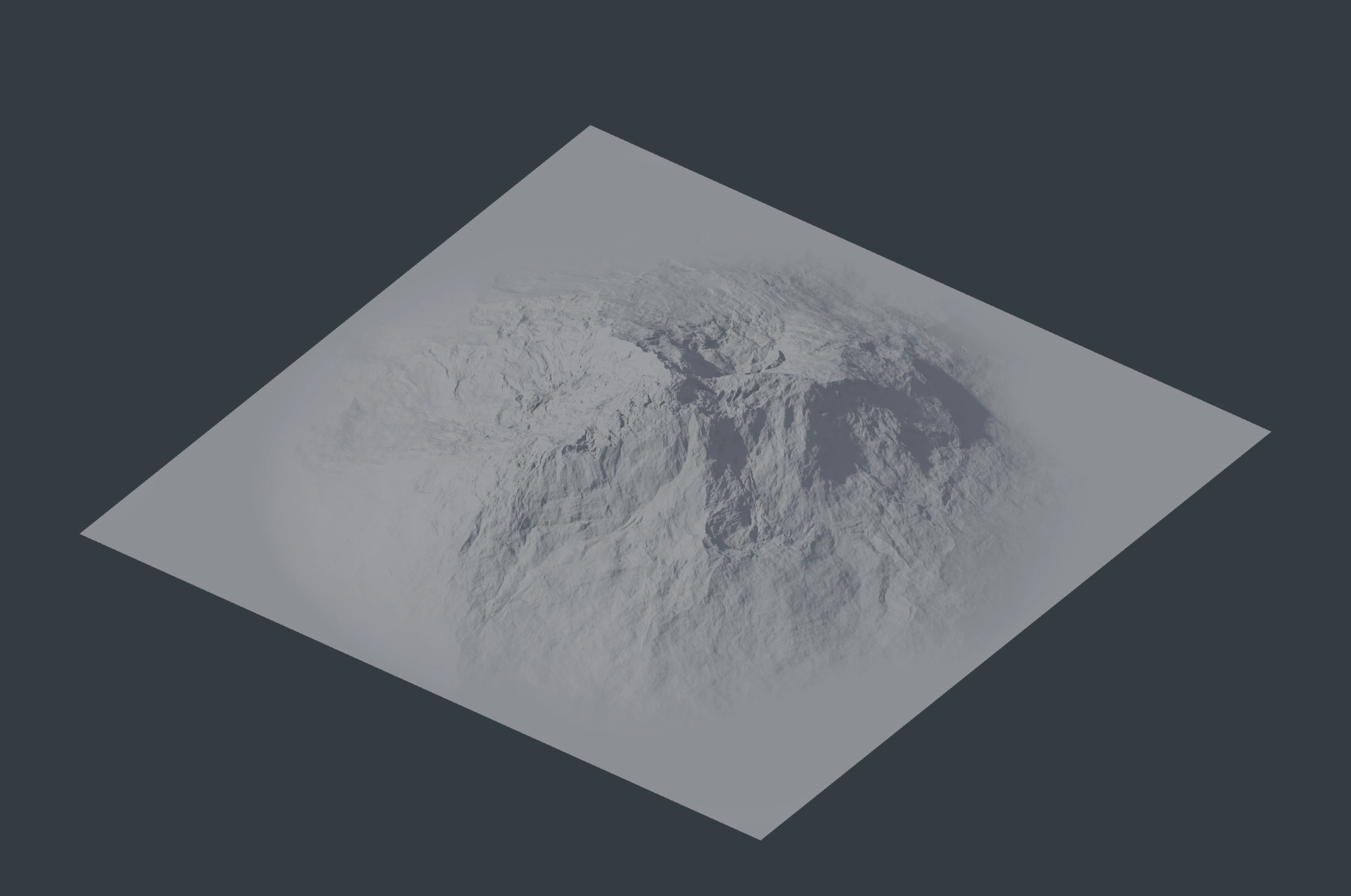
Mountain preview
The Pro Terrain tab builds static heightfields from a node graph. The terrain is independent of the timeline.
For scene management, shared settings and output choices, see Pro Terrain. For a complete illustrated graph, see Mountain to Export.
Build a Mountain
- Open Pro Terrain in the 3D Viewport sidebar and choose Add Terrain.
- Open the Pro Terrain node editor. A new terrain contains Mountain connected directly to Terrain Output.
- Adjust Seed, Scale, Height, Ruggedness, or Falloff on the Mountain node. Scale sets the horizontal reach of the mountain (default 0.5). Ruggedness changes the ridge structure. Falloff controls how far the mountain extends toward the terrain edges. At 0 it has a compact footprint; at 1 it spreads farther across the terrain. The default is 0.5. With Auto Update enabled, the preview rebuilds after a brief pause and the 3D Viewport refreshes when the new result is ready. Use Refresh Terrain Preview to recalculate the preview manually.
- Use Display Mode to choose GPU Preview or Heightfield Geometry. GPU Preview is the default. It uses Metal on macOS and requires Blender's Vulkan backend on Linux and Windows. Use Preview Resolution to choose 1K, 2K, or 4K. Terrain Size sets the horizontal dimensions and defaults to 10; Height Scale sets the vertical dimensions and defaults to 3. Both values use the scene's length units.
Height scales the relief; it is not an absolute peak-height limit.
Blender keeps the previous terrain visible until the updated preview is ready. Select a terrain in the sidebar to show its preview. Switching Display Mode uses the current result without recalculating the terrain. See Terrain nodes to combine shapes and add erosion.
GPU Preview shows the selected 1K, 2K or 4K resolution. Higher resolutions reveal finer detail and use more GPU memory. Lower Preview Resolution if viewport navigation slows down. Heightfield Geometry displays a Blender mesh with at most 512 by 512 cells. Use it to inspect a Blender object; it omits fine detail from a 2K or 4K terrain.
Terrain Size, Height Scale, Preview Resolution, Display Mode, Auto Update and preview lighting are shared by all terrains in the scene. Switching the active terrain changes its graph and preview, not these settings. See Per-terrain and shared settings.
Current limits
- The graph includes shape, procedural, filter, mask, combination, and erosion nodes. See Terrain nodes for the current node catalog. Connect the final heightfield to Terrain Output.
- GPU Preview requires Blender 5.0 or newer. On Linux and Windows, select Vulkan as Blender's graphics backend and restart Blender. See Installation.
- The Blender mesh in Heightfield Geometry is a bounded preview mesh. It is not the final export geometry. Use Save Heightfield or Bake Terrain Mesh for final export; see Input and export.
- Mountain generates height only. It does not add erosion, surface color, or materials.
To use the result in a final Blender render, follow Export and Blender Materials.