Flow Field
Build an ordered voxel vector field from sources and operators, then apply the result to particles or strands.
A Flow Field has three distinct parts: an axis-aligned Domain stores the voxel grid, ordered layers build and process the vectors in that grid, and Particle Response decides how the final vectors affect motion. Treat these as separate tuning stages. First verify the field with viewport visualization, then tune the particle response.
Build a field
Lists
- Add Flow Field after the Emitters or particle stream that it should affect.
- Assign a mesh to Domain, or use Create / Select Domain. Move and scale it to cover the required simulation region.
- Start with a coarse Voxel Size while designing the field.
- Add a source layer such as Directional, Vortex, Curl Noise, Curve Along, or FLIP Velocity.
- Set Visualize to Solo Selected Layer and confirm that source in the viewport.
- Add further source layers and choose how each blends with the field produced before it.
- Add processing operations such as Smooth, Threshold, Remap Magnitude, or Divergence Free after the sources they should modify.
- Switch Visualize to Final Field, then choose Apply As and tune the response.
Nodes
Connect the Flow Field's source and operation nodes to Field Operations:
- Add Flow Field Source / Operation nodes for every generator, sampled source, and processor.
- Connect the earliest operation to the next operation's Previous input.
- Connect the final node to Field Operations on the Flow Field effect.
- Keep the particle stream connection separate. The configuration chain builds the voxel field; the particle stream determines which particles reach the effect.
This is a Nodes-specific workflow. Individual sources and operations remain visible as graph nodes and can be branched or reused as configuration, while Lists stores the same ordered operations inside the effect. A processing node only sees the result of operations connected before it.
Evaluation order
Source layers generate new vectors. Their Blend mode combines the weighted contribution with the incoming field. Operations such as Gain, Threshold, Smooth, and Divergence Free process the field that already exists at that position in the stack. Changing the order changes the result.
For example, FLIP Velocity -> Threshold -> Remap Magnitude first reconstructs liquid velocity, removes weak vectors, and then rescales what remains. Moving Threshold after Remap tests the remapped magnitude instead, so it is not equivalent.
Field Domain
Domain must be a mesh object. The solver uses its evaluated bounding-box center and scaled size as an axis-aligned grid; object rotation does not rotate the grid. Create / Select Domain creates or selects the intended box.
Voxel Size controls simulation resolution. Smaller voxels preserve finer structure but increase voxel count, GPU memory use and calculation time. The UI reports the resulting resolution and total voxel count. When troubleshooting, change domain size or Voxel Size one at a time to see which affects the result.
Update controls field recomposition:
- Once Per Frame composes once and reuses the field for all simulation substeps in that frame. Use it for static fields and when per-substep source changes are unnecessary.
- Every Substep recomposes for every simulation substep. Use it when dynamic source motion or feedback must be sampled at substep frequency. It can multiply composition cost.
Import Field and Export Field exchange composed field data.
Viewport Display
Show Field, Mode = Vectors or Streamlines, Visualize = Final Field, Selected Layer Result, or Solo Selected Layer, plus Density and Line Thickness. Vectors add Vector Scale and Normalize Length; Streamlines add Steps and Step Length.
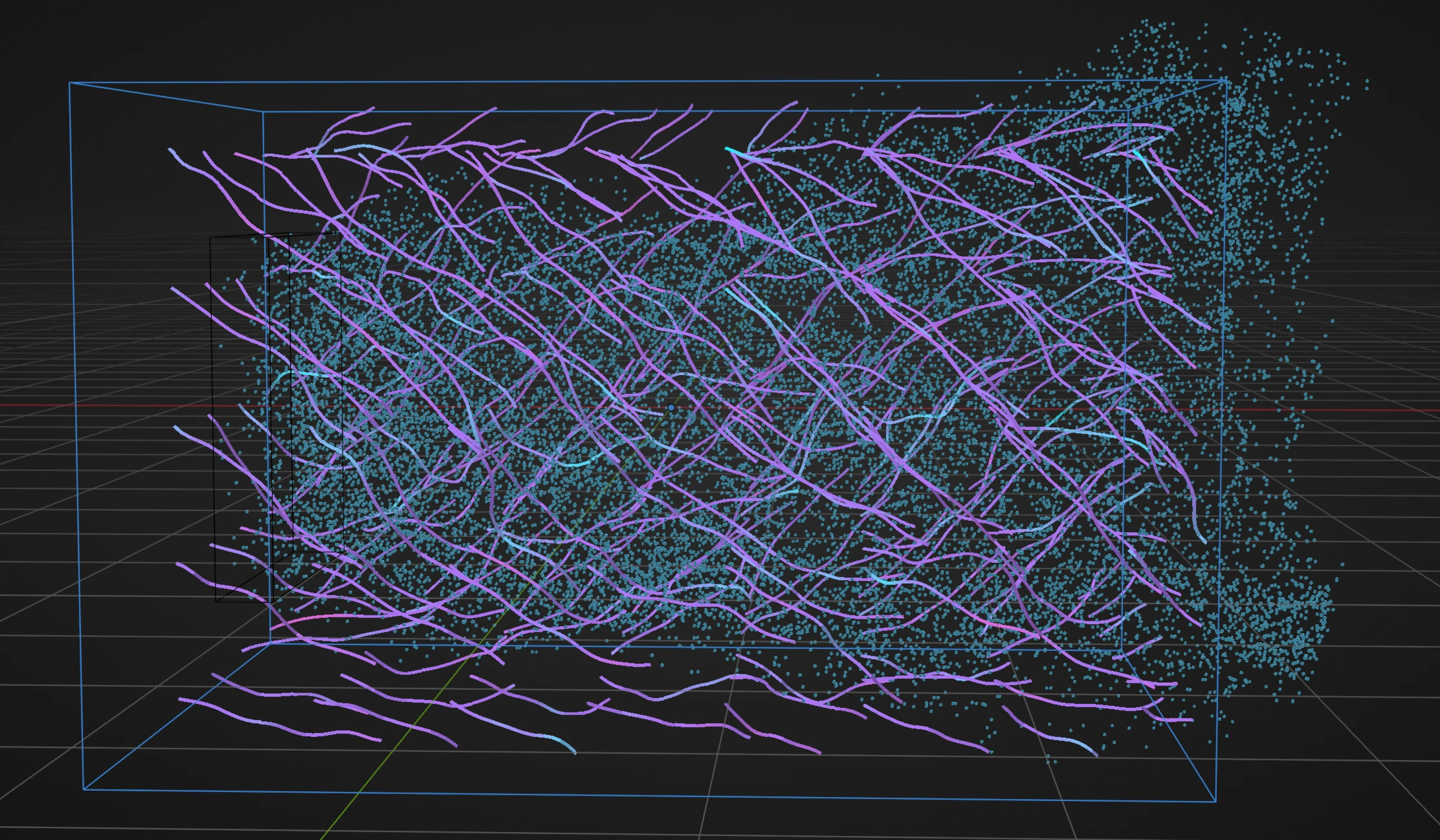
Particle Response
Choose response mode according to what the vectors represent:
| Apply As | Behavior | Use it when |
|---|---|---|
| Force | Treats the sampled vector as acceleration | Existing momentum should accumulate and the field acts like wind or force |
| Velocity | Blends stored velocity toward the sampled vector using Velocity Blend | The field encodes a desired velocity directly |
| Field Drag | Pulls velocity toward the field with exponential Response | Particles should follow the field smoothly without an abrupt velocity replacement |
| Steering | Turns motion toward the field using Response, limited by Max Steering Force | Direction following should preserve controlled inertia |
| Position Offset | Moves position directly without changing stored velocity | The field should deform or offset the trajectory independently of velocity |
Strength scales the final response. Lists can Data Map Strength and the mode-specific Velocity Blend or Response. Compatible Nodes sockets can be driven by fields.
Max Speed optionally caps particle speed after the field response; zero disables the cap. Sampling chooses trilinear Linear interpolation or discrete Nearest voxel sampling.
Outside Domain determines what happens beyond the box:
- Ignore applies no field.
- Clamp samples the closest point on the boundary, extending its value outward.
- Fade extends the boundary value and reduces it across Outside Fade distance.
Field Layers
Ordered layers can be added by type, removed, reordered, duplicated, enabled/disabled, and edited with viewport handles. Every selected layer has Layer Type, Name, Blend (Replace, Add, Subtract, Average, Strongest), Layer Weight, and, except the dedicated Invert operator, Invert.
Layer Weight scales that layer before blending. Invert reverses its vectors. The dedicated Invert operation instead reverses the complete incoming field at that point in the stack.
Radial
Center Offset, Profile = Constant, Inverse, or Inverse Square, Falloff = None, Linear, Smooth, Inverse, Inverse Square, or Custom Curve; non-None modes add Falloff Distance and Reverse Falloff; Custom Curve displays the editable falloff curve. Strength sets layer magnitude.
Directional
Direction and Strength.
Vortex
Center Offset, Direction, Core Radius, Axial Flow, Radial Flow, the same Falloff controls described above, and Strength.
Vortex Ring
Center Offset, Ring Axis, Ring Radius, Core Radius, Falloff controls, and Strength.
Orbit
Center Offset, Direction, Falloff controls, and Strength.
ABC Flow
Center Offset, ABC Coefficients, Scale, Animation Speed, and Strength. Higher Scale values create larger field structures; Animation Speed = 0 keeps the procedural pattern static.
Curl Noise / Turbulence
Center Offset, Scale, Octaves, Lacunarity, Roughness, Animation Speed, Seed, and Strength. Higher Scale values create larger field structures; Animation Speed = 0 keeps the procedural pattern static.
Random
Center Offset, Cell Scale, Animation Speed, Seed, and Strength.
Target
Position and Strength.
Curve Along / Curve Attraction
Curve, Influence Radius, and Strength.
Surface Normal / Surface Attraction
Surface, Sample Radius, and Strength. Surface Tangent adds Direction.
Particle Velocity
Particles = All Particles, named Group, or Emitter ID; the matching source selector; Splat Radius; and Strength.
FLIP Velocity
FLIP Source, Splat Radius, and Strength.
VDB Velocity
Volume, Velocity Grid, Sampling, and Strength.
Pro Pyro Velocity
Reads the active Pro Pyro velocity field. Controls are Sampling and Strength.
Snapshot
Captures the current composite using Capture Current Field and displays the stored resolution. It has no separate source Strength because the captured field is already baked into the layer contribution.
Texture
Image plus the adjacent file-browser button for loading an image directly, Projection = XY, XZ, or YZ, Addressing = Clamp, Repeat, or Mirror, Filtering = Linear or Nearest, Vector Mode = RGB Vector or Brightness x Direction, optional Direction, UV Scale, UV Offset, and Strength. Image sequences and movies add Frame Offset, Sequence Start, Sequence End, and Outside Sequence = Blank, Hold, or Loop.
Optical Flow
Uses an image sequence or movie and shares Image, direct file loading, Projection, Addressing, Filtering, UV, sequence, and Strength controls with Texture. Motion-specific controls are Motion Scale, Window, and Confidence Threshold.
Line Flow
Center Offset, End Position, Radius, Swirl, Radial Flow, and Strength.
Obstacle Flow
Direction, Surface, Clearance, Deflection, Outward Bias, and Strength.
Magnitude Operators
Gain uses Gain; Clamp uses Minimum / Maximum; Invert and Normalize require no extra parameter; Threshold uses Threshold; Remap Magnitude uses Input Min, Input Max, Output Min, and Output Max; Quantize uses Steps; Response Curve uses Input Min/Max, Output Min/Max, and an editable response curve.
Spatial Operators
Smooth, Sharpen, Dilate, Erode, Divergence Free, Vorticity, Extrapolate, and Advect Field use Operator Strength and Iterations. Extrapolate additionally exposes Empty Threshold; Divergence Free additionally exposes Boundary = Open or Closed.
Iterations repeat the grid operation and can become expensive on high-resolution domains. Establish the result at low resolution and low iteration counts before increasing either.
Worked setup: guide particles around an obstacle
- Create a domain that contains the obstacle and the entire region in which particles need guidance.
- Add a Directional layer for the base travel direction.
- Add Obstacle Flow after it, choose the obstacle mesh, and use the same general Direction.
- Set Clearance to the region in which redirection should begin.
- Raise Deflection until viewport streamlines bend around the surface. Use Outward Bias only as needed to keep the field away from the mesh.
- Add Smooth after Obstacle Flow if the reconstructed deflection is too abrupt. Keep its Iterations low initially.
- Display Final Field as Streamlines and inspect the path before simulating particles.
- Start with Field Drag so particles approach the field velocity smoothly. Tune Response, then Strength, then Max Speed.
- Add a Collision effect separately if particles must physically collide with the obstacle. Obstacle Flow redirects the vector field; it is not collision detection.
Troubleshooting
- No field is visible: Assign a valid mesh Domain, add at least one enabled layer, and confirm that the domain covers the inspected region.
- A processor appears to do nothing: Place it after the source it should process. In Nodes, verify the Previous chain and connect its final node to Field Operations.
- Particles stop responding outside the box: Choose Clamp or Fade instead of Ignore, or enlarge the Domain.
- The field looks blocky: Use Linear sampling and, if needed, reduce Voxel Size. Check viewport Density separately because it changes only the display.
- The field rebuild is expensive: Use Once Per Frame where appropriate, increase Voxel Size, reduce domain size, and lower spatial-operator Iterations.
- Dynamic sources lag between substeps: Use Every Substep when the extra composition cost is justified.
- Position and velocity disagree after the effect: Position Offset intentionally does not change stored velocity. Use a velocity-based response when downstream behavior must see the changed motion.
- Image-driven motion is empty: Texture needs an Image. Optical Flow specifically needs an image sequence or movie, and Blank produces no field outside Sequence Start and Sequence End.
- FLIP Velocity is empty: Select an active FLIP Source and check that its liquid carriers occupy the Flow Field domain.