Waves with Whitewater
Build traveling FLIP waves, then add separate Spray, Foam, and Bubbles profiles. Reconstruct the liquid surface with Mesher while keeping whitewater as particles.
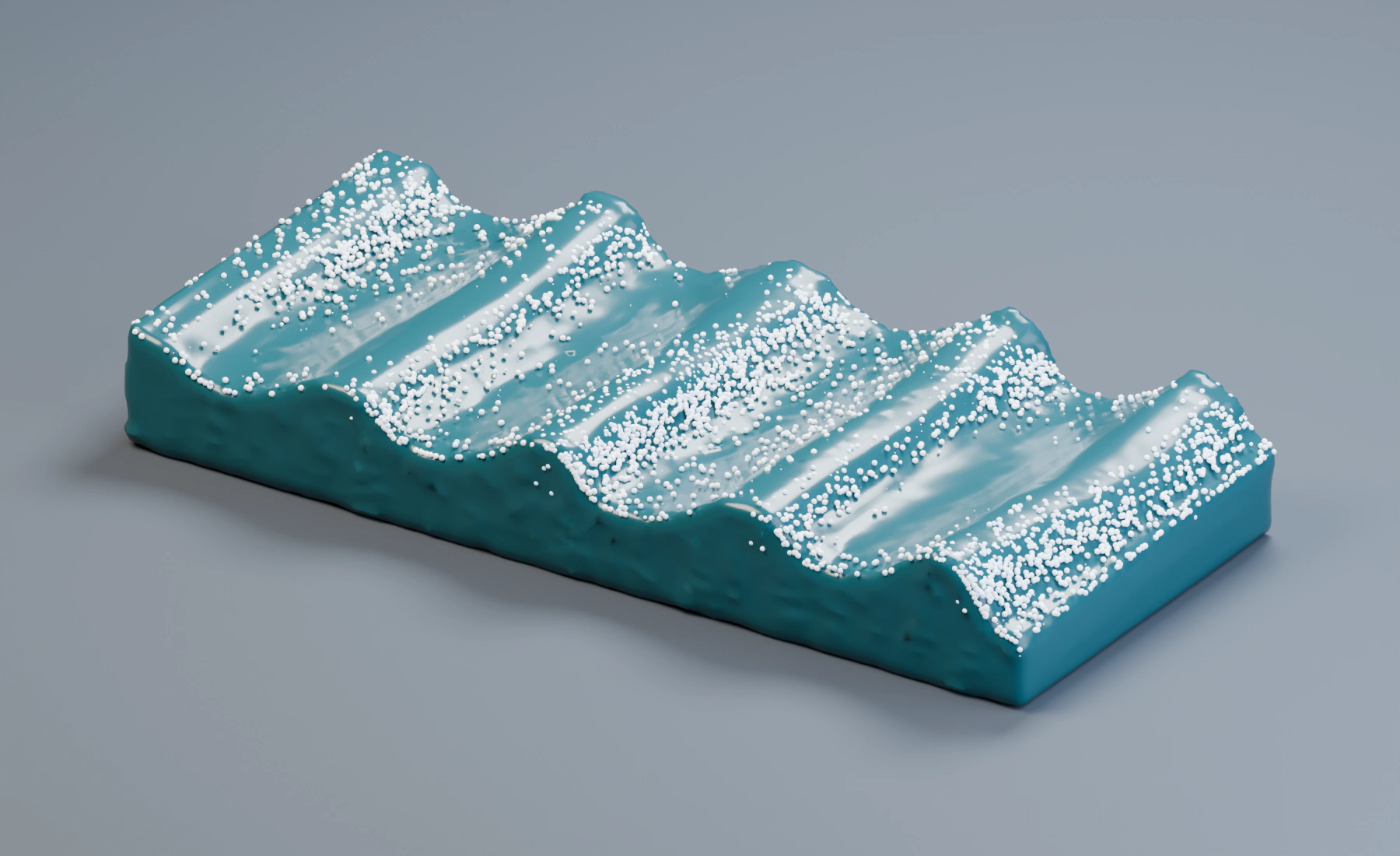
The Water profile supplies liquid properties. Spray, Foam and Bubbles profiles supply the generated secondary particles, with separate groups for output filtering. The liquid surface and whitewater are displayed by different post effects.
1. Prepare the domain and profiles
Start a new Lists system. Use 30 fps, scene Substeps 2, and frames 1–90. Create a cube named FLIP Domain, dimensions 9 × 4 × 3.2 m, centered at (0, 0, 1.6), and apply Scale.
In Groups, create Water, Spray, Foam and Bubbles. Rename the starter Emitter Water Profile and add three Emitters named Spray Profile, Foam Profile and Bubbles Profile. Set Type Particles on each, assign its matching Default Group, and enter the values below. Remove their starter source entries and disable the Emitters' ordinary emission. They remain available as profiles selected in FLIP's controls.
| Profile | Named Group | Radius | Color |
|---|---|---|---|
| Water | Water | 0.04 m |
Dark blue |
| Spray | Spray | 0.022 m |
Almost white |
| Foam | Foam | 0.026 m |
White |
| Bubbles | Bubbles | 0.021 m |
Pale blue |
Use Lifetime 150 frames, Radius Random 0, and Initial Velocity 0 for these profiles. Assign a named group to each profile so you can filter it in the output.
Add Gravity → FLIP Fluid in evaluation order. Use Gravity Force (0, 0, -9.81). In FLIP, assign FLIP Domain to Domain Box, Voxel Size 0.15 m, Solver FLIP, Quality Balanced, FLIP Ratio 1, Viscosity 0, Surface Tension 0.08, and Vorticity 0.18. Enable Adaptive Substeps with CFL 0.8, Minimum 1, Maximum 4. Keep all domain faces Closed.
Enable Pre-Fill Domain, choose Water Profile as Particle Profile, set Fill Level 30%, Packing Hexagonal, and Radius Source Use Emitter. No emitting source mesh is needed for pre-fill.
2. Establish the waves
Enable Waves and enter:
| Control | Value |
|---|---|
| Amplitude | 2 |
| Frequency | 0.5 |
| Speed | 1.35 |
| Randomize | 0.4 |
| Direction | (1, 0, 0) |
| Surface Band | 3.2 m |
Keep Sheeting and Reseeding off. Amplitude sets the wave forcing strength, Direction points the travel along X, and Surface Band limits the vertical region affected by waves. The whitewater settings below respond to the resulting active surface.
3. Add secondary particles
Enable Whitewater with Generation 0.5, Activity Threshold 0.22, Activity Decay 0.55, Calm-Water Persistence 0.6, and Max Whitewater Particles 350000. Set Spawn Velocity 0.85, Spawn Scatter 0.24, Deep Spawn Speed 0.45, Lifetime from Energy 0.45, and Drag Variation 0.1.
Enable all three types and select their matching profiles:
| Response | Spray | Foam | Bubbles |
|---|---|---|---|
| Amount | 1 |
1.25 |
0.7 |
| Energy Min / Max | 0.18 / 1 |
0.35 / 2.75 |
0.45 / 3.2 |
| Trapped Air Min / Max | 0.14 / 0.75 |
0.06 / 0.65 |
0.1 / 0.7 |
| Wave Curvature Strength | 0.35 |
0.3 |
0.05 |
| Curvature Min / Max | 0.15 / 0.85 |
0.08 / 0.65 |
0.1 / 0.8 |
| Vorticity Strength | 0.55 |
0.35 |
0.45 |
| Vorticity Min / Max | 0.35 / 3.5 |
0.2 / 2.5 |
0.25 / 3 |
Use Auto transitions, Transition Delay 0.12 s, Blend Duration 0.18 s, Hysteresis 0.18, and Contain to Fluid Domain on with Boundary Bounce 0.2. Keep each type's boundary mode at Inherit.
For Spray use Air Drag 0.08, Surface Alignment 0.2. For Foam use Advection 0.92, Surface Alignment 0.65, Cohesion 0.35, Spreading 0.18, Density Persistence 0.5, Erosion Neighbors 3, Erosion Rate 0. For Bubbles use Buoyancy 0.65, Drag 0.78, Spreading 0.1, Surface Alignment 0.15. Leave Spawn After Age and Max Spawn Depth at 0 for all types.
These values distribute whitewater around active wave regions. Spray forms airborne droplets, Foam remains near the surface, and Bubbles move below it. Auto transitions let particles change type as their relationship to the liquid changes.
4. Separate liquid and whitewater output
Add Mesher with one Particle layer selecting the Water group. Use Blender Geometry, Voxel Size 0.075 m, Zhu-Bridson reconstruction, Center Correction 0.75, Surface Level 0.5, and Radius Scale 2.2. Add a Smoothing layer after the particle layer with Gaussian, Strength 0.6, Iterations 3, Radius 1. Assign a water material and keep Smooth Shading enabled.
Add Point Cloud filtered to Spray, Foam, and Bubbles. Use Blender Geometry, Particle Radius and Particle Color. Leave its Material empty for the automatic color material. Do not include these groups in the water Mesher: doing so would reconstruct foam into the main water surface.
The illustration uses a dark teal material with Roughness 0.2, Transmission Weight 0.3, and IOR 1.333, lit by area lights. This is a presentation choice. Most submerged bubbles are obscured by the water surface; use GPU Preview or isolate their group to inspect them.
5. Play the waves
Play from frame 1 through 90. Pre-fill creates the initial liquid, waves develop across the tank, and whitewater collects in active regions. Give the waves time to form before adjusting Generation. Save the complete setup when the liquid surface and secondary particles are visible.
Optional: view the liquid alone
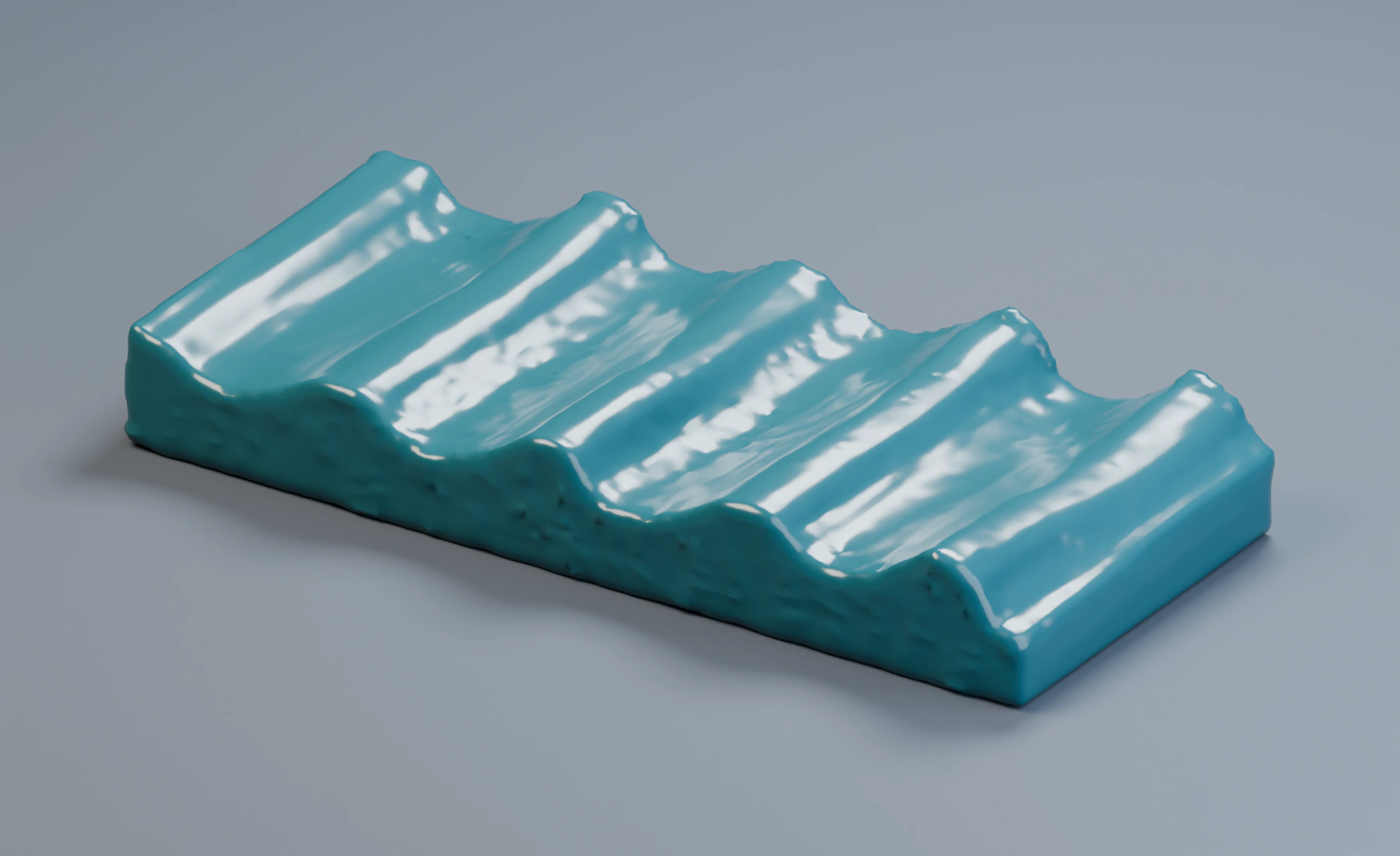
Disable Whitewater and replay from frame 1 to see the surface without secondary particles. Re-enable it to return to the full result.
Nodes workflow
Create the four profile Emitter nodes without emitting source objects and select them in FLIP's Pre-Fill and Whitewater controls. Combine their particle outputs with Merge Disjoint Streams before Gravity → FLIP Fluid. Feed FLIP's final particle output to Mesher, Point Cloud and Simulation Output / Particles; connect both post-effect Results to Simulation Output / Geometry. Configure profiles, Mesher layers and group filters in their Inspectors. Both outputs are needed for the illustrated result.
Troubleshooting and cost
- No whitewater appears: check the profile references, type toggles, Generation, and activity thresholds. Calm liquid may generate little whitewater.
- Everything becomes foam: raise activity or per-type response thresholds before increasing the particle cap.
- Spray joins the water mesh: check the Mesher's Water-group filter.
- Simulation or output becomes heavy: reduce whitewater amounts and cap, or use a coarser Mesher Voxel Size. Mesher resolution is separate from FLIP resolution.
See FLIP Fluid and Mesher.