Soft Body on Cloth
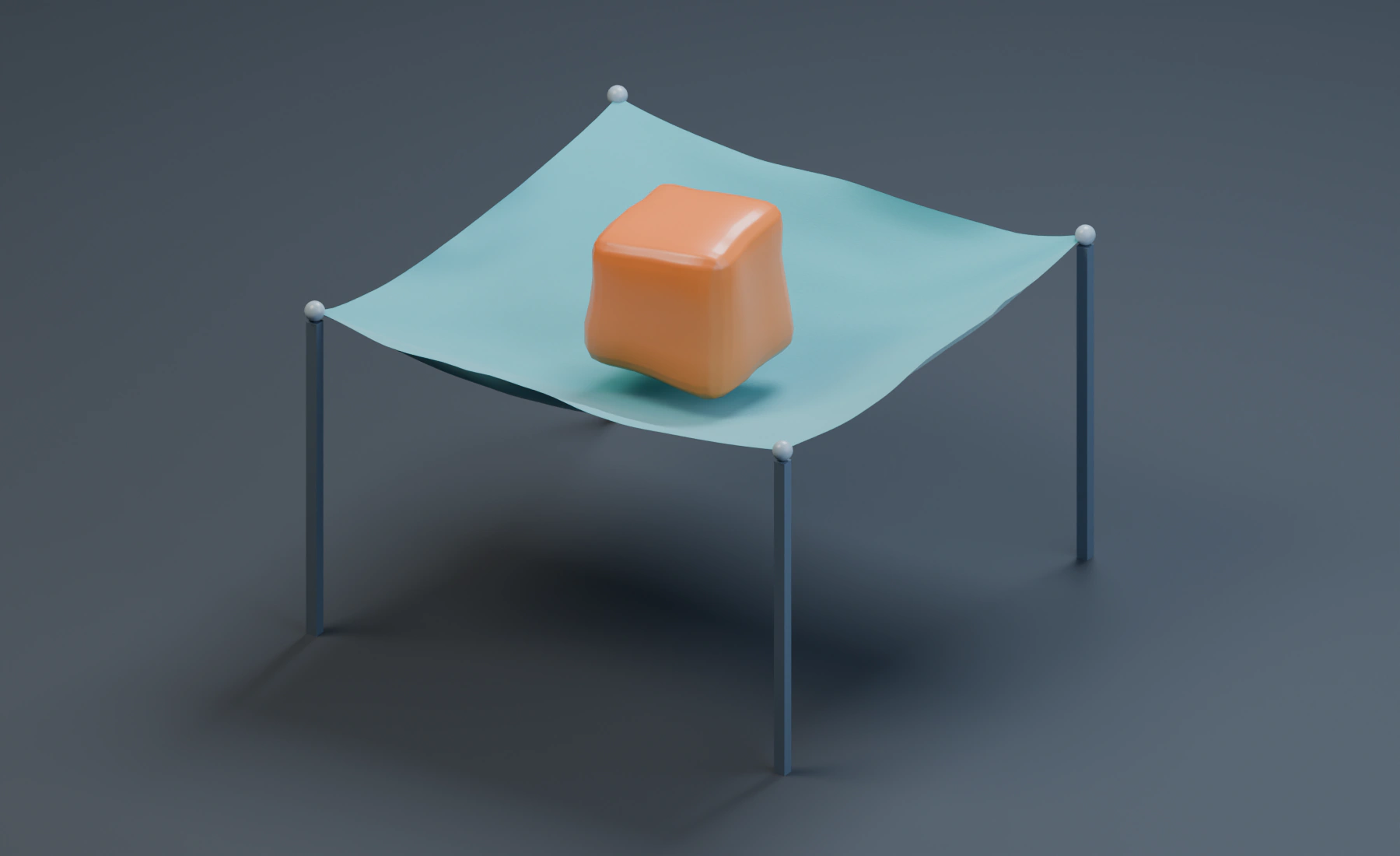
Catch a deformable solid in a pinned Cloth sheet. Deformable Interaction makes both simulated materials participate in contact.
Prepare the two sources
Use a new Blender file, Start with Lists, 24 fps, frames 1–56, and scene Substeps 4.
- Create only the sheet and Corner Pins group from Make the suspended sheet. Set the starter Emitter to Cloth and assign Cloth Source as a Surface source under Mesh Sources. This scene has no grain Emitter.
- Create a cube named
Soft Body Source, Dimensions(1.15, 1.15, 1.15), Location(0, 0, 4.2), and apply Scale. - Apply a Bevel modifier with Width
0.18 mand Segments3. Apply a Subdivision Surface modifier in Simple mode with Levels2. Keep the mesh closed and use Shade Smooth. - Add a second Emitter, set Type: Soft Body, and assign the cube as a Surface source under Mesh Sources. Use Simulation Resolution: Full for both Emitters, Start Frame
1and zero Initial Velocity. - Add a cube named
Ground, Dimensions(16, 16, 0.3), Location(0, 0, -0.15), and apply Scale. The stands only indicate the Cloth pins.
Configure the materials
| Control | Cloth | Soft Body |
|---|---|---|
| Density | 10 | 1 |
| Collision Thickness | 0.035 m | 0.035 m |
| Damping | 0.25 | 0.12 |
| Solver Quality | 8 | 8 |
| Collision Friction | 0.25 | 0.25 |
| Self Collision | On | Off |
| Deformable Interaction | On | On |
| Pyro Interaction / Plasticity | Off | Off |
For Cloth, use Local XPBD, Stretch Stiffness 0.92, Shear Stiffness 0.75 and Bending Stiffness 0.08. Assign Corner Pins to Pin Strength Map, with Black/White values 0 and 1. Keep Balloon and Tearing off.
For Soft Body, use Local XPBD, Volume Stiffness 0.9, Shape Stiffness 0.3 and Volume Resolution 12. Volume Stiffness resists compression; Shape Stiffness controls recovery toward the source shape. Leave other material maps empty.
Add forces and output
Add Gravity, Force (0, 0, -9.81), followed by Collision using Ground, Bounciness 0 and Friction 0.5. Enable both the Cloth and Soft Body domains on these effects.
Set both emitters to Display: Geometry. Each emitter produces its own deformable output, so Point Cloud and Mesher are unnecessary. Do not add the moving Cloth result as a separate Collision object: the enabled Deformable Interaction supplies the contact.
Replay sequentially from frame 1 through 56. The cube falls into the hollow and deforms while the sheet supports it. Collision Thickness can leave a small visible gap between the surfaces. Assign materials to Cloth Source and Soft Body Source for the illustrated teal fabric and amber cube, then save the completed setup.
Adjust the landing
The Cloth has higher Density than the Soft Body in this setup, helping it resist the load. Damping reduces continued bouncing in both materials. Change the drop height or material response one at a time, then replay from frame 1.
If the cube passes through the fabric, check Deformable Interaction on both Emitters and the Cloth pins. For fast impacts, increase scene Substeps; for a coarsely sampled cube, add source subdivision. Both cost simulation time. Reducing Collision Thickness can close the visible gap, but also makes contact harder to resolve. Inspect the landing before keeping that change.
Nodes setup
Connect a Surface Source to each Emitter's Sources input, using Cloth Source and Soft Body Source respectively. Set the Emitter types to Cloth and Soft Body. Merge their Particles outputs with Merge Disjoint Streams before Gravity and Collision and enable both effect domains. Connect the final stream to Simulation Output / Particles and both Emitter Geometry outputs to Simulation Output / Geometry. Connect a Deformable Map, Vertex Group Corner Pins, range 0–1, to the Cloth Emitter's Pin Strength input.
The scene shown here uses Lists. To build it in Nodes, enter the settings again in the graph.
See Soft Body basics, deformable contacts, and Strands Support Net.