Production Output Cache
Bake a finished particle result to disk so you can scrub, light and render it without replaying the simulation.
Output Cache stores the visible geometry of selected post effects or deformable Emitters. Use it when the motion is ready for lighting or rendering. Keep the cache folder with the .blend; the project file does not contain the baked frames. For transfer to another application, use Alembic.
Reference setup
Use 24 fps, Substeps 4, and a saved project. Start with one Point Cloud source and a short 1–24 frame bake before extending the range for production.
Use Volume Fill: Density for the Volume source so Rate determines the point count.
| Part | Settings |
|---|---|
| Volume source | Sphere, Radius 0.4 m, centered at the origin |
| Emitter | Rate 20,000 /f, Start Frame 1, Duration 1, Lifetime 240 frames, Radius 0.008 m |
| Initial Velocity | (1, 0, 0.5) |
| Curl Noise | Direction, Strength 4, Scale 2, Speed 0, Seed 17 |
| Point Cloud | Blender Geometry, fixed display Radius 0.014 m, particle Color |
| Output Cache | Point Cloud source, Versioning enabled, Version 1, Start 1, End 24 |
1. Prepare a stable simulation
- Start a new Lists system. Add a UV sphere, Radius
0.4 m, at the origin, and apply Scale. Assign it as a Volume source with Density fill and enter the Emitter values above. Set lifetime Variation, Radius Random, Surface Push and Random Velocity to0. Use a blue birth color. - Add Curl Noise in Direction mode with the table's settings. Keep one Point Cloud post effect and set it to Blender Geometry with fixed Radius
0.014 mand particle Color. Leave its Material empty to use the automatic color material. - Save the project as
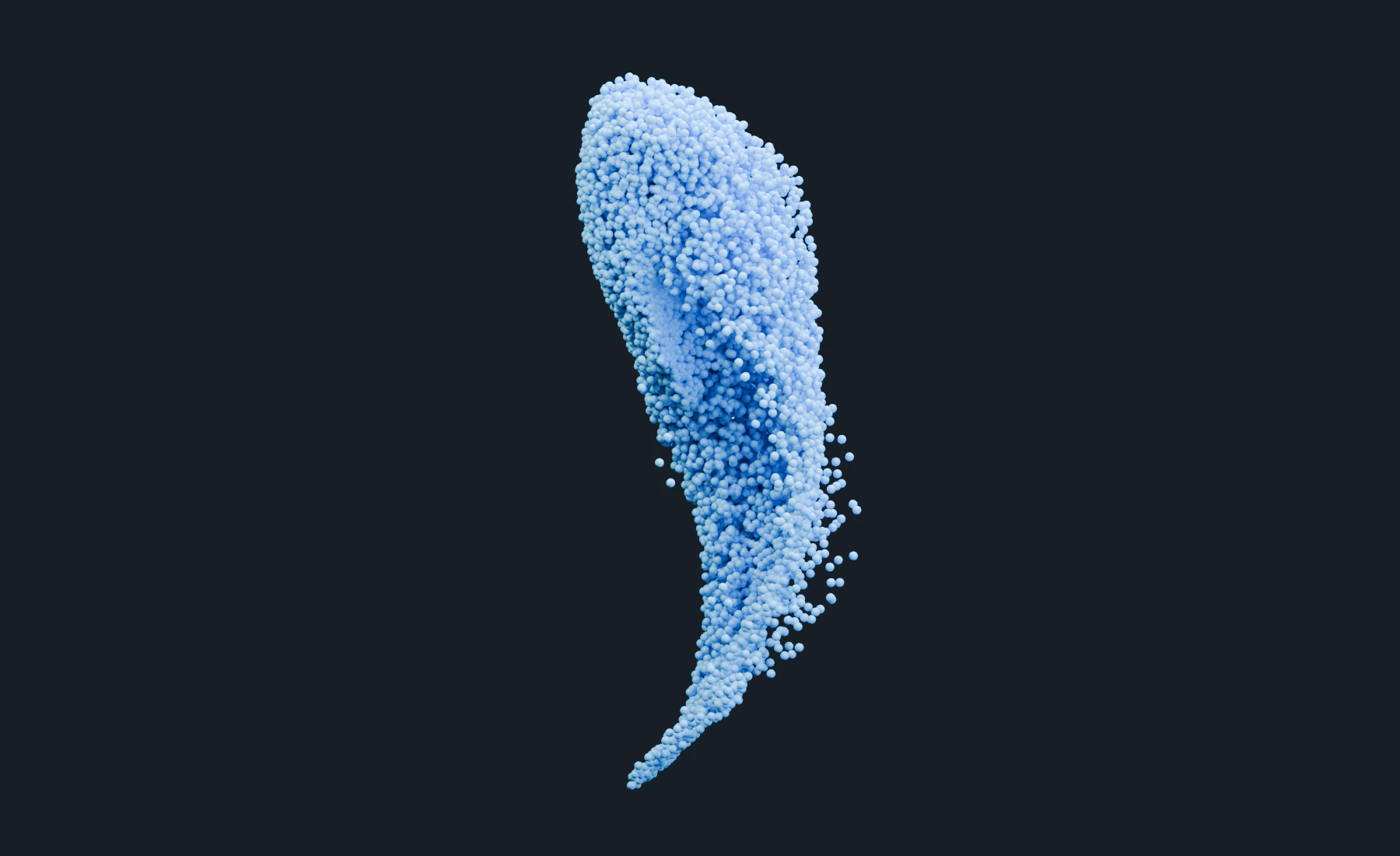
production-cache.blend, then play from frame1to24. You should see a blue cloud changing shape through the curl field.
For an existing shot, finish its motion and output setup first. Choose the visible sources that the render needs: Point Cloud, Trails, Instance, Mesher, Dendrite, Cloth, Soft Body or Strands. More sources and longer ranges require more disk space.
Do not select an unprocessed particle stream as a cache source. Particle emitters need a geometry-producing post effect such as Point Cloud before Output Cache can store them. Deformable Emitters already provide a Geometry output.
2. Create the cache in Lists
- Open Output.
- Choose Add Output > Output Cache.
- Set Folder to
//production-cache. The leading//places it beside the saved.blendfile. - Enable Versioning and select Version
1. - Set Start
1, End24, and Make Loop off for this example. - Under Geometry Sources, add the final Point Cloud post effect. For an existing shot, add each final post effect or deformable Emitter you want to retain.
One Output Cache can store several geometry sources. Their order in the list organizes the cache but does not turn one source into the input of another.
3. Alternative: create the cache in Nodes
- Add an Output Cache node.
- Connect the Result output of a supported post-effect node, or the Geometry output of a Cloth, Soft Body, or Strands Emitter, to the Output Cache Geometry input.
- Connect the Output Cache node's Output to Simulation Output / Outputs.
- Set Folder
//production-cache, Versioning on, Version1, Start1, End24, and Make Loop off in the node or Inspector. - Resolve Graph Diagnostics before baking. A particle stream connected where Geometry is required is a blocking graph error.
The input link selects the source in Nodes. Each Output Cache node accepts one geometry source; add a second output node to cache another source. Keep the final particle stream connected to Simulation Output / Particles and the visible post-effect Result connected to Geometry, as in the normal live graph.
4. Bake
- Return to the start of the chosen range.
- Click Bake Output in Lists or Bake Output Cache for the selected node.
- Let the complete range finish. Playback is enabled only after all frames have been written successfully.
- If the bake reports a write failure or timeout, correct the Folder, permissions, disk space, or expensive source setup before trying again.
The cache includes Blender Geometry even when the selected source uses GPU Preview during live playback. Cloth, Soft Body and Strands retain their detailed visible output when their simulation resolution is reduced.
5. Use the baked result
- Confirm Playback is enabled after a successful bake.
- Scrub to the first, middle, and last cached frames.
- The cloud should keep its baked shape, colors and point sizes as you move between frames. If you cached other sources, make sure they appear too.
- Save the
.blendwith the intended cache Version selected. Add or adjust the camera, lights and materials, then render.
While Playback is active, the scene displays the cache instead of recalculating the particle simulation. You can adjust lighting and materials without rebaking motion. Changes to Emitters, effects or geometry-producing post effects require a new bake. Disable Playback to return to live simulation.
6. Create a new revision
With Versioning enabled:
- Disable Playback and change the simulation or output setup.
- Select Version
2, keeping Version1available. - Set the required frame range and bake it.
- Scrub the new result, then save with the version you want to render selected.
Versioning writes numbered vNNNN folders under the selected Folder. It prevents a new bake from overwriting a previous numbered revision.
7. Clear safely
Use Clear on the selected Output Cache when that bake is no longer required. The operation asks for confirmation.
- With Versioning enabled, Clear removes the selected baked version's
vNNNNfolder. - Without Versioning, it removes this cache's files and leaves unrelated files in the chosen folder.
After clearing, Playback is no longer a valid source until another complete bake exists.
Troubleshooting
- Relative Folder controls are unavailable: Save the
.blendfirst or use an absolute path. - Bake says no geometry source is selected: Add a supported post effect or deformable Emitter in Lists, or connect a Geometry output to the Output Cache node.
- A particle Emitter Geometry output is rejected: Ordinary particle Emitters require a geometry-producing post effect. Use Point Cloud, Instance, Trails, Mesher, or another supported final Geometry source.
- Playback differs from the live scene: Confirm the selected source is the final intended branch and rebake after every upstream simulation or post-effect change.
- Only part of the range plays: A complete successful bake is required. Check the error message and the cached Start/End range.
- Live two-way Pyro no longer simulates: Particle Output Cache playback is final geometry playback, not a resumable state for live coupled Pyro. Disable Playback to return to live simulation.
- A render uses the wrong revision: Check both Versioning and the selected Version before rendering.
For format details, source support, and Alembic alternatives, see Caching and Output.