Mountain to Export
Build a mountain, combine Hydraulic Erosion with Thermal Erosion to form channels and scree slopes, color the finished relief, and export a mesh and matching base-color texture for Blender.
This setup uses the Pro Terrain editor and does not require timeline playback. The before/after images use 4K GPU Preview with identical framing and lighting.
Reference setup
| Part | Settings |
|---|---|
| Terrain | Terrain Size 10, Height Scale 3, Display Mode GPU Preview |
| Preview | 4K for the images; use 1K while first arranging the graph |
| Mountain | Seed 1, Scale 0.5, Height 1, Ruggedness 0.5, Falloff 0.5 |
| Hydraulic Erosion | Iterations 12, Rainfall 1.2, Erosion Rate 0.35; remaining controls at their defaults |
| Thermal Erosion | Iterations 48, Talus 0.35, Strength 0.8, Weathering 0.2, Scale 0.5, Seed 1 |
| Terrain ColorMap | Preset Alpine Debris, Color Source Height, Range Minimum 0, Range Maximum 0.85, Variation 0.12, Noise 0.08, Noise Scale 512; remaining controls at their defaults |
| Preview Lighting | Sun Azimuth 225, Sun Elevation 38, Environment Tint 0.3; remaining controls at their defaults |
These are example settings for this terrain, not universal erosion or export settings. Mountain's Height scales its relief; it is not a guaranteed maximum elevation.
1. Establish the landform
- Start a new Blender file, open the 3D Viewport Sidebar with N, choose Pro Terrain, and click Add Terrain.
- Change an editor's type to Pro Terrain. Keep the starter Mountain connected to Terrain Output; add further nodes with Shift+A.
- Set Terrain Size
10, Height Scale3, Display Mode GPU Preview, and Preview Resolution1Kin the terrain settings. Enter the Mountain values above and inspect the overall footprint before adding erosion.
2. Add erosion
- Insert Hydraulic Erosion after Mountain and apply its reference settings. Keep mask, rain and hardness disconnected.
- Add Thermal Erosion after Hydraulic Erosion and apply its reference settings. Connect Hydraulic Erosion's height and sediment to Thermal Erosion's matching inputs. Keep Thermal Erosion's mask disconnected.
- Connect Thermal Erosion's height to Terrain Output.
Hydraulic Erosion cuts along runoff paths and deposits loose material. Thermal Erosion then moves those deposits downhill and breaks down additional exposed rock. Its sediment input describes material already contained in the incoming heightfield; it does not add a second layer of height.
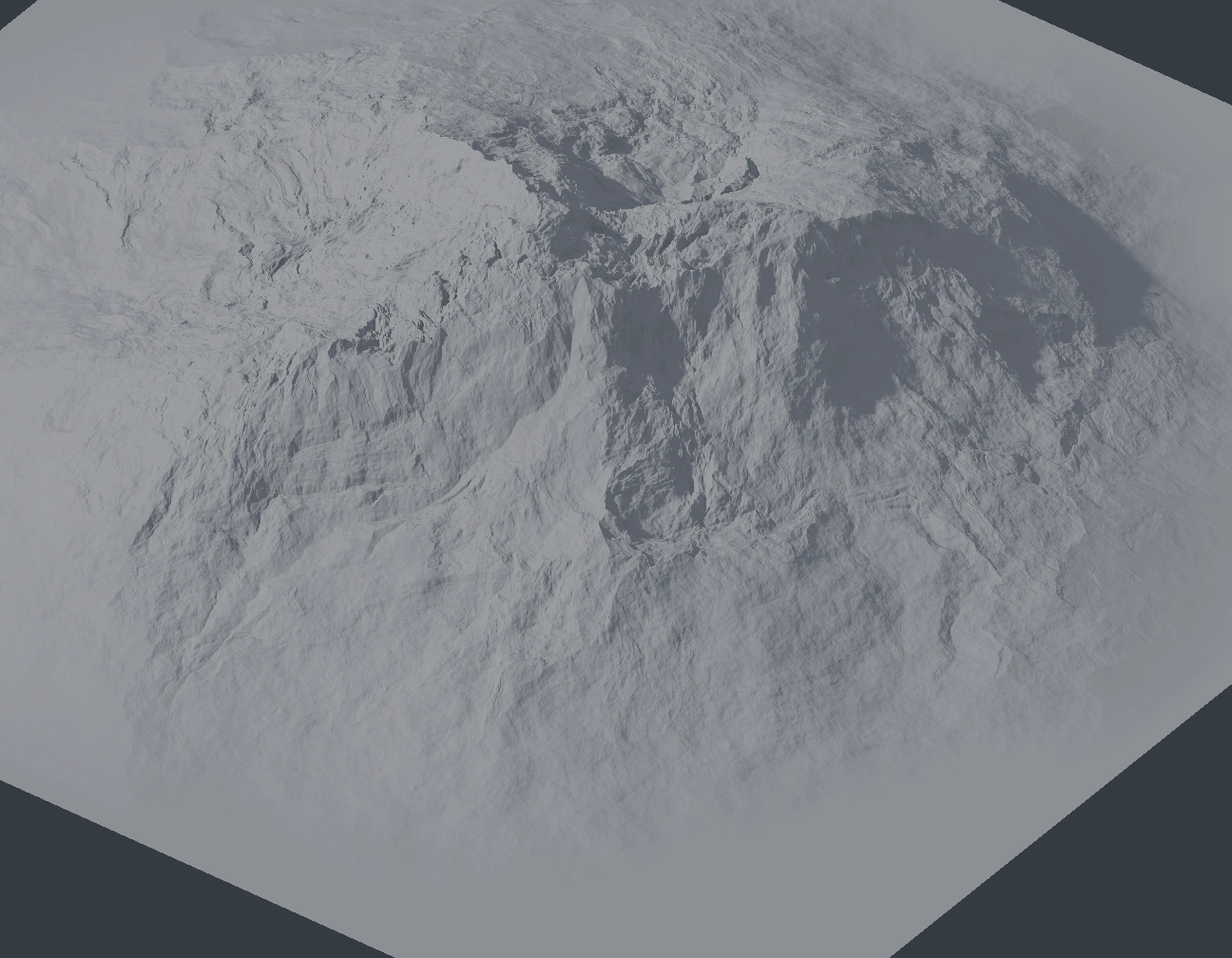
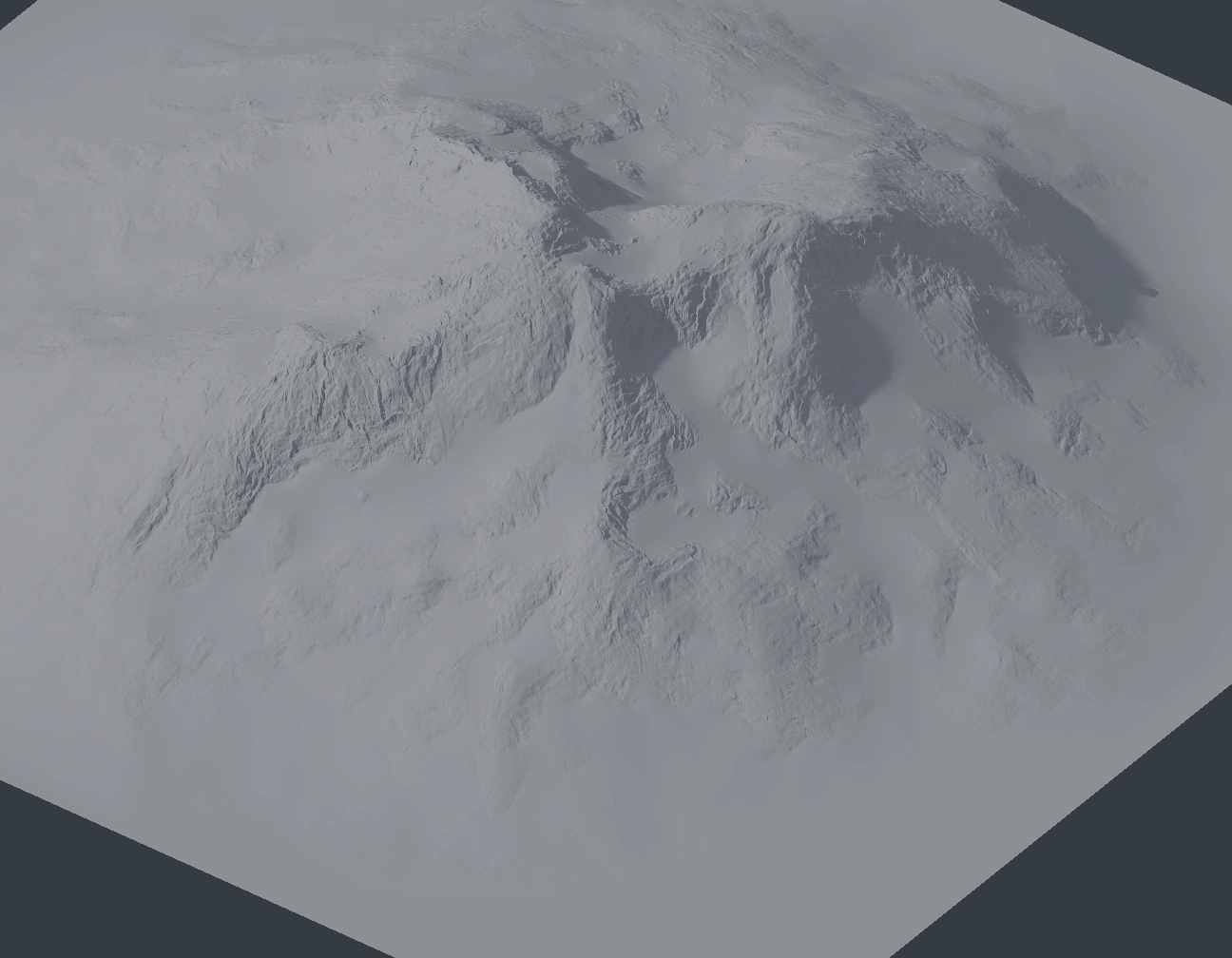
Hydraulic Iterations increases exposure to rainfall. Rainfall supplies runoff, and Erosion Rate controls removal along its paths. The default Deposition Rate remains enabled. In Thermal Erosion, Weathering controls how much exposed rock can break down, Talus sets the stable slope and Strength controls downhill transfer. These settings retain fine rocky relief while smoothing the slopes below it. Lower Weathering for a subtler result; set it to 0 to settle hydraulic deposits without breaking additional rock.
To see either erosion stage on its own, temporarily connect Mountain's or Hydraulic Erosion's height directly to Terrain Output. Reconnect Thermal Erosion for the finished relief. Keep the view and lighting unchanged while comparing; the hydraulic-only preview shows the intermediate result. If updates are slow, disable Auto Update, adjust the controls and refresh once.
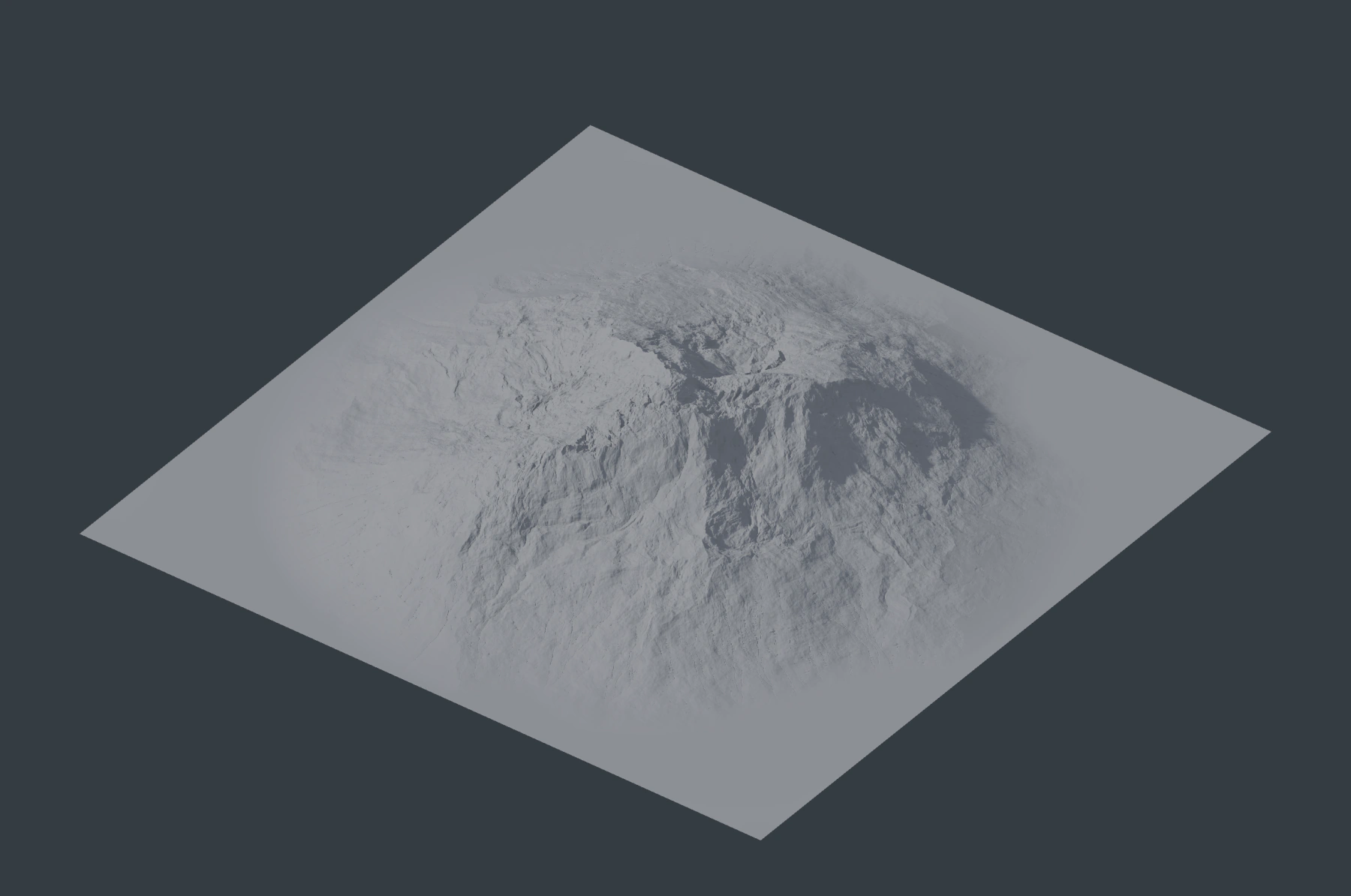
Hydraulic wear, deposit and flow, and Thermal debris, can drive later masks or colors. This example leaves them disconnected and uses height-based color. See Hydraulic Erosion and Thermal Erosion for their controls and material outputs.
3. Color the finished relief
Add Terrain ColorMap, choose Alpine Debris, then apply its reference settings. Connect the eroded heightfield to ColorMap, not the original Mountain output.
| From | To |
|---|---|
| Mountain height | Hydraulic Erosion height |
| Hydraulic Erosion height | Thermal Erosion height |
| Hydraulic Erosion sediment | Thermal Erosion sediment |
| Thermal Erosion height | Terrain Output height |
| Thermal Erosion height | Terrain ColorMap height |
| Terrain ColorMap color | Terrain Output color |
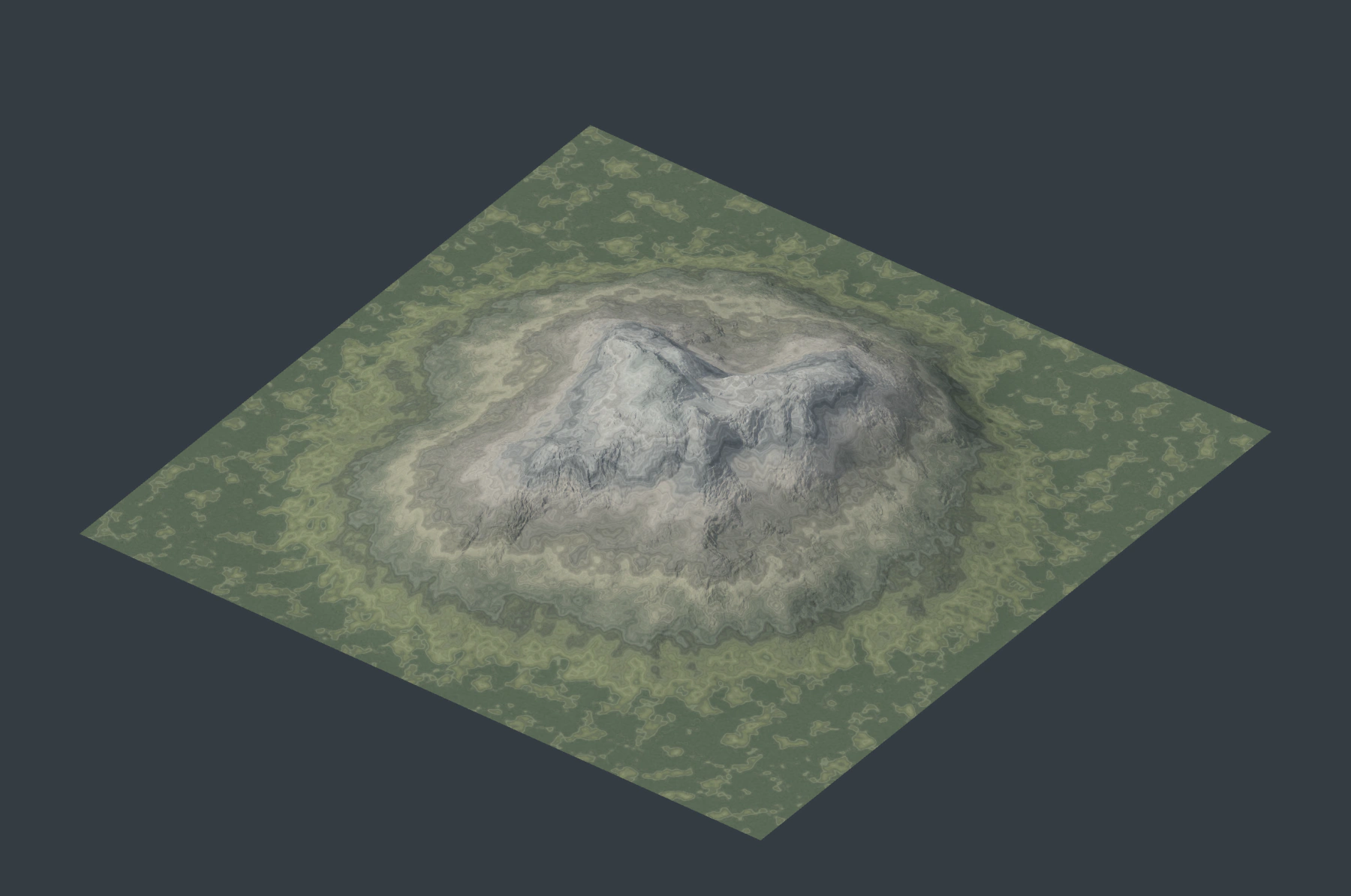
Range Maximum controls which heights reach the end of the palette. Variation breaks up uniform elevation bands, while Noise adds fine brightness grain. These colors do not create vegetation, snow objects or a complete Blender shader. Use the height and color inputs together; a color connection alone cannot display a terrain.
4. Prepare final files
Add Bake Terrain Mesh and Save Texture as parallel output branches:
| Export | Source and settings |
|---|---|
| Mesh | Thermal Erosion height → Bake Terrain Mesh height; Binary PLY; File mountain.ply |
| Base color | Terrain ColorMap color → Save Texture color; Source Color; PNG 16-bit RGBA; Color Space sRGB; File mountain-color.png |
Choose the same Resolution on both exports. Start with a 1K pair to check the import and material setup. For a 4K result matching the illustrated evaluation resolution, choose 4K on both. Grid Reduction: 0.99 is a starting point for a smaller mesh, retaining approximately one percent of the full grid's faces. Inspect whether it preserves the silhouette and channels needed by the shot; reduce Grid Reduction when necessary.
Click Bake Mesh and Export Texture, allowing each to finish. Do not change the source graph between the two exports. Export resolution is independent of Preview Resolution.
Follow Export and Blender Materials to import with Y Forward, Z Up, retain the supplied UVs, and connect the sRGB texture to a Principled BSDF. Mesh export already applies Terrain Size and Height Scale. Reapplying Height Scale after import would distort the terrain.
5. Optional: shape an island with a curve
Keep the eroded mountain as a source and add Drawing Field plus Island Outline. Create a closed Bezier coastline in the terrain's XY domain, choose it under Drawing Field's Drawing, and use Shape: Closed Area.
- Connect Drawing Field distance to Island Outline distance.
- Connect Thermal Erosion height to Island Outline height.
- Set Sea Level: 0, Coast Width: 0.045 and Seabed Depth: 0.035.
- Route Island Outline height to both Terrain Output and Terrain ColorMap. Choose Coastal Sediment on ColorMap, retaining the other settings.
The illustration uses seven closed Bezier points with automatic handles at (-3.5, -1.5, 0), (-1.8, -3.1, 0), (0.8, -2.6, 0), (3.3, -0.8, 0), (2.7, 1.7, 0), (0.7, 3.2, 0) and (-2.5, 2.4, 0), with the Curve object's transform at its default. Alternatively, use Draw Terrain > Island to sketch a coastline and edit it afterward.
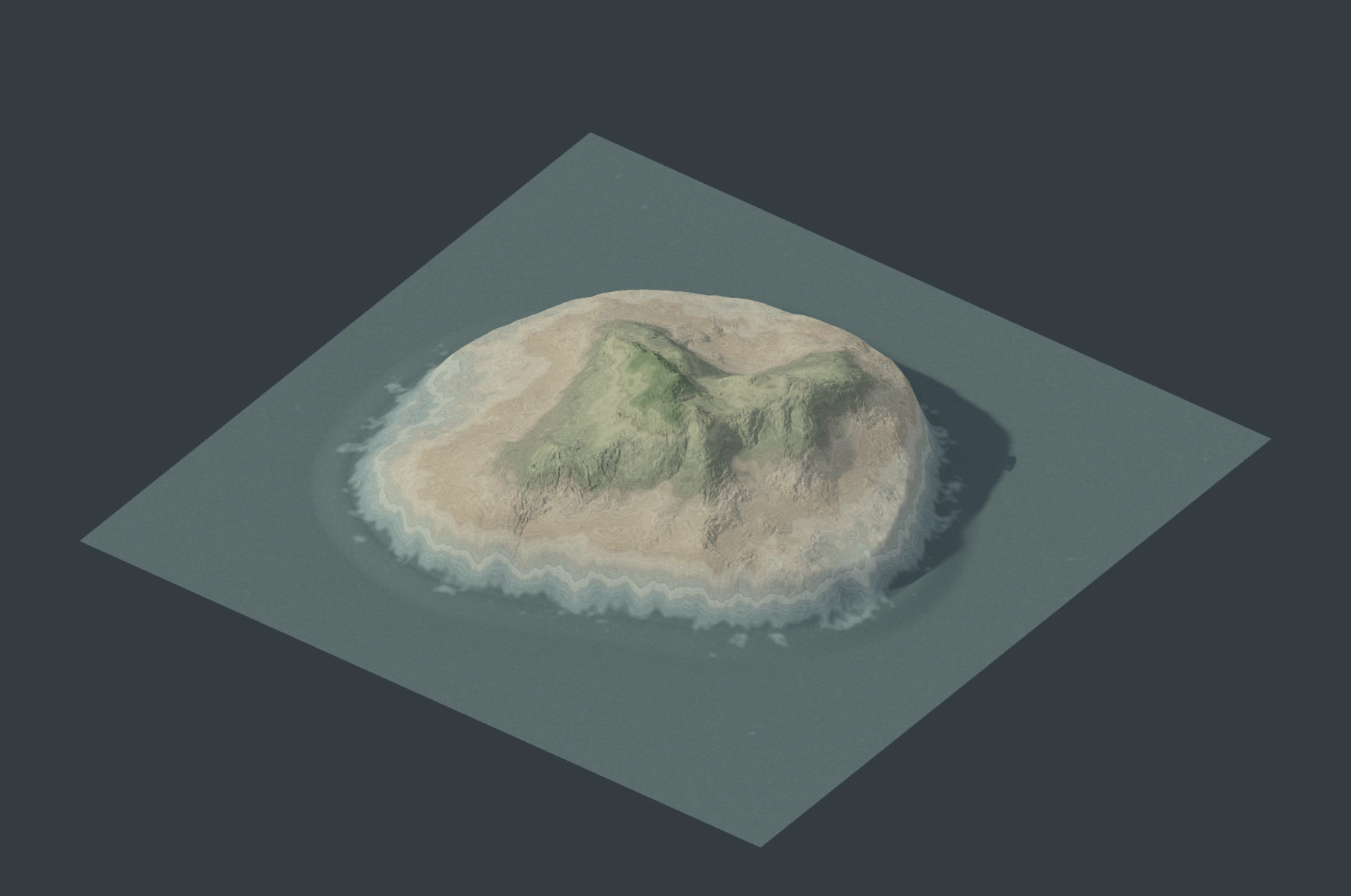
If exporting this variation, reconnect the mesh export to Island Outline's height as well. See Drawing Terrain for drawing, editing, coordinate units and other curve-driven operations.
Troubleshooting
- The mountain changes but its colors do not: Check that ColorMap reads the final processed heightfield.
- The result is entirely one palette region: Inspect Range Minimum and Range Maximum relative to the generated heights.
- Erosion is hard to judge: Disconnect color temporarily and compare the same camera and lighting, or inspect the wear output as a map.
- Final geometry loses the channels: Reduce Grid Reduction. Raising texture resolution does not add mesh vertices.
- The imported material differs from the preview: Check color space, UVs and Blender lighting. Preview shadows are not part of the exported base color.
See Terrain Troubleshooting for missing previews and export failures.