MPM
Material Point Method simulation supports water, elastic, rubber, ductile, sand, clay, snow, foam, plastic, metal, and fracturing materials in one voxel domain.
MPM transfers particle mass and motion to a grid, evaluates material response there, and transfers the result back to the particles. It is appropriate when a material must deform as a continuum, retain elastic or plastic history, fracture, or interact with other MPM materials. Use Granular instead for direct particle-contact grains that do not need a continuum grid.
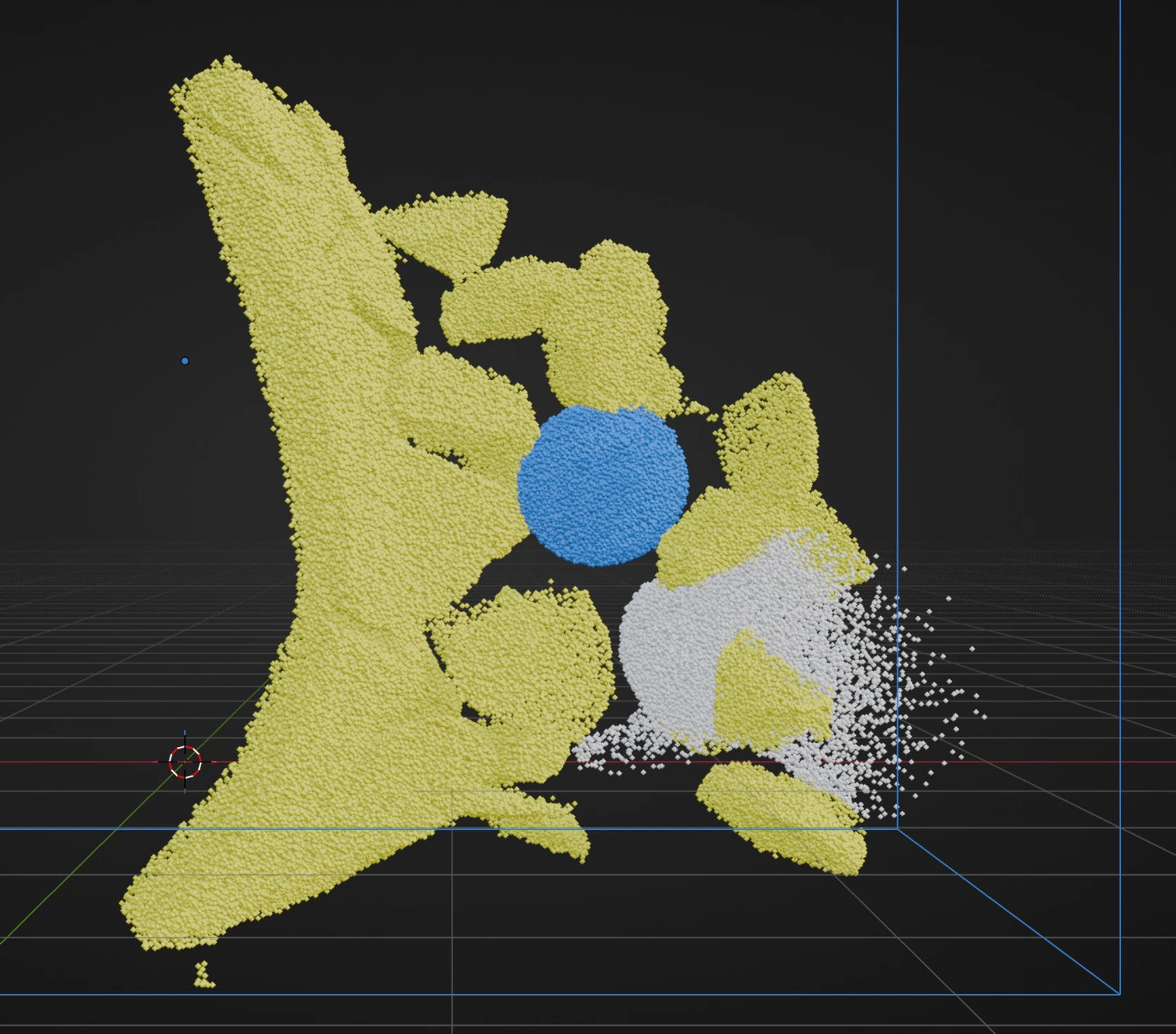
Compare MPM Materials under the same launch conditions, or follow MPM Brittle Impact for a fracture-on/off comparison.
Basic workflow
- Add Emitters for the material points. Their particle positions, velocity, radius, and mass provide the starting state.
- Add MPM after the Emitters and set Apply to to the intended particle population.
- Assign a mesh to Domain Box, or use Create / Select Box, then position and scale it around the complete MPM motion.
- Start with a coarse Voxel Size and closed boundaries.
- Add one material preset and make it Default.
- Add Collision effects for mesh obstacles inside the domain.
- Run the simulation and establish the material motion before reducing Voxel Size or editing advanced parameters.
- Enable Adaptive Substeps for fast motion, stiff materials, small voxels, or impacts.
- Add further materials through Material Mixer only after the first material is stable.
Domain and resolution
Domain Box defines the position and dimensions of the axis-aligned MPM grid. Voxel Size controls the grid cell size. Smaller voxels resolve smaller deformation and contact features, but increase grid memory, transfer work, and the stable substep requirement. The panel displays the resulting resolution and voxel count.
Each face has an independent boundary:
- Closed is a solid wall that keeps MPM material inside.
- Open lets material points leave the MPM domain and continue as ordinary particles outside it.
- Kill is an open boundary that deletes material points after they cross it.
Domain Friction resists sliding along Closed faces. It is a factor from 0 to 1. The default of 0 leaves the walls frictionless; 1 stops sideways motion when material presses into a wall. The setting does not affect Open or Kill faces or mesh Collision effects.
For inflow or outflow shots, choose Open to keep escaped particles or Kill to remove them.
One particle population can belong to only one active MPM effect. Multiple MPM effects require distinct Emitter targets. All and Group targets may overlap as particles change groups, so the solver reports an error when they are combined with another MPM effect. To move one population through several regions, use one larger Domain Box; transfer between separate MPM effects is not supported.
Retiming controls the local simulation speed for particles managed by this MPM effect. Changing it also changes the effective time step, so recheck adaptive stepping and collisions after large changes.
Particle Sleep
Particle Sleep is off by default. When enabled, it holds qualifying material points while they continue to participate in the MPM grid transfer. It is a reversible state separate from Freeze.
- Sleep Trigger: Resting requires slow grid motion and low deformation for Rest Time. Sleep Speed is the maximum qualifying speed. Water does not enter automatic Resting sleep.
- Mask Only sleeps points selected by Sleep Mask, including Water and points without physical support. Use it when the mask should control the state directly.
- Resting + Mask requires both the Resting conditions and Sleep Mask influence.
- Wake Speed controls physical wake from grid motion or deformation. A Wake Mask can wake points at any time and takes priority over Sleep Mask. In mask-driven modes, removing Sleep Mask influence also wakes points.
- Sleep Mask Threshold and Wake Mask Threshold apply to the combined influence of each mask chain. Points in a material transition or attached to a Pin Group do not enter sleep. Renewed fracture damage wakes a sleeping point.
In Lists, create or reuse masks in the separate Sleep Mask and Wake Mask stacks with Add Mask.... Set Blend Mode and Influence per mask; an Invert entry reverses the accumulated stack. In Nodes, connect a single or composed Mask expression to the MPM node's Sleep Mask and optional Wake Mask inputs. Time, Age, Noise, spatial and particle masks use the same mask controls as Material Changes. Source Speed is available only on particle Emitters. The Sleep Mask is required for Mask Only and Resting + Mask; Wake Mask is optional. Lists and Nodes keep separate configurations.
Sleep does not reduce the size of the MPM grid or stop its transfer passes. It is primarily a motion control. Very low Wake Speed can reactivate material from minor grid motion; high values delay its response to impacts. In Resting mode, unopposed motion prevents sleep regardless of Wake Speed. Mask Only can hold material without physical support; Resting + Mask still requires its Resting conditions.
The initial values are Sleep Speed 0.05, Wake Speed 1.0, Rest Time 0.25 seconds, and 0.5 for each mask threshold. Speeds use scene units per second.
Materials
An MPM effect can contain up to 32 named material slots. Names must be unique because Default, Material Mixer, Material Changes, and MPM Impact filters refer to those slots. Choose the closest preset first. Editing a preset value switches that slot to Custom while retaining its current values.
| Preset or model | Intended response |
|---|---|
| Water | Pressure-based liquid without elastic solid response |
| Elastic | Shape-retaining solid that returns toward its undeformed state |
| Rubber | Stretchable solid with a stronger restoring response at larger strain |
| Ductile | Von Mises solid that yields permanently above Yield Strength |
| Sand | Granular Drucker-Prager plasticity controlled by friction and cohesion |
| Clay | Compressible Cam-Clay plasticity with pressure-dependent hardening |
| Snow | Compressible plastic material that hardens after compaction |
| Foam | Viscoplastic material with rate-dependent yielded deformation |
| Soft Plastic | Tuned soft Ductile preset |
| Metal | Tuned stiff Ductile preset |
| Brittle Solid | Tuned Elastic preset with fracture enabled |
The preset menu contains ready-made materials. Custom additionally exposes the underlying Model: Water, Elastic, Rubber, Ductile, Sand, Clay, Snow, or Foam.
Shared controls
- Density converts particle mass into MPM rest volume and inertia.
- Water uses Incompressibility. Higher values resist volume compression more strongly and require smaller stable time steps.
- Non-water models use Stiffness and Volume Preservation. Stiffness raises elastic resistance and usually requires more substeps. Volume Preservation controls the solid's lateral response and remains below 0.5.
- APIC Transfer preserves local affine motion through grid transfer. It is recommended for coherent elastic and solid motion.
- Damping removes material velocity each MPM step. Use it to reduce vibration or kinetic energy. Resolve unstable time steps before adding damping.
Model-specific controls
- Ductile: Yield Strength is the stress at which deformation becomes permanent.
- Sand: Internal Friction increases resistance to shear and supports steeper piles. Cohesion makes the material hold together instead of flowing freely.
- Clay: Friction Shape increases shear resistance relative to pressure, Compression Bias changes tensile versus compressive yielding, and Hardening increases pressure resistance as permanent compaction accumulates.
- Snow: Hardening makes compressed snow progressively stiffer. Compression Limit and Stretch Limit define the elastic strain range before permanent deformation. A zero Stretch Limit removes sustained tensile strain, which can prevent brittle tensile fracture; use Elastic or Brittle Solid for rigid fracture.
- Foam: Yield Strength starts irreversible deformation, Plastic Response shapes the nonlinear response after yielding, and Plastic Viscosity slows the rate of plastic flow.
- Rubber: Stiffness controls how firmly it pulls back; Volume Preservation controls lateral contraction. Rubber retains elastic deformation until the particle volume separates. Use a dense Volume fill and move Pin Groups gradually for thin bands. At large deformations, Rubber can take longer to calculate than Elastic with the same Stiffness.
Fracture
Fracture is available for every non-Water material. It stores stress-driven damage and allows cracked regions to separate.
- Tensile Strength controls resistance to pulling apart.
- Shear Strength controls resistance to distortional failure.
- Fracture Toughness controls resistance to damage growth after a strength limit is exceeded. Higher values slow crack propagation.
- Fragment Scale sets the typical spacing of crack-separation regions in MPM voxels. Larger values favor larger coherent fragments.
- Strength Variation adds stable local strength variation and produces less uniform crack paths.
- Fracture Friction controls tangential friction when separated fracture surfaces contact again.
- Fragment Damping removes internal stretching and shearing vibration from damaged fragments while preserving their translation and rigid-body rotation.
For rigid brittle behavior, start with Brittle Solid or an Elastic model. Plastic models can yield before they fracture, so a low plastic yield limit can absorb deformation that would otherwise drive brittle failure.
Fracture workflow
- Start from Brittle Solid for a rigid material, or enable Fracture on another non-Water material.
- Establish stable unbroken motion with coarse voxels and Adaptive Substeps.
- Lower Tensile Strength for pulling failure or Shear Strength for sliding and distortion failure.
- Tune Fracture Toughness for crack propagation speed.
- Adjust Fragment Scale only after crack initiation behaves correctly.
- Add Strength Variation for irregularity and Fracture Friction for fragment re-contact.
- Use Fragment Damping if broken pieces wobble internally. Do not use it to replace missing collision or time-step stability.
Material Mixer
Material Mixer assigns one of the MPM material slots according to particle origin. Particles without a matching enabled assignment use Default.
- Add a source entry.
- Choose Emitter or Group and select the source.
- Choose its Material.
- Add further assignments for the remaining sources.
- Verify that the fallback Default material is correct for unmatched particles.
In Lists, Material Mixer appears inside the MPM effect. In Nodes, select the MPM effect node and edit its material slots, Material Mixer, and Pin Groups in the node inspector. The compact node body exposes Domain Box, Voxel Size, Default Material, and Retiming; the nested MPM collections are not separate configuration nodes. Lists and Nodes keep their own configurations.
Material Changes
Material Changes in the Material Mixer turn an Affected Material into a Result Material during simulation. Add a change, choose Trigger, and set Transition Time. Changes are directed and affect only particles currently using Affected Material. The first qualifying change in the list advances during a step. A completed change does not automatically reverse; add another change for the reverse direction if needed.
- Contact uses Contact Material and Contact Sensitivity. The affected material changes while it shares enough MPM grid contact with the contact material.
- Mask lets you combine masks for the Material Change and set Mask Threshold. The combined value must exceed the threshold. Its value from 0 to 1 also scales the change rate: at 1, completion takes approximately Transition Time; smaller qualifying values take longer. The masks are evaluated for each particle as the simulation advances. When the combined value falls below the threshold, partial progress pauses.
In Lists, set Trigger: Mask and use Add Mask... to create or reuse definitions in the Material Change Masks stack. Select a mask to edit its settings, Blend Mode, and Influence; use the arrow buttons to change the stack order. In Nodes, setting Trigger: Mask adds a dedicated Material Change Mask input to the MPM node. Connect a Mask node directly or combine expressions with Mask Blend nodes, then connect the final Mask output. Each change has its own input, and a Mask node can feed several changes. The first mask supplies the initial value; each later mask combines with it using its Blend Mode in Lists or the Mask Blend node's mode in Nodes. Mask Threshold applies to the final combined value. Spatial masks (Box, Sphere, Plane, Linear, Axis Position, Curve, Object, and Noise), Random, Group, Velocity, Age, Mass, Time, and Particle Proximity are supported. Invert Output reverses an individual mask's value; an Invert list entry reverses the accumulated stack. Source Speed is available only on particle Emitters.
Each selected mask is evaluated per particle during simulation. Longer mask stacks add evaluation work. Particle Proximity needs a particle-neighborhood search; use only the masks and spatial detail needed for the effect.
To change material in a region, add a Material Change, choose Mask, add a Box or Object mask there, then set Affected Material, Result Material, Mask Threshold, and Transition Time. A moving mask can change particles when it reaches them. The mask does not reassign their material when it moves away.
Contact-conversion example
- Create three named materials:
Activator,Uncured, andCured. - Assign their Emitters or Groups with Material Mixer and keep Uncured as the Default if it is the main population.
- Add a Material Change in Material Mixer and set Trigger to Contact.
- Set Contact Material to Activator, Affected Material to Uncured, and Result Material to Cured.
- Start with a clearly visible Transition Time and moderate Contact Sensitivity.
- Simulate a controlled contact and confirm that only Uncured particles change.
- Shorten Transition Time for faster conversion, or lower Contact Sensitivity if contact is too sparse to advance reliably.
Pin Groups
Use Pin Groups to attach selected MPM particles to an animated object's location, rotation, and scale. Create or assign a named particle group, add a Pin Group to the MPM effect, select that name under Group, and set Attach To. The particles keep their initial positions relative to the object when they first enter the pin group. Pin Groups are configured inside the MPM effect in Lists and in the MPM node inspector in Nodes. The two setups are independent.
Pin Strength of 1 holds the particles exactly on the moving target and applies their motion to the nearby MPM material. Lower values pull particles toward the target while allowing deformation and lag; they may separate more readily from the rest of the volume. Zero disables the binding. Each group can have one active pin target; if several enabled entries use the same group, the first is used. An MPM effect supports up to 32 active Pin Groups, and target scale must be nonzero. Reset the simulation after changing a target or a group's intended starting positions.
For one volume with different pin areas, enable Group Regions on a Volume Emitter. Place Box or Sphere regions at the areas to attach, select a different named group for each region, and leave the rest of the emitter in an unpinned group. Add one Pin Group per attached region and animate the Attach To objects. With a sufficiently filled volume, the unpinned material remains connected during moderate motion and can separate when pulled far enough. Fracture is not required for this kind of separation; enable it when you need its crack and fragment controls. Sparse particle fills or rapid target motion can cause early separation. Reduce particle spacing or target speed, or adjust Voxel Size, if the volume separates before it visibly stretches.
Pin Groups follow object transforms, including keyframed or driven location, rotation, and scale. They do not follow mesh deformation. A hard-pinned particle can continue following its target outside the Domain Box, but it contributes to the MPM material only while inside the box. Fast target motion can stop the simulation with an MPM limit error. Increase Minimum Substeps, reduce target motion, or increase Voxel Size when that happens. Soft pins limit each correction and can lag behind fast targets.
Hard Pin Groups use additional MPM grid memory while active. Larger Domain Boxes and smaller Voxel Size increase that cost.
Data Mapping
Data Mapping can vary the numeric controls of each MPM material slot per particle. The available targets follow the slot's model: Density and Damping are shared; Water exposes Incompressibility; solid models expose Stiffness and Volume Preservation; the relevant plastic controls appear for Ductile, Sand, Clay, Snow, and Foam. Enabling Fracture exposes its strength, toughness, fragment, and friction controls. Model, Fracture, and APIC Transfer are switches and are not mapping targets.
In Lists, add a mapping in the MPM effect's Data Mapping section and select the material name and parameter. In Nodes, select the MPM effect node and use Add Mapping... to connect a Float Field. Each mapping follows its material slot if the slot is renamed or moved. Material Mixer determines which slot a particle uses, then that slot's mappings are evaluated. During a Material Change, the current and target material values are blended.
Domain Box, Voxel Size, Retiming, CFL, substep controls, boundaries, and Particle Distribution remain uniform for the MPM effect. Each material mapping adds work for particles using that material. Mapped Density, Incompressibility, Stiffness or Volume Preservation can increase calculation time and affect stability; check both ends of the mapped range. Outside Range: Continue is unavailable for these four targets. Where materials meet, the lowest local Fracture Toughness and highest local Fracture Friction control their contact response.
See Data Mapping for sources, layer order, Apply Mode, and Field-node workflow.
Advanced solver controls
- Adaptive Substeps lets MPM raise the shared simulation substep count for particle travel and material wave-speed stability.
- CFL limits travel per MPM cell during one solver step. Lower values are more conservative; higher values allow larger steps.
- Minimum Substeps is the floor requested by MPM.
- Maximum Substeps caps its adaptive request. Increase it for stiff solids, small voxels, or fast impacts when the current cap is reached.
- Particle Distribution gently evens out crowded particles within the material.
Very low Density, high Incompressibility or Stiffness, small Voxel Size or high Retiming can stop the simulation with an MPM internal step limit error. Increase Minimum Substeps, reduce Retiming or material stiffness, or increase Density or Voxel Size. Increasing Maximum Substeps alone does not raise this limit.
Tune in this order: domain and Voxel Size, material preset, Adaptive Substeps, then material-specific values. Raising stiffness while the adaptive cap is too low can look like a material problem even when the time step is the limiting factor.
Troubleshooting
- Material escapes unexpectedly: Check all six boundary modes and verify that the Domain Box covers the intended motion.
- Motion is unstable or explosive: Reduce Retiming or CFL, raise Maximum Substeps, use larger voxels, and avoid extreme stiffness or incompressibility until the base setup is stable.
- MPM internal step limit error: Increase Minimum Substeps (and Maximum Substeps if it is lower), reduce Retiming, Stiffness, or Incompressibility, or increase Density or Voxel Size. This also applies to extreme Water Incompressibility settings.
- The material looks too soft: Confirm that the intended material is assigned, then raise Stiffness or Incompressibility. Recheck the substep requirement after doing so.
- Material Mixer has no effect: Check that the entry is enabled, its Emitter or Group is correct, and the selected material name still exists.
- A contact transition never starts: Confirm the directed Contact and Affected materials, reduce Contact Sensitivity, and verify that they actually share grid contact.
- A transition stops partway: Lost contact pauses accumulated progress. Restore qualifying contact or shorten Transition Time.
- Fracture never appears: Fracture is unavailable for Water. For other models, check tensile and shear strengths, then whether plastic yielding is absorbing the stress first.
- Fracture is too uniform: Increase Strength Variation after the fracture threshold and toughness are correct.
- The solve uses too much memory: Increase Voxel Size or reduce domain dimensions. Grid cost grows rapidly when linear resolution increases.