Pro Pyro
GPU smoke, fire, fuel and flame simulation with Dense and Sparse solver modes, direct GPU preview and VDB output.
Quick Start: First Pyro Simulation
- Open the Pro Pyro tab in the 3D Viewport Sidebar.
- Choose the two horizontal setup options: Volume (VDB) or GPU Preview, and Sparse or Dense. Their initial values come from Add-on Preferences. Metal on macOS or Vulkan on Windows/Linux is required.
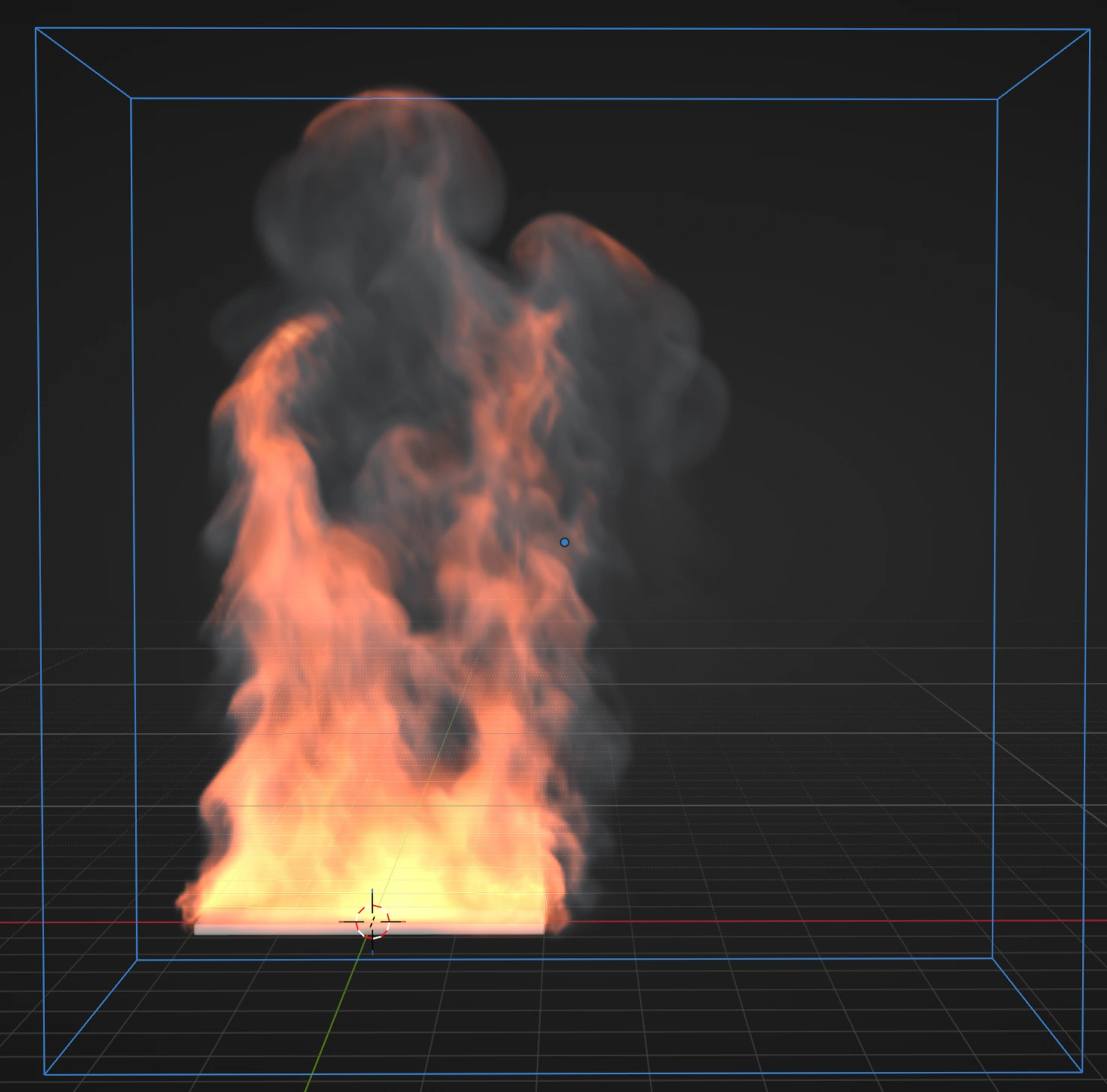
- Click Create Pyro Setup for the basic default emitter, or choose Campfire, Cigarette Smoke, Explosion, Ink in Water, or another preset in the separate Preset Setup box.
- Click Load Preset & Start to create the selected preset, then play or scrub the timeline. The viewport and solver choices made before creation override corresponding values stored by a preset without changing the global Add-on Preferences.
- Adjust
Voxel Size, emitter rates,Swirl Detail,Turbulence, and cache settings as needed. - Bake VDB files when the motion is approved. For polygon output, add a Mesher post effect in Pro Particles with a Pyro Volume layer; use the central Output tab for Alembic export.
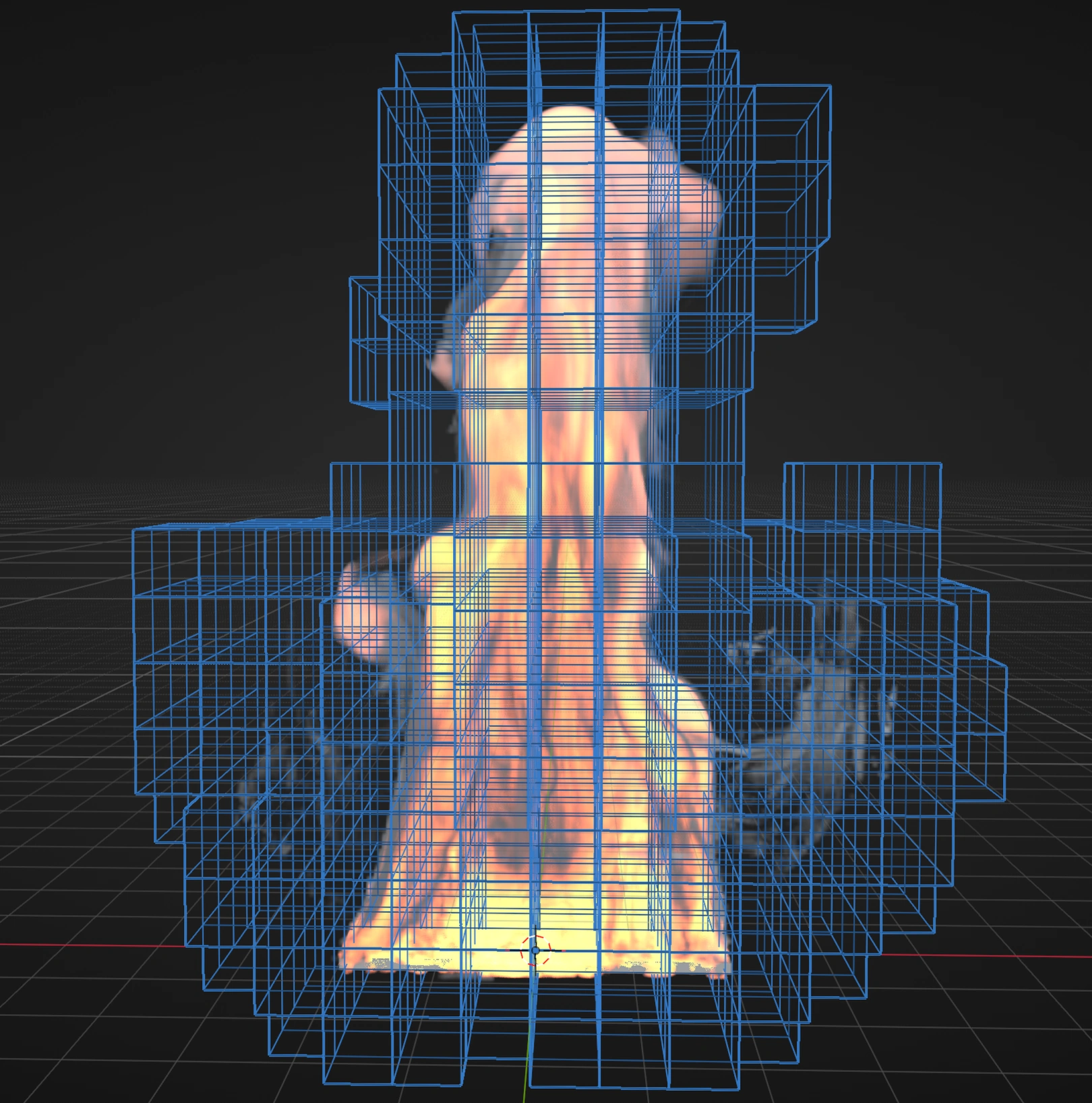
For quick look development, start with Fast Dense. For larger or more open-ended smoke volumes, use Sparse Advanced.
Lists and Nodes
Lists
The Pro Pyro sidebar keeps Domain, Emitters, Colliders, Effects, Physics, Quality, Cache and Viewport as scene lists and category panels. Add entries in their relevant category, then use the permanently visible Core Settings to run, reset or step the simulation.
Nodes
Switch Pro Pyro to Nodes and choose Add Pyro to Graph. This creates the following connections:
- Pyro Source into Pyro Domain / Sources.
- Pyro Domain into Pyro Dynamics.
- Pyro Dynamics / Pyro into Simulation Output / Pyro.
The setup uses the selected mesh as its source. If no suitable mesh is selected, it creates a sphere source, matching the basic Lists setup. The particle and Pyro branches share one Pro Physics node tree but can use Lists or Nodes independently.
Add Pyro Collider and Pyro force nodes directly to the Domain's multi-input Colliders and Forces sockets. Source, Collider and Force node bodies show common controls; their complete settings and Data Mapping are in the Inspector.
Add optional stages between Domain and Dynamics to configure:
- Pyro Boundaries for Dense side behavior.
- Pyro Motion Detail for swirl, turbulence and shredding.
- Pyro Combustion for fuel, ignition, flame and smoke release.
- Pyro Quality for solver and output-detail settings.
- Pyro Preview for Volume or Fast GPU Volume display.
- Pyro Initial State and Pyro Looping for their cache workflows.
Connect the stages in order from Pyro Domain to Pyro Dynamics, with at most one active stage of each type. Leave out a stage to use the Domain's defaults for that feature.
Pyro Dynamics also exposes Volume. Connect it to particle Volume Advection, a Cloth or Soft Body Emitter's Pyro input, or another compatible volume input. This connection to the live simulation is available only in Nodes. See Particle and Pyro Interaction.
Pyro Data Mapping in Nodes
Use Add Mapping... in a selected Pyro Source, Force or Dynamics Inspector. It creates a Pyro Mapping node and connects it to the chosen parameter. A target accepts one mapping chain; connect additional mapping nodes through Previous to define their order. You can also add named Pyro Map nodes from Shift+A and reuse them. Unsupported source/target combinations and cycles show graph errors.
Presets
Presets configure the simulation mode, domain, emitters, forces, combustion and look settings as a starting point. Adjust the relevant controls after applying a preset.
Campfire: rising fire with warm smoke and a gentle wind.Dry Ice: heavy fog that sinks and spreads near the floor.Flamethrower: a high-velocity fuel and flame jet.Ink in Water: colored smoke motion with low gravity and fluid-like curls.Magic Portal: vortex-driven smoke around a circular or spiral motion.Cigarette Smoke: thin rising smoke that breaks into small curls.Explosion: fast burst with fuel, heat, flame, pressure, and strong expansion.
Apply Preset replaces the current Pyro setup. Save your file or duplicate the scene if you want to keep an older setup before applying another preset.
Presets contain complete Lists setups. They do not convert or update an existing custom Nodes branch; Lists and Nodes keep separate settings.