Cloth, Soft Body and Strands
Deformable emitters simulate mesh or curve topology directly and can exchange contacts, fields, events and Pyro interaction with the rest of the scene.
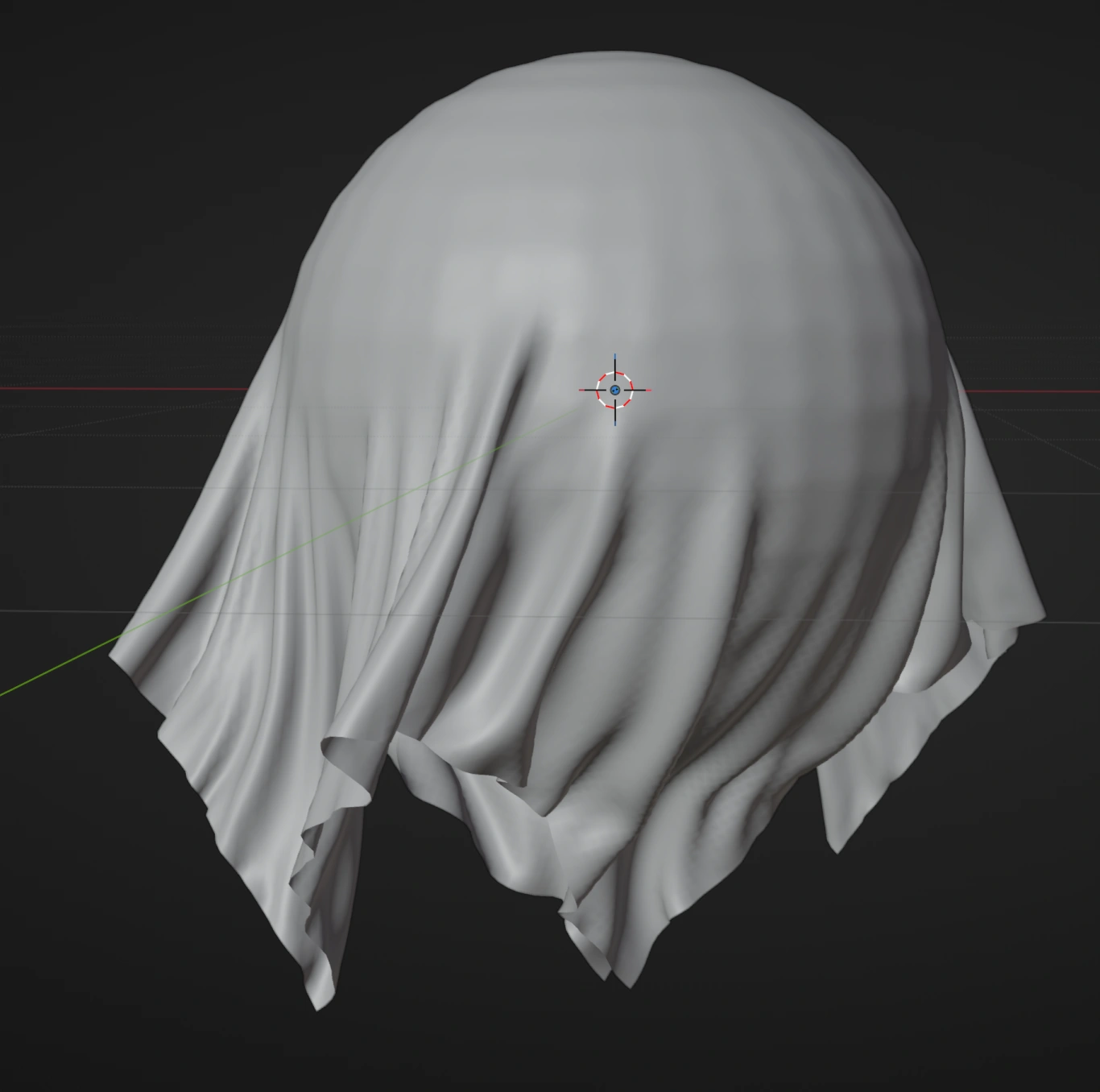
Choose the simulation type
| Type | Source topology | Use it for |
|---|---|---|
| Cloth | Mesh surface | Fabric, membranes, inflatable surfaces, and tearing sheets |
| Soft Body | Closed manifold mesh volume | Objects that squash, bend, and recover volume or shape |
| Strands | Curve splines | Hair guides, ropes, cables, strings, and closed loops |
These are Emitter types, not ordinary effects applied to independent particles. The source vertices or curve points become the simulated material and retain their topology. Shape Matching and Particle Constraints operate on particles and do not replace this topology-based workflow.
Quick start
For complete first projects with settings, comparison exercises and images, follow Cloth, Soft Body, and Strands.
For combined setups, see Granular Load on Cloth, Soft Body on Cloth and Strands Support Net.
Cloth
- Prepare a mesh surface. Add a vertex group for pins or material maps if required.
- Add an Emitter, set Type to Cloth, and assign the mesh as a Surface source.
- Set Start Frame, Group, and Initial Velocity.
- Keep Simulation Resolution at Full while establishing the material. Reduce it or use a Custom Proxy only when the detailed source is too expensive.
- Set Density, Collision Thickness, Damping, Stretch Stiffness, Shear Stiffness, and Bending Stiffness.
- Select a Pin Strength Map, or connect a Deformable Map to Pin Strength in Nodes, when part of the cloth must follow the animated source.
- Add Collision or Dynamic Collider effects for scene meshes. Enable Self Collision, Particle Interaction, or Deformable Interaction only for the contacts the shot requires.
- Add Attach, Stitch, or Sew constraints for animated anchors and seams.
- Enable Balloon, Plasticity, Tearing, Simulation Data, or Pyro Interaction only when that behavior is needed.
- Simulate from the scene start after changing topology, proxy settings, constraints, or material maps.
Soft Body
- Prepare a closed, manifold mesh with usable volume. Flat meshes are rejected. Repair large openings, branching boundaries, and non-manifold regions before simulation.
- Add an Emitter, set Type to Soft Body, and assign the mesh as a Surface source.
- Establish Density, Collision Thickness, Damping, and Solver Quality.
- Balance Volume Stiffness against Shape Stiffness. Volume Stiffness resists compression; Shape Stiffness pulls the body toward its authored form.
- Increase Volume Resolution only as far as the shape requires.
- Add contacts, material maps, Plasticity, Simulation Data, or Pyro Interaction as needed.
- Reset and simulate from the start after source topology, modifiers, proxy geometry, or material maps change.
Strands
- Prepare a Curve object. Each spline becomes one strand; cyclic splines become closed loops.
- Add an Emitter, set Type to Strands, and assign a Curve source.
- Choose Hair, Rope, Cable, or String as a starting preset, then switch to Custom when tuning individual values.
- Set Radius, Density, Damping, Stretch Stiffness, Bending Stiffness, and Twist / Torsion.
- Choose root, tip, both-end, or point-attribute pinning. Add Attach To when selected points should follow an animated mesh.
- Reduce Segment Resolution or Guide Density when the full curve set is too expensive.
- Enable only the required collision families. Add Breakage, spatial maps, Flow Field, or Pyro interaction afterward.
Lists and Nodes
Both authoring modes use the same deformable solver and expose the same core materials, contacts, preview, Simulation Data, and Pyro behavior. Their construction differs:
| Task | Lists | Nodes |
|---|---|---|
| Supply geometry | Add a Surface or Curve entry to the Emitter's Sources list | Connect a Surface Source or Curve Source to the Emitter's Sources input |
| Output particles or geometry | Use the scene's configured particle and deformable outputs | Connect the Emitter's Particles and Geometry outputs |
| Map a mesh vertex group or Curve point attribute | Select the map beside the material control and set Black/White values | Add Deformable Map, choose the group or attribute, set Black/White, and connect Value to the material input |
| Add Cloth constraints | Add and order Attach, Stitch, or Sew entries in Constraints | Chain Attach, Stitch, or Sew components through Previous and connect them to Cloth Constraints |
| Enable coupled Pyro | Enable Pyro Interaction on the Emitter | Connect the Pyro volume to the Emitter's Pyro input |
In Nodes, share one Deformable Map across compatible inputs or create separate branches with different remaps. Component links set the order of Cloth constraints. In Lists, each Emitter has its own mappings and constraints. Settings do not transfer or synchronize between the two modes.
Shared emitter controls
Cross-object deformable contacts are symmetric and two-way when Deformable Interaction is enabled on both objects and their optional collision-group filters accept each other:
| Pair | Supported |
|---|---|
| Cloth ↔ Cloth | Yes |
| Cloth ↔ Soft Body | Yes |
| Cloth ↔ Strands | Yes |
| Soft Body ↔ Soft Body | Yes |
| Soft Body ↔ Strands | Yes |
| Strands ↔ Strands | Yes, between separate Strand objects |
Within one object, use Self Collision instead. Particle contacts are controlled separately by Particle Interaction.
- Start Frame is when the source first enters the simulation.
- Group lets effects and collision filters target the deformable body.
- Initial Velocity adds one world-space starting velocity to the material.
- Solver Quality controls material and contact accuracy. Higher values use smaller time steps and increase calculation time, including interactions with particles and Pyro. Scene Substeps sets a minimum; the material solver can use more steps.
- Cloth Solver selects the material solver for Cloth. Local XPBD is the general-purpose mode. Multigrid reduces large-scale stretching in stiff, high-resolution cloth. It cannot be combined with Tearing; use Local XPBD for tearable cloth.
- Soft Body Solver selects how Soft Bodies respond. Local XPBD supports the full Soft Body feature set. Multigrid helps stiff, high-resolution bodies hold their overall shape, but cannot be combined with Plasticity.
- Display changes how the result is shown, not which solver is used.
Resolution and material response
Keep physical size, material settings, Thickness or Radius, pin regions and material maps equivalent when comparing resolutions. Increasing resolution should preserve the overall material response, but smaller folds and contact details can change.
Self Collision excludes nearby points that are already closer than the contact thickness in the undeformed rest shape. For Strands, distance is measured along the spline, so distant portions of a coil and separate guides can still collide. Collision Thickness against colliders and other deformable objects is unchanged.
Simulation cost depends on the simulated mesh or curve. Use Simulation Resolution, Custom Proxy, Volume Resolution or Segment Resolution to reduce calculation time while keeping a detailed visible surface. Denser simulation geometry takes more work per step. Cloth with Tearing, Plasticity or very soft stretch settings, Local XPBD Soft Body, and Strands may also need more steps at higher resolution. Reset after changing topology, the simulation proxy or material sampling.
Particle Interaction increases simulation work and GPU memory use. Animated colliders, tearing and live field interactions can also increase calculation time at the same material settings. Compare performance with the same enabled interactions and simulation mesh.
Very high resolution combined with high Solver Quality or Time Scale can exceed the limit of 4096 simulation steps per frame in Cloth modes that need extra time steps, Local XPBD Soft Body, or Strands. The solver then reports an error. Reduce the simulation resolution, use a proxy, or reduce Time Scale. This limit applies even when enough VRAM is available.
Cloth & Soft Body
Set an emitter’s Type to Cloth or Soft Body in either the Emitters tab or an Emitter node. Each enabled source becomes one simulated object while retaining the parent emitter’s stable identity for effect targeting and other emitter-based workflows. If another Cloth, Soft Body, or Strand source starts later, changes its material map, or is removed, already-running sources keep their motion and accumulated wear.
For an emitter with several mesh Sources, a material map uses the same vertex-group name on each simulation mesh. Each mesh supplies its own painted weights.
- Source: use an individual mesh
Surfacesource. Collections, Volume sources, and Curve sources are not accepted for Cloth or Soft Body. - Simulation Resolution:
Fullsimulates the evaluated source mesh directly. Choose50%,33%, or25%to build a simpler simulation mesh while keeping the original source as the detailed visible surface.Custom Proxyexposes a Simulation Mesh slot for a separately authored low-resolution mesh. The detailed surface follows the simpler mesh during simulation. Animated location, rotation and scale of the source or custom proxy continue to drive pinned points. Reset after changing the source, custom proxy, modifiers, or topology. Vertex-group controls use the generated proxy weights, or the groups on the custom Simulation Mesh. The visible surface stays continuous across Cloth tears, so use Full resolution when a tear must open in the rendered topology. Display: GPU Preview displays the detailed surface interactively. Geometry creates a Blender mesh with the source’s evaluated modifiers, materials, UVs, and mesh attributes; with Simulation Data enabled, it also receives interpolated Strain, Stress, and Damage attributes. You can switch modes while working without advancing the simulation. Geometry is the appropriate mode for Blender-side modifiers, inspection, and output workflows.Hide Source During Simulation: hides the original source while its simulated result is visible and restores it when the result is no longer displayed.Densitycontrols local material mass, whileCollision Thicknesscontrols the local spacing kept from particles, colliding objects, and other parts of the material. For Cloth, Thickness also determines the material cross-section used for mass and stiffness; Soft Body mass and stiffness depend on its volume. In Lists,Density MapandThickness Mapselect optional vertex groups; their Black and White values appear only after choosing a group. In Nodes, connect a Deformable Map field to the matching input. Leave the map empty to use one value across the whole Cloth or Soft Body.DampingandSolver Quality: shared motion and quality controls. Cloth and Soft Body can vary Damping withDamping Mapin Lists or a Deformable Map field connected to the Damping input in Nodes. The map replaces the global Damping value where it is present, including at zero; subtle nonzero values also affect the motion.Simulation Data: calculates per-vertex material measurements for Cloth and Soft Body. In Geometry display,pro_particles_straincontains the greatest relative deformation touching each point,pro_particles_stresscontains its greatest solver load, andpro_particles_damagecontains persistent wear from 0 to 1. Damage Start chooses the strain where wear begins, Build-up controls how quickly it grows, and Recovery fades it below that threshold; leave Recovery at 0 to keep damage permanently. In GPU Preview, Preview Color can keep the normal Material color or show a blue-to-red Strain, Stress, or Damage heatmap. Strain Max and Stress Max set the hottest point of their respective displays; Damage always uses its full 0-to-1 range. Switching these Preview controls refreshes the current paused frame immediately without advancing or repeating the simulation. Leave Simulation Data off when these values are not needed; this reduces calculation work. The same controls are available in Lists and Emitter nodes.Self Collision,Particle Interaction, andDeformable Interaction: enable two-way contacts with the corresponding simulation bodies. Deformable Interaction covers Cloth, Soft Body, and Strands in every cross-object pairing.Filter Collision GroupsexposesParticle GroupandDeformable Group, so particle contacts and deformable-to-deformable contacts can be narrowed independently. A filter does not enable a collision family by itself. Particle Interaction acts locally at contact. Without contact, it does not change particle motion or particle collisions with other objects.Collisionkeeps a scene mesh static or animated.Dynamic Collidergives a closed mesh its own rigid motion and mass. Cloth, Soft Body, and Strands can exchange contact impulses with it. Use the effect domain and group controls to choose which deformable objects meet it.Collision Friction,Adhesion, andStickiness: control sliding, separation, and tangential contact response. In Lists,Friction Map,Adhesion Map, andStickiness Mapselect optional vertex groups whose Black and White values appear only after a group is selected. In Nodes, connect a Deformable Map field to the matching input. Maps affect contact with particles, colliding objects, the material itself, and other Cloth, Soft Body, or Strand objects; an empty map keeps the regular value in control.Plasticity: lets either material keep a deformed rest shape after the Yield threshold, with Flow and Hardening controls. In Lists,Yield Map,Flow Map, andHardening Mapvary those values with optional vertex groups; their corresponding Black and White controls appear only after choosing a group. In Nodes, connect a Deformable Map field to the Yield, Flow, or Hardening input. The same workflow works for Cloth and Soft Body, and an empty map leaves the regular value in control.
Two-Way Pyro Interaction
Enable Pyro Interaction on each Cloth or Soft Body emitter to exchange pressure and motion with live Pro Pyro. Both Dense and Sparse modes are supported. Flow pushes unpinned material, while moving material pushes back on the gas during the same simulation step. Fully weighted animated Cloth pins remain fixed to their targets and move the surrounding air; softer pin weights can yield under pressure.
Air Density in the Pro Pyro physics settings controls gas mass for all interacting objects. A value of zero disables this coupling. Material Density controls the corresponding Cloth or Soft Body mass. Tangential Drag on each emitter controls sideways transfer along its surface; setting it to zero keeps normal pressure interaction and flow blocking active.
Heat Damage Rate lets nearby Pyro heat and flames wear down Cloth, Soft Body, or Strands. Heat Threshold chooses when temperature begins to count; flames contribute directly. As Damage grows, Heat Softening makes the material easier to stretch, permanently deform, or tear where those behaviors are enabled. A zero Damage Rate leaves the heat response off. Turn on Simulation Data when you want to see the Damage value as an attribute or GPU Preview heatmap; the physical response itself does not require that display option.
Surface Emission can release Smoke, Fuel, and Color continuously from the moving Cloth, Soft Body, or Strand surface. Set only the channels you need; zero values do no emission work. Smoke Rate and Fuel Rate are independent, while Color Influence tints nearby smoke with Emission Color. Enable Fire or Color in Pro Pyro when using the matching Fuel or Color control. Dense and Sparse Pyro are supported; Sparse needs enough capacity around the moving material. This steady release is separate from one-shot Physics Events such as a burst when a strand breaks or a fluid hits a collider.
Cloth blocks flow on both sides, including thin sheets. Soft Body interiors exclude smoke and other transported Pyro fields. Moving surfaces activate the necessary Sparse cells even where no smoke has been emitted; allow sufficient Sparse capacity for large or fast-moving objects. These are voxel-resolved boundaries: use smaller cells to resolve folds, narrow openings, tears and small gaps. Upres improves output detail but does not replace base-grid resolution.
Use matching, positive Particle Global Time Scale and Pyro Time Scale values. Simulate both systems together from the scene start after changing coupled geometry or settings; a Pyro-only cache or particle-only Output Cache is not a resumable state for a live two-way simulation. Enable timeline catch-up for both systems when jumping between frames. For very light material or strong motion, increase pressure iterations and simulation substeps before raising Cloth or Soft Body material quality.
Cloth Controls
Pin Strength Map: uses the selected vertex group to hold parts of the cloth at their animated source positions. Black and White Strength remap the painted weights; a resulting strength of 1 creates a rigid pin, partial values create softer pins, and 0 remains free. Leave the map empty to disable pinning. In Nodes, connect a Deformable Map field to Pin Strength.Constraints > Attach: binds the selected Cloth vertex group to an animated mesh. Fixed keeps each vertex at its bound point, while Slide keeps it on the target surface but allows sideways movement; Slide Friction can slow that movement. Group weights are multiplied by Strength, so full weight and Strength 1 create a rigid attachment while lower values remain soft. Keep Offset preserves the initial gap from the target; turn it off to place the vertices on the surface. An entry with no vertex group or no target is inactive. In Nodes, connect one or more Attach components to the Cloth emitter’s Cloth Constraints input.Constraints > Stitch: closes a seam between theFirst SideandSecond Sidevertex groups. Each side is paired to its nearest point on the other side in both directions, so seam edges may use different vertex counts. Distance sets the finished seam gap, while Stiffness and both groups’ weights control how firmly each pair is held. Enable Breaking to release a pair after it remains farther open thanBreak DistanceforBreak Delay. Missing groups and zero-strength seams stay inactive. In Nodes, add a Stitch component to the same ordered Cloth Constraints input.Constraints > Sew: uses the same automaticFirst SideandSecond Sidepairing as Stitch, but draws the seam from its original opening to the chosen Distance over Duration. This makes it useful for visibly closing garments or gathering panels during the simulation. Duration 0 closes the seam immediately. Stiffness, group weights,Break Distance, andBreak Delaybehave like Stitch. In Nodes, add a Sew component to the Cloth Constraints input.Cloth Solver: choose Local XPBD for the full Cloth feature set or Multigrid for faster convergence of stiff, dense cloth. Multigrid keeps the same material controls but cannot be combined with Tearing.Stretch Stiffness,Shear Stiffness, andBending Stiffness: define the cloth weave response.Stretch Map,Shear Map, andBending Map(Lists): optionally vary the corresponding stiffness with a vertex group. Leave a map empty to disable it.Black Stiffnessis used at weight 0 andWhite Stiffnessat weight 1; these values appear after choosing a map, and swapping them reverses the map.- Vertex Group selection: the searchable selector uses groups from the assigned mesh. An emitter with several mesh Sources offers names shared by all of them and marks a selected name if it is missing from any Source.
- Stiffness mapping in Nodes: add a Deformable Map field, choose the group and its Black/White values, then connect Value to the Cloth emitter’s Stretch Stiffness, Shear Stiffness, or Bending Stiffness input. The field follows the connected Cloth Sources when suggesting groups.
Balloon: adds animated internal Pressure to enclosed cloth. An optionalPressure Mapvaries pressure with a vertex group in Lists; in Nodes, connect a Deformable Map field to Pressure. Leave the map empty to use one uniform Pressure. Flat meshes are rejected. Small simple openings can be sealed for pressure simulation; larger or non-manifold openings must be repaired.Leak on Tearreleases pressure after the cloth tears open.Tearing: enables strain-based ripping. Tear Threshold and Tear Resistance control when a seam breaks, and Tears Per Frame limits how quickly topology can split. The optional Tear Threshold Map directly assigns Black and White thresholds across the cloth, so swapping the values reverses likely tear regions. In Nodes, connect a Deformable Map field to Tear Threshold.
Soft Body Controls
Soft Body Solver: choose Local XPBD for the full Soft Body feature set or Multigrid to help stiff, detailed bodies hold their overall shape. Multigrid supports Volume Stiffness, Shape Stiffness, collisions and attachments, but cannot be combined with Plasticity.- Soft Body sources must form a closed, manifold volume. Flat or unusable sources stop the simulation and show an error in Lists or Nodes. Small simple openings can be sealed automatically for simulation; large, branching, or non-manifold openings must be repaired before simulation.
Volume Stiffness: controls how strongly the body preserves volume while being squeezed. Its optional Lists map uses Black and White values; in Nodes, connect a Deformable Map field to Volume Stiffness.Shape Stiffness: controls how strongly it returns toward its original shape. Its optional Lists map uses Black and White values; in Nodes, connect a Deformable Map field to Shape Stiffness.Volume Resolution: controls the detail inside a Soft Body. Higher values preserve complex forms more accurately and use more GPU memory and calculation time. If preparation reports that the volume is too complex, reduce Volume Resolution or the source mesh density and reset the simulation.
Strands
Choose Strands on an Emitter to simulate ropes, cables, strings, or groups of hair guides from a Curve source. The same workflow is available in the Emitters list and with a Curve Source connected to an Emitter node. Each source spline becomes an independent strand; cyclic splines form closed loops.
- Material Preset: Hair, Rope, Cable, and String provide compact starting points for Radius, Density, Damping, Stretch, Bend, and Twist / Torsion. Choose Custom whenever you want to tune the values without a preset changing them together.
- Radius: the Curve source's point radius is a multiplier for Radius or Radius Map. A source radius of 1 uses the material value; 0.5 halves it and 2 doubles it. The resulting radius controls Geometry, GPU Preview, Alembic export, mass, and collision spacing. Reset after changing source point radii.
- Twist / Torsion: preserves the longer-range authored shape of curved ropes, cables, and hair guides. Higher values resist corkscrew-like deformation more strongly; straight centerlines still need visible cross-section geometry if their axial rotation should be seen.
- Segment Resolution: Full simulates every evaluated point. 50%, 33%, and 25% reduce the points along every simulated guide, which saves GPU memory and constraint work. The reduced shape is prepared and cached when the simulation resets.
- Guide Density: when the source contains several splines, Full simulates all guides while 50%, 25%, and 10% select an evenly distributed subset. Reset after changing the Curve topology, its modifiers, or either resolution control.
- Spatial Maps: expand this section only when you want material variation along a strand.
Radius Map,Density Map,Stretch Map,Bending Map,Twist Map,Damping Map,Break Strain Map,Friction Map,Adhesion Map, andStickiness Mapread point-domain Float, Integer, or Boolean attributes. Their Black and White values appear only after a map is chosen and define the material values at attribute values 0 and 1. Radius maps affect both physical collision thickness and the visible width in Geometry or GPU Preview. In Physics Nodes, connect a Deformable Map field to the matching material input. - Pin & Attach:
Pin Pointsselects roots, open tips, both ends, or weights fromPin Attributeand keeps them at their animated source positions.Pin Strengthscales that selection; 1 creates rigid pins and lower values let the selected points yield. Hair starts with root pins; Rope, Cable, and String start free.Attach Tobinds theAttach Pointsselection to an animated mesh instead.Attach Attributesupplies a weighted point selection when that mode is chosen.Attachment Modecan be Fixed or Slide,Attachment Strengthscales the result, andKeep Offsetpreserves the initial gap. Slide additionally exposesSlide Friction. Attachment controls stay hidden until a target is chosen. - Collision: strands can collide with Collision effects, particles, and other deformable objects through Self Collision, Particle Interaction, and
Deformable Interaction. Self Collision is off by default because dense hair can require substantially more GPU work; enable it only when strand-to-strand separation is needed.Filter Collision Groupsnarrows Particle Interaction withParticle Groupand deformable contacts withDeformable Group. Radius is also the physical collision radius. Collision Friction, Adhesion, and Stickiness can be varied with their Spatial Maps. - Breakage: enable Breakage to split segments after they remain beyond
Break StrainforBreak Delay.Break Strain Mapcan make selected regions weaker or stronger. Geometry output becomes real Blender Curves and opens at broken segments; broken regions update directly on the GPU in Preview. - GPU Preview: draws the full visible strand set with round cross-sections, even when reduced guides are simulated. Very dense source curves need more graphics memory for their visible strands.
- Flow Fields & Pyro: Flow Field effects affect Strands when the effect’s Strands domain is enabled, including scenes without particles. Enable Pyro Interaction, or connect a Pyro volume to an Emitter node, to let live smoke motion carry strands;
Pyro Influencecontrols how quickly they follow the surrounding flow. Heat can accumulate Damage and soften strands, while Surface Emission releases Smoke, Fuel, or Color along the moving guides. Strand-only scenes can use these effects without adding a Cloth or Soft Body emitter, and Surface Emission works even when Pyro Air Density is zero. These interactions do no per-frame work when the corresponding effect or coupling is disabled.