First Particle System
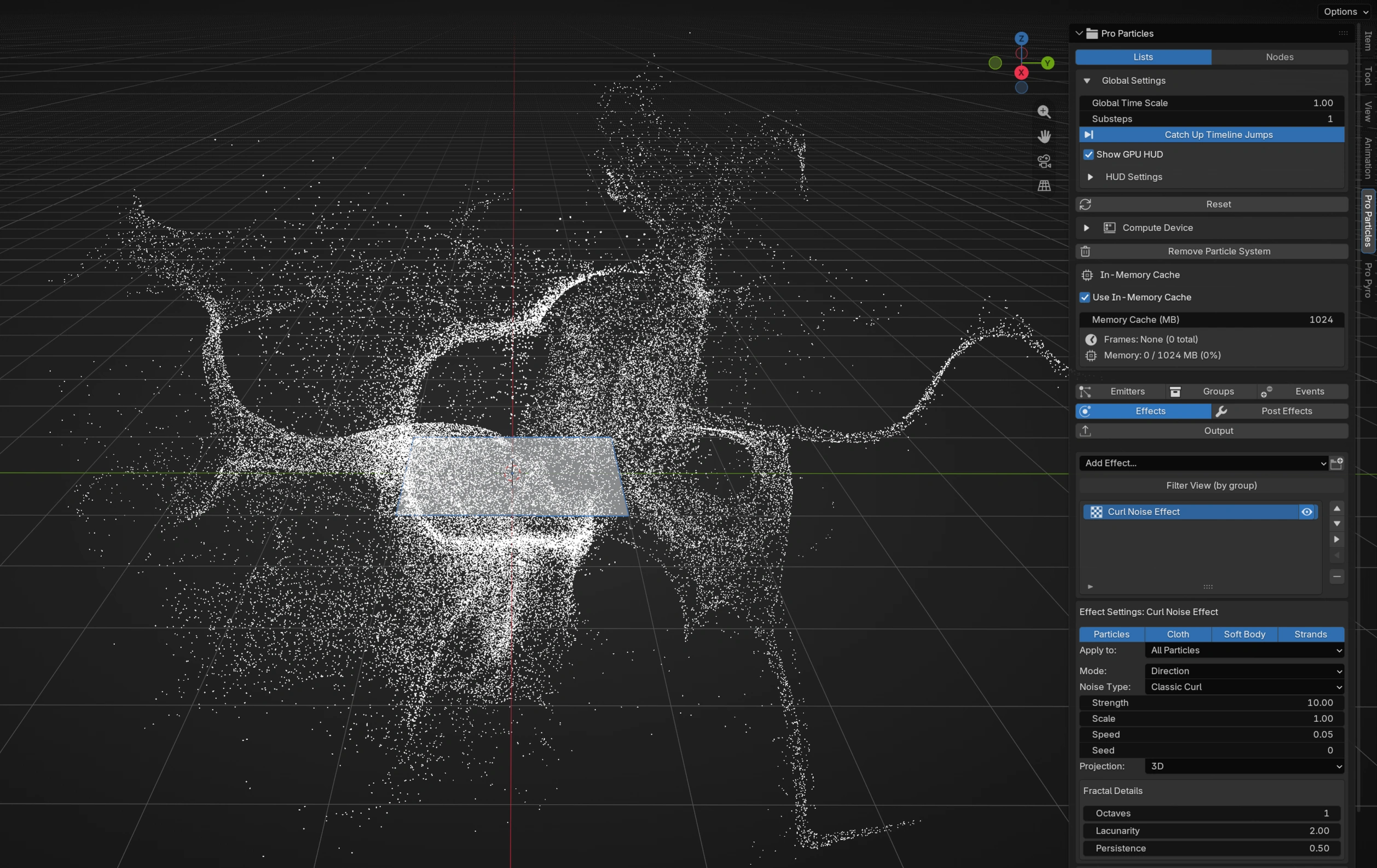
Create a first emitter, play the simulation and choose how to display its particles.
For step-by-step lessons, follow Beginner Tutorials.
Lists
1. Create the system
Open the Pro Particles tab and click Start with Lists. The system creates an Emitter with a Rectangle Shape source and a Point Cloud. GPU Preview requires Metal on Apple Silicon macOS or Vulkan on Windows/Linux; Point Cloud's Display selects GPU Preview or Blender Geometry.
2. Inspect the source
In Emitters, select the created Emitter and its Shape source. The rectangle is at the world origin and needs no object assignment. Enable viewport Gizmos to see its outline and transform handles. To emit from a mesh instead, change the source type to Surface and assign a mesh such as a UV Sphere.
3. Verify emission
Play the timeline. Particles should appear from the rectangle before any additional effect is added. If nothing is emitted, check that the source is enabled and inspect the emitter timing before continuing.
4. Add Turbulence
Open Effects, choose Add Effect... > Forces > Turbulence, and raise Strength until the motion is clearly visible. Start around 20 for this scene.
Nodes
1. Create the graph
Choose Start with Nodes. In an existing system, switch to Nodes and choose Create Graph instead. The generated graph connects Shape Source, Emitter, Point Cloud, and Simulation Output. The Shape Source uses a rectangle at the world origin, independent of the selected Blender object.
If the scene already has a Pyro graph, Create Graph adds the particle lane to the same Pro Physics node tree without replacing the Pyro branch.
2. Verify the source and output
Open a Pro Physics editor. Confirm these links:
- Shape Source
Sourceto EmitterSources. - Emitter
Particlesto Point CloudParticles. - Emitter
Particlesto Simulation OutputParticles. - Point Cloud
Resultto Simulation OutputGeometry.
Play the timeline. If no points appear, confirm that the Shape Source is enabled, then select the Emitter and inspect its timing. To use a mesh, replace Shape Source with Surface Source and assign the mesh. Node position has no effect on execution; only links define this chain.
3. Insert Turbulence
Add Turbulence from Shift+A > Forces. Disconnect the Emitter particle output from Point Cloud and Simulation Output. Connect Emitter Particles to Turbulence Particles, then connect the Turbulence output to both Point Cloud Particles and Simulation Output Particles. Raise Strength until the motion is visible.
The complete Turbulence settings are in the selected node's Inspector. To drive Strength per particle later, use the node's Add Mapping... menu, which creates and connects a Float Field.
Particles should leave the rectangle and move under Turbulence in the selected Point Cloud display. Add further effects one at a time so you can see what each changes.