Compare MPM Materials
Drop three particle blocks inside one MPM domain and compare Elastic, Clay, and Soft Plastic under the same launch conditions.
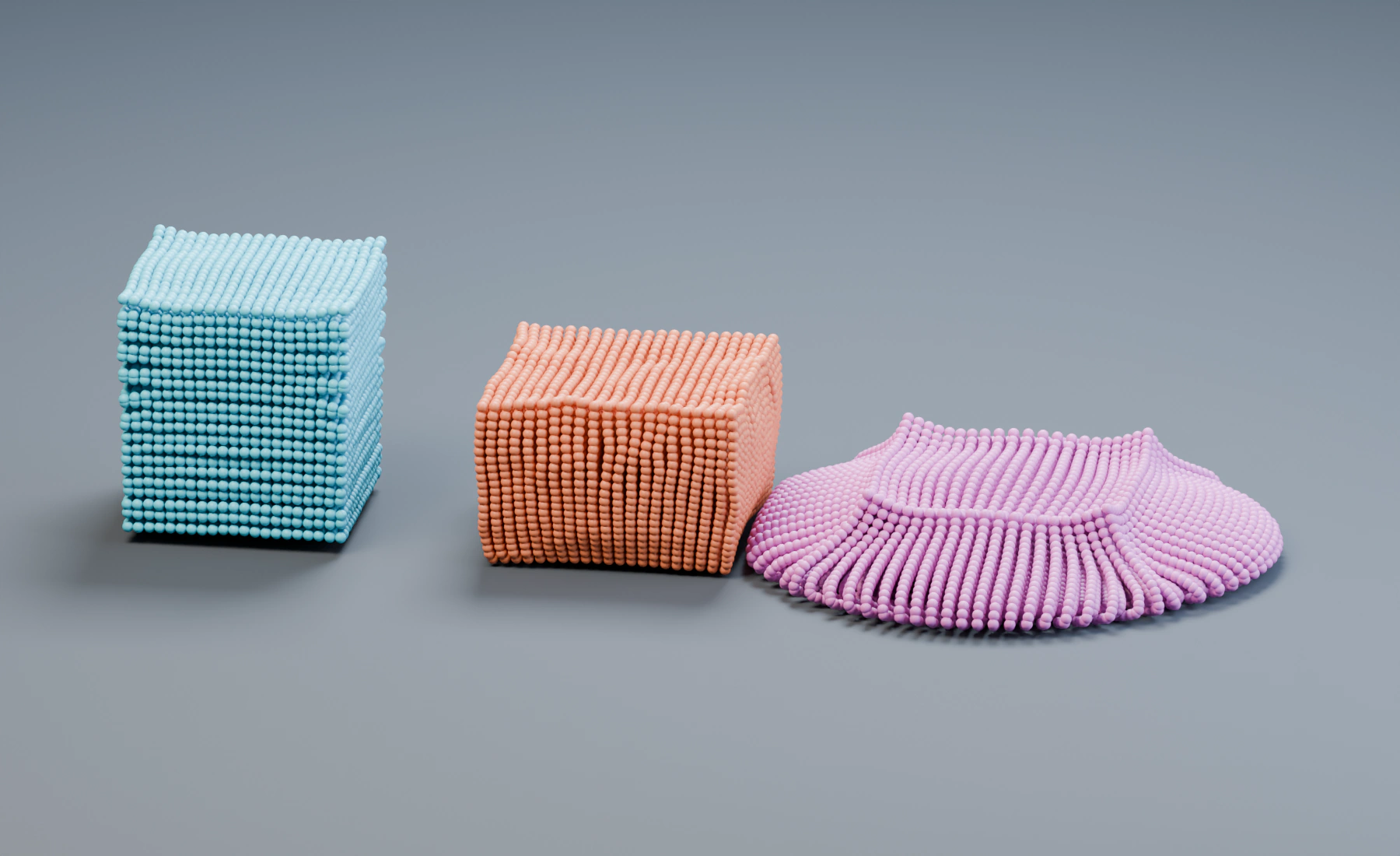
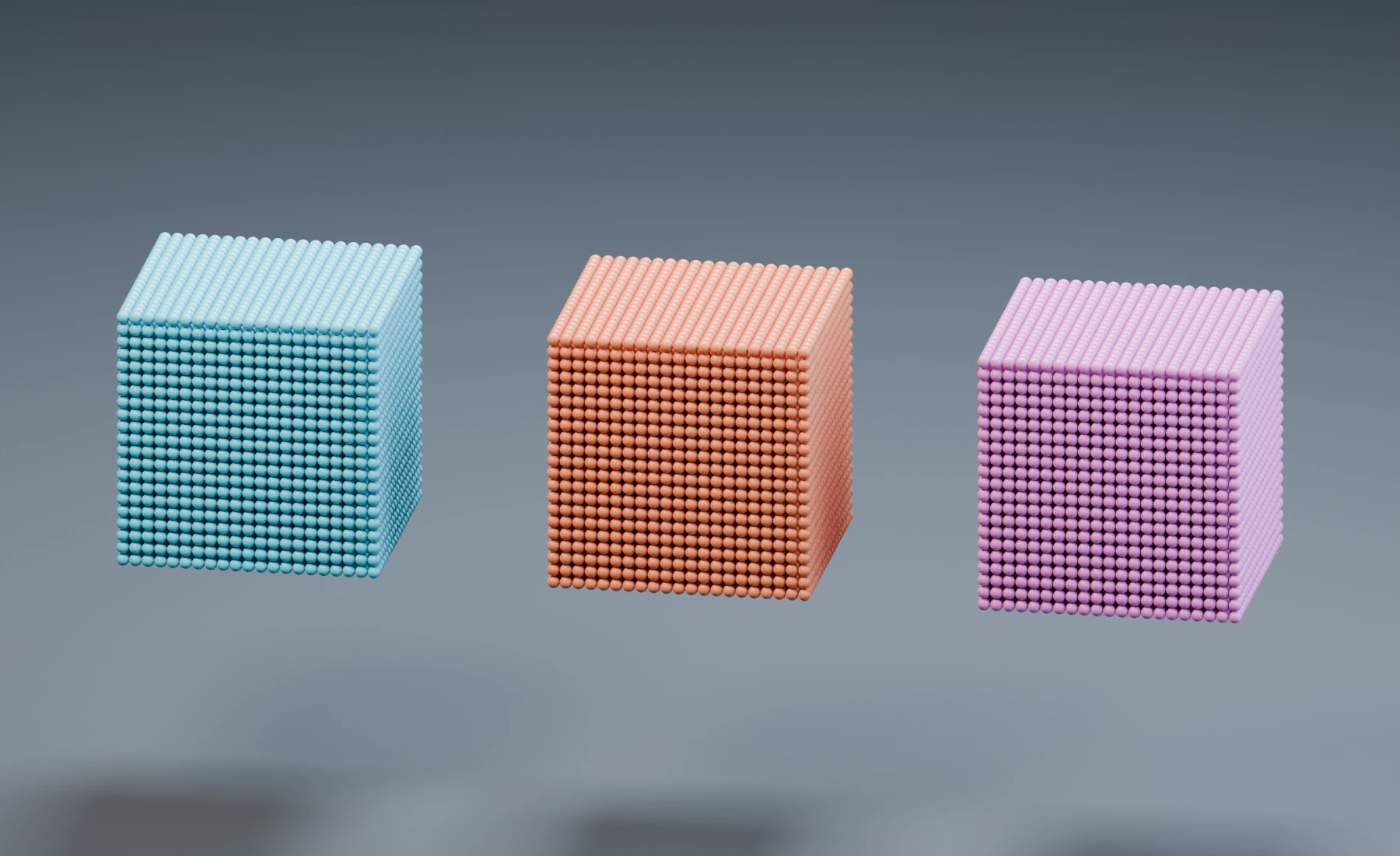
All three blocks use the same source dimensions, initial height, zero launch velocity and grid spacing. Each has its own named particle group and MPM material, so one domain can simulate their different responses together.
Reference setup
Use 30 fps, scene Substeps 4, and frames 1–90. Apply source and domain scale.
| Part | Settings |
|---|---|
| Sources | Three closed cubes, each 1.4 × 1.4 × 1.4 m; centers (-2.4, 0, 2.15), (0, 0, 2.15), (2.4, 0, 2.15) |
| Emitters | Volume Grid, Spacing 0.07 m, Jitter 0, Auto Particle Radius on; Start 1, Duration 1, Lifetime 600; Initial Velocity and Surface Push 0 |
| Groups | Elastic, Clay, Soft Plastic, assigned to the corresponding emitter |
| Domain | Box 9 × 5 × 5 m, center (0, 0, 2.5); all faces Closed |
| MPM | Voxel Size 0.1 m, Adaptive Substeps on, Maximum Substeps 32, Domain Friction 0.5 |
| Materials | Add Elastic, Clay, Soft Plastic presets; set Stiffness to 500000 for each; leave the other preset values unchanged |
| Material Mixer | Three Group entries assigning each named group to its matching material; Default Material Elastic |
| Effects and output | Gravity → MPM → Point Cloud, using Particle Radius and Particle Color |
The setup contains 27,783 material points, with 9,261 in each block. The bottom Closed domain face supports them. The visible studio ground does not add another Collision effect.
1. Create the three populations and domain
- Start a new Lists system. Create named groups Elastic, Clay, and Soft Plastic.
- Make the three source cubes in the table and apply Scale. Add one Particles Emitter per cube, using it as a Volume source with Grid fill. Enter the shared spacing, timing and launch settings. Keep lifetime Variation, Radius Random and Random Velocity at
0. - Assign each Emitter's Default Group to its matching group. Use blue, orange and purple birth colors to distinguish the blocks.
- Create a cube named
MPM Domain, Dimensions(9, 5, 5), Location(0, 0, 2.5), and apply Scale. - Add Gravity, Force
(0, 0, -9.81), followed by MPM. Assign MPM Domain to Domain Box and enter the table's domain settings. Set all six boundaries to Closed.
2. Assign a material to each group
In MPM's material list, add Elastic, Clay, and Soft Plastic. Name the slots accordingly and set Stiffness 500000 on each. Remove unused starter slots and keep Default Material Elastic.
Create one Material Mixer entry per named group, choose Group as its target, and select the matching material slot. Creating a material slot alone does not assign it to a population. Add Point Cloud with Particle Radius and Particle Color; use Blender Geometry for rendering.
Keep the groups distinguishable with emitter colors. A blue, orange, and purple palette makes the material identity visible throughout playback, even after the shapes move or flatten.
3. Compare the impact and later shape
Play continuously from frame 1. At frame 24, the blocks have reached the bottom boundary. At frame 90, compare the deformation each block retains after impact.
- Elastic resists lasting shape change and can rebound, tilt, and keep oscillating.
- Clay compacts and changes shape under load. Its pressure-dependent response differs from a simple low-stiffness elastic solid.
- Soft Plastic yields substantially in this setup and remains flatter and wider after impact.
All three materials use the same Stiffness. Their presets still differ in density, material model and yield controls, so compare their overall behavior with those differences in mind.
Tune one response at a time
Change Stiffness for elastic resistance, Yield Strength for Soft Plastic's onset of permanent deformation, or Clay's Friction Shape, Compression Bias, and Hardening for its yield response. Reset and replay after each simulation change.
Smaller Voxel Size resolves finer features but increases memory and simulation work. Higher Stiffness and fast impacts may need more internal MPM substeps. Keep Adaptive Substeps enabled and establish stable motion before increasing resolution.
Nodes workflow
Connect a Volume Source to each Emitter and merge their particle outputs with Merge Disjoint Streams. Connect Gravity → MPM, then feed MPM's final particle output to Point Cloud and Simulation Output / Particles. Point Cloud Result connects to Simulation Output / Geometry. Set the domain, materials and Material Mixer in the MPM Inspector. Assign matching Default Groups on the Emitters; colors do not assign materials.
Troubleshooting
- All blocks behave alike: check Material Mixer group selection and material names; unmatched particles use Default Material.
- The elastic block does not settle: residual motion is possible with the undamped reference. Add material Damping if the block should settle.
- Thin parts separate or lose detail: increase sampling density and grid resolution together. A coarse voxel grid cannot preserve arbitrary thin features.
- Objects only look larger: Point Cloud radius changes presentation. Change source spacing and physical particle radius to change the material sampling.
See MPM for material controls and MPM Brittle Impact for stress-driven fracture.