Lists and Physics Nodes
Build Pro Particles and Pro Pyro setups in the N-panel with Lists or in the Pro Physics editor with Nodes. Each mode keeps its own settings. Switching modes does not transfer a setup between them.
For node-by-node lookup, socket connections and graph-only restrictions, use the Physics Nodes Reference.
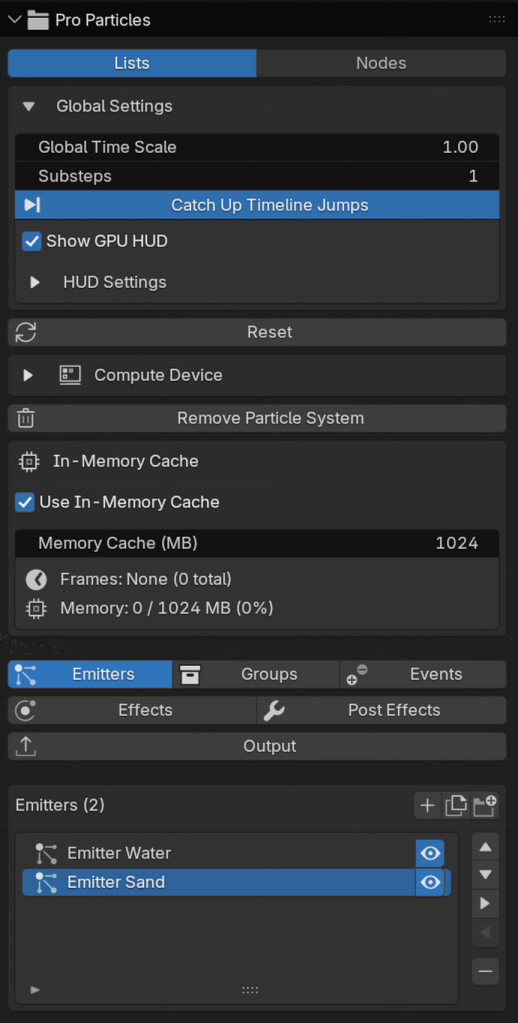
Lists workflow
The Pro Particles N-panel exposes Emitters, Groups, Events, Effects, Post Effects and Output. Materials are assigned on the post effects and outputs that use them.
Use Lists when you want an ordered stack and direct access to the complete settings in the 3D Viewport Sidebar.
Nodes workflow
Switch an editor to Pro Physics and add nodes with Shift+A. One graph can contain Particle and Pro Pyro branches. Pro Particles and Pro Pyro each keep their own Lists / Nodes selector, so either solver can use Nodes independently while both branches remain visible in the same graph.
Particle branch
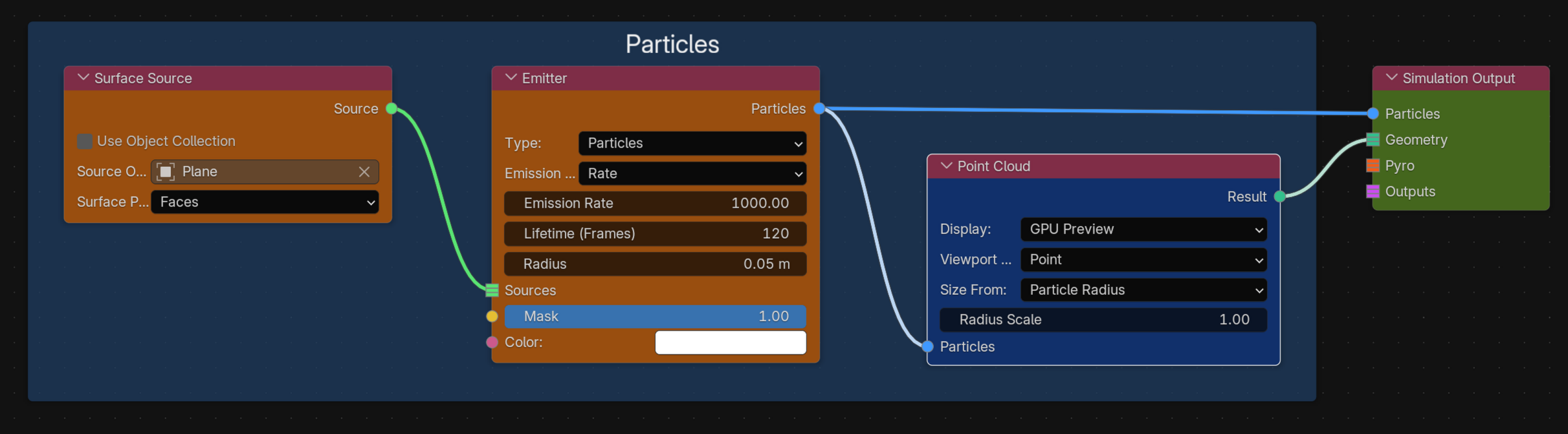
Particle graphs connect Source, Emitter, Effect, Post Effect and Output nodes. Each socket accepts compatible types. Connect the complete final particle stream to Simulation Output / Particles. Post effects or deformable Emitters also supply Simulation Output / Geometry for display and rendering. A Geometry link does not replace the required Particles connection.
Only connected nodes contribute. Node position does not define execution order. Typed Physics links must be connected directly; Blender Reroute nodes do not carry them.
Pyro branch
A Pyro branch starts with Pyro Domain, ends with Pyro Dynamics, and connects to Simulation Output / Pyro. Pyro Source, Collider and Force nodes feed the Domain. Optional Motion Detail, Combustion, Boundaries, Quality, Preview, Initial State and Looping stages are inserted only when their controls are required.
Missing required connections and cycles are graph errors. Incompatible socket types are rejected when the connection is attempted.
Create and manage the scene graph
Create Graph creates a minimal connected Shape Source -> Emitter -> Point Cloud setup with a Rectangle at the world origin. It emits without a mesh assignment. Replace Shape Source with Surface, Volume or Curve Source to use Blender geometry. Artistic effects are not added automatically.
Add Pyro to Graph creates a Domain -> Dynamics branch and a connected Pyro Source. A selected mesh becomes the source. Without a selected mesh, the setup creates a small source. Fast Dense domains are fitted to the source. Generated Particle and Pyro branches use separate lanes so the starter layouts do not overlap.
Open displays the scene graph in a Pro Physics editor. Reopening or creating the graph again reuses the scene graph. A graph requires one valid Simulation Output; a second Simulation Output cannot be added.
Remove System disconnects the scene graph and resets both authoring workflows. Existing cache and export files on disk are not deleted by that operation.
Switching between Lists and Nodes
The Pro Particles selector changes only particle authoring. The Pro Pyro selector changes only Pyro authoring.
Switching modes keeps both setups and runs only the selected one. It does not copy, convert or merge their settings. Changes to the inactive setup do not recalculate the active simulation. You cannot switch during a bake or export.
Global Timescale, Substeps, compute device and cache settings remain shared scene settings.
Capabilities that differ
Lists and Nodes reach the same particle and Pyro solvers, but they do not provide identical ways to organize a setup.
| Workflow | Lists | Nodes |
|---|---|---|
| Main ordering | One visible stack for Emitters, Effects, and Post Effects | Typed links define source, stream, component, geometry, volume, field, mask, color, and event flow |
| Branching particle populations | Filter effects by emitter or group in the shared stack | Partition an incoming stream with Emitter Branch, process branches independently, and reunite disjoint populations with Merge Disjoint Streams |
| Ordering two paths on the same population | Reorder effects in one stack | Use Order Shared Stream when two graph paths operate on the same particles |
| Reusable setup blocks | Duplicate and organize list entries | Build nested Physics Groups, expose typed parameters, create per-instance values, and mark valid groups as Blender assets |
| Conditional programs | Build the Lists Logic condition and action collections | Compose conditions, If / Else programs, reusable action chains, and nested Logic Loop zones |
| Physics Event processing | Direct event rule with Spawn Particles or Emit Pyro | Filter, merge, accumulate, debounce, limit, rate-limit, or delay event streams; also modify source data, change source group, or break source constraints |
| Multi-operation values | Keep each Data Mapping, mask stack, or Advanced Color stack on its owner | Chain and branch Fields, Masks, and Advanced Color operations, then reuse their outputs with compatible consumers |
| Ordered subcomponents | Edit local stacks such as Spin, Limit, Flow Field, and Cloth Constraints | Connect component chains; use nested branch links for Dendrite child generations |
| Emit Children timing | Use the dedicated trigger list, including Collision and Death events | A standalone Emit Children node is continuous; use Conditional Logic with a Spawn action for node-authored conditions or events |
Nodes are required for stream branches, Physics Group assets, Logic Loop zones, processed event streams, and source-changing event actions. Lists remain the direct workflow for the dedicated Emit Children trigger stack and for editing all systems from the 3D Viewport Sidebar.
Graph branches are not copies of particle state. They share the same simulation population, which is why Merge Disjoint Streams and Order Shared Stream have separate purposes and why invalid overlapping or incomplete branches are diagnosed.
Node body and Inspector controls
Node bodies show the controls needed to read the graph quickly. The complete node settings are available in the Inspector sidebar tab.
Controls follow the current configuration. For example, Pulse emission reveals timing controls, Source nodes show the active mesh or curve target, Trails show the active connection and length controls, and Mesher shows its voxel and radius controls. Options that do not apply are hidden.
Use Blender's node Mute control to disable a graph node.
Use Project for scene controls, device selection, caching, Particle Groups and Graph Diagnostics. Inspector shows the selected node's settings and diagnostics.
Physics Groups
Select reusable nodes and use Node > Make Group or Ctrl+G. Existing links crossing the selection become group sockets; other parameters remain private.
Expose parameters as sockets
Use Expose as Socket in the Inspector to expose a supported uniform parameter as a typed input. Inside a Physics Group, Pro Particles creates and connects the matching Group Input automatically. Each group instance can then use its own value without changing the shared group definition.
Supported exposed values include numbers, toggles, vectors, colors, menus, text, Objects and Collections. Exposed values keep the range and object restrictions of their original setting. Invalid values are reported as graph errors. Structural type choices and list editors remain private.
These exposed values are uniform setup values. Per-particle variation belongs on Field and Mask sockets. If a parameter already supports a Field, exposing it uses that same input rather than creating a duplicate control.
Group definitions and instances
- Rename a definition from its node, with F2, or with Rename Group. The name belongs to the shared definition and updates every instance.
- Use Tab or the pencil control to edit a group, then Tab or the back arrow to return.
- The Group sidebar manages typed inputs, outputs, order and defaults.
- Particle streams, Fields, Masks, Geometry, Pyro data and other Physics socket types can cross a group boundary.
- Groups can contain other groups, but Simulation Output remains in the main graph.
- Add an existing definition from Shift+A > Physics Groups. Editing the definition updates every instance.
- Make Single User creates an independent definition for one instance.
- Mute Links temporarily disconnects a link without deleting it, including links crossing a group boundary.
- Mark as Asset exposes a valid Physics Group through Blender's Asset Browser.
Inside a Physics Group, FLIP particle profiles, collider cut-outs, Fluid Mixer sources and Physics Event targets use the sources and effects in that group instance. A missing or ambiguous reference shows an error.
Ungroup converts one instance back into ordinary nodes. Local emitter, effect, FLIP profile, cut-out, Fluid Mixer and Event target references are retained where they can be matched. References from outside that group instance follow the newly ungrouped nodes; other instances keep their own targets.
Make Group and Ungroup stop if a node or group input that must be moved is animated or driven. Remove or bake that animation first. Animation on unrelated nodes can remain.
Invalid or recursive groups do not simulate and are reported by Graph Diagnostics.
Fields and masks
Float/Vector Value nodes provide uniform values. Float/Vector Field nodes map particle attributes to reusable parameter fields.
For a supported effect parameter, Add Mapping... creates and connects a Field. Removing that Field or its link restores the ordinary parameter value. Each parameter has one Field input. To layer mappings, connect one Field to the next Field's Previous input; the chain evaluates from left to right. Adding another mapping from the Inspector extends the existing chain.
A Mask node supplies effect influence or emitter selection. Connect it to a Mask socket. Mask Blend combines single or composed expressions through Accumulated and Mask. A Field with Source: Mask accepts a composed Mask Source or its own local mask list when that socket is unconnected.
Emitter masks support spatial, Random, Time and Group selection. Connecting a mask that needs particle attributes unavailable before birth shows an error.
Dendrite mappings belong to the individual Branch nodes.
Advanced Color nodes
Advanced Color is a reusable color operation. Connect its output to an Emitter, Change Color, Collision color override or Emit Children color input. Chain operations through Base Color.
Only the selected factor's controls are displayed. Ramp-based factors provide Create Color Ramp and an inline editor. A disabled color node passes Base Color through. Unlinked Color sockets use their local color. Image Texture color is available for mesh emitter sources with UVs. Duplicating a color node creates an independent ramp.
Component chains
Some list-based stacks become ordered component chains in Nodes. Their Previous links define execution order, not node position.
- Spin and Limit use operation components. Spin Rotation Range components can create an inline Ease Curve.
- PBF and SPH use Material Override components. PBF and SPH override types cannot be mixed in one chain.
- Infection in Spatial mode uses Spatial Seed components. Random and Group modes keep their own seed controls.
- Flow Field uses ordered Field Source / Operation components.
- Dendrite uses Branch components with
Previous SiblingandChild Branches. - Cloth uses Attach, Stitch and Sew constraint components.
Muted components do not contribute. Incompatible component types and cycles are graph errors.
Volume Advection exposes motion and field-transfer controls only when a usable source is assigned. Auto Detect Fields edits the node it was invoked from. Upres shows only the selected source filter and enabled relaxation or inheritance options.
Flow Field nodes
Add Field Source / Operation creates an ordered component connected to Field Operations. Each component displays the controls for its selected source or operation; Previous defines evaluation order.
Gain multiplies the preceding field by its displayed value, including zero. Domain and preview controls remain on the Flow Field effect. Import creates a source component instead of an embedded layer.
Capture and export require the scene's Graph workflow to be active. A capture component must belong to exactly one Flow Field effect.
Dendrite branch nodes
Choose the growth mode on the Dendrite effect and connect matching Branch components to Root Branches. Previous Sibling chains branches at the same level; Child Branches defines a nested generation. Add Root Branch and Add Child Branch create these connections directly.
Child-generation controls appear only when children are connected. Disabling a branch disables its subtree. A branch cannot belong to multiple parents. Branch history and global limits remain on the Dendrite effect.
Connect Fields or Mask-backed Fields to branch parameter sockets for per-branch mapping. An unconnected socket uses the branch's displayed value; disconnecting a Field restores that value.
Logic in Nodes
Connect Logic Action nodes through Previous, then connect the final Program to the Conditional Logic effect. Logic Condition provides a predicate. Combine Conditions combines predicates with And/Or. Logic If / Else accepts separate action programs for true and false branches.
Loop zones
Add Logic Loop Zone creates paired Begin and End nodes. The links define the loop body; the frame is only a visual guide.
For Index uses inclusive bounds and is limited to 4096 iterations. For Each Particle/Neighbor conditions read the iterated particle while actions affect the current particle. Zones can nest up to eight levels. Break exits the innermost zone. Spawn inside a loop is rejected.
A complete Begin/End pair can be duplicated or reused through Physics Group instances. Missing or mismatched boundaries produce node-specific diagnostics.
Node Logic and Lists Logic are separate programs.
Particle stream branching
Emitter Branch partitions an incoming stream into the selected emitter and the remaining emitters. Merge Disjoint Streams reunites non-overlapping populations without duplicating particles. Order Shared Stream runs two paths on the same population in First -> Second order. A shared upstream effect runs once.
Stream branches share simulation state rather than independent particle copies. Generic forces and particle modifiers can operate on partial emitter streams. Domain solvers and post effects require the full merged stream. Unsupported combinations produce diagnostics. Reunite all partitions before Simulation Output and place simulation effects before Upres.
Cache and Alembic nodes take their Geometry source from the input link. Connect a post effect's Result output or a deformable Emitter's Geometry output, then connect the output node's Output to Simulation Output / Outputs. Intermediate-state snapshots are not supported; post effects and exports consume the final simulation state.
Graph diagnostics
Persistent graph problems are collected in Project > Graph Diagnostics.
- Blocking errors turn the affected node red and pause simulation.
- Non-blocking warnings use orange.
- Informational findings do not change node color.
- Use the magnifier beside a finding to open the containing Physics Group and select the responsible node.
- The Inspector shows all messages and suggested corrections for the selected node.
An incompatible link is removed immediately. If Blender displaced an existing valid link while the invalid connection was attempted, Pro Physics restores it.
Persistent errors include missing required connections and invalid settings. For example, an Age mask cannot control emission before a particle exists, and Geometry attribute checkboxes are available only with the Custom profile. Catch-up releases its busy state when a graph is invalid instead of repeatedly retrying it.