Flow & Path
Flow and path effects guide particles with curves, surfaces, planes, target shapes or volume fields.
Where to find it
Lists: Effects > Add Effect... > Flow & Path. Nodes: Pro Physics > Shift+A > Flow & Path.
Flow and path effects
| Effect | Primary role |
|---|---|
| Follow Curve | steer particles along a curve |
| Surface Attract | pull particles toward sampled surface locations |
| Surface Attach | constrain particles to a surface |
| Volume Bind | hold particles inside an animated mesh and release them procedurally |
| Target | assign geometry points and control approach, arrival and target sequences |
| Planar Constraint | keep motion on/near a plane |
| Shape Matching | drive a population toward a target shape |
| Volume Advection | drive motion and transfer fields from a VDB or live Pro Pyro volume |
| Flow Field | compose ordered field sources and operations |
Lists and Nodes
In Lists, add these effects to the ordered Effects stack and configure their object or collection sources in the selected entry. In Nodes, connect the equivalent Effect node into the particle stream; the complete mode-dependent settings remain in the Inspector. Supported numeric inputs can receive reusable Fields, and the node's Mask input can receive a Mask chain.
Nodes adds two connections: Volume Advection can read the live Volume output of Pyro Dynamics through Pyro Volume, and Flow Field takes its sources and operations from component nodes connected to Field Operations. See their individual pages for setup. Lists and Nodes keep separate settings.
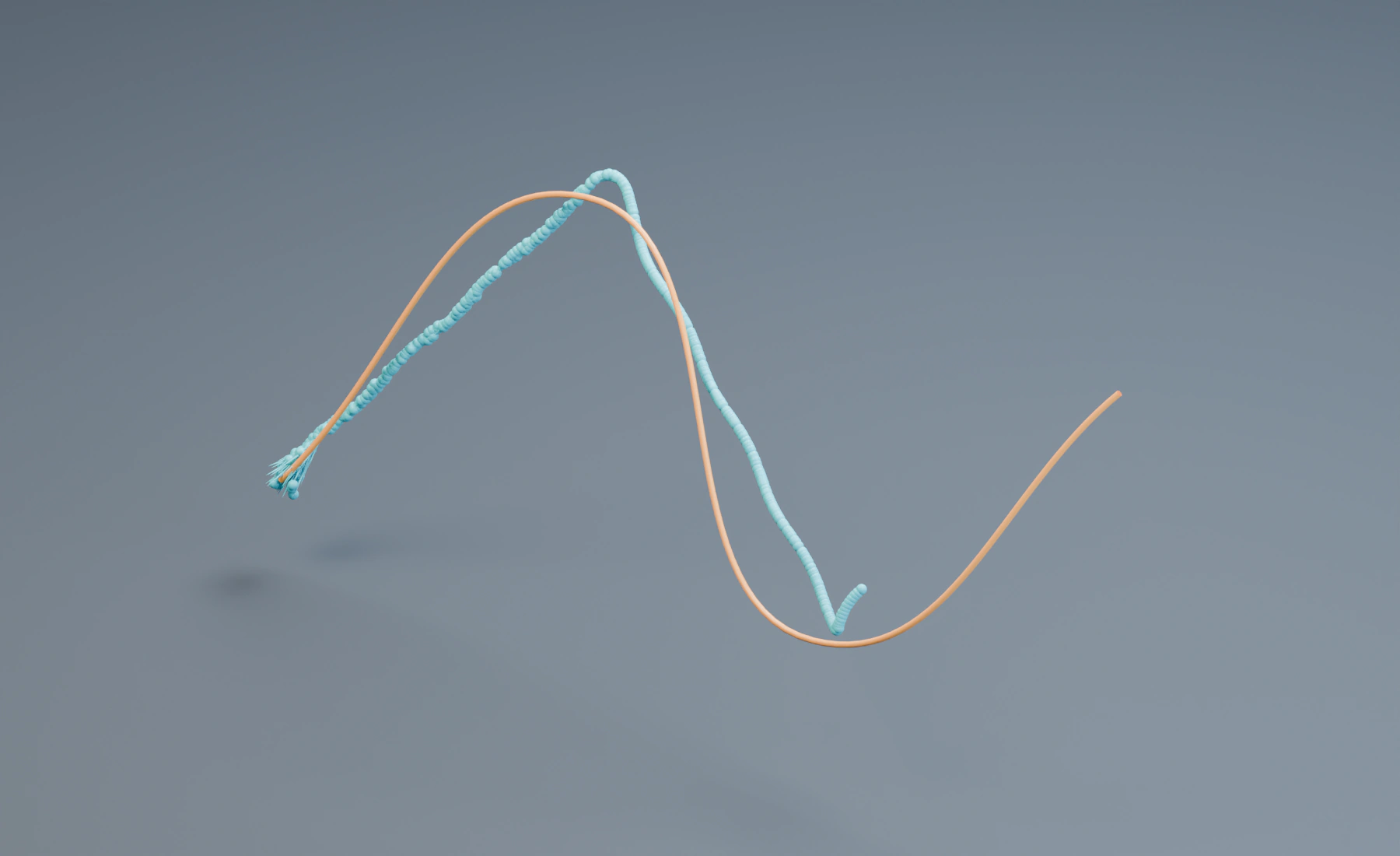
Follow Curve
Binds particles to one or more splines and supports direct guiding or force-based steering.
Curve Object: curve used as the path. Static, transformed, and deforming curve motion is tracked automatically.- Motion:
Motion Mode=GuideorForce;Prediction; Force mode addsMax Steering Force;Cross-Curve Dampingcontrols overshoot. - Influence:
Follow Strength,Follow Variation, andFollow Falloff;Attract Strength,Attract Variation, andAttract Falloff;Influence Radiuslimits both responses. Falloff choices are Uniform, Linear, Smooth, and Focused. - Travel:
Keep Particle Speed; otherwiseSpeedsets path speed.Invert Directionreverses travel andOrbit Speedadds rotation around the curve tangent. - Splines:
Spline Assignment= Nearest, Specific, Particle Index, Stable Random, or Sequence. Specific/Sequence exposeSpline Index.Starting Point= Nearest Point, Nearest Sample, Position, Stable Random, or Specific Vertex; Position addsStart PositionandStart Variation, while Specific Vertex addsVertex Index. - Path Shape:
Offset Distance,Offset Variation,Offset Angle,Twist, andAlign Rotation. - Release:
Release When= Never, Curve End, Elapsed Time, Outside Radius, or Leaves Selection. Curve End addsRelease Position. Elapsed Time addsTime Basis(Binding Age, Particle Age, Scene Time),Release Time, andTime Variation.On Release= Continue, Loop, Reverse, Kill, or Change Group; Change Group exposesNew Group, where you select the destination group by name. - Sampling:
Accurate Follow,Sampling(Control Points/Evaluated),Sample Countfor Evaluated sampling, the curvePreview Resolution, and a stableSeed.
Surface Attract
Maintains a dynamic relationship with the nearest point on a mesh without permanently binding to one polygon.
Object: mesh object or collection; geometry motion/deformation is tracked automatically.- Connection:
Pull,Pull Variation,Push,Push Variation,Offset,Offset Variation,Max Distance, andSeed. Offset Variation is an absolute distance added to or subtracted from the requested Offset for each particle. - Motion:
Frictioncontrols tangential sliding andFOVrestricts distant target searching around the particle travel direction. - Edges:
Edge Followbiases motion toward/along boundaries and strong creases;Smoothingsoftens the transition into edge-guided motion.
Surface Attach
Creates a persistent attachment to a stored point on a mesh or surface-bearing curve.
Surface Object: a mesh or a curve with an actual surface from bevel/extrusion.Use Collectionswitches to aSurface Collectionof mesh surfaces. Transform and deformation motion are detected automatically.- Attachment:
Attach Range,Tolerance,Probability, andOutside Only. Outside Only prevents attachment to interior faces of a closed mesh. - Offset:
Offset= Particle Radius or Custom Distance. Custom Distance addsDistanceandVariation; Variation is an absolute per-particle distance, not a normalized factor.Seedcontrols stable attachment/release variation. - Motion:
Friction,Inherit Surface Motion,Inherit Speed, andRotate With Surface. - Holding:
Mode= Constraint, Attract, Spring, or Stick. - Release:
Release= Never or After Time. After Time exposesTimeandVariation.
Volume Bind
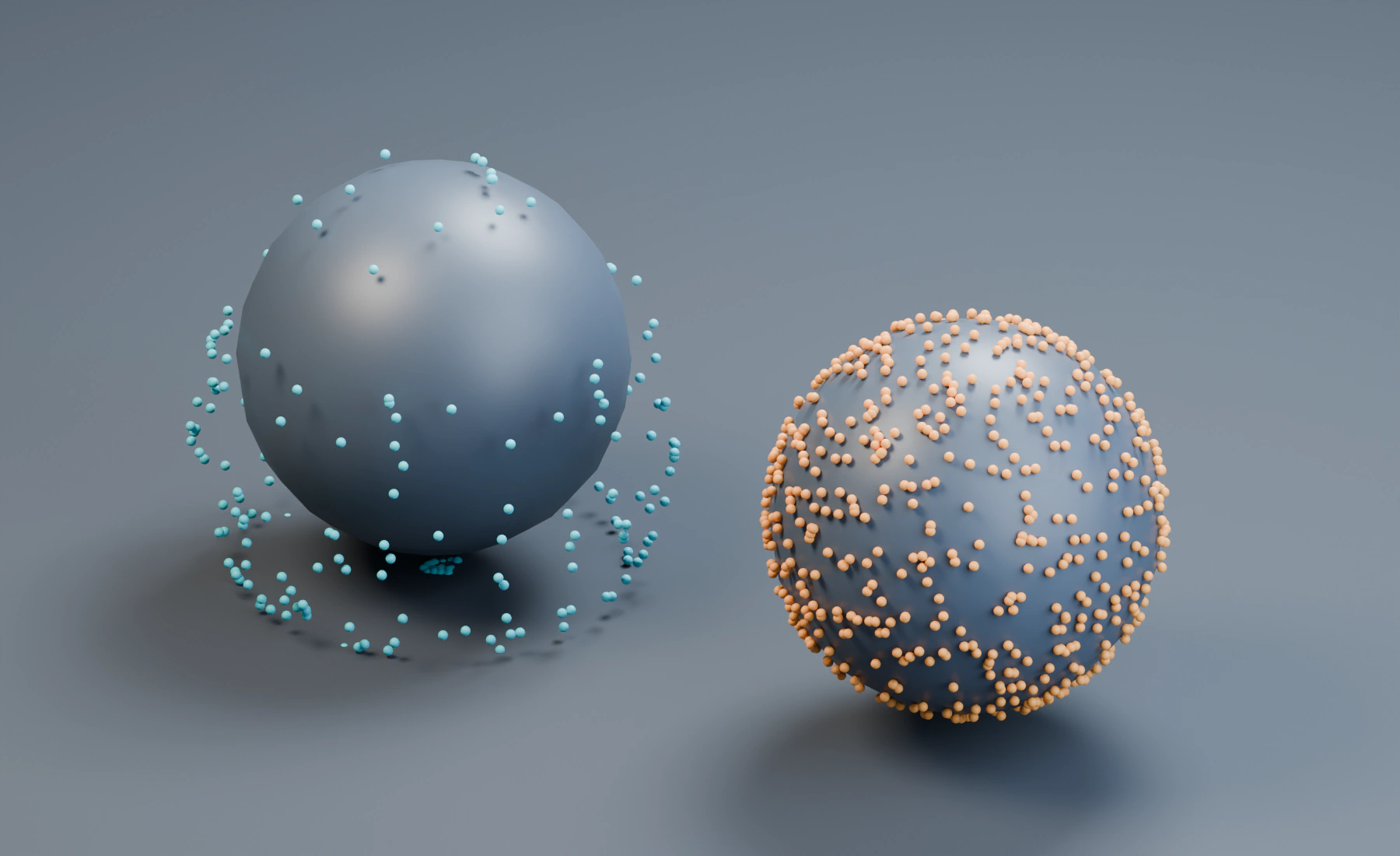
Holds ordinary particles at persistent positions inside a closed animated mesh. Use it to fill a character with particles, follow the animation, and progressively release the particles for a crumbling effect. Volume Bind supports Particles only. It does not emit particles or create structural bonds between them.
Small openings and minor surface defects are repaired automatically for simulation. The source mesh remains unchanged. See Volume Meshes for preparation limits.
Setup
- Use a Volume emitter with Volume Fill set to Grid or Hexagonal. These modes fill the mesh once on Start Frame. Use Particle Spacing to control the fill density.
- Add Volume Bind from Flow & Path and select the same object in Mesh.
- Set Mode to Exact and Strength to
1to hold the original particle arrangement during animation. - Add Gravity and any desired collision or other particle effects for the released particles.
- Add Data Mapping for Release, choose Source: Mask or a particle attribute, and map the input to
0to1. Positive Release values at or above Release Threshold permanently free the affected particles. The default threshold is0.5.
In Lists, use the effect's Data Mapping section to drive Release. For a mask used only to release particles, turn off its use in Influence Masks; Data Mapping still reads its definition. An enabled Influence Mask also reduces binding Strength outside the mask.
In Nodes, connect Volume Source to Emitter, then connect the particle stream through Volume Bind. Add a Release Field input through Data Mapping. Set the Float Field's Source to Mask and connect the release mask to that Field's Mask input, or select a particle attribute. The Volume Bind node's own Mask input controls binding Strength. Lists and Nodes remain separate setups.
Controls
| Control | Behavior |
|---|---|
| Mesh | Closed mesh whose interior provides the binding positions. Object transforms, Shape Keys, and Armature deformation are followed. |
| Mode: Exact | Places fully influenced particles at their bound positions after each simulation step. Forces and collisions cannot displace a full-strength binding. |
| Mode: Spring | Follows the moving binding positions with a damped spring. Forces and collisions can displace the particles while the spring pulls them back. |
| Strength | Binding influence, multiplied by Influence Masks. Range 0 to 1, default 1. Supports Data Mapping and Fields. |
| Frequency | Spring response frequency in Hz, default 6. Higher values follow faster. Supports Data Mapping and Fields. |
| Damping | Spring damping ratio, default 1. Lower values allow oscillation; higher values slow the response. Supports Data Mapping and Fields. |
| Release | Independent release signal, range 0 to 1, default 0. A positive value at or above Release Threshold permanently frees the particle. Zero never triggers release. Supports Data Mapping and Fields, with Replace as the default mapping mode. |
| Release Threshold | Threshold for the Release signal, range 0 to 1, default 0.5. Supports Data Mapping and Fields. At threshold 0, any positive Release value triggers. |
| Inherit Motion on Release | Enabled by default. Exact releases with the mesh velocity; Spring retains the current simulated velocity. Disabling it removes inherited mesh motion. |
Binding and release
Particles bind when they are inside the selected mesh and belong to the effect's Apply to selection. Particles outside remain unbound. Use Group or Emitter selection to limit which particles can bind.
Release is permanent until the simulation is reset. Lowering Release after it triggered does not bind released particles again. Strength multiplied by Influence Masks reaching zero also releases particles permanently. Removing or disabling their Volume Bind effect, or removing them from its selection, also releases them. A particle can belong to one Volume Bind effect; the first applicable binding owns it.
Release can use Data Mapping sources such as Age, Life Progress, Noise, Emitter Vertex Weight or User Float 1. Logic writes user attributes at the end of a simulation substep; Volume Bind reads those changes on the following substep. Keep Strength at 1 for a fully held Exact binding while Release controls where or when it crumbles.
Bound and released states are preserved by solver snapshots and Initial States. Simulated particle positions can use the normal particle cache and export outputs.
Mesh requirements and cost
The mesh must enclose a volume and keep the same vertices and surface connections throughout the animation. Object transforms, Shape Keys, Armature and Simple Deform animation are supported. Subdivision may be used with a fixed level. Triangulate may change face diagonals when it preserves the original mesh vertices. Actual topology changes, such as changing subdivision levels or remeshing, require a reset and are rejected during continuous simulation.
Interior motion is interpolated from nearby parts of the animated surface. Large folds or collapsing volumes can compress or overlap the particle arrangement. Volume Bind does not provide soft-body volume preservation or particle separation; use suitable particle effects after release when those interactions are needed.
The evaluated mesh is checked every frame. Detailed meshes and large particle fills increase binding preparation cost and memory use. Binding is computed once for each captured particle and then follows its stored position.
Planar Constraint
Forces particles to stick to a 2D plane (XY, XZ, or YZ).
Offset: Choose whether to constrain to theCenterof the plane, or thePositiveorNegativeside.
Shape Matching
Assigns each affected particle a target position on or inside mesh geometry, then pulls it toward that position with a damped spring. This is a particle morphing effect, not the topology-aware Soft Body system.
Setup
- Add Shape Matching after the effects that establish the incoming particle population.
- Choose a mesh Target Object, or enable Use Collection and choose a target Collection.
- Select Surface or Volume sampling.
- For Surface sampling, choose Vertex or Barycentric assignment.
- Increase Stiffness until particles converge at the required rate.
- Increase Damping if particles overshoot or oscillate around their targets.
- Change Seed when a different stable particle-to-target assignment is needed.
Static, transformed, scaled, and deforming target motion is tracked and interpolated across solver substeps.
Target assignment
- Surface places targets on the mesh surface. Vertex uses mesh vertices. Barycentric distributes targets across faces instead of restricting them to vertices.
- Volume distributes targets inside target geometry. Small openings and minor defects are repaired automatically. Flat or unrepairable volumes produce an error. The surface Assignment control is not used in this mode.
- A target Collection combines its mesh geometry for assignment. Non-mesh objects do not provide target surface data.
Assignment remains stable for the simulation until the setup changes or the simulation is reset. Seed changes the stable distribution; it is not per-frame noise.
Shape Matching does not create particle-to-particle structural links. Use Particle Constraints for persistent bonds, or a Deformable Emitter for a mesh whose original topology must deform as cloth or a soft body.
Volume Advection
Drives particle motion and transfers Smoke, Temperature, Fuel, Flame, and Color from a Blender VDB Volume or live Pro Pyro simulation. Disable Enable Motion to transfer fields without changing particle motion.
Source: VDB Volume or Pro Pyro. VDB Volume exposesVolume Object, field auto-detection, and exact grid-name controls.- Motion:
Enable Motion; VDB sources exposeVelocity Grid.Mode= Force, Velocity, Direction, or Position / Follow Flow;Strength; Velocity/Direction addVelocity Blend. - Field Transfer:
Field Transfer= None, All Available, or Custom. Custom can enable Smoke, Temperature, Fuel, Flame, and Color independently. VDB sources expose the matchingSmoke Grid,Temperature Grid,Fuel Grid,Flame Grid, andColor Grid. Every selected channel has its own Influence. Operation: Set or Add transferred values.Outside Domain: Keep Existing or Use Zero.Sampling: Nearest or Trilinear.Falloff Distancefades the effect near/outside field bounds.
Flow Field
Composes an ordered voxel vector field from procedural, geometric, particle, image and simulation sources, then applies the final field to particles or strands.
Complete controls: Flow Field.
Target
Assigns a persistent point to each affected particle, then steers it toward that point. Assigned points follow object transforms and mesh deformation. Large populations and dense target geometry increase memory use; assigning new points costs more than updating existing assignments. Target supports Particles only and does not emit particles. Use a normal emitter to create the population first.
Setup and geometry
In Lists, add Target from Flow & Path and select Object and Geometry. In Nodes, connect Target into the particle stream and select its geometry in the Inspector. Add numeric Field inputs through Data Mapping; connect a Mask chain to the node's Mask input to control Strength. Lists and Nodes remain separate setups.
| Geometry | Assigned positions |
|---|---|
| Surface | points distributed by mesh surface area |
| Vertices | mesh vertices, including loose vertices |
| Curve | points distributed by evaluated spline length, without requiring bevel |
| Volume | points inside a closed mesh |
Assignment: Random uses Seed and particle identity for a stable distribution. Nearest chooses the closest location once when entering a target stage. Volume with Nearest retains particles already inside the volume and sends outside particles to its boundary. These are individual assignments; multiple particles may share a point, especially in Vertices mode.
Curve Samples controls evaluated samples per spline. Higher values improve curved-path accuracy and increase geometry cost. Animated deformation needs stable vertices and surface connections for points to retain their correspondence. Actual topology changes create new assignments. Target accepts stable triangulation of deforming polygons. Volume automatically repairs small openings and minor surface defects for simulation; see Volume Meshes. Very thin or concave volumes can take additional simulation steps to find interior points. Large folds can compress or overlap assigned interior points.
Travel and arrival
| Control | Behavior |
|---|---|
| Travel: Speed | approach at Speed, in scene units per simulation second |
| Braking Distance | reduce approach speed near the point in Speed mode; 0 disables braking |
| Travel: Time to Target | steer to arrive within the duration measured from assignment or the start of each sequence stage |
| Response | steering response per second; 0 disables steering |
| Arrival Distance | mark arrival when the particle enters this distance from its assigned point |
| Strength | steering and holding influence, multiplied by Influence Masks; 0 pauses the effect |
| On Arrival: Stick | hold at the animated point; full Strength restores the position after other particle effects |
| On Arrival: Spring | follow with Frequency in Hz and Damping; 1 is critical damping |
| On Arrival: Release | stop targeting upon arrival and continue with the target's motion |
Other effects, collisions, low Strength and masks can delay arrival. Time to Target is a steering duration rather than a guaranteed arrival deadline under those conditions. Target does not provide particle separation. Use suitable collision or separation effects where required. A particle is owned by the first applicable Target effect; separate populations with Group or Emitter selection when using multiple Target effects.
Release and sequences
Enable Target Sequence to replace the single Object input with an ordered list. Add Target creates a stage, the arrow buttons reorder stages, and the remove button deletes a stage. Each stage has its own Object and Geometry. Particles start at the first stage and receive a new assignment upon entering each subsequent stage.
With Stick or Spring, Hold Time sets the duration after arrival before the next stage. With Release, the next stage starts immediately on arrival. Loop returns from the final stage to the first. Without Loop, the final stage uses its normal arrival behavior. Release After Time releases the single or final held target after Hold Time.
Release at or above 0.5 permanently stops Target for that particle until simulation reset. Use Data Mapping with Source Mask, Age or a particle attribute for procedural release. Lowering the signal afterward does not restore the assignment. A zero Strength or zero Influence Mask pauses targeting and retains the assigned point. Disabling or removing the effect, or removing particles from its Group or Emitter selection, clears their assignments.
Assignments, sequence progress and permanent release are preserved by solver snapshots and Initial States. Positions use the normal particle cache and export outputs. Presets store settings and object references; they do not include target geometry.