12. Cache and Finish the Project
Bake the final Point Cloud and inspect playback without the live solver.
Prepare Point Cloud for caching
Open lesson 11 and save as 12-output-cache.blend. Keep its simulation settings. Disable Trails for this first cache exercise and use Point Cloud Blender Geometry.
Bake one source
- In Output, use Add Output... > Output Cache.
- Choose Folder
//fountain-cache. Save the project before using a relative path. - Enable Versioning, Version
1, Start1, End72, and Make Loop off. - In Geometry Sources, add the final Point Cloud post effect, not the raw particle stream or source mesh.
- Choose Bake Output and wait for completion. Playback activates only after the whole range has been written.
- Scrub to frames
1,36, and72. Both fountains should appear with their baked colors and sizes. You can now render frame72without replaying the simulation.
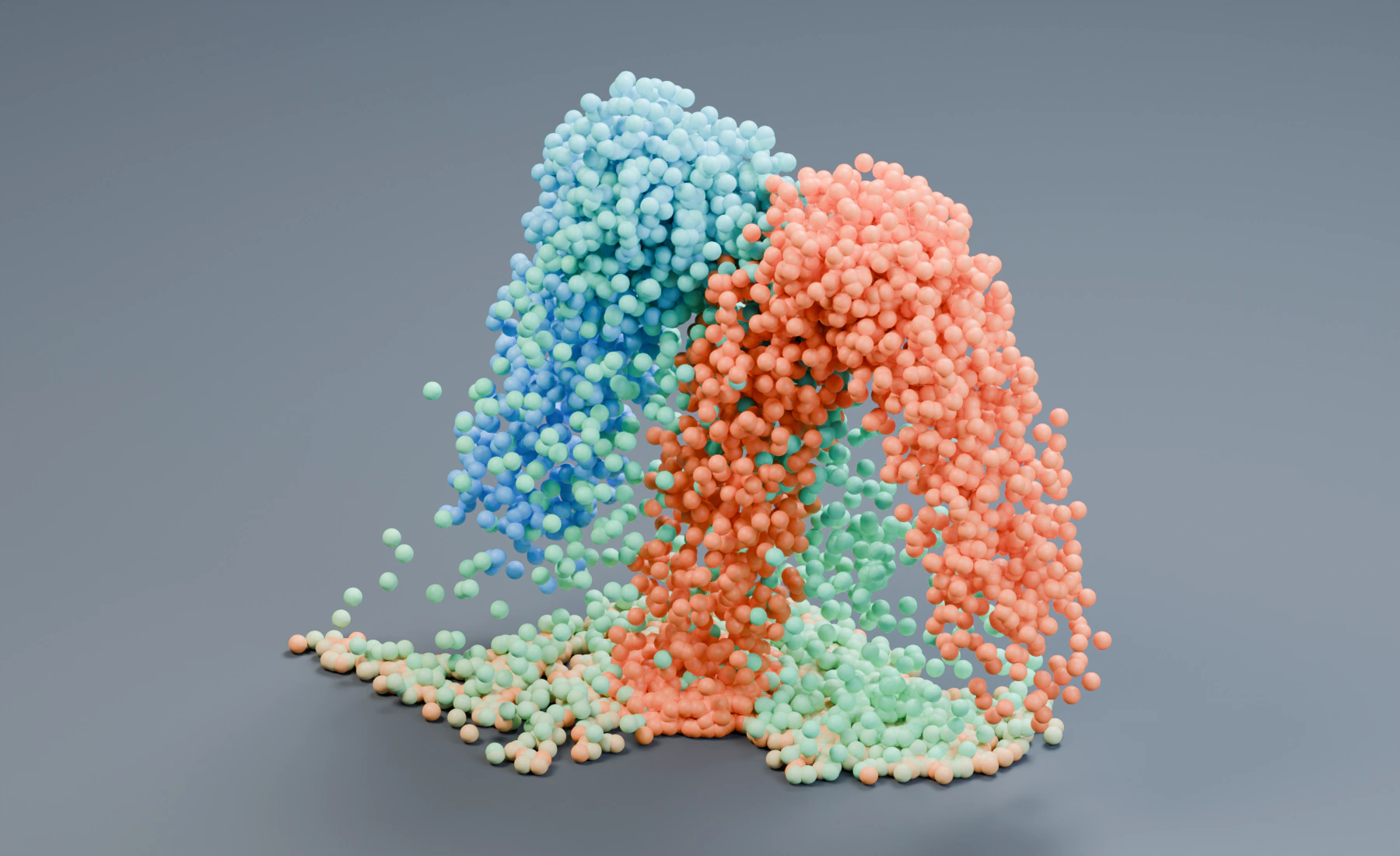
Scrub the baked motion
Main and Accent retain their baked positions, colors and radii during scrubbing. Output Cache supplies geometry without advancing the live simulation. Move its folder together with the project; a .blend alone does not contain this disk cache.
Camera, light and material adjustments can use the same cached motion. Change an Emitter, effect, Mask, mapping or Logic rule and bake a new version to update motion.
Cache Trails and use Nodes
To cache the tubes as well, turn Playback off, enable Trails, and add Trails to the same cache's Geometry Sources. Select Version 2 and bake again. This keeps the first point-only version available. Scrub the new version to see both points and trails. Trails add geometry and disk use, so keep the short range while choosing Length and Frame Sampling.
In Nodes, connect final Point Cloud Result to Output Cache Geometry, and Output to Simulation Output Outputs. Select the output node to set the folder and run the bake. Each Nodes output accepts one source; use another output for another stream.
Troubleshooting
- Relative Folder is unavailable: save the
.blendfirst. - Earlier motion appears: select the newly baked version after setup changes.
- Playback is missing: confirm successful completion and keep the selected version's files with the project.
Continue with a separate Cloth project, followed by Soft Body and Strands. For more particle workflows, use Curl Noise and Lifetime Color, Flocking, or Granular Sand Pile.
Reference: Caching and Output.