Surface Flow
Keep freely moving particles near a mesh with Surface Attract, then use Curl Noise and Drag to create tangential motion.
Use Surface Attract for this workflow because it finds a nearby surface as particles travel. Surface Attach stores a particular surface location for each particle. Its Constraint mode returns particles to that stored location, so it is unsuitable for freely sliding flow across the mesh. Use it instead for persistent attachments that follow object motion or deformation.
Reference setup
Use 24 fps, Substeps 4, and play frames 1–120. Evaluation order: Surface Attract → Curl Noise → Drag. In Lists, arrange this order from the bottom of the visible Effects list upward. In Nodes, follow the particle links.
| Part | Settings |
|---|---|
| Surface | UV sphere, Radius 2 m, 48 segments, 24 rings, centered at the origin |
| Emitter source | Surface, same sphere, Surface Push 0 |
| Emitter | Rate 20,000 /f, Start Frame 1, Duration 1, Lifetime 240 frames |
| Particles | Radius 0.008 m, Radius Random 0, Initial Velocity (1, 0, 0) |
| Surface Attract | Surface Object: sphere, Pull 100, Push 100, Max Distance 2 m, Offset 0, Friction 0 |
| Curl Noise | Force, Classic Curl, Strength 2, Scale 1, Octaves 1, Speed 0, Seed 17 |
| Drag | Coefficient 2 |
| Point Cloud | Blender Geometry, fixed display Radius 0.015 m, particle Color |
| Trails | Blender Geometry, Particle Trails, Length By Time, Length 24 frames, Frame Sampling 2, Style Tube, Tube Sides 6, Constant Thickness 0.003 m, Particle Color |
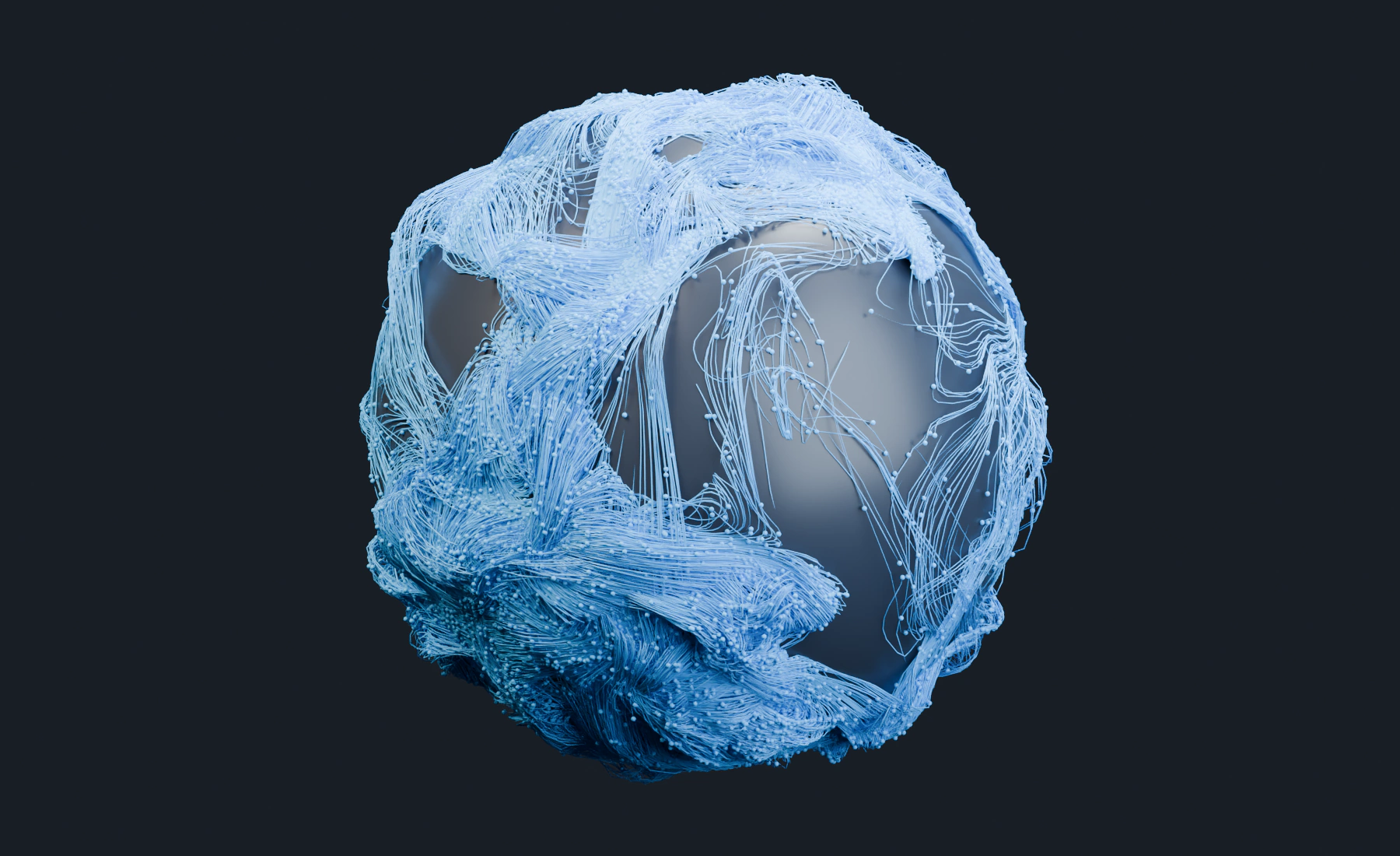
Trails make the surface paths visible. Use the particle-color material from lesson 6 on the tubes. For a lighter preview, increase Frame Sampling or reduce Trail Length and Tube Sides.
1. Prepare the surface and emission
- Create the sphere at the dimensions above and apply its scale.
- Assign it as the Emitter's Surface source. In Nodes, connect a Surface source to the Emitter's Sources input.
- Set the one-frame emission and particle properties from the table.
- Set Surface Push to zero so normals do not add an outward launch.
- Add Point Cloud for preview and set Color to use particle color.
The fixed Point Cloud display radius makes particles easier to see. Physical spacing still uses the Emitter's Radius.
2. Keep particles near the surface
- Add Surface Attract and assign the sphere to Surface Object.
- Set Pull and Push to
100for this scale. Pull restores particles that are too far away; Push corrects particles that are too close. - Set Max Distance to
2 mso particles displaced by the curl field remain within the useful pull range. - Keep Offset at
0. Surface Attract includes particle Radius in the requested spacing, so the reference centers sit near a sphere radius of2.008 m. - Keep Friction at
0to preserve tangential motion. Leave pull, push and offset variation at zero for this setup.
Surface Attract is a force-based relationship. It allows some deviation around the target spacing and is not an exact collision barrier. Stronger motion, a different mesh scale, or a sharper surface can require more Substeps or different Pull and Push values.
3. Add motion and damping
- Add Curl Noise after Surface Attract.
- Use Force mode, Strength
2, Scale1, and one Octave. - Keep noise Speed at zero so the spatial pattern is stationary during evaluation.
- Add Drag with Coefficient
2after Curl Noise. - Reset and play from frame
1after changing the setup.
Force mode continually supplies motion. Drag limits accumulated momentum, while Surface Attract corrects the component that moves particles away from the surface. Direction mode can redirect existing motion, but it does not replace speed lost to surface correction or Drag.
4. Nodes version
Connect Surface Source → Emitter → Surface Attract → Curl Noise → Drag. Feed Drag's final particle output to Point Cloud, Trails and Simulation Output / Particles. Connect both post-effect Result outputs to Simulation Output / Geometry. Assign the same sphere to Surface Source and Surface Attract, and enter the table's output settings.
Fields can vary compatible parameters per particle. Keep uniform settings until the base motion is stable; then introduce spatial variation or group filters if different populations need different behavior. Surface Attract requires the complete particle stream.
5. Follow the surface motion
Set Point Cloud and Trails to Blender Geometry using the reference table's output values. Keep Point Cloud's Material empty to use its automatic particle-color material, and assign the col material to Trails.
Play from frame 1 to 120. Particles travel across the sphere and leave curved recent paths, instead of returning to their original birth locations. Some deviation from the target spacing is expected because Surface Attract applies a force. Look at the silhouette to judge whether that deviation suits the shot.
Increase Drag for slower travel or reduce it for more momentum. If stronger curls pull particles away from the sphere, balance Curl Strength with Pull, Push and Substeps before increasing emission count.
These settings are for a static, closed sphere. Animated meshes, sharp edges, collections and timed attachment release need further tuning.
Troubleshooting
- Particles remain at stored locations: Check that the effect is Surface Attract. Surface Attach Constraint follows a stored surface location.
- Particles drift far away: Increase Pull or Max Distance, reduce Curl Strength, or increase Substeps. Check the requested Offset and physical Radius.
- Particles cross the surface: Increase Push or Substeps and reduce field strength. Use Collision when solid contact is required.
- Motion fades out: Use Force-mode Curl Noise, reduce Drag or Surface Attract Friction, and confirm that the field supplies nonzero motion.
- The visible gap is wrong: Check Emitter Radius, Surface Attract Offset, and Point Cloud display radius separately.
- The result needs fixed attachments on an animated mesh: Use Surface Attach and configure surface motion inheritance instead.
See Surface Attract, Surface Attach, and Curl Noise for the complete controls.