Pro Terrain
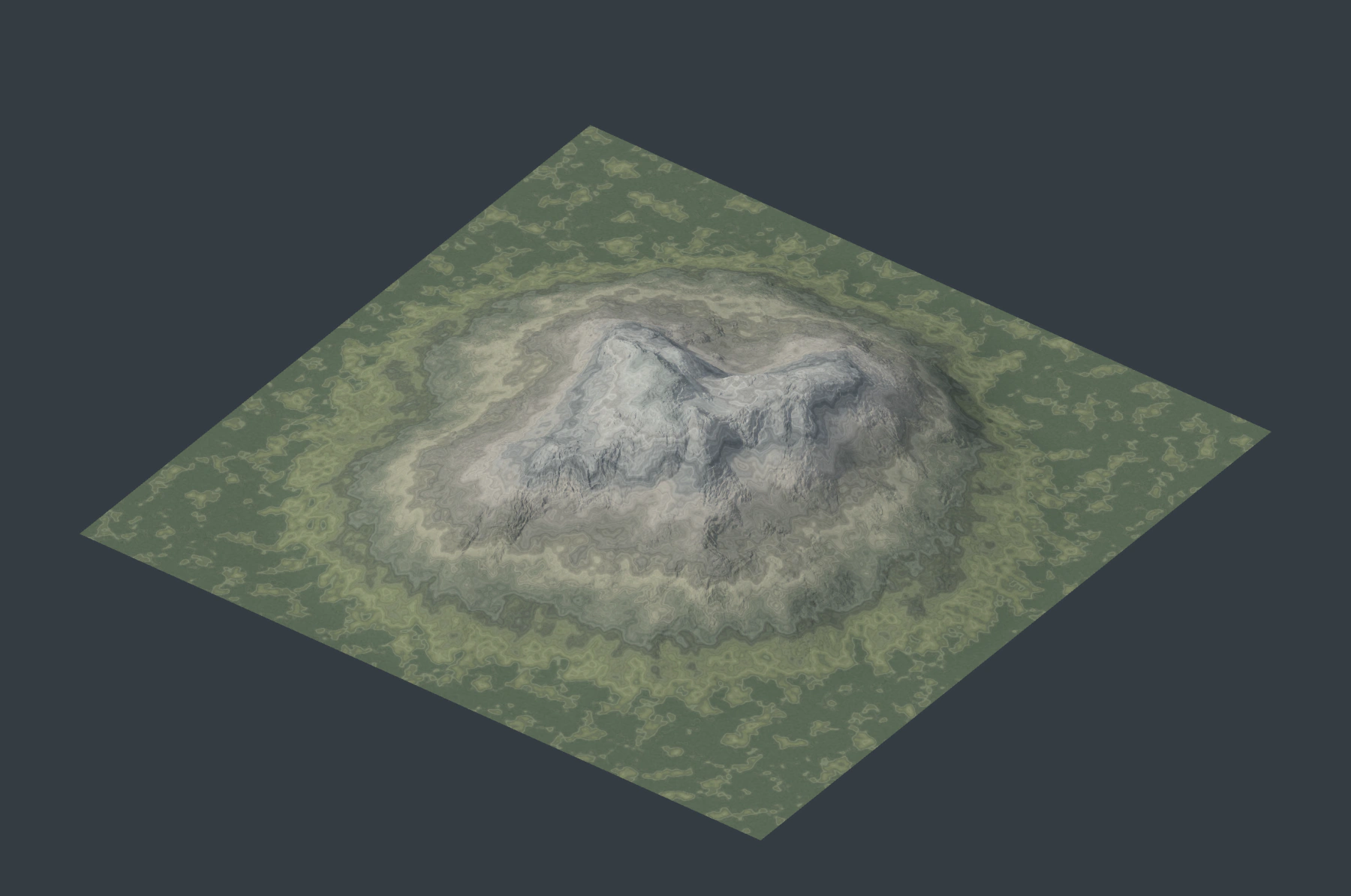
Build static landscapes from heightfields, erosion, masks and editable curves. Inspect the result with GPU Preview, then export geometry, heightfields or surface textures for Blender and other applications.
Pro Terrain has its own Pro Terrain sidebar tab and node editor. It does not use the particle effect stack or Pro Physics graph. Terrain calculation is independent of timeline playback.
Choose a task
| Task | Open |
|---|---|
| Create a first terrain and choose its preview | Mountain Preview |
| Follow a complete shape, erosion, color and export example | Mountain to Export |
| Build a canyon with meanders and strata | Canyon Preview |
| Look up generators, erosion, masks, colors or preview controls | Terrain Nodes |
| Add geological structures, surface detail or analysis maps | Geological Tools |
| Create drainage, sediment, rivers or water surfaces | Drainage and Water |
| Draw and edit roads, islands, ridges, lakes or masks | Drawing Terrain |
| Use a terrain in a Blender render or another application | Export and Blender Materials |
| Diagnose missing previews, incorrect colors or export problems | Troubleshooting |
Create and manage terrains
- Open the 3D Viewport sidebar with N, then select Pro Terrain.
- Click + (Add Terrain). The new graph starts with Mountain → Terrain Output.
- Change an area's editor type to Pro Terrain. The editor follows the active terrain. Use Add to insert nodes and connect their named sockets.
- Keep a heightfield connected to Terrain Output > height. Optionally connect a color field to color.
- Leave Auto Update enabled, or click Refresh Terrain Preview after editing.
Select another row in the terrain list to work on that terrain and show its preview. Edit the row's name to rename it. Graph selects the node graph assigned to the active row. Click − (Remove Terrain) to remove the active entry and its preview; an otherwise unused graph is removed as well.
Per-terrain and shared settings
| Scope | Settings |
|---|---|
| Terrain entry | Name and assigned graph |
| Graph | Nodes, links, node parameters, drawing-object references and export destinations |
| All terrains in the same scene | Terrain Size, Height Scale, Preview Resolution, Display Mode, Auto Update, Preview Lighting and Preview Cache settings |
Switching terrain entries does not restore separate sizes, resolutions or lighting. For example, changing Height Scale to 5 affects the display and mesh exports of other terrains in that scene too. Use separate scenes when those settings must differ. Assigning the same graph to two entries shares its node edits; it does not create a copy.
Size and height
The terrain is a square centered on the world origin, with X and Y spanning Terrain Size and Z derived from the heightfield. Height Scale specifies the scene-space height of one graph height unit. With Terrain Size 10 and Height Scale 3, a sample of 0.5 appears at Z = 1.5.
Most node distances use fractions of terrain width, while heights use graph units. Drawing tools expose scene-space controls in the sidebar and normalized controls on Drawing Field; see Drawing Field. Changing the scene scale can change how existing world-space curves map onto the terrain.
Preview and final output
GPU Preview displays the native 1K, 2K or 4K heightfield with dedicated terrain lighting. Linux and Windows require Vulkan; macOS requires Metal. See Installation.
Heightfield Geometry creates a Blender preview mesh with at most 512 by 512 cells. Use it to inspect a Blender object; fine detail from a 2K or 4K field is lost. For final geometry, use Bake Terrain Mesh. GPU Preview does not create a mesh for Blender's final render.
Exports have their own 1K through 16K Resolution. They recalculate the graph at that resolution; they do not enlarge a preview image. Grid Reduction reduces mesh density without reducing upstream graph resolution. See Export and Blender Materials and Native resolution and memory.
Terrain limits
- A heightfield has one surface height per X/Y position. It cannot represent caves, overhangs or a vertical stack of separate surfaces.
- Erosion and drainage produce a static terrain result. They are not timeline-driven fluid simulations.
- Water nodes provide height, surface and mask fields. They do not automatically add separate Blender water objects or water shaders.
- Terrain color nodes provide base color and masks. Preview lighting does not become a Blender material or lighting rig.
- Large exports can use substantial RAM as well as VRAM. Dense exported meshes can require more memory to import than their file size suggests.