14. Drop a Soft Body
Drop a rounded cube and distinguish resistance to compression from recovery of its original shape.
Create the Soft Body scene
Start with a new Blender file and Start with Lists. Use 24 fps, frames 1–72, Substeps 4 and one Emitter. This lesson is independent of the Cloth scene.
Soft Body requires a mesh enclosing a usable volume. Use a closed cube for this exercise. A flat plane is not a Soft Body source; Cloth handles open sheets.
Prepare the source and ground
- Name the cube
Soft Body Source. Set Dimensions(1.5, 1.5, 1.5)and Location(0, 0, 2.2). Apply Scale. - Add a Bevel modifier with Width
0.18 m, Segments4, and apply it. - Add a Subdivision Surface modifier, choose Simple, set Levels Viewport
2, and apply it. Use the modifier's menu in Object Mode to apply it. Do not leave it in Catmull-Clark mode, which would change the cube's shape. Use Shade Smooth. - Add a second cube named
Ground, Dimensions(12, 12, 0.3), Location(0, 0, -0.15). Apply Scale.
The bevel creates rounded corners. Simple subdivision adds surface sampling without rounding the entire cube. Apply both modifiers before assigning the source to keep the mesh topology fixed for the exercise.
Configure the material
- Set the Emitter Type to Soft Body. Assign
Soft Body Sourcein Mesh Sources, with Simulation Resolution: Full. - Set Start Frame
1, Initial Velocity(0, 0, 0)and Display: Geometry. - Set the following values:
| Control | Value | Purpose |
|---|---|---|
| Soft Body Solver | Local XPBD | Solver used for this comparison |
| Solver Quality | 8 |
Material accuracy |
| Density | 1 |
Material mass |
| Volume Stiffness | 0.9 |
Resists loss of volume under compression |
| Shape Stiffness | 0.12 |
Allows substantial change from the original cube shape |
| Volume Resolution | 12 |
Internal volume sampling |
| Damping | 0.08 |
Reduces continuing motion |
| Collision Thickness | 0.02 m |
Contact spacing |
| Collision Friction | 0.25 |
Material contact friction |
Add forces and contact
- Disable Self Collision, Particle Interaction, Deformable Interaction, Pyro Interaction and Plasticity for this single-body exercise. Leave material maps empty.
- Add Gravity, Force
(0, 0, -9.81), with the Soft Body domain enabled. - Add Collision, assign Ground, enable Soft Body, and set Bounciness
0, Friction0.35. Keep the remaining Collision controls at defaults. - Replay from frame
1to72. Observe the impact as well as the final shape.
The Soft Body Emitter supplies renderable geometry directly. It does not require a Mesher or Point Cloud post effect.
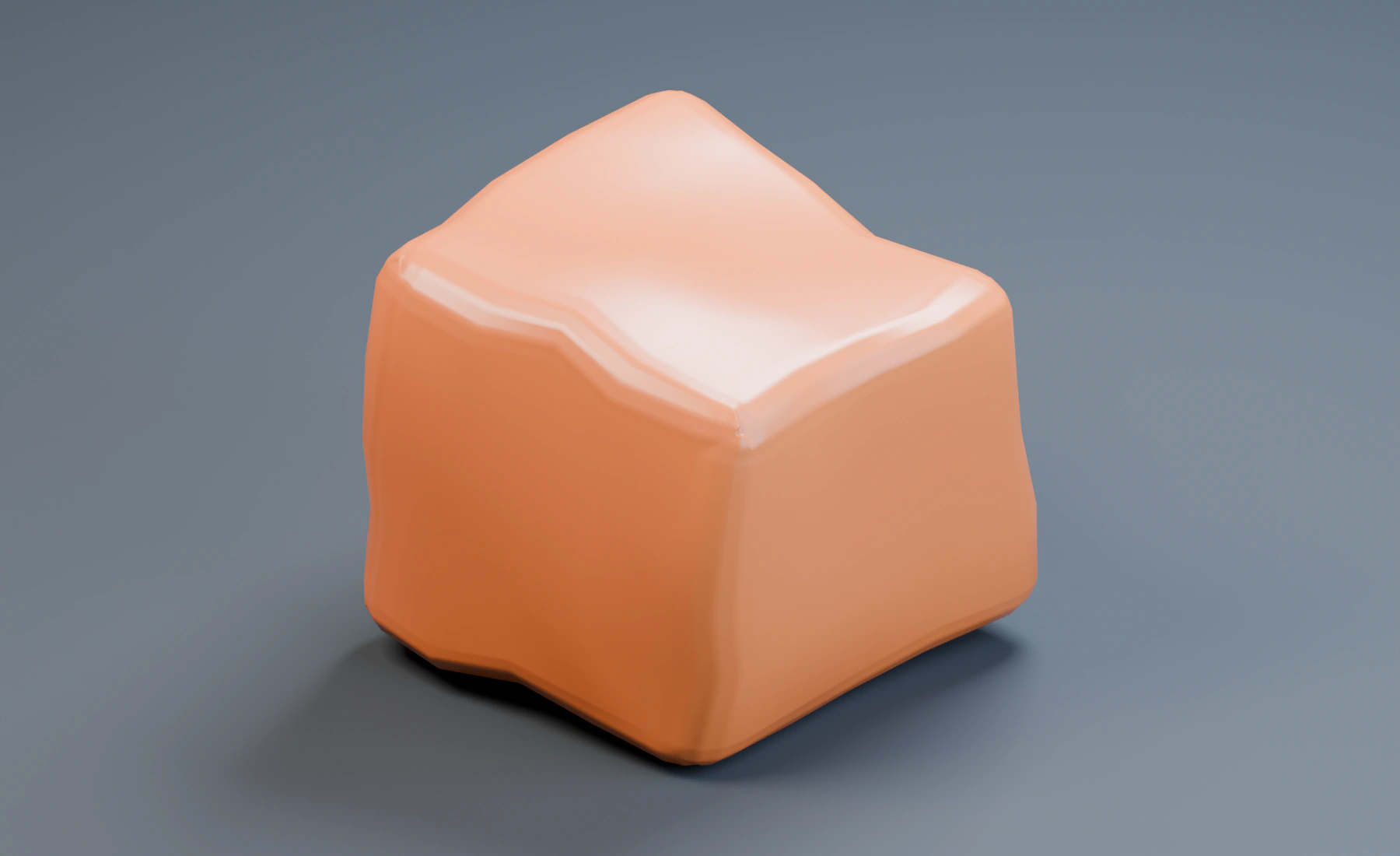
Volume and Shape Stiffness
Volume Stiffness resists compression of the enclosed volume. Shape Stiffness pulls the body back toward its original shape. A body can preserve much of its volume while changing its silhouette. Raising Volume Stiffness alone does not make the material behave like an undeformable cube.
Save as 14-soft-body.blend. Reset and replay after changing the source, its topology, Volume Resolution or material maps. Keep scale and resolution fixed when comparing stiffness.
Increase Shape Stiffness
Set only Shape Stiffness to 0.75, keep Volume Stiffness at 0.9, and replay from frame 1. Compare the silhouette at the same frame and the amount of flattening during impact. Restore 0.12 to return to the first material.
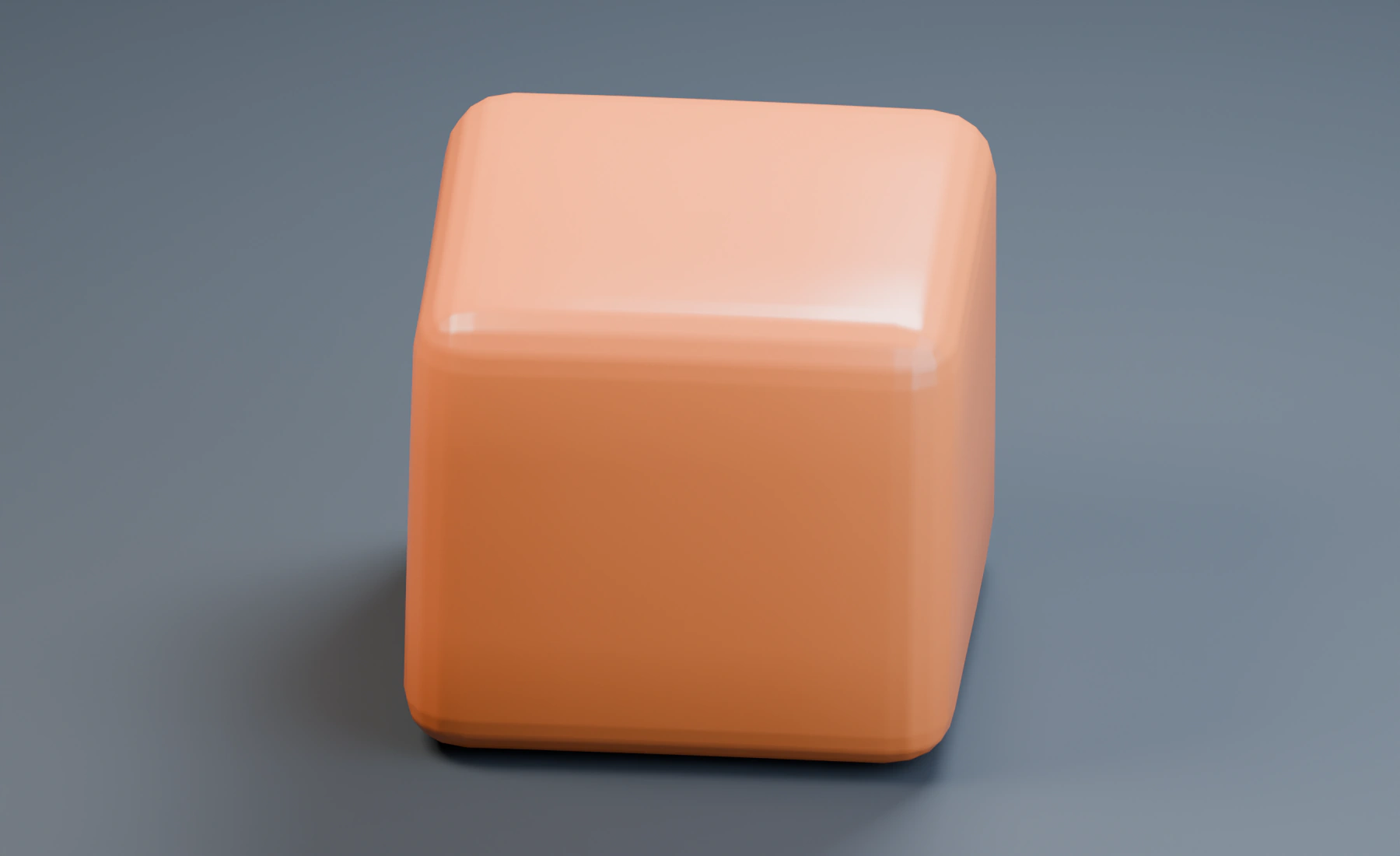
Increasing Volume Resolution resolves smaller internal features but costs more simulation time and GPU memory. Choose the material stiffness before raising resolution. Enable Plasticity when the material should retain a changed rest shape after yielding; a soft body can also remain flattened simply because gravity continues pressing it against the ground.
Build the same setup in Nodes
- Connect Surface Source / Source to Emitter / Sources, assign the rounded cube, and set Type: Soft Body.
- Route Emitter / Particles through Gravity and Collision to Simulation Output / Particles. Enable Soft Body on both effects.
- Connect Emitter / Geometry directly to Simulation Output / Geometry and set the material values on the Emitter.
This is an independent setup. Switching authoring modes does not convert the Lists scene.
Troubleshooting
- The simulation rejects the source: check for a closed volume, non-manifold geometry or large openings. A denser mesh will not repair invalid topology.
- The body does not fall: check Gravity and its Soft Body domain, then replay from frame 1.
- It passes through Ground: check Collision's object and domain before changing the material.
- It looks too soft: compare Shape Stiffness and Volume Stiffness separately; do not change both at once.
- Fine source detail deforms poorly: check Volume Resolution and source quality. Increase sampling gradually and replay.
Reference: Soft Body controls.