6. Points, Trails and Instances
Present one simulation in different ways without changing its physical particles.
Use the colored fountain
Open lesson 5 and save as 06-post-effects.blend.
Create renderable output
- Select Point Cloud in Post Effects and set Display: Blender Geometry. Keep Particle Radius, Radius Scale
1, and particle Color. Leave its Material empty to use the automatic particle-color material. - In Post Effects, add Trails alongside Point Cloud. Choose Blender Geometry, Particle Trails, Length By: Time, Length
12frames, Frame Sampling2, Style Tube, Tube Sides6, Constant Thickness0.006 m, and Particle Color enabled. - Replay from frame
1to72. You should see points at the current particle positions and tubes showing their recent paths.
Point Cloud and Trails display the same simulation. Adding these outputs does not create more physical particles. GPU Preview is useful for motion, but Blender Geometry is required for these outputs to appear in a Blender render.
Give the trails their particle colors
Create a material for Trails and open it in Blender's Shader Editor:
- Keep a Principled BSDF connected to Material Output / Surface.
- Add an Attribute shader node. Set its type to Geometry and enter
colin the Name field. Renaming the node itself does not select the attribute. - Connect Attribute / Color to Principled BSDF / Base Color.
- Assign this material in the Trails post effect's Material control.
For a render, choose Cycles in Blender's Render Properties, add a camera and lights, hide Fountain Source from renders, and render frame 72. A custom Point Cloud material can use the same attribute setup. Camera and lighting choices affect the illustration, so the result need not match its framing to have the correct motion and colors.
Optional: try Instance output
- Add an Icosphere with Radius
1, applied scale, namedInstance Source. - Add Instance, Blender Geometry, with one Object source layer assigned to that mesh.
- Choose Scale From Particle, Color From Particle, Rotation From Velocity, global Scale
1, and keep Realize Instances off. - Hide the original source mesh from renders; disable Point Cloud and Trails while comparing Instance.
A sphere does not reveal orientation. Use an elongated source mesh and set Forward Axis to its long axis to inspect Velocity alignment. Use Particle Info to feed particle color into its material.
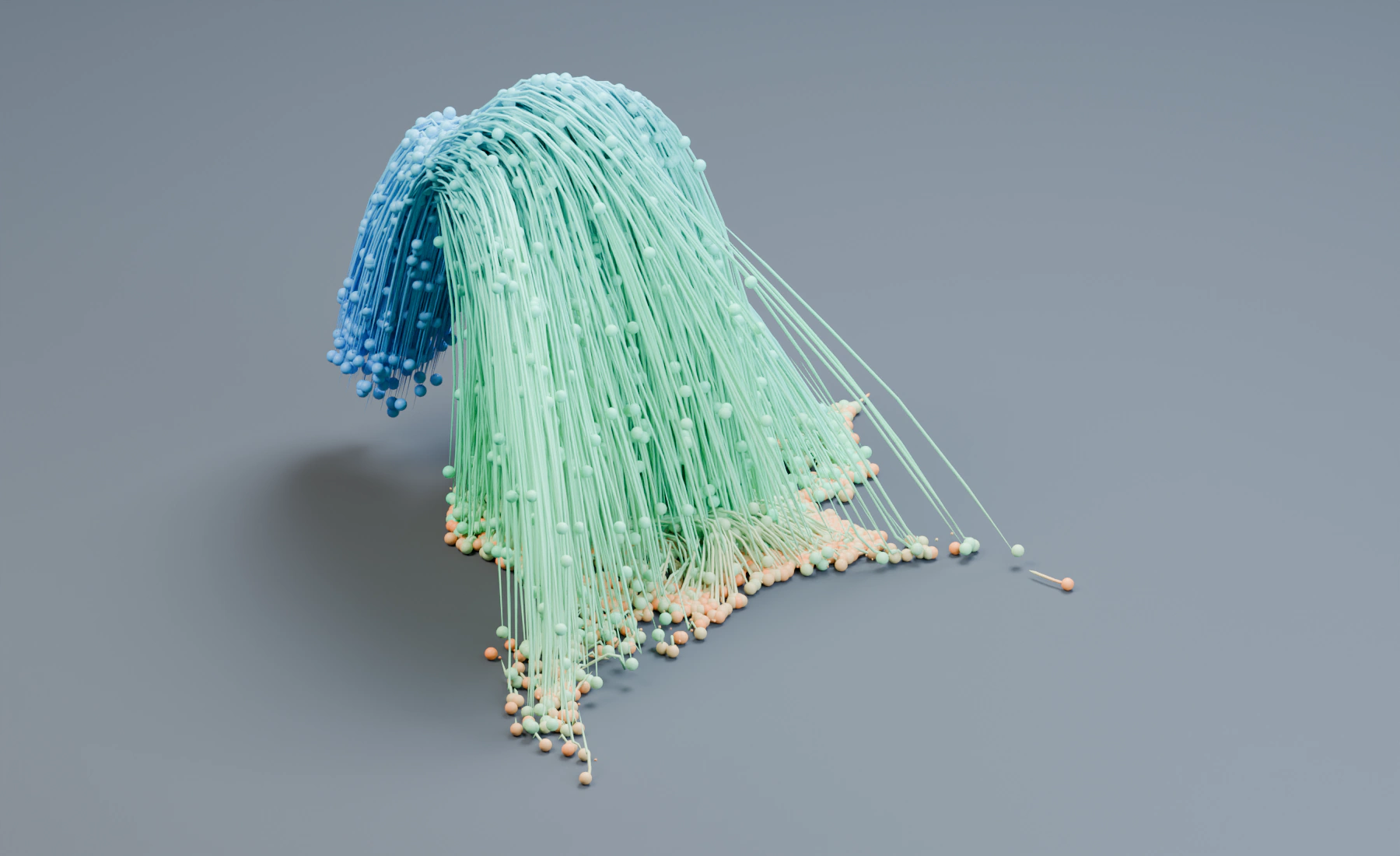
Geometry follows the simulation
Outputs follow the same motion and lifetime. Instance sources change the visible geometry; particle contact still uses the simulated radius. Disable Instance and restore Point Cloud plus Trails before saving the checkpoint for lesson 7.
Troubleshooting
- No geometry: check Display, target, filters and the enabled post effect.
- Trails use too much memory: increase Frame Sampling or reduce Length and Tube Sides.
- Instances are huge: inspect source dimensions, applied scale and Scale From before changing Radius.
Reference: Post Effects.
Previous: 5. Birth Color and Lifetime Color · Next: 7. Separate Particle Groups