Physics Events
Physics Events turn births, impacts, tears, threshold crossings and contacts into controlled particle, Pyro or source-data reactions.
Deformable events in Lists
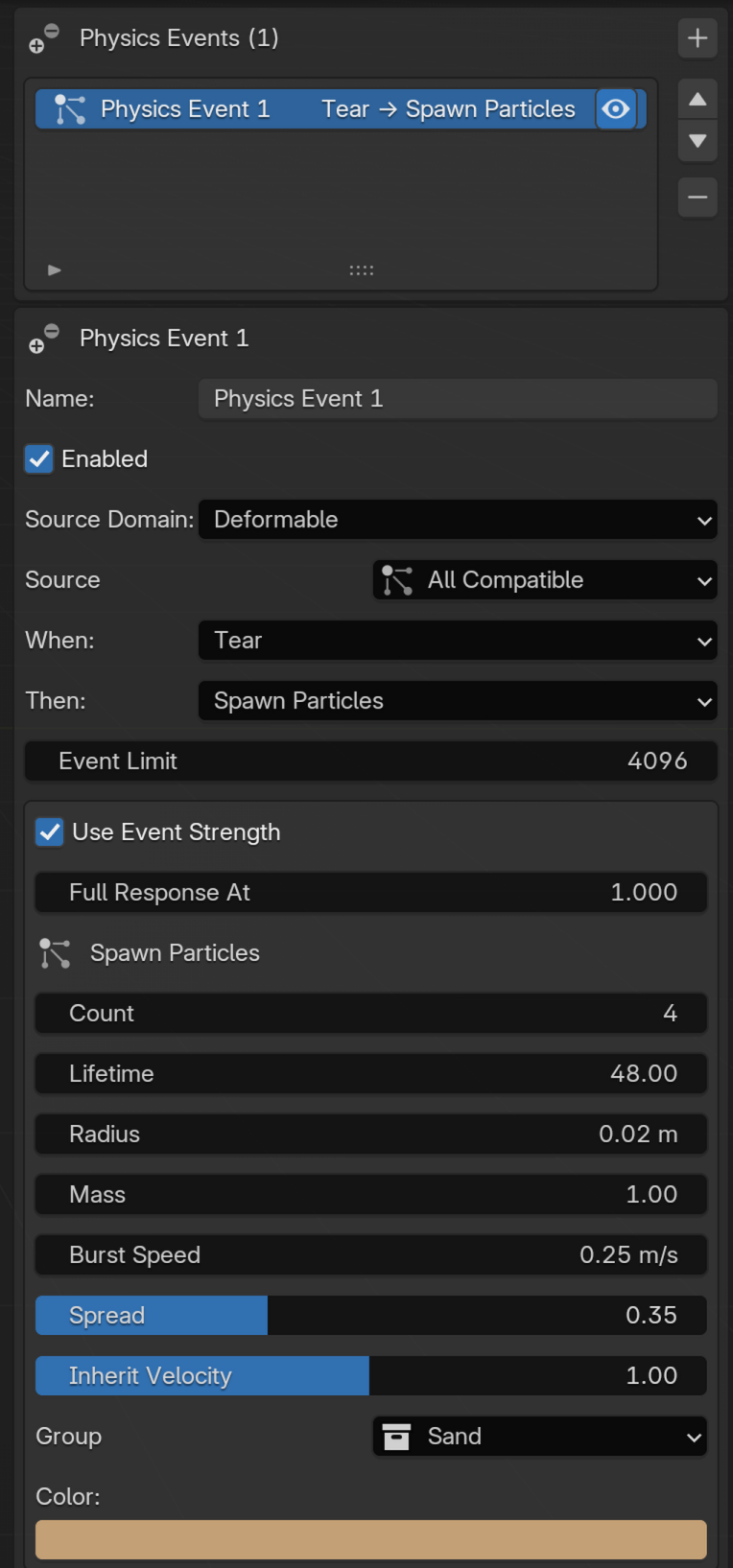
Physics Events turn a new break, load threshold or physical contact into an immediate secondary effect. In Lists, open the Events tab, add a rule, choose its Source Domain and watched emitter, then combine Tear, Constraint Break, High Strain, High Stress, High Damage, Collision or Contact with Spawn Particles or Emit Pyro. Particle actions can inherit the breaking material’s motion and use a named particle group. Pyro actions can add smoke, heat, fuel, flame and velocity at the break. Tear watches Cloth; Constraint Break watches breaking Cloth Stitch/Sew constraints, links broken by Break Constraint, or Strands with Breakage enabled. Collision reacts when the deformable begins touching a Collision effect. Contact reacts to a new self-contact or contact with another deformable object. For Collision and Contact, Minimum Strength ignores softer contacts. It uses the relative motion toward the surface and the speed needed to resolve overlap, so objects moving together do not count as a strong hit merely because they move quickly through the scene.
Particle events
Particle and Fluid sources use the same event rules and actions as deformables. Select the source emitter, optional Source Group and optional Collision target from their menus. Particle Events work in Lists and with the On Particle Event node.
Birth and Death react once when a particle begins or ends its life. Collision Begin reacts only on the first frame of a new contact; Minimum Speed ignores slower impacts.
Enter Volume and Leave Volume react when a particle crosses a Collision object's enclosed volume. Small openings and minor mesh defects are repaired automatically for sensing without changing the source mesh. Objects without usable enclosed volume cannot act as volume sensors. The target's physical Apply to setting is separate from the event rule, so a sensor region can trigger events without blocking the watched particles.
FLIP and MPM impact events
FLIP Impact and MPM Impact react when their respective fluid particles strike a Collision object. Choose the fluid source, optionally narrow it to a named Source Group or Collision target, and set Minimum Speed to ignore gentle touches. Nearby hits are combined into one reaction region based on the fluid’s simulation resolution, so a splash or material impact does not create a separate burst for every particle. Both events can spawn particles or emit Pyro in Lists and with the On Fluid Event node. They require an enabled FLIP or MPM effect; for MPM Impact, Filter MPM Material can narrow the reaction to one material in one selected MPM effect. The selection follows that material when it is renamed or moved in the material list; if it is removed, the event shows an error until you choose another material. SPH and PBF are not Impact sources yet. FLIP collider hits also satisfy particle Logic’s On Collision condition; use Physics Events when you want a limited burst or a Pyro reaction instead of an action on each colliding particle.
Event processing in Nodes
In Nodes, connect an Event source to Filter Events to select events by strength, world-space box, speed, travel direction or source weight. Particle and Fluid sources use the emitter's Vertex Weight; Deformables use Pin Weight. Particle and Fluid collision events can also be filtered by contact normal. An unavailable value or empty filter range shows a node error.
Use processing nodes to control when the action runs:
| Node | Behavior |
|---|---|
| Merge Events | Combines two event streams for one action. Identical incoming branches are used once. |
| Accumulate Events | Adds event strengths until the chosen threshold is reached. |
| Debounce Events | Ignores repeated triggers during the chosen cooldown. |
| Limit Events | Caps accepted events per source branch and frame, including after a merge. |
| Rate Limit Events | Allows the chosen number of events over the chosen number of frames, then opens its window again. |
| Delay Events | Postpones a particle burst or Pyro reaction by the chosen number of frames. |
Connect processing nodes in this order: Filter → Accumulate → Debounce → Limit → Rate Limit → Delay. An out-of-order chain shows a graph error. Each source branch keeps its own budget, including after a merge. These nodes also work inside Physics Groups.
Source-changing node actions
Node graphs can also act directly on the event source. Modify Data on Event scales the source particle’s speed or radius and can set its color; enable only the channels you want to change. Change Group on Event moves that particle into a selected named group, where later effects can treat it differently. Both also work with Fluid Impact events. Break Constraint on Event breaks Cloth or Strand links touching a Deformable event vertex after a Strain, Stress, Damage, Collision or Contact trigger. It is intended for local rupture and can break several links at once. Source-changing actions happen on the current frame, so they cannot follow Delay Events. The Events list keeps the simpler direct Spawn Particles and Emit Pyro actions.
Event strength
An event normally uses the full settings of its action. Enable Use Event Strength to make gentler events produce fewer particles and slower bursts, or smaller and lighter Pyro reactions. Full Response At sets the strength that reaches the action’s full Count, Burst Speed, Pyro radius, smoke and initial motion. For particle and fluid impacts, this strength is the relative impact speed; for High Strain, High Stress and High Damage, it is the measured value. Birth, Death, Enter/Leave Volume, Tear and Constraint Break have a fixed event strength of 1. The option is available on the action in both Lists and Nodes, and is off by default.
Limits and recursion
Particles created by a Physics Event do not trigger another Birth Event. This prevents accidental recursive emission chains. Up to 29 Particle and Fluid Event rules can be active together; diagnostics identify any additional rule. Each rule also has an Event Limit, and the overall event and particle budgets prevent excessive bursts. If a limit is reached, extra reactions are skipped and a warning appears in the Events panel or Physics Graph sidebar for that frame; the simulation continues.
Threshold state
High Strain, High Stress and High Damage fire when the chosen value crosses its threshold. Reset Margin requires the value to fall clearly below that threshold before the rule can fire again, preventing flicker around the boundary. These rules collect the needed simulation data automatically; the source emitter’s Simulation Data output does not need to be enabled.
Deformable event setup in Nodes
In Nodes, connect one Cloth, Soft Body or Strands branch to On Deformable Event, connect its Events output to an action node, then connect the action to Simulation Output. Add a Branch node before the event node if the deformable stream also needs to reach another node. An Emit Pyro action also needs the scene's active Pyro Domain → Dynamics branch.
Event Limit caps the accepted breaks per frame; particle Count applies to every accepted break. Keep both values close to the result you need, especially for dense meshes.