Dendrite Crystal Growth
Grow a branching crystal from a single emitted seed, then turn its recorded branch history into renderable curves.
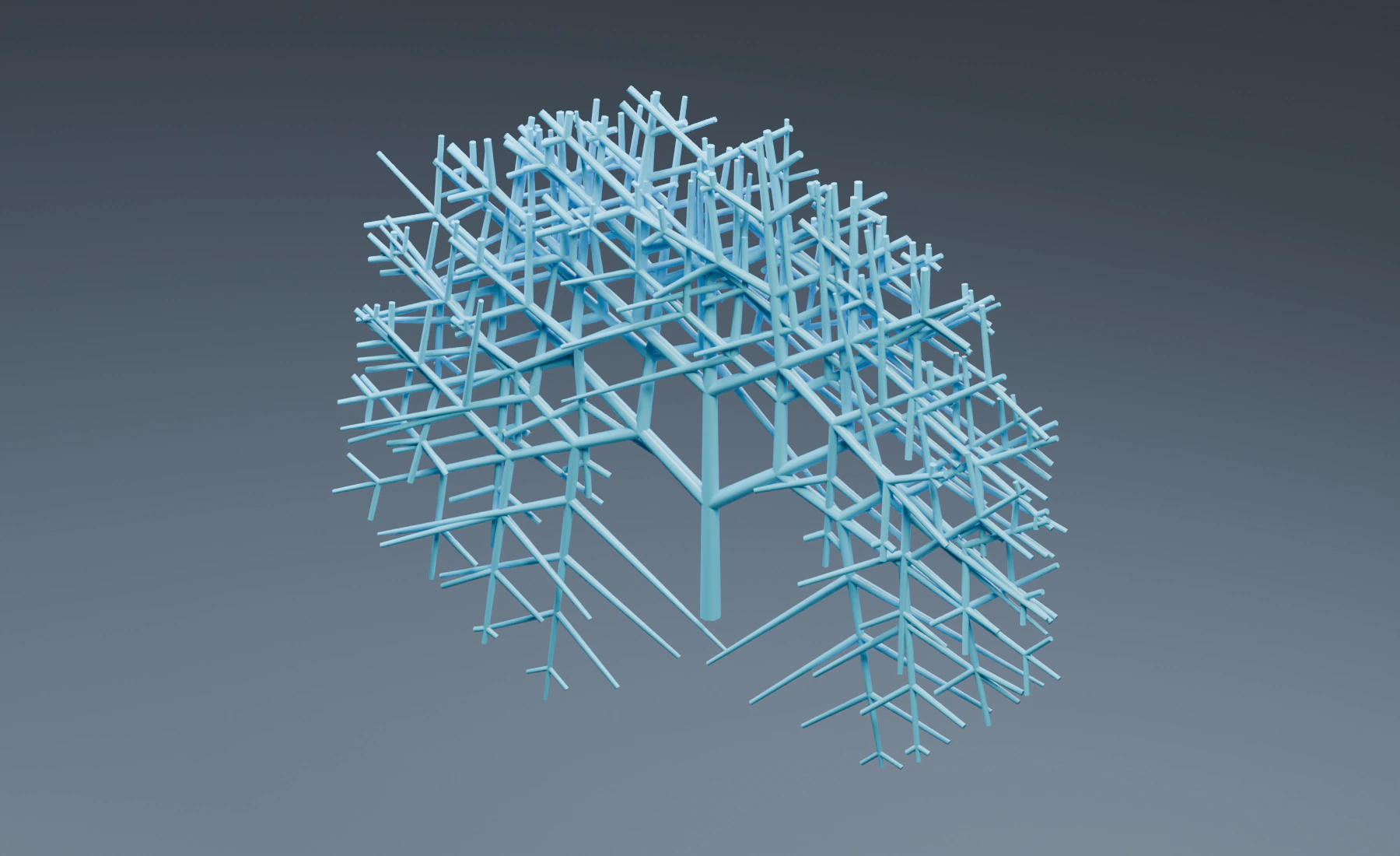
One seed gives the crystal a single origin. The 60° branch angle creates its regular structure, while Angle Variation and Wander add small deviations. Segment Length and Child Scale determine how far successive generations extend.
Reference setup
Use 30 fps, scene Substeps 1, and frames 1–120.
| Part | Settings |
|---|---|
| Seed source | Closed box 0.12 × 0.12 × 0.12 m, center (0, 0, 1.4); apply scale |
| Emitter | Volume Density, Rate 1 /f, Start 1, Duration 1, Lifetime 600, Radius 0.025 m, Radius Random 0 |
| Initial direction | Initial Velocity (0, 0, 1), Surface Push 0 |
| Effect | Dendrite, Mode Dendrite, one Root layer |
| Appearance | Absolute Radius 0.026 m, Taper 0.7, blue layer color |
| Output | Dendrite post effect, Source set to this Dendrite effect, Display Blender Geometry, Preview Style Tube |
No Gravity, Collision, or Point Cloud is required for the illustrated branches. The visible output is the Dendrite post effect's curve history, not ordinary point particles.
1. Create the seed and growth effect
- Start a new Lists system. Add a cube named
Crystal Seed Sourcewith the dimensions and location above, and apply Scale. - Assign it as the Emitter's Volume source, Density fill. Enter the table's timing, radius and Initial Velocity. Keep lifetime Variation and Random Velocity at
0. - Add Dendrite and set Mode: Dendrite. Keep one Root layer and remove Point Cloud if it is still present; the paired Dendrite post effect will display the branches.
2. Configure the root layer
Select the Root layer and use:
| Crystal control | Value |
|---|---|
| Growth Speed | 1 |
| Crystal Angle | 60° |
| Angle Variation | 5° |
| Branch Count | 2 |
| Branch Spacing | 0.3 m |
| Levels | 5 |
| Segment Length | 1.4 m |
| Length Variation | 0.15 |
| Child Scale | 0.8 |
| Wander | 0.06 |
| Bias Strength | 0 |
| Seed | 0 |
Keep Growth Competition and Volume Boundary disabled. In crystal mode, Levels and Branch Count generate recursive branching within this layer. This example does not require a separate child layer for every recursive level.
Start with one seed so that the pattern is easy to read. Increasing the emitter Rate creates multiple growing structures and can multiply the amount of branch history quickly.
3. Set curve detail and growth limits
Use Branch History Maximum Frame Interval 1, Minimum Distance 0.01 m, and Maximum Direction Change 2°. Set effect limits to Maximum Active Tips 6000, Maximum Branches 16000, and Maximum Geometry Points 500000.
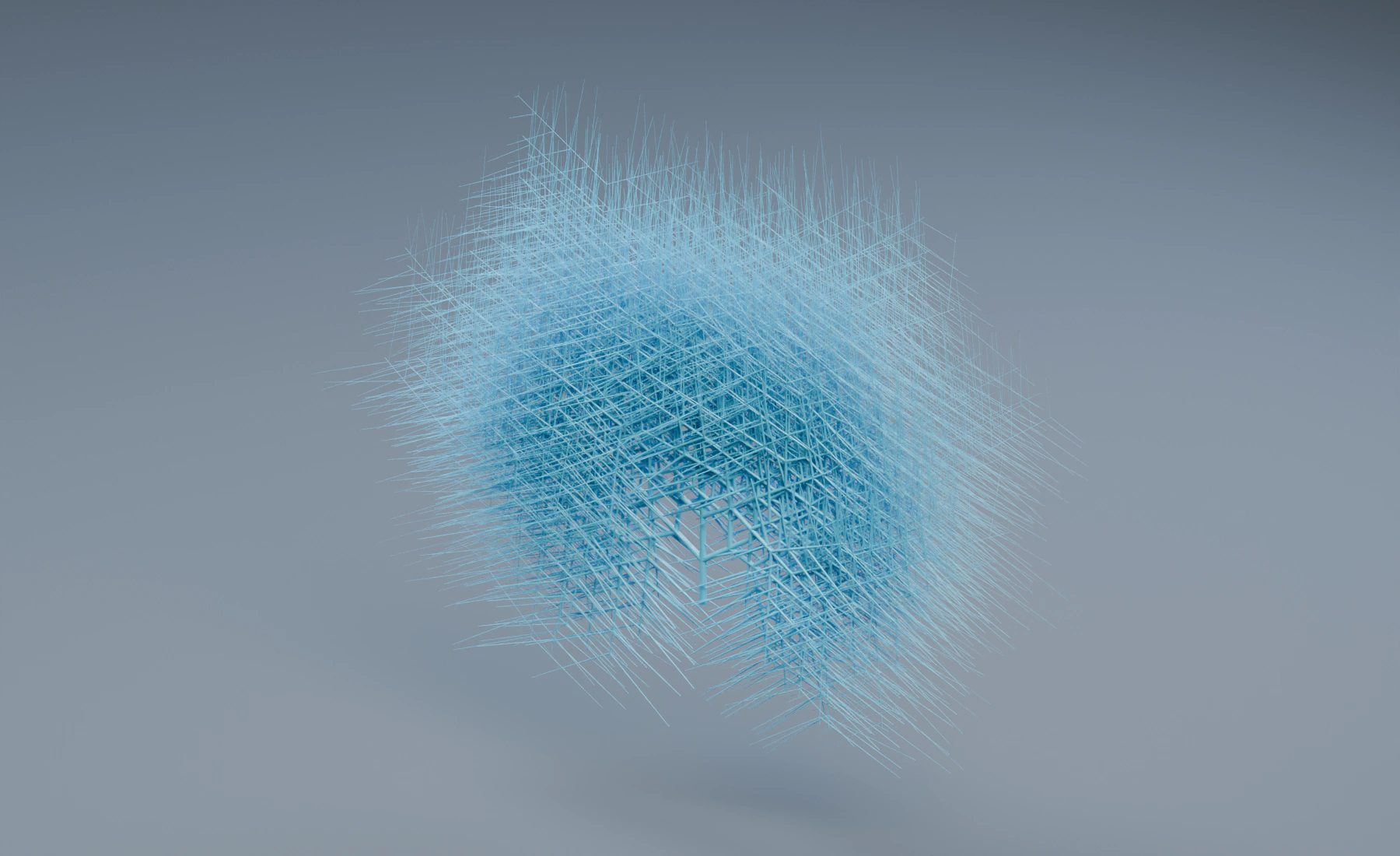
Play continuously from frame 1. Segments need more than one growth point to become visible, so give the branches time to grow before judging the shape. Inspect the established growth at frame 45 and the denser structure at frame 120.
4. Create the visible output
In Lists, adding Dendrite also creates its paired Dendrite post effect. Select that output and check its Source. GPU Preview is useful while tuning. Blender Geometry creates a Curves object for rendering and downstream work.
Assign a material to the output. The reference uses a blue material with Roughness 0.3, a studio floor, and area lights. Changing the material, lights or camera does not require growing the structure again when the final geometry has been retained. Save the project with the growth settings you want to keep; use Output Cache if you need to reopen and scrub the finished geometry without replaying growth.
Branch Radius and Taper define the tubes. Increasing Radius makes the same history appear denser without creating more branches. Use thinner tubes or an earlier frame when neighboring branches visually merge.
Nodes workflow
Connect the seed emitter to Dendrite. Choose Dendrite mode, add its matching crystal root component, and connect that component to Root Branches. The root component contains the growth controls above.
Add the Dendrite post-effect node and select the generator as its Source. Connect the Dendrite effect's particle output to both the post-effect node and Simulation Output / Particles. Connect the post effect's Result to Simulation Output / Geometry. Point Cloud is only needed if ordinary particles should also be visible. When building a larger hierarchy, use Child Branches for parentage and Previous Sibling for ordering at the same level.
Tune detail and cost
- Increase Levels or Branch Count cautiously: recursive growth can multiply active tips and stored history.
- Lower Child Scale for progressively shorter branches; higher values retain larger secondary structures.
- Raise Wander for less regular growth. Establish the basic crystal angle and lengths first.
- Use Bias Strength with Bias Direction for a preferred growth direction.
- Limits constrain the work and output size. If growth stops at a limit, choose whether to simplify the structure or allow more history; do not increase every limit automatically.
Troubleshooting
- Particles exist but branches are invisible: check the Dendrite post effect and its Source. Point Cloud does not reconstruct branch history.
- Only a very short stem is visible: play through the growth range and check that the root layer is enabled.
- The result looks solid: reduce Radius or choose an earlier growth stage before increasing branch counts.
- A later frame has no history: replay from frame 1 or use a previously stored output. A final curve object does not preserve a resumable live simulation state.
See Dendrite, Dendrite Output, and Caching & Output.