Collision and Interaction
These effects handle mesh contact, particle separation, avoidance, and dedicated material or fluid interaction.
Where to find it
Lists: Effects > Add Effect... > Collision & Interaction. Nodes: Pro Physics > Shift+A > Collision & Interaction.
Collision and interaction effects
| Effect | Primary role |
|---|---|
| Collision | contact with mesh objects or collections |
| Dynamic Collider | a rigid mesh moved by forces and simulation contacts |
| Self Collision | particle/deformable self contact where supported |
| Avoid | steer before predicted contact |
| Push Apart | neighborhood separation without a material solver |
| Granular | frictional granular-particle solve |
| PBF Fluid | position-based fluid solve |
| SPH Fluid | SPH fluid solve |
| Particle Constraints | structural, elastic and dynamic particle links |
| FLIP Fluid | grid/particle hybrid liquid simulation |
| MPM | material-point continuum simulation |
The controls described here are available in Lists and Nodes. In Lists, effect order follows the stack. In Nodes, it follows the connected particle stream.
Collision
Detects contact with one mesh Object or the mesh objects in a Collection. Evaluated object transforms and deformation are included, so animated and deforming colliders do not need a separate motion mode.
Setup
- Add Collision and choose Object or Collection as the Collider source.
- Use meshes with suitable thickness and consistent normals.
- Set Sidedness for the intended side of the surface.
- Establish Bounciness first, then tune Adhesion, Friction, and Stickiness.
- Enable color change or deletion only if collision should also change particle state.
Contact controls
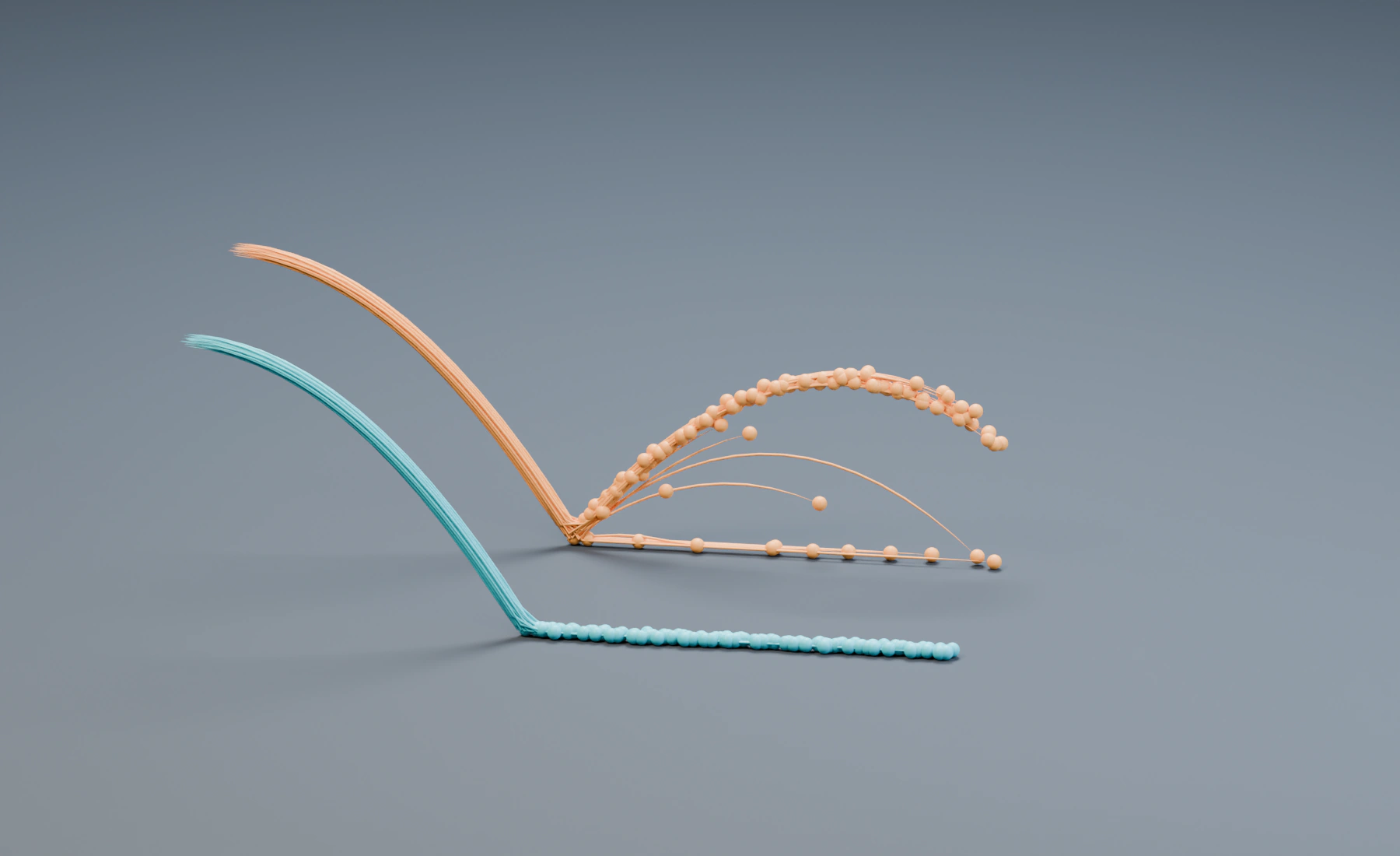
- Sidedness selects Outside, Inside, or Both. Outside follows the mesh's front side, defined by its normals. Inside uses the back side. Both blocks crossings from either direction. One-sided collision requires consistent mesh normals.
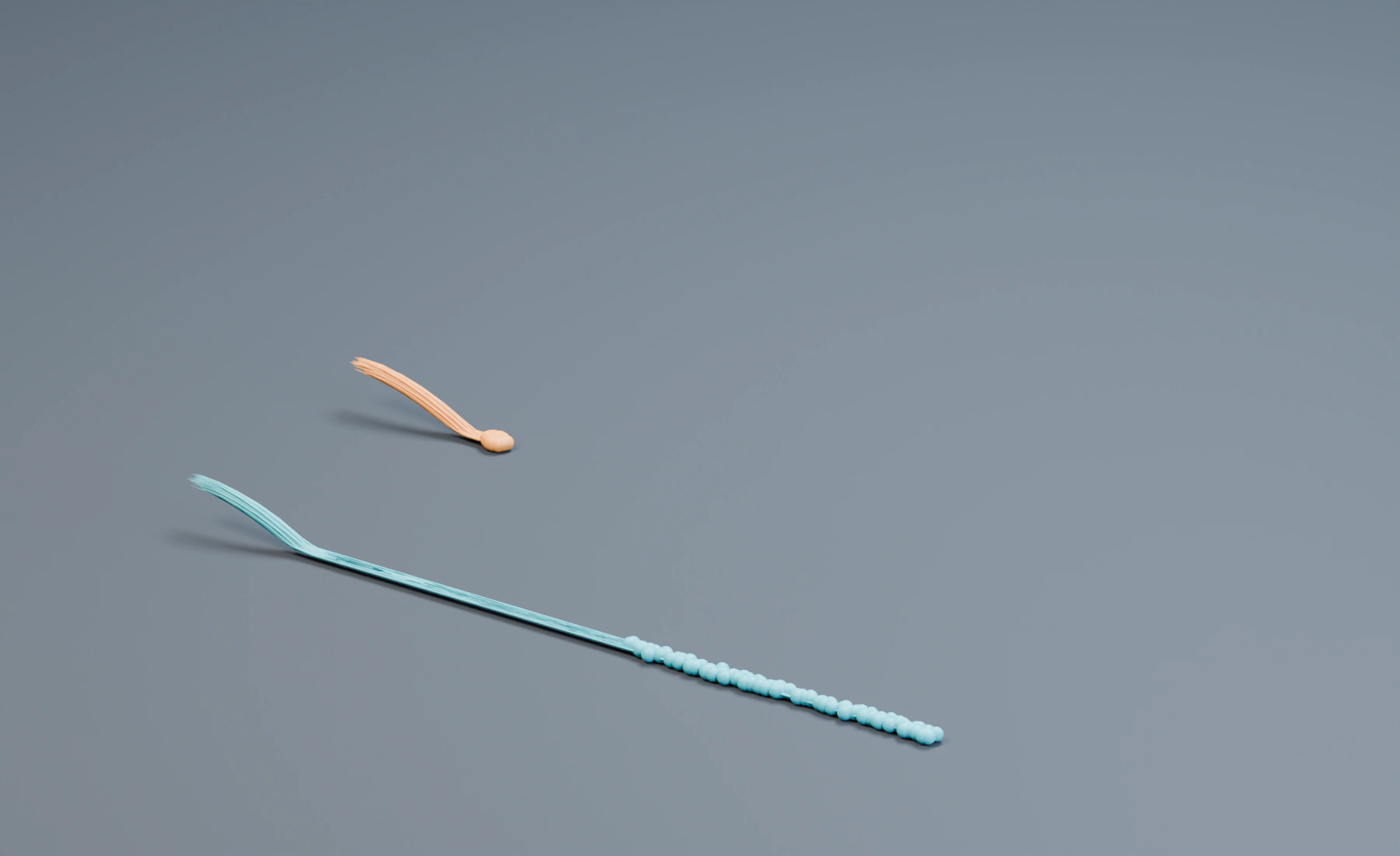
- Bounciness controls retained normal velocity on impact. Zero absorbs the bounce, 1 is elastic, and values above 1 are capped at 1. Resting contacts are stabilized without repeated bounce.
- Adhesion changes the response from bounce toward contact and sliding. At 1, particles follow the surface response instead of bouncing away.
- Friction removes velocity parallel to the surface according to the contact load. Zero allows frictionless sliding; higher values slow sliding more strongly. A fast sideways impact can continue to slide even at 1.
- Stickiness reduces velocity relative to the collider after contact. At 1, contacting particles follow the surface motion. It also reduces motion away from the surface.
- Random varies Friction independently for collision events.
- Seed selects another deterministic friction variation.
Use Adhesion to keep particles at the surface while allowing controlled sliding. Use Stickiness when the whole post-impact velocity should be reduced. For a durable attachment that continues to track a particular surface location, use Surface Attach instead.
These controls also apply to PBF Fluid and SPH Fluid during both impacts and continuing surface contact. They act on particles touching the collider, so liquid above the contact layer can continue to flow. Bounciness affects new impacts; it does not repeatedly bounce resting particles. Weight Maps scale the local contact response in the same way as for ordinary particles.
Collision actions
- Change Color on Collision assigns a simple color or an Advanced Color result when contact occurs.
- Delete Particle removes the particle on contact.
Collision color is event-driven. It is applied when a collision happens, unlike a continuously evaluated Change Color effect.
Collider Weight Maps
Open Data Mapping > Add Mapping..., select Bounciness, Friction, Adhesion or Stickiness, then choose Source: Weight Map and a Map. Use a vertex group or a Float attribute on the Point domain of the collider mesh. This source shows only the Map selector; weights multiply the parameter directly without ranges, a remapping curve or Apply Mode. Use one enabled Weight Map per parameter. Clear the Map, disable or remove the mapping to restore the uniform value.
In Lists, edit the mapping in the selected Collision or Dynamic Collider effect. In Nodes, Add Mapping... creates a connected Float Field. Select Weight Map and the Map on that Field. The source is available only when all connected targets are collider contact parameters. A Collision parameter can also have ordinary particle mappings; its surface weight is applied afterward.
Weights are interpolated across each contacted face and multiply that parameter's value. Weight 0 removes the collider's contribution to that parameter; weight 1 uses the full value. Unassigned vertices in a vertex group have weight 0. Values outside 0 through 1 are clamped. The collider remains solid where a weight is zero.
Particle Data Mapping is evaluated before the surface weight is applied. Cloth, Soft Body and Strands retain their own contact properties; a zero collider friction weight does not remove friction configured on the contacting material. Rigid mesh contacts use Bounciness and Friction.
For a Collection source, every mesh member must provide the selected map name. Modifiers are evaluated before sampling the weights. An empty Map has no effect. A selected map name that does not exist stops simulation with the object and map name in the error. Detailed mapped meshes require additional evaluation and contact work.
Dynamic Collider
Simulates a closed mesh as one rigid body. Particles and deformable emitters can push it, while its moving surface collides with them. It also collides with other Dynamic Colliders and with static or animated Collision objects. The mesh keeps its shape; the solver changes its location and rotation.
- Add Dynamic Collider and select one Source Mesh with an enclosed volume and positive scale.
- Set Mass and, if needed, Initial Velocity and Initial Angular Velocity.
- Add Gravity or other supported force effects. Set Body Group to target the body with a force or limit which colliders it meets.
- Tune Bounciness, Friction, Adhesion, and Stickiness for surface contact.
- For live Pro Pyro interaction, enable Pyro Interaction and adjust Tangential Drag if sideways gas flow should affect the body.
- Simulate from the start. Pro Particles Studio creates a separate result object and hides the source while the simulated result is shown. Resetting the simulation removes that result and restores the source visibility.
Mass is the whole body's mass. Its volume and shape determine how contact impulses translate and rotate it. Linear Damping and Angular Damping reduce motion over time. The initial velocity controls the start of the simulation; later motion comes from forces and contacts. A source mesh that changes shape during the simulation is not supported by this rigid-body mode.
Source mesh preparation
Pro Particles Studio automatically corrects minor surface defects and closes small, simple openings for simulation. Separate parts are preserved, and the source mesh and displayed geometry remain unchanged. See Volume Meshes for preparation limits.
Automatic sealing is limited to 16 openings, 64 edges per opening, and 256 boundary edges in total. Each opening's diameter must be at most 25% of the mesh's longest dimension. Large openings, branching surfaces, and unusable volumes require manual repair. Automatic preparation does not resolve intersecting surfaces. Nearby vertices are not merged, so narrow gaps and thin details retain their spacing.
Contacts with other Dynamic Colliders and Collision objects use a solid approximation of the source mesh. Concave shapes retain their main openings; very small cavities and thin details can be simplified. Complex concave meshes require additional preparation when rigid mesh contact is first needed. The prepared shape is reused during the simulation. Particle, deformable, and fluid contacts follow the source surface.
For a FLIP/APIC tank, add Collision objects for walls and the floor that must contain the rigid body. Closed FLIP/APIC domain faces contain the liquid particles; they do not act as rigid walls for Dynamic Colliders. A body that moves outside the liquid loses its buoyancy.
The Dynamic Collider can receive particle contact from ordinary particle effects and from PBF, SPH, FLIP/APIC, and MPM fluids. Cloth, Soft Body, and Strands also collide with it and transfer contact motion. The solver uses the same domain and group controls as Collision to limit contact. Gravity, Wind, Drag, Attractor, and Vortex can act on the rigid body where their group target includes its Body Group. Force effects with particle data maps or masks use their base values for the rigid body.
FLIP stabilizes liquid motion perpendicular to a contacted collider surface to reduce repeated small bounces. Flow along the surface remains responsive to the existing collision controls.
Floating asymmetric objects can tilt toward a stable orientation and generate waves while settling. Angular Damping reduces this motion; Linear Damping reduces drift. These controls do not freeze the object or prevent moving liquid from pushing it. Smaller FLIP/APIC Voxel Size resolves finer surface details, but increases simulation cost. Liquid coupling also becomes more expensive with more Dynamic Colliders or more detailed collider meshes.
For very large collider faces, add mesh subdivisions when fine liquid interactions are important.
Buoyancy from particle fluids depends on fluid density, particle spacing, collider mass, and simulation resolution. FLIP/APIC liquid pressure pushes on submerged Dynamic Colliders and can lift and rotate them. A heavier object may sink, and an object entering the liquid quickly can pass through a shallow domain before buoyancy stops it. With Pyro Interaction, the moving mesh blocks and pushes live Pyro gas, and gas pressure and tangential drag apply linear and angular impulses to the body. Tangential Drag ranges from 0 (normal pressure only) to 1 (strongest sideways exchange). This requires an active live Pyro simulation with positive Air Density; cached Pyro playback does not provide mechanical feedback. Use the Dynamic Collider itself for the gas boundary instead of adding a separate Pyro Collider for the same mesh. More dynamic meshes and moving contact surfaces increase solver work. Fast rigid motion can raise the shared substep count up to Pyro Max Solver Steps.
When a fluid Emitter uses Radius Scaled Mass, compare Reference Radius with the fluid particle Radius. A large Reference Radius makes each particle lighter and reduces the mass available to push the Dynamic Collider. See Emitter birth properties.
When FLIP/APIC Adaptive Substeps is enabled, motion of a Dynamic Collider inside the liquid domain also raises the shared substep count, up to the liquid's Maximum Substeps. Fast or light colliders can reach that limit. Increasing Maximum Substeps improves contact resolution but increases simulation time.
FLIP/APIC domain boundaries constrain the liquid, not the Dynamic Collider mesh. Add a Collision effect for a container wall when the rigid body must stay inside the liquid domain.
Self Collision
Resolves overlap using particle radii. Use it when particles need a collision response rather than only visual spacing.
- Friction reduces tangential relative velocity during particle contact.
- Solver Iterations repeats the collision solve within each simulation substep. More iterations improve difficult dense contacts but increase cost.
- Activation Frames delays self collision for each newly spawned particle. Zero activates it immediately. A delay can prevent particles emitted at the same location from fighting each other before they spread out.
Self Collision works with inertia and friction. For a lighter-weight separation effect, use Push Apart. For sand, snow, gravel, or material-specific contact, use Granular rather than building the material from Self Collision alone.
Avoid
Detects an Object or Collection before contact and applies a selected response in a zone outside its mesh surface.
- On Detection selects Steer, Freeze, or Kill. Steer guides particles around the target while preserving their speed. Freeze locks detected particles until another effect changes their frozen state. Kill removes them.
- Strength controls redirection in Steer mode.
- Detection Distance sets how far beyond the padded surface the response begins.
- Variation gives each particle a stable variation of Detection Distance.
- Scatter adds stable angular spread to Steer directions.
- Shell uniformly scales the invisible avoidance surface around the target origin. It is multiplicative.
- Thickness adds a fixed clearance outside the scaled surface.
Shell changes the overall shape around the object origin; Thickness adds a world-space margin. Increase Detection Distance for fast particles so they have time to steer. Avoid is predictive behavior, not a replacement for Collision when the surface must be physically impermeable.
Push Apart
Separates overlapping particles using their radii without the full collision model.
- Strength controls the correction applied on each substep.
- Iterations repeats the separation. Higher values resolve dense overlaps more completely and cost more.
- Activation Frames delays separation for newly spawned particles.
- Radius Multiplier changes the separation distance without changing rendered or physical particle radius.
- Mode selects Force or Position. Force adds repulsion, so particles retain inertia and may overshoot or oscillate. Position projects overlaps apart directly for a smoother, more stable result.
Use Position for stable packing cleanup and Force for a looser, reactive motion. If particles still overlap, check Radius Multiplier before increasing Iterations. Very high iterations can hide an incorrect particle radius or emitter spacing.
Dedicated interaction solvers
The following effects are documented separately because their material models and workflows extend beyond ordinary collision:
- Granular models contact material such as sand, gravel, soil, clay, mud, and snow. See Granular.
- PBF Fluid provides position-based particle liquid behavior. See PBF and SPH Fluids.
- SPH Fluid provides iterative Smoothed Particle Hydrodynamics with cohesive liquid behavior. See PBF and SPH Fluids.
- Particle Constraints creates persistent structural or elastic links and dynamic distance, friction, viscosity, or cohesion relationships. See Particle Constraints.
- FLIP Fluid uses a voxel grid for liquid transfer, sheeting, whitewater, and waves. See FLIP Fluid.
- MPM models liquid, elastic, plastic, and granular materials with a Material Point Method grid. See MPM.
Choosing the interaction
| Requirement | Use |
|---|---|
| Contact with static, animated, or deforming scene geometry | Collision |
| Mesh moved by forces and simulation contacts | Dynamic Collider |
| Detect and react before contact | Avoid |
| Particle collision with friction and inertia | Self Collision |
| Fast overlap removal or visual spacing | Push Apart |
| Persistent bonds or neighborhood constraints | Particle Constraints |
| Material-specific granular or fluid response | Granular, PBF, SPH, FLIP, or MPM |