10. Rebuild the Fountain in Nodes
Rebuild the fountain in Nodes, connecting particles, colors, masks and fields.
Create the Nodes setup
Save lesson 9 as 10-nodes.blend. Keep Fountain Source, Accent Source, Ground, Curl Region and the named groups Main and Accent.
- In the Pro Particles Sidebar, switch from Lists to Nodes and click Create Graph.
- Click Open, or change an editor's type to Pro Physics, to see the graph.
- Press N in that editor. Inspector holds the selected node's complete settings; Project holds scene controls and Graph Diagnostics. Add nodes with Shift+A.
The starter graph contains Shape Source, Emitter, Point Cloud and Simulation Output. Switching modes preserves the Lists fountain but does not copy it into Nodes. Recreate its settings below; only the active mode runs.
Recreate the two emitters
Delete the starter Shape Source. Add two Volume Source nodes and a second Emitter. Keep one Point Cloud and the existing Simulation Output.
Connect each Volume Source's Source output to its Emitter's Sources input. Configure the sources and emitters as follows:
| Control | Fountain | Accent Fountain |
|---|---|---|
| Volume object | Fountain Source | Accent Source |
| Volume Fill | Density | Density |
| Rate | 80 /f |
80 /f |
| Start Frame / Duration | 1 / 96 |
1 / 96 |
| Lifetime / Variation | 48 / 0 frames |
48 / 0 frames |
| Radius / Random | 0.025 m / 0 |
0.025 m / 0 |
| Emission Seed | 17 |
23 |
| Initial Velocity | (1.2, 0, 5) |
(-1.2, 0, 5) |
| Surface Push / Random Velocity | 0 / (0, 0, 0) |
0 / (0, 0, 0) |
| Color | Blue #2C99F9 |
Orange #FF6F2C |
| Default Group | Main | Accent |
Source controls belong to the Volume Source nodes. Timing, particle properties and Default Group belong to the Emitters.
Connect the particle path
- Connect both Emitter Particles outputs to Merge Disjoint Streams. The populations are separate, so this node combines them into one stream.
- Add and connect Gravity → Curl Noise → Drag → Collision → Change Color after the merge. Connect each node's particle output to the next node's particle input.
- Enter the effect settings from the table below. Set Apply to: Group Main on Curl Noise and Change Color; keep the other effects applied to All.
- Connect Change Color's particle output to Point Cloud, a new Trails node, and Simulation Output / Particles.
- Configure Point Cloud and Trails as in lesson 6, including the Trails material. Connect both Result outputs to Simulation Output / Geometry.
| Effect | Settings |
|---|---|
| Gravity | Force (0, 0, -9.81) |
| Curl Noise | Force, Classic Curl, Strength 1.2, Scale 1, Octaves 1, Speed 0, Seed 17 |
| Drag | Coefficient 0.3 |
| Collision | Ground, Bounciness 0.2, Friction 0.5 |
| Change Color | Age-based Advanced Color, configured below |
Simulation Output has separate Particles and Geometry inputs. The final particle stream must connect to Particles, including when post effects are connected. That link does not produce visible geometry. Point Cloud and Trails create the presentation and send their Result outputs to Geometry.
flowchart TB
  A[Main Emitter] --> M[Merge Disjoint Streams]
  B[Accent Emitter] --> M
  M --> G[Gravity] --> C[Curl Noise] --> D[Drag] --> X[Collision] --> K[Change Color]
  K --> P[Point Cloud]
  K --> T[Trails]
  subgraph S[Simulation Output]
    SP[Particles]
    SG[Geometry]
  end
  K --> SP
  P -->|Result| SG
  T -->|Result| SG
Add control branches
- Add Sphere Mask, assign Curl Region, and set Falloff
0.35, Influence1, Invert Output off. Connect its Mask output to Curl Noise's Mask input. - Select Curl Noise and use Inspector > Data Mapping > Add Mapping... > Strength. This creates a connected Float Field. Set its Source to Life Progress, input range
0–1, output range0.25–2, Apply Mode Multiply, Influence1, and Outside Range Clamp. Leave Remapping Curve off. - Add Advanced Color, choose Age, Blend Mode Normal, Target RGB, and create its Color Ramp. Set blue
#2C99F9at0, mint#2CEDB3at0.5, orange#FF812Cat1, alpha1, and Linear interpolation. Connect its Color output to Change Color's Color input.
These are control branches, so they do not go into the main particle chain. The Mask limits Curl influence in space, the Field varies Strength with life progress, and Advanced Color supplies the changing color.
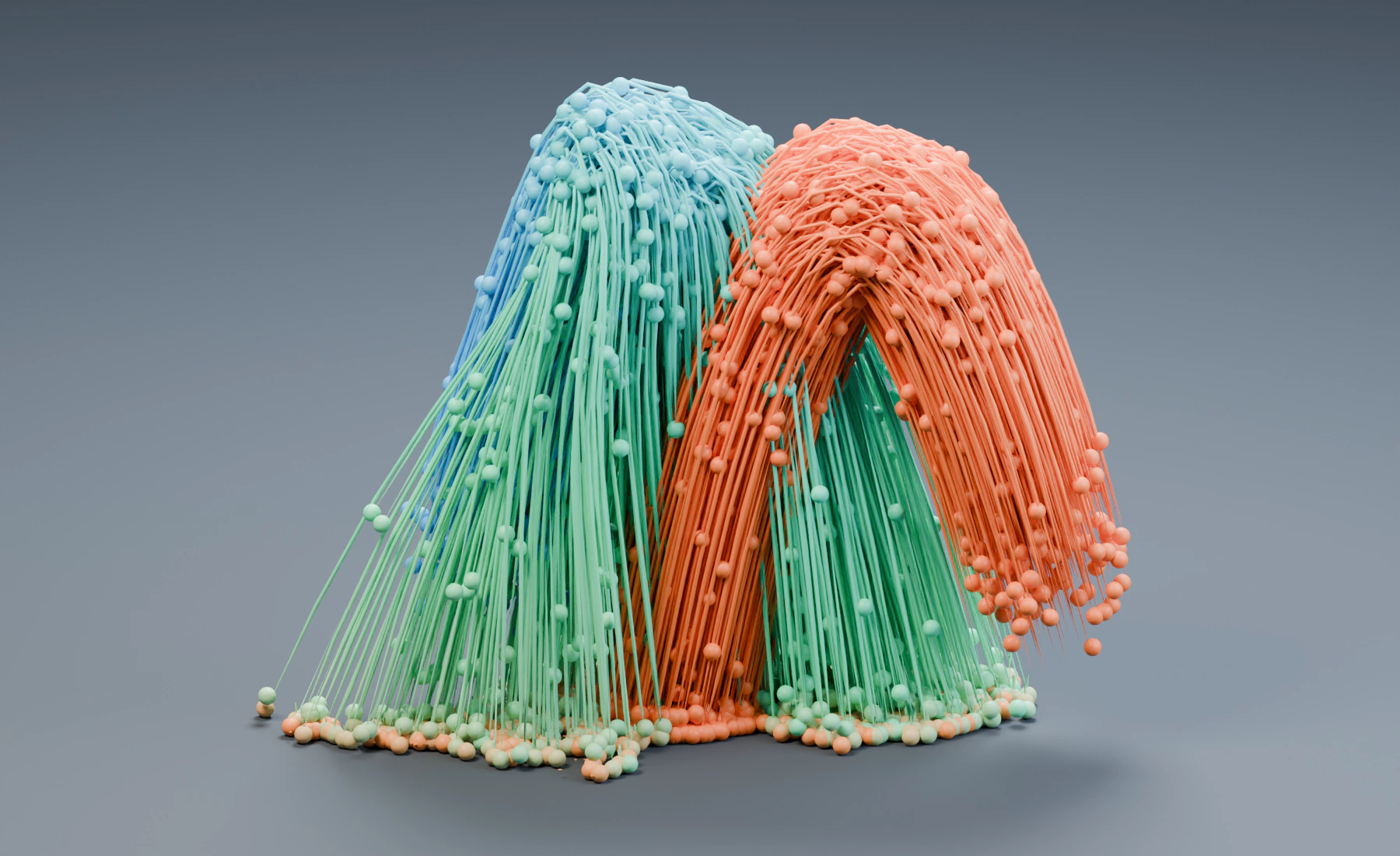
Replay the connected graph
Replay from frame 1. Both fountains should keep the motion, colors and outputs configured in the earlier lessons. Links define order; moving a node without changing links does not change simulation. Only connected branches contribute.
Save the graph checkpoint. Switch back to Lists for lessons 11–12, which continue from the preserved lesson 9 document.
Troubleshooting
- No geometry: connect each post effect's Result to Simulation Output Geometry as well as the final particle stream to Particles.
- A branch is red: read Graph Diagnostics; check socket types and the final merged stream.
- Lists edits seem ignored: only the active Lists or Nodes setup runs.
Reference: Authoring modes, Node reference.
Previous: 9. Map Particle Age to Strength · Next: 11. One Conditional Action