Sand Pickup with FLIP and Granular
Use a FLIP wave tank to move a separate granular sand bed through a Flow Field.
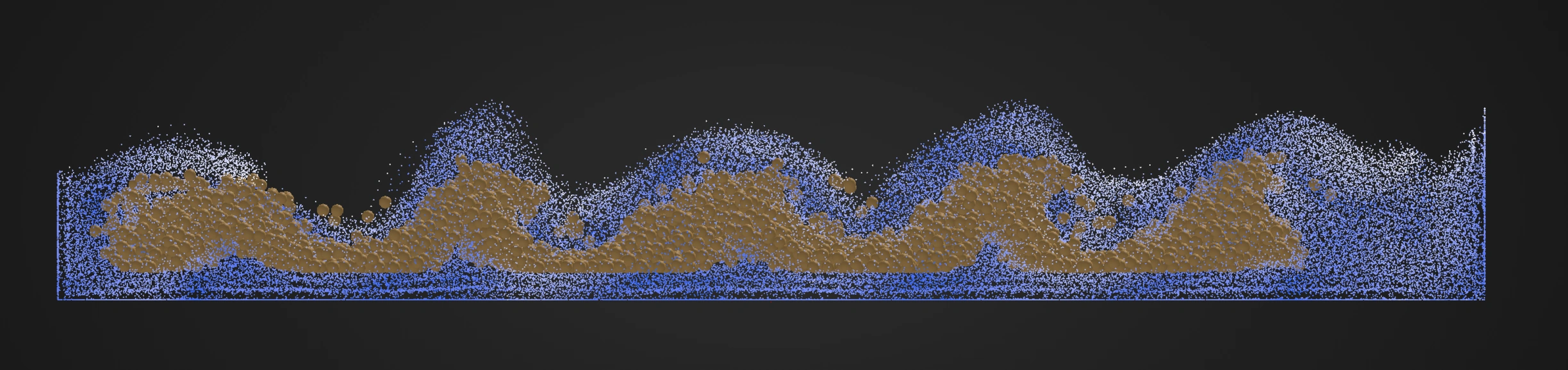
Reference setup from the demo
Use 30 fps, frames 1–120, and Substeps 1. The dimensions, wave and material values below come from 03_flip_sand_pickup.blend. The following steps build a wave-driven pickup setup with those values. Water and Sand have separate groups and Emitters; only Sand has an emitting mesh source.
| Part | Settings |
|---|---|
| FLIP Domain | 10 × 4 × 3 m, center (0, 0, 1.5) |
| Water profile | Water group, Radius 0.04 m, Lifetime 1000 frames |
| FLIP Fluid | Water group, Voxel Size 0.16 m, Prefill enabled, Level 30%, Hexagonal packing, Water Profile selected |
| Liquid behavior | Balanced quality, FLIP Ratio 0.96, Viscosity 0, Surface Tension 0.08, Vorticity 0.18 |
| FLIP substeps | Adaptive enabled, CFL 0.8, Minimum 1, Maximum 1 |
| Waves | Enabled, Amplitude 4, Frequency 0.52, Randomize 0.16, Speed 1.3, Surface Band 3, Direction (1, 0, 0) |
| FLIP boundaries | Closed on all six sides |
| Sand source | Box 8.2 × 3.5 × 0.28 m, center (0, 0, 0.4) |
| Sand fill | Volume Fill Grid, Particle Spacing 0.095 m, Jitter 0.12, Auto Particle Radius off |
| Sand particles | Sand group, Radius 0.045 m, Lifetime 1000 frames, zero Initial Velocity and Surface Push |
| Granular | Sand group, Dry Sand: Stiffness 0.78, Friction 0.35, Cohesion 0, Viscosity 0, Solver Iterations 6, Activation Frames 5 |
| Seabed Collider | Box 20 × 8 × 0.18 m, center Z 0.1089 m; Collision filtered to Sand, Bounciness 0, Friction 0.75 |
| Flow Field Domain | Separate object matching the FLIP Domain dimensions and position |
| Flow Field | Sand group, Voxel Size 0.18 m, Update Every Substep, Apply As Position Offset, Strength 0.4, Max Speed 0.6 |
| Field operation | One FLIP Velocity layer, source FLIP - Water Waves, Splat Radius 0.5 m, Strength 1 |
| Sampling | Linear; Outside Domain Ignore |
| Water color | Change Color filtered to Water, Advanced Color using Speed 0–4.5, blue-to-white ramp |
| Preview Water | Point Cloud filtered to Water, GPU Preview Point, Particle Radius, Radius Scale 0.25 |
| Preview Sand | Separate Point Cloud filtered to Sand, GPU Preview Sphere, Particle Radius, Radius Scale 1 |
Use evaluation order Gravity → Collision → FLIP Fluid → Granular → Flow Field → Change Color. In Lists, Gravity is lowest and Change Color highest in the visible Effects stack. Keep Collision and Granular filtered to Sand, FLIP Fluid and Change Color to Water, Flow Field to Sand, and Gravity applied to All. FLIP supplies the water motion before Flow Field samples it.
The base setup has one FLIP Velocity field layer. Threshold and Remap Magnitude are optional additions described later. Position Offset moves sand without changing its stored velocity; choose Field Drag when the transferred motion should also change velocity.
Water, sand and the Flow Field
FLIP Fluid supplies the water motion. Flow Field samples that motion and applies it to Sand. Granular supplies contact and friction between sand grains. This transfer is one-way: the sand follows the sampled water motion; this setup does not make its movement push water back.
The sand does not become FLIP liquid. Its radius, material, group, and post-effect appearance remain independent of the water particle profile.
1. Build the tank and water profile
- Start a new Lists system and create named groups Water and Sand.
- Create a cube named
FLIP Domain, Dimensions(10, 4, 3), Location(0, 0, 1.5), and apply Scale. - Name the first Emitter
Water Profile, assign Default Group Water, Radius0.04 m, and Lifetime1000frames. Remove or disable its starter source so it does not emit independently. - Add FLIP Fluid, name it
FLIP - Water Waves, and set Apply to Group Water. Select FLIP Domain, enable Pre-Fill Domain, choose Water Profile, Fill Level30%, and Hexagonal packing. - Apply the liquid, Waves, boundary and adaptive-substep settings from the table. Keep Whitewater, Sheeting and Reseeding off for this example.
Prefill supplies the initial water without a source mesh. Fit the domain before increasing resolution. A smaller Voxel Size uses more GPU memory and simulation time.
2. Create an independent sand population
- Create
Sand Bed Source, a cube with Dimensions(8.2, 3.5, 0.28), Location(0, 0, 0.4), and apply Scale. - Add a Particles Emitter named
Sand Bed, assign Default Group Sand, and use that object as a Volume source. Set Grid fill, Spacing0.095 m, Jitter0.12, and Auto Particle Radius off. - Set Start Frame
1, Lifetime1000frames, Radius0.045 m, zero Initial Velocity and Surface Push. Give the grains a sand-colored birth color. - Create
Seabed Collider, Dimensions(20, 8, 0.18), Location(0, 0, 0.1089), and apply Scale. Add Collision using that object, filtered to Sand, Bounciness0, Friction0.75. - Add Granular filtered to Sand and choose Dry Sand with the values in the table. Keep Persistent Bonds off. Add Gravity, Force
(0, 0, -9.81), applied to All.
Grid fills the sand bed once at its start frame. Gravity and Granular continue to act after the local transferred water motion weakens. Sand Radius controls grain contact; it does not need to equal the FLIP Voxel Size.
3. Create the Flow Field domain
- Add Flow Field.
- Set Apply to to Group and select
Sand. - Create a separate cube named
Flow Field Domain, Dimensions(10, 4, 3), Location(0, 0, 1.5), and apply Scale. Assign it as the Flow Field Domain. - Set Voxel Size
0.18 m, Update: Every Substep, Apply As: Position Offset, Strength0.4, and Max Speed0.6. - Use Sampling: Linear, Outside Domain: Ignore. These settings match the illustrated setup.
A smaller Flow Field Voxel Size increases the number of field cells in all three dimensions. Fit the domain closely and refine only when the visible pickup needs more detail.
4. Reconstruct FLIP velocity
- Add a FLIP Velocity field layer.
- Select the named FLIP effect under FLIP Source.
- Set Splat Radius
0.5 m, layer Strength1, Blend Mode Add, and Layer Weight1. Splat Radius controls how far sampled water motion reaches around the water particles. - Keep this as the only field layer for the first result. If you need to inspect it, enable Show Field, choose Vectors or Streamlines, and select Selected Layer Result.
If no vectors appear during playback, check that FLIP - Water Waves is enabled, water particles exist on the current frame, and the Flow Field domain covers them.
5. Display and play the pickup
Add Change Color, filtered to Water. Enable Advanced Color and add Speed, range 0–4.5, Blend Mode Normal, Target RGB, with a blue-to-white ramp. Add separate Point Cloud post effects filtered to Water and Sand, using the preview settings above.
Arrange the complete Effects stack in the stated evaluation order, then play from frame 1 through 120. Waves move across the tank and displace the sand bed. The water and sand retain separate colors and groups. Save the setup before trying the variations below.
For Blender rendering, switch both Point Clouds to Blender Geometry. The point display illustrates the two populations; a continuous liquid surface would require a Water-filtered Mesher, as described in Waves with Whitewater.
Optional: remove weak motion and shape the response
Add operations after FLIP Velocity in this order:
- Add Threshold and set its Threshold just above motion that should not disturb settled sand. Vectors below the selected magnitude are removed.
- Add Remap Magnitude when the useful liquid-speed range should produce a different sand-response range.
- Set Input Min and Input Max around the retained field magnitudes.
- Set Output Min and Output Max to the desired transferred magnitude.
- Inspect Final Field in the viewport and confirm that inactive water regions do not drive the sand.
Threshold and Remap are ordered operators. If Remap comes first, weak liquid motion may be enlarged before Threshold sees it. Swapping these operations changes the result.
Optional: change how sand follows the field
Under Particle Response, choose one mode:
- Position Offset moves particles directly by the sampled field without changing stored velocity. This is the mode used by the demo.
- Field Drag pulls sand velocity toward the FLIP field with a rate controlled by Response. Start here when sand should lag behind the water and retain its own motion.
- Steering turns sand toward the field while limiting acceleration with Max Steering Force. Use it when direction should follow water without fully copying velocity.
- Velocity blends directly toward field velocity with Velocity Blend. It produces tighter following and can overpower the granular character if used too strongly.
- Force treats the field as acceleration, which can accumulate speed.
Set overall Strength, then use Max Speed as an optional safety limit. Keep Sampling: Linear for smooth interpolation unless you want to test voxel-stepped motion. Outside Domain: Ignore leaves sand under gravity and Granular after it exits the transfer region; Fade provides a gradual boundary when a hard cutoff is visible.
Balance pickup and settling
- Reset and simulate from the scene start.
- Watch the moment water first contacts the sand.
- If using Threshold, adjust it until weak peripheral water stops moving the bed.
- Adjust Flow Field Strength until moving water can lift or carry exposed grains. Response applies to Field Drag; it does not control Position Offset.
- Watch grains after they leave strong flow. Gravity and Granular should become dominant again.
- If sand follows water too exactly, reduce Velocity Blend, switch to Field Drag, lower Response, or reduce the Remap output range.
- If sand never moves, verify the final field visualization before increasing Strength. Lower Threshold if that optional operation is enabled.
Tune the transfer before changing the Granular preset. Granular defines the sand material; Flow Field defines how strongly water motion is communicated to it.
Nodes version
- Create a Volume Source for Sand Bed and a Water Profile Emitter with independent emission disabled. Merge both Emitter particle outputs with Merge Disjoint Streams.
- Add a Flow Field node filtered to the Sand group.
- Add FLIP Velocity. Add Threshold and Remap Magnitude only when the optional magnitude processing is needed.
- Chain their Previous connections in source-to-operation order and connect the final component to Field Operations.
- Select the FLIP effect in the FLIP Velocity component.
- Connect the complete merged stream through Gravity → Collision → FLIP Fluid → Granular → Flow Field → Change Color, using the same group filters. Feed the final stream to both Point Clouds and Simulation Output / Particles; connect both Result outputs to Simulation Output / Geometry.
Component connections set the field operation order; moving nodes does not change it.
Resolution and performance
FLIP Voxel Size, Flow Field Voxel Size, sand particle Radius, and final display size are four independent controls.
- Finer FLIP voxels increase the liquid grid cost.
- Finer Flow Field voxels increase transfer-grid cost.
- Smaller sand particles increase particle count and Granular neighborhood work.
- Display size can change appearance without fixing an incorrect physical Radius.
Choose each resolution for the feature it represents. Matching all values numerically is not required.
Troubleshooting
- Sand moves outside the water: Inspect the final Flow Field, reduce Splat Radius, raise Threshold, or use Outside Domain Ignore.
- The field is empty: Select an enabled FLIP effect, check that water particles are present on the current frame, and fit the Flow Field domain around them.
- Pickup is delayed or stepped: Try Every Substep for the Flow Field, increase simulation substeps, or refine the field only if the displayed vectors lack the required temporal or spatial detail.
- Sand never settles again: Reduce field Response/Strength, raise Threshold, or use a finite domain with Ignore/Fade outside behavior.
- Sand loses its granular character: Avoid a full Velocity Blend. Use Field Drag or Steering so Granular and gravity retain influence.
- Performance is poor: Tighten both domains, increase Flow Field Voxel Size, reduce Splat Radius if it is broader than necessary, and review sand count and Granular iterations separately.
See FLIP Fluid, Granular, and Flow Field for their complete controls.