Particle Sheet Caught on a Ring
Launch a sheet of ordinary particles sideways into a standing torus. Persistent Structural Links keep the sheet connected while parts pass through the opening and hang freely.
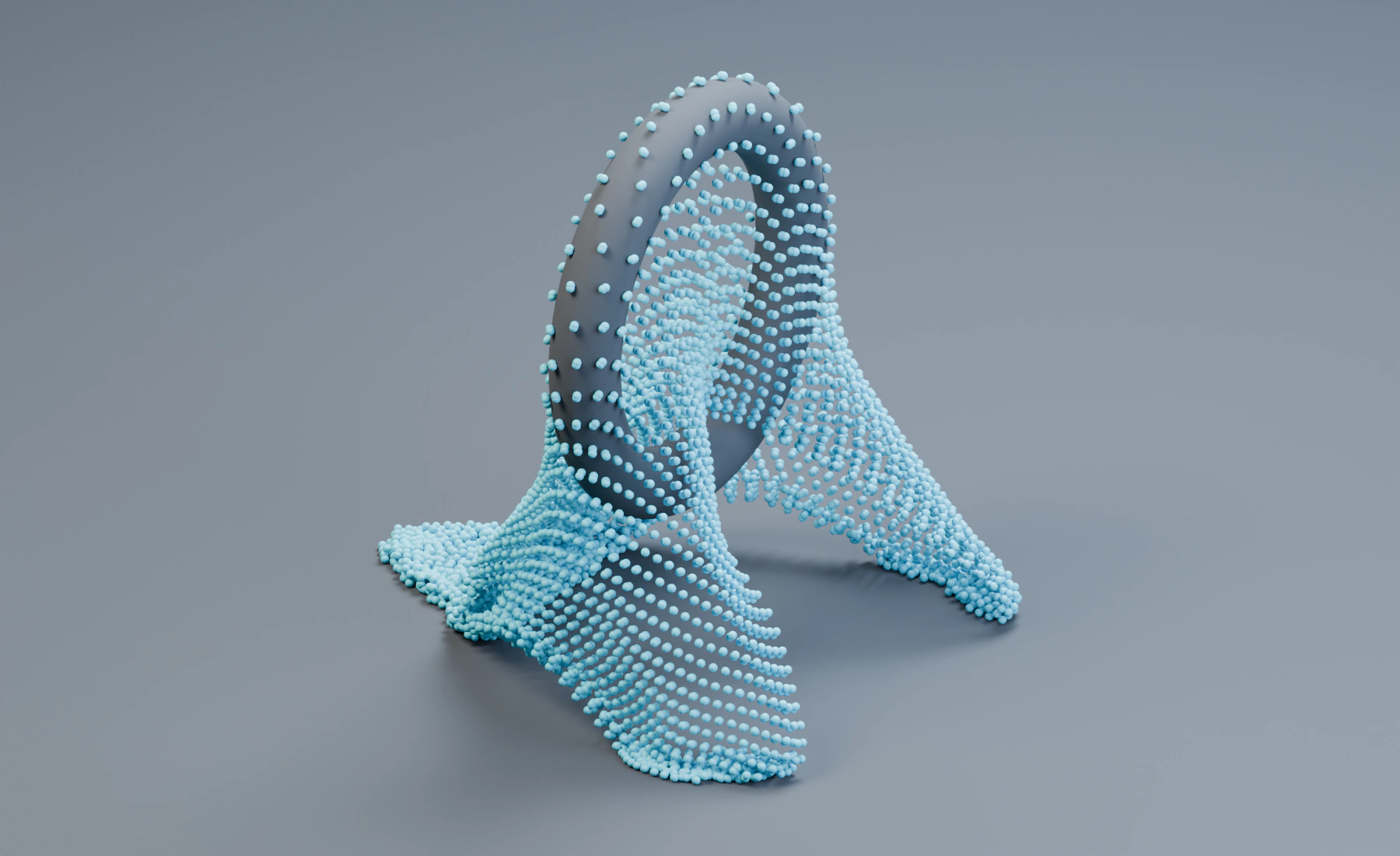
The visible beads are ordinary particles displayed with Point Cloud. Particle Constraints connects them so the sheet can carry a load, but it does not create a fabric surface between them. Use the Cloth tutorial when the source should remain a continuous mesh.
Reference setup
Use 30 fps, Substeps 8, and frames 1–75. Apply object scale before simulation.
| Part | Settings |
|---|---|
| Sheet source | Closed box, dimensions (0.1, 3.9, 3.9) m, center (-2.8, 0, 3.35) |
| Emitter | Ordinary Particles, Volume source, Grid, Spacing 0.065 m, Jitter 0, Auto Particle Radius off |
| Timing and size | Start Frame 1, Duration 1, Lifetime 400, Radius 0.026 m, Radius Random 0 |
| Launch | Initial Velocity (7, 0, 0) m/s, Surface Push 0 |
| Ring | Torus, Major Radius 1.15 m, Minor Radius 0.22 m, center (0, 0, 2.3); rotate 90° around Y so its opening faces X |
| Ground | Box 20 × 20 × 0.3 m, center (0, 0, -0.15) |
| Collision | Collection containing ring and ground; Bounciness 0, Friction 0.8 |
| Particle Constraints | Structural Links, Search Radius 0.1 m, Minimum Distance 0, Max Links 8, Creation On Birth, Relink Broken off |
| Link response | Stiffness 0.9, Damping 0.25, Break Mode Disabled, Iterations 16; leave Max Correction automatic |
| Output | Point Cloud, Particle Radius and Particle Color; Blender Geometry for rendering |
This grid fill produces 7,442 particles. Grid fills the source at its start frame; Rate does not set this count. Keep the source a closed volume with enough thickness for the grid to sample its interior. A flat plane is not a Volume source.
1. Form a connected sheet at birth
- Start a new Lists system. Create a cube named
Sheet Sourcewith the dimensions and location above, and apply Scale. - Assign it as the Emitter's Volume source. Choose Grid fill and enter the spacing, timing, radius and launch values in the table. Keep lifetime Variation and Random Velocity at
0, and use a turquoise birth color. - Add the torus with
96major segments and24minor segments, plus the Ground cube. Apply Scale and place both in a collection namedDrape Collidersusing M > New Collection. This collection will be selected by Collision.
Keep the initial positions regular. Grid with Jitter 0 gives neighboring particles predictable distances. Search Radius 0.1 m covers the 0.065 m grid spacing and its immediate diagonal. A much larger radius creates longer connections and changes how the sheet folds.
Choose On Birth so the original neighborhood defines the material. Continuous creation could connect folds that meet later and make the sheet weld to itself. Keep breaking disabled for this first setup.
2. Launch into the ring
Add Gravity → Collision → Particle Constraints in evaluation order, entering the table's values on each effect. Use Gravity Force (0, 0, -9.81). In Collision, enable collection selection and choose Drape Colliders. In Lists, Effects evaluate from the bottom of the visible list upward. The ring remains stationary; the emitter supplies the sideways velocity.
Play from frame 1 after changing the source, launch velocity, or link settings. Scrubbing directly to a later frame does not build the missing simulation history.
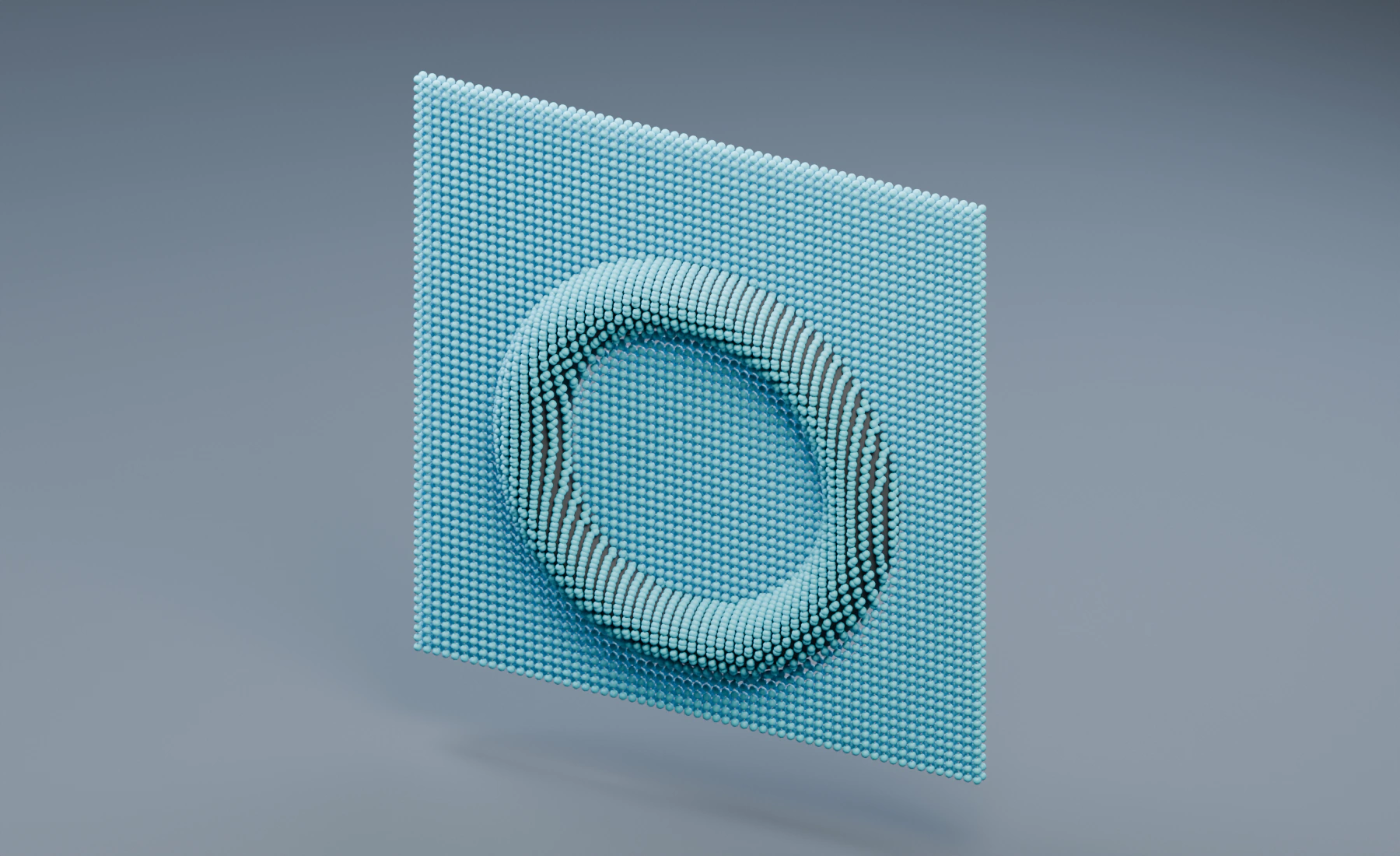
3. Let the folds settle
Keep Point Cloud using Particle Radius and Particle Color, with Blender Geometry for rendering. Play through frame 75: the sheet meets the ring, folds around it and hangs through the opening. Gravity pulls the free regions down while linked neighbors resist separation. Ground supports some lower folds. Save the completed setup before tuning the links.
Compare the side and three-quarter views before changing the simulation. The camera, area lights, and extended studio floor change presentation only.
Nodes workflow
Connect Volume Source → Emitter → Gravity → Collision → Particle Constraints. Feed the final particle output to Point Cloud and Simulation Output / Particles; connect Point Cloud Result to Simulation Output / Geometry. Set the same source and constraint values in the Inspector and select Drape Colliders for Collision. Lists and Nodes keep separate settings.
Tune the behavior
- Sheet separates into loose patches: check the initial spacing and Search Radius. Random surface samples do not guarantee a connected grid.
- The whole sheet shoots through: increase Substeps for the launch speed and verify the torus is in the Collision collection.
- It slides off: first check alignment, launch speed, and Collision Friction. Links connect particles to one another; they do not pin particles to the collider.
- It behaves too rigidly: lower Stiffness or Iterations, then replay. Iterations also increase simulation cost.
- Add stretch or tearing: switch to Elastic Links for separate compression/stretch response, or enable a break mode on Structural Links. These are extensions of the setup, not settings used in the illustrated run.
This particle network has no cloth bending model or self-contact. For fabric folds, pins, and mesh-based cloth controls, use a Cloth emitter.