5. Birth Color and Lifetime Color
Use Advanced Color in Change Color to show a particle aging through a ramp.
Use the fountain with ground contact
Continue from lesson 4 and save as 05-lifetime-color.blend. Keep the Emitter's constant blue birth Color.
Add the age ramp
- Add Change Color after Collision in evaluation order.
- Enable Use Advanced Color and add an Age layer.
- Set Blend Mode: Normal and Target: RGB.
- Use a three-stop ramp: blue at
0, mint green at0.5, orange at1. Keep alpha1and interpolation Linear. - Confirm Point Cloud uses particle Color and replay to
72.
For the illustration's colors, enter these sRGB hex values in Blender's picker: blue #2C99F9, mint #2CEDB3, orange #FF812C.
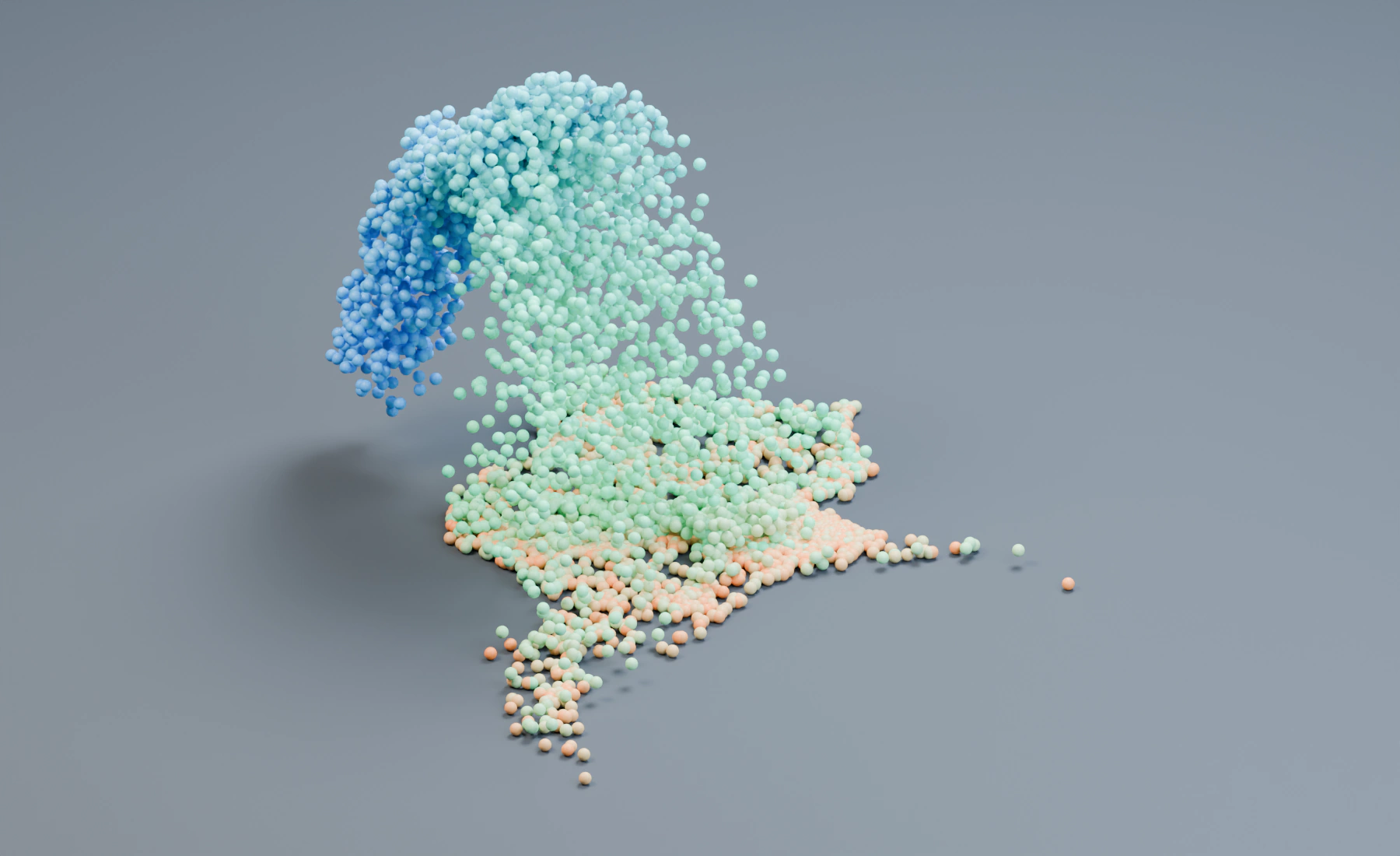
Color changes during particle life
New particles are blue, middle-aged particles green, and particles near the end of their 48-frame life orange. Age in Advanced Color is normalized lifetime: 0 at birth and 1 at death.
Emitter Color, including Emitter Advanced Color, is assigned at birth. Change Color evaluates during simulation and updates existing particles. An Age ramp only on the Emitter gives births the beginning of the ramp without updating them later.
Optional: compare birth color with changing color
Disable Change Color. Enable Emitter Use Advanced Color and add Random with a blue-to-orange ramp, Seed 17. Replay: individual birth colors should remain stable. Restore constant blue birth Color and the Age-based Change Color before continuing.
Troubleshooting
- Everything is blue: confirm Age belongs to Change Color and playback has advanced.
- The render ignores color: use particle Color in the output and a material that reads it, covered next.
- Birth color shows through: inspect Blend Mode, Target and alpha.
Reference: Advanced Color.
Previous: 4. Add Ground Contact · Next: 6. Points, Trails and Instances